Sharing Custom Mazes in Wall Maze+#
Wall Maze+ lets you edit and share custom mazes directly in the VEXcode VR Enhanced Playground, using the buttons on the left side of the Playground window.
Edit a Maze#
Select Edit Maze button to open the Maze Editor.
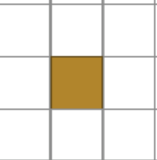
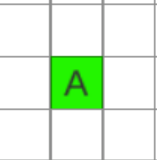
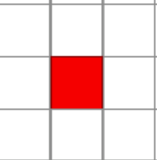
Clicking squares on the grid will let you cycle through an empty space, a wall, a starting position, or the ending goal:
Visual Depiction |
Type of Square |
|---|---|
|
Wall |
|
Empty space |
|
Starting position, max of 5 |
|
Ending goal, max of 5 |

Save a Maze#
To save a custom maze, select the Save Maze button from the Maze Editor’s options.
Upload a Custom Maze#
Upload a custom maze by selecting the Upload Maze button.