
Robot Specific Blocks#
All standard VEXcode VR Blocks are available for use in the VIQRC Virtual Skills - Pitching In Playground.
Motion#
This Playground’s Blocks will have access to the IntakeMotor, CatapultMotor, and CatapultTensionMotor parameters for all Motion blocks.
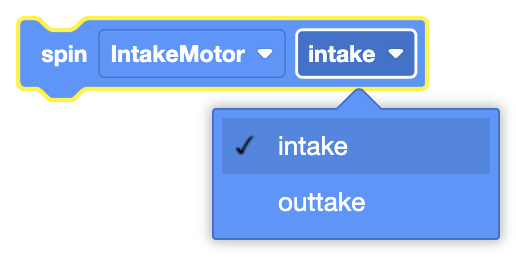
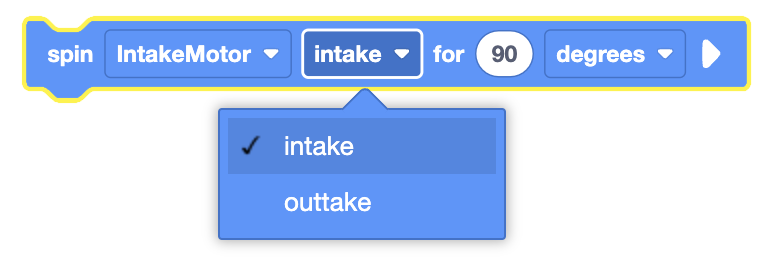
When selecting a direction for Motion blocks, intake will spin the motor group forward and outtake spins the motor group in reverse.
Spin#
The Spin block is used to spin a motor indefinitely.
This is a non-waiting block and allows any subsequent blocks to execute without delay.
girar [IntakeMotor v] [consumo v]
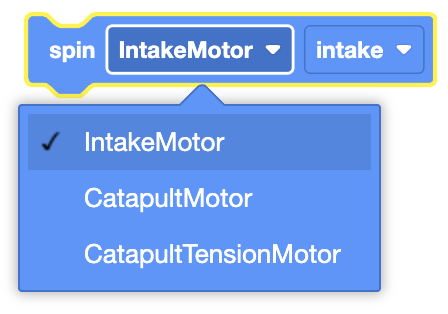
Select which motor to use.
Select which direction for the motor to move in.
In this example, the intake motors will spin in the intake direction for 1 second before stopping.
cuando empezó
[Spin Intake Motor in the intake direction indefinitely.]
girar [IntakeMotor v] [consumo v]
[Wait 1 second.]
esperar (1) segundos
[Stop the Intake Motor from moving.]
parada [IntakeMotor v]
Spin for#
The Spin for block is used to spin a motor for a given distance.
This is can be a non-waiting or waiting block depending on if the and don’t wait option is used.
girar [IntakeMotor v] [consumo v] por [90] [grados v] ▶
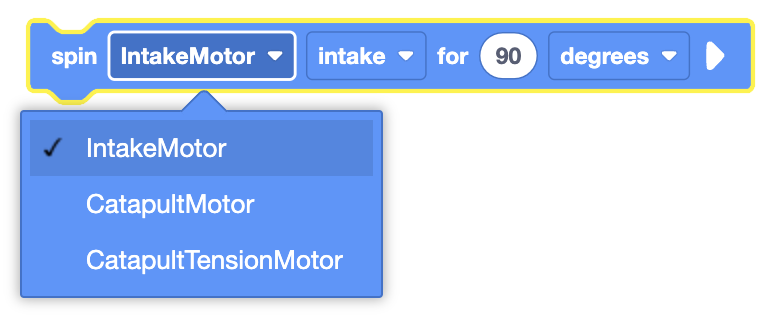
Select which motor to use.
Select which direction for the motor to move in.
Set how far the motor will spin by entering a value, and choosing the unit of measurement (degrees or turns).
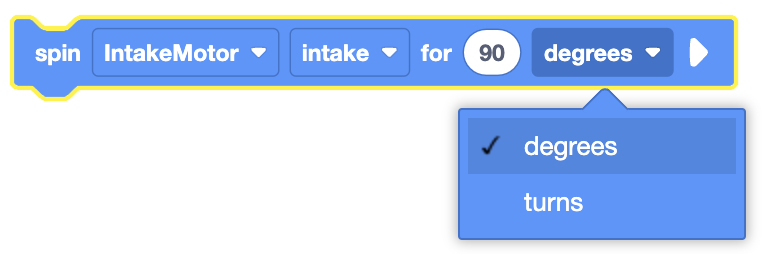
By default, the Spin for block will block any subsequent blocks from executing until it’s finished. By expanding the Spin for block to show and don’t wait, blocks will continue to execute while the motor is moving.
girar [IntakeMotor v] [consumo v] por [90] [grados v] ◀ y no esperes
In this example, the intake motor will spin in the intake direction for 180 degrees.
cuando empezó
girar [IntakeMotor v] [consumo v] por [1] [giros v] ▶
Spin to position#
The Spin to position block is used to spin a motor to a set position.
This is can be a non-waiting or waiting block depending on if the and don’t wait option is used.
girar [IntakeMotor v] a la posición [90] [grados v] ▶
Select which motor to use.
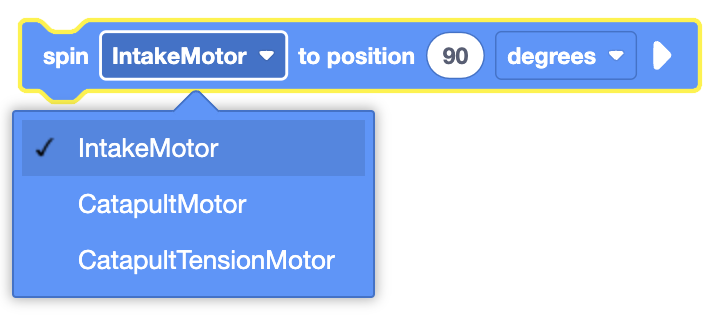
Set how far the motor will spin by entering a value, and choosing the unit of measurement (degrees or turns).
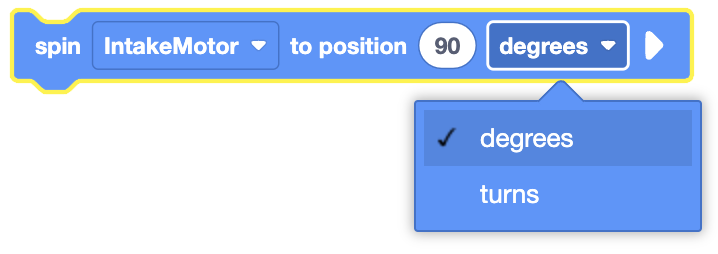
By default, the Spin to position block will block any subsequent blocks from executing until it’s finished. By expanding the Spin to position block to show and don’t wait, blocks will continue to execute while the motor is moving.
girar [IntakeMotor v] a la posición [90] [grados v] ◀ y no esperes
In this example, the intake motor will spin to the 180 degrees position.
cuando empezó
girar [IntakeMotor v] a la posición [180] [grados v] ▶
Stop Motor#
The Stop Motor block is used to stop the motor from moving.
This is a non-waiting block and allows any subsequent blocks to execute without delay.
parada [IntakeMotor v]
Select which motor to use.
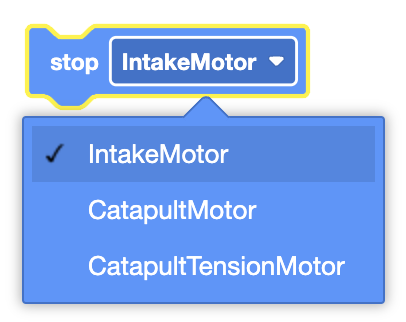
In this example, the intake motors will spin in the intake direction for 1 second before stopping.
cuando empezó
[Spin Intake Motor in the intake direction indefinitely.]
girar [IntakeMotor v] [consumo v]
[Wait 1 second.]
esperar (1) segundos
[Stop the Intake Motor from moving.]
parada [IntakeMotor v]
Set Motor position#
The Set Motor position block is used to set a motor’s encoder position(s) to the entered value.
This is a non-waiting block and allows any subsequent blocks to execute without delay.
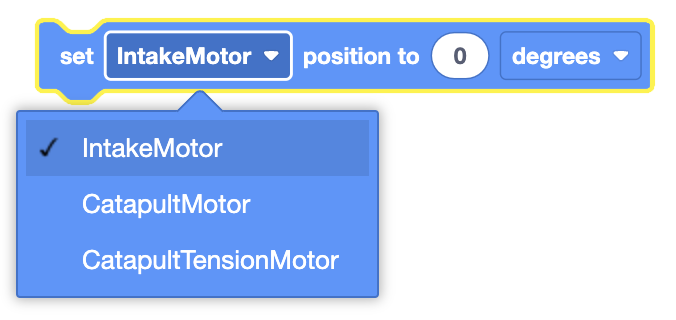
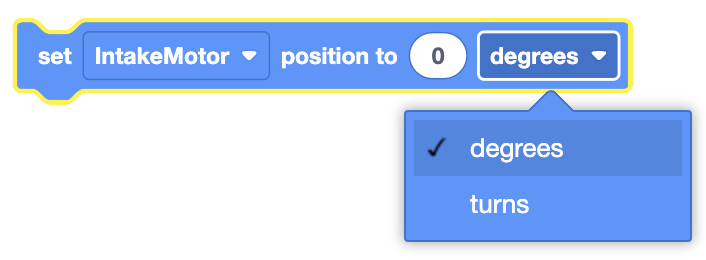
Establezca la posición [IntakeMotor v] en [0] [grados v]
Select which motor to use.
Set the unit of measurement to use, degrees or turns.
In this example, the Motor’s encoder position is set to 90 degrees before the motor spins to the 0 degrees position.
cuando empezó
[Set current Intake Motor position to 90 degrees.]
Establezca la posición [IntakeMotor v] en [90] [grados v]
[Spin the Intake Motor to the 0 degrees position.]
girar [IntakeMotor v] a la posición [0] [grados v] ▶
Set Motor velocity#
The Set Motor velocity block is used to set the speed of a motor.
This is a non-waiting block and allows any subsequent blocks to execute without delay.
Establezca la velocidad [IntakeMotor v] en [50] [% v]
Select which motor to use.
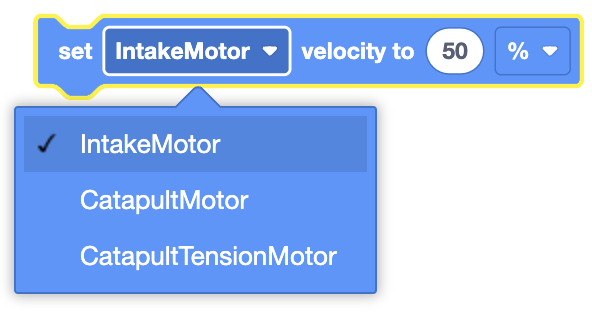
The Set Motor velocity block will accept a range of -100% to 100%.
In this example, the Motor’s velocity is set to 75% before it spins for 1 turn in the intake direction.
cuando empezó
[Set Catapult Motor velocity to 75%.]
Establezca la velocidad [CatapultMotor v] en [75] [% v]
[Spin the Catapult Motor to 90 degrees.]
girar [CatapultMotor v] a la posición [90] [grados v] ▶
Set Motor timeout#
The Set Motor timeout block is used to set a time limit for VEX IQ Motor movement blocks.
This prevents motion blocks that do not reach their intended position from preventing subsequent blocks from running.
This is a non-waiting command and allows any subsequent commands to execute without delay.
Establezca el tiempo de espera [IntakeMotor v] en [1] segundo
Select which motor to use.
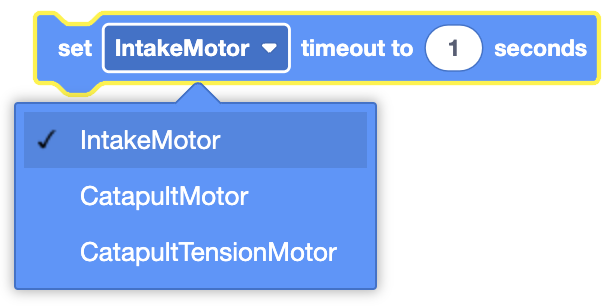
In this example, the motor timeout is set to 2 seconds before it spins the motor for 3 turns in the outtake direction.
cuando empezó
[Set the Intake Motor timeout to 2 seconds.]
Establezca el tiempo de espera [IntakeMotor v] en [2] segundo
[Spin the Intake Motor for 3 turns in the outtake direction.]
girar [IntakeMotor v] [descartar v] por [3] [giros v] ▶
Sensing#
Fling has access to the standard Brain, Drivetrain, Bumper, Distance Sensing Blocks.
Motor Sensing#
Motor is done#
The Motor is done block is used to report if the selected Motor or Motor Group has completed its movement.
<[IntakeMotor v] ¿está hecho?>
Select which Motor or Motor Group to use.
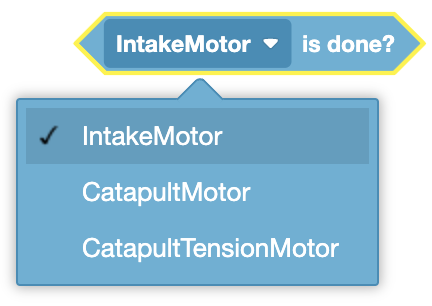
The Motor is done block reports True when the selected Motor or Motor Group has completed its movement.
The Motor is done block reports False when the selected Motor or Motor Group has not completed its movement.
The Motor is done block is used in blocks with hexagonal (six-sided) spaces.
Example coming soon.
Motor is spinning#
The Motor is spinning block is used to report if the selected Motor or Motor Group is moving.
<[IntakeMotor v] esta girando?>
Select which Motor or Motor Group to use.
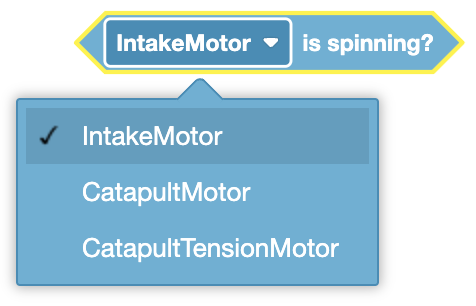
The Motor is spinning block reports True when the selected Motor or Motor Group is moving.
The Motor is spinning block reports False when the selected Motor or Motor Group is not moving.
The Motor is spinning block is used in blocks with hexagonal (six-sided) spaces.
Example coming soon.
Position of motor#
The Position of motor block is used to report the position of a Motor or the first motor in a Motor Group.
([IntakeMotor v] posición en [grados v])
Select which Motor or Motor Group to use.
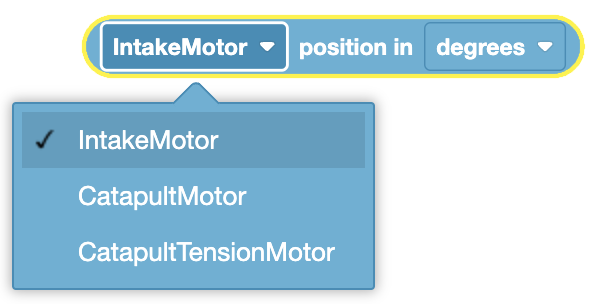
Select when unit to use, degrees or turns.
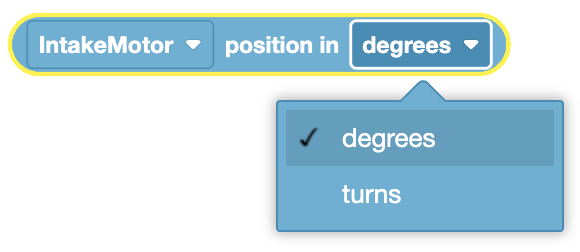
The Position of motor block is used in blocks with circular spaces.
Example coming soon.
Velocity of motor#
The Velocity of motor block is used to report the current velocity of a Motor or the first motor in a Motor Group.
([IntakeMotor v] velocidad en [grados v] :: custom-motion)
Select which Motor or Motor Group to use.
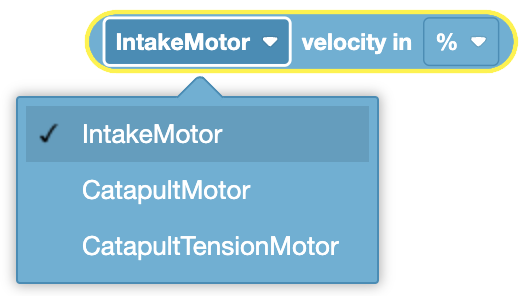
The Velocity of motor block is used in blocks with circular spaces.
Example coming soon.
Color Sensing#
Object is near#
The Object is near block is used to report if the Color Sensor detects an object nearby.
<[Color v] Encontraste un objeto?>
The Object is near block reports True when the Color Sensor detects an object or surface close to the front of the sensor.
The Object is near block reports False when the Color Sensor detects empty space in front of the sensor.
The Object is near block is used in blocks with hexagonal (six-sided) spaces.
Example coming soon.
Color detects#
The Color detects block is used to report if the Color Sensor detects an object nearby.
<[Color v] detecta [rojo v]?>
Select which color the Color Sensor should detect.
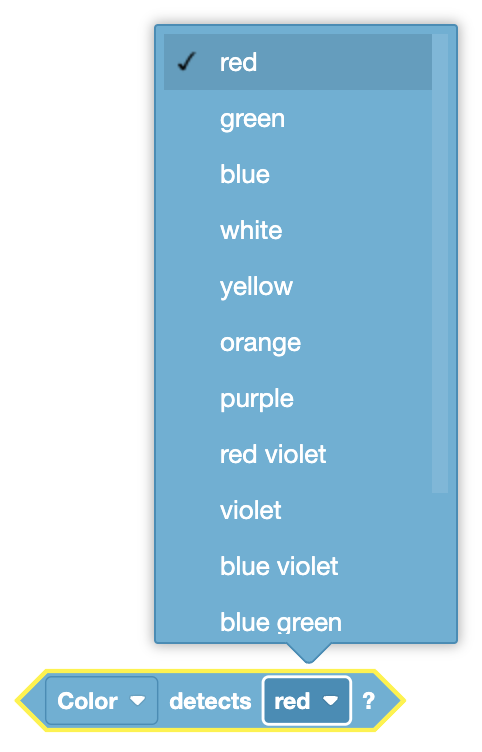
The Color detects block reports True when the Color Sensor detects the selected color.
The Color detects block reports False when the Color Sensor detects a different color than the one selected.
The Color detects block is used in blocks with hexagonal (six-sided) spaces.
Example coming soon.
Color of#
The Color of block is used to report the name of the color detected by the Color Sensor.
([Color v] nombre de color)
The Color of block is used in blocks with circular spaces.
Example coming soon.
Brightness of#
The Brightness of block is used to report the amount of light detected by the Color Sensor.
([Color v] brillo en %)
The Brightness of block is used in blocks with circular spaces.
Example coming soon.
Hue of#
The Hue of block is used to report the hue of the color detected by the Color Sensor.
Hue of reports a range from 0 to 360.
([Color v] tono en grados)
The Hue of block is used in blocks with circular spaces.
Example coming soon.