
Robot Specific Blocks#
The VR Rover has access to the standard VR Drivetrain, Events, Control, Operators, Variables, My Blocks, and Comments blocks.
Drivetrain#
Go to object#
The Go to object block is used to turn and drive the VR Rover to face a specified object.
This is can be a non-waiting or waiting block depending on if the and don’t wait option is used.
ir a [minerals v] %2
Choose which object the VR Rover will go to. This could be minerals, an enemy, or the base.
ir a [minerals v] %2
If the VR Rover detects multiple minerals or multiple enemies, it will move to the closer option.
By default, the Go to object block will block any subsequent blocks from executing until it’s finished. By expanding the Go to object block to show and don’t wait, blocks will continue to execute while the VR Rover is moving.
ir a [minerals v] %2 ◀ y no esperes
In this example, the VR Rover will turn and drive to the closest mineral.
cuando empezó
ir a [minerals v] %2
Action#
Minerals action#
The Minerals action block is used to interact with minerals in the Rover Rescue Playground.
This is a non-waiting block and allows any subsequent blocks to execute without delay.
minerales [levantar v]
Choose what the VR Rover should do with the minerals.
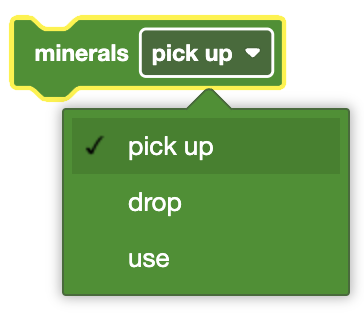
Picking up the minerals will place the minerals in the VR Rover’s storage. It will be carried around until the Minerals action block with either the ‘use’ or ‘drop’ is used in the project.
Using the minerals will replenish some of the VR Rover’s energy, as indicated by the battery icon in the Playground window. Minerals can only be used if they are on the ground.
The VR Rover will earn Experience Points (XP) by using minerals or dropping the minerals at the base.
In this example, the VR Rover will turn and drive to the closest mineral before picking it up.
cuando empezó
ir a [minerals v] %2
minerales [levantar v]
Absorb enemy radiation#
The Absorb enemy radiation block is used to interact with enemies in the Rover Rescue Playground.
This is a non-waiting block and allows any subsequent blocks to execute without delay.
absorber la radiación
In this example, the VR Rover will turn and drive to the closest enemy before absorbing the enemy’s radiation once.
cuando empezó
ir a [enemy v] %2
absorber la radiación
Standby#
The Standby block is used to put the VR Rover into standby mode until the specified battery threshold is reached.
This is a waiting block and will not allow any subsequent blocks to execute until it has finished.
standby until [50] % battery
When in standby, the VR Rover will use its battery slower, but the Number of Days Survived counter will increase at a higher rate.
Once the battery level threshold is reached, the VR Rover will come out of standby, going back to consuming its battery and increasing the Number of Days Survived counter at the normal rate.
Choose the battery threshold value at which the VR Rover will exit standby mode.
standby until [50] % battery
In this example, the VR Rover will enter standby mode and wait until its battery has reached 35% before turning and moving to the closest mineral.
cuando empezó
standby until [35] % battery
ir a [minerals v] %2
Looks#
The VR Rover does not have access to the VR Pen, but it can still print to its Monitor Console.
Events#
When under attack#
The When under attack block is used to run the attached stack of blocks when the VR Rover is being attacked by an enemy.
Cuando está bajo ataque
In this example, the VR Rover will absorb the nearest enemy’s radiation once when it is under attack.
Cuando está bajo ataque
absorber la radiación
When level up#
The When level up block is used to run the attached stack of blocks each time the VR Rover moves from one level to another.
al subir de nivel
In this example, the VR Rover will print to the Print Console a message when it levels up.
al subir de nivel
imprimir [The VR Rover has leveled up!] ◀ y coloque el cursor en la siguiente fila
Sensing#
The VR Rover has access to the standard Brain, Drivetrain, and Distance Sensing Blocks.
Rover sees#
The Rover sees block is used to report whether the VR Rover sees detectable objects using the built-in AI technology.
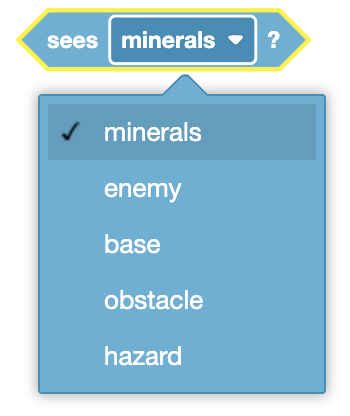
<ve [minerals v]?>
Choose whether to report if the VR Rovers’s built-in AI sees minerals, enemies, base, obstacles, or hazards.
The field of view of the VR Rover is 40 degrees. This can be seen in the mini-map on the Playground indicated by the gray translucent cone from the front of the VR Rover.
The Rover sees block reports True when the selected option is less than 1000 millimeters (MM) away from the VR Rover and within its field of view.
The Rover sees block reports False when the selected option is greater than 1000 millimeters (MM) away from the VR Rover and/or not within its field of view.
The Rover sees block is used in blocks with hexagonal (six-sided) spaces.
In this example, the VR Robot will continuously check if any minerals are seen before turning and moving towards them.
cuando empezó
para siempre
si <ve [minerals v]?> entonces
ir a [minerals v] %2
fin
fin
Rover detects#
The Rover detects block is used to report whether the VR Rover detects an enemy or minerals using the built-in AI technology.
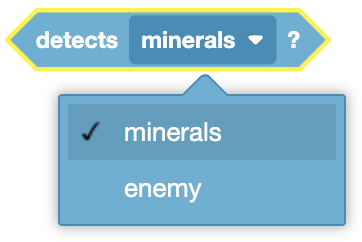
<detecta [minerals v]?>
Choose whether to report if the VR Rovers’s built-in AI detects minerals or enemies.
The detect radius of the VR Rover is 800 millimeters (MM). This can be seen in the mini-map on the Playground indicated by the yellow circle around the VR Rover.
The Rover detects block reports True when the VR Rover detects the selected option.
The Rover detects block reports False when the selected option is not within the detect radius of the VR Rover.
The Rover detects block is used in blocks with hexagonal (six-sided) spaces.
In this example, the VR Robot will continuously check if any minerals are detected before turning and moving towards them.
cuando empezó
para siempre
si <detecta [minerals v]?> entonces
ir a [minerals v] %2
fin
fin
Minerals in storage#
The Minerals in storage block is used to report the current amount of minerals the VR Rover has in its storage.
(minerales almacenados)
The Minerals in storage block is used in blocks with circular spaces.
In this example, the VR Rover will print how many minerals it currently has in its storage.
cuando empezó
imprimir (minerales almacenados) ◀ y coloque el cursor en la siguiente fila
Storage capacity#
The Storage capacity block is used to report the carrying capacity of the VR Rover’s storage.
(capacidad de almacenamiento)
The Storage capacity block is used in blocks with circular spaces.
In this example, the VR Rover will print its current carrying capacity.
cuando empezó
imprimir (capacidad de almacenamiento) ◀ y coloque el cursor en la siguiente fila
Rover direction#
The Rover direction block is used to report the direction from the VR Rover to minerals, enemies, or base using the built-in AI technology in degrees.
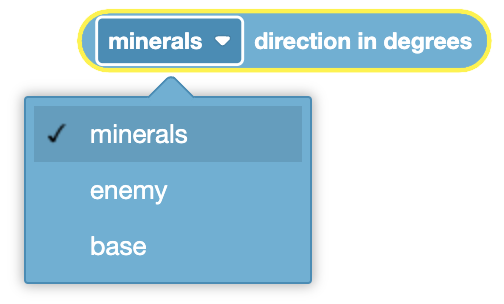
([minerals v] dirección en grados)
Choose whether to report the direction of minerals, enemies, or the base.
The Rover direction block will only work if the enemy or mineral is less than 1000 millimeters (mm) away from the VR Rover and within its 40 degree field of view. This can be seen in the mini-map on the Playground indicated by the gray translucent cone from the front of the VR Rover.
If “base” is selected for the block, the distance will be reported even if the VR Rover’s base is not in the field of view. The VR Rover’s AI technology allows it to always detect the base. This block will report a value from -180 to 180 degrees when reporting the direction to the base.
The Rover direction block is used in blocks with circular spaces.
In this example, the VR Rover will print the current direction from the VR Rover to the closest mineral.
cuando empezó
imprimir ([minerals v] dirección en grados) ◀ y coloque el cursor en la siguiente fila
Rover distance#
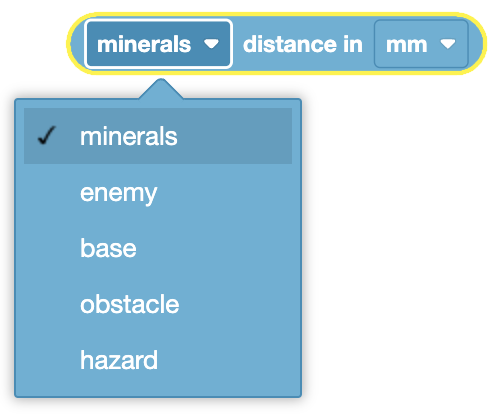
The Rover distance block is used to report the distance from the VR Rover to minerals, enemies, obstacles, hazards, or base using the built-in AI technology.
([minerals v] distancia en [mm v] :: custom-actions)
Choose whether to report the distance of minerals, enemies, obstacles, hazards or the base.
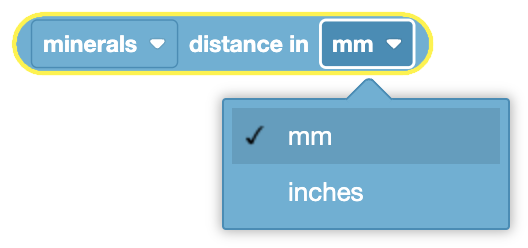
Choose whether the distance is reported in millimeters or inches.
The Rover distance block will only work if the enemy or mineral is less than 1000 millimeters (mm) away from the VR Rover and within its 40 degree field of view. This can be seen in the mini-map on the Playground indicated by the gray translucent cone from the front of the VR Rover.
If “base” is selected for the block, the distance will be reported even if the VR Rover’s base is not in the field of view. The VR Rover’s AI technology allows it to always detect the base.
The Rover distance block is used in blocks with circular spaces.
In this example, the VR Rover will print the current distance from the VR Rover to the closest mineral in millimeters.
cuando empezó
imprimir ([minerals v] distancia en [mm v] :: custom-actions) ◀ y coloque el cursor en la siguiente fila
Rover location#
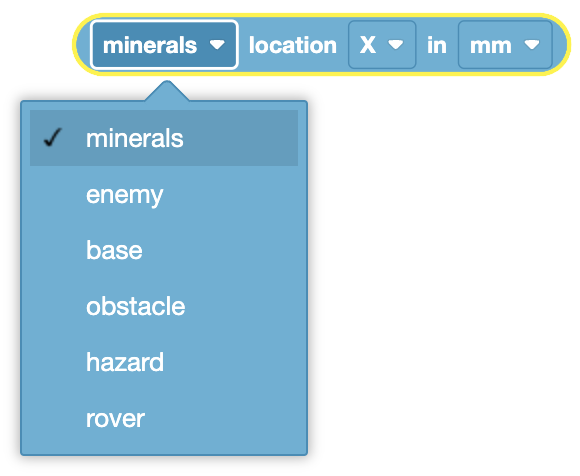
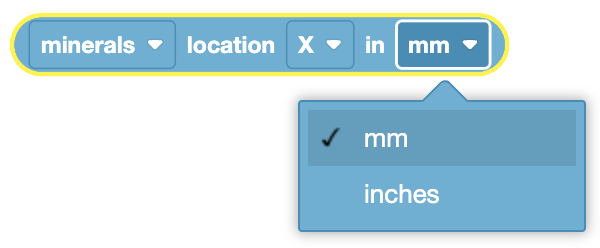
The Rover location block is used to report the X or Y coordinate location of minerals, enemies, obstacles, hazards, or base using the AI technology built into the VR Rover.
([minerals v] ubicación [X v] de cada [mm v])
Choose whether to report the coordinate location of minerals, enemies, obstacles, hazards or the base.
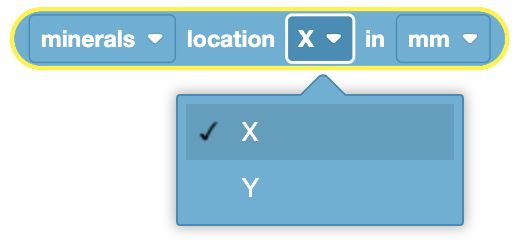
Choose whether to return the X or Y coordinate.
Choose whether the coordinate location is reported in millimeters or inches.
The Rover location block will only work if the enemy or mineral is less than 1000 millimeters (mm) away from the VR Rover and within its 40 degree field of view. This can be seen in the mini-map on the Playground indicated by the gray translucent cone from the front of the VR Rover.
If “base” is selected for the block, the location will be reported even if the VR Rover’s base is not in the field of view. The VR Rover’s AI technology allows it to always detect the base.
The Rover location block is used in blocks with circular spaces.
In this example, the VR Rover will print the X and Y coordinate of the base in millimeters.
cuando empezó
imprimir ([base v] ubicación [X v] de cada [mm v]) ◀ y coloque el cursor en la siguiente fila
imprimir ([base v] ubicación [Y v] de cada [mm v]) ◀ y coloque el cursor en la siguiente fila
Under attack#
The Under attack block is used to report whether the VR Rover is under attack from an enemy or not.
<¿bajo ataque?>
The Under attack block reports True when the VR Rover is under attack from an enemy.
The Under attack block reports False when the VR Rover is not under attack from an enemy.
The Under attack block is used in blocks with hexagonal (six-sided) spaces.
In this example, the VR Robot will continuously check if it is under attack, and if so, move backwards by 500 millimeters.
cuando empezó
para siempre
si <¿bajo ataque?> entonces
unidad [atrás v] para [500] [mm v] ▶
fin
fin
Enemy level#
The Enemy level block is used to report the level of the closest enemy detected in the VR Rover’s vision.
(nivel enemigo)
When no enemies are detected in the VR Rover’s vision range, the Enemy level block returns 0.
The Enemy level block is used in blocks with circular spaces.
In this example, the will continuously check if the closest enemy is level 1. If the enemy is level 1, the VR Rover will approach the enemy, otherwise it will move backwards by 500 millimeters.
cuando empezó
para siempre
si <(nivel enemigo) [math_equal v] [1]> entonces
ir a [enemy v] %2
demás
unidad [atrás v] para [500] [mm v] ▶
fin
fin
Enemy radiation#
The Enemy radiation block is used to report the radiation of the closest enemy detected in the VR Rover’s vision.
(radiación enemiga)
When no enemies are detected in the VR Rover’s vision range, the Enemy radiation block returns 0.
The Enemy radiation block is used in blocks with circular spaces.
In this example, the VR Rover will print the current radiation of the nearest enemy.
cuando empezó
imprimir (radiación enemiga) ◀ y coloque el cursor en la siguiente fila
Battery level#
The Battery level block is used to report the current battery level of the VR Rover as a percent.
(nivel de batería en % :: custom-actions)
The Battery level block is used in blocks with circular spaces.
In this example, the VR Rover will print its current battery level.
cuando empezó
imprimir (nivel de batería en % :: custom-actions) ◀ y coloque el cursor en la siguiente fila
Level#
The Level block is used to report the current level of the VR Rover.
(nivel)
The Level block is used in blocks with circular spaces.
In this example, the VR Rover will print its current level.
cuando empezó
imprimir (nivel) ◀ y coloque el cursor en la siguiente fila
XP#
The XP block is used to report the current number of Experience Points (XP) that the VR Rover has.
(XP)
The XP block is used in blocks with circular spaces.
In this example, the VR Rover will print the current number of Experience Points (XP) it has.
cuando empezó
imprimir (XP) ◀ y coloque el cursor en la siguiente fila