
Screen#
Introduction#
The Screen blocks control how the IQ (1st gen) Brain displays text and values on its built-in screen.
The IQ (1st gen) Brain screen supports up to 5 rows and 21 columns of text.
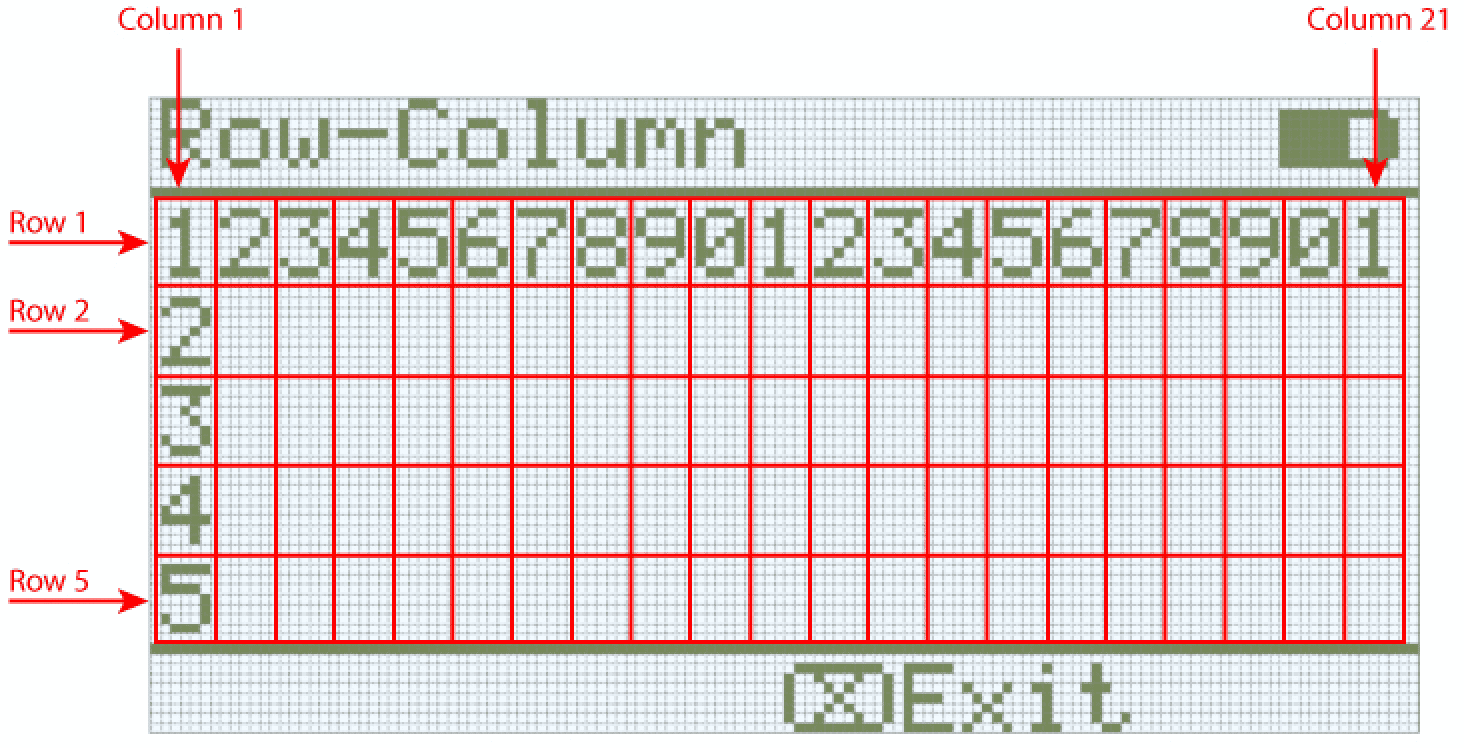
Below is a list of all blocks:
Cursor Print — Display text and values on the brain.
print on screen — Prints text, numbers, or variable values on the Brain screen.
set cursor to row column on screen — Moves the cursor to a specific row and column.
set cursor to next row on screen — Moves the cursor to the next row.
clear row on screen — Clears a specific row.
Settings — Configure screen display properties.
clear screen — Clears the entire screen.
set print precision on screen — Sets how many decimal places to show when printing numbers.
Cursor Print#
print on screen#
The print on screen stack block prints text, numbers, or variable values on the Brain screen at the current cursor position.
print [VEXcode] on screen ▶
Parameters |
Description |
|---|---|
value |
The text, number, or variable value to print on the screen. |
and set cursor to next row |
Select the arrow ( ▶ ) to expand the block to say and set cursor to next row, so the cursor moves to column 1 of the next row after printing. |
Example
    when started
    [Display a message at the starting cursor position.]
    print [Hello, Robot!] on screen ◀ and set cursor to next row
set cursor to row column on screen#
The set cursor to row column on screen stack block moves the cursor to a specific row and column on the Brain screen. The next print on screen block will start printing at that location.
The IQ (1st gen) Brain uses a monospaced font, meaning each character has the same width for consistent text alignment. The IQ (1st gen) Brain screen supports up to 5 rows and 21 columns of text.
set cursor to row [1] column [1] on screen
Parameters |
Description |
|---|---|
row |
The row to move the cursor to. |
column |
The column to move the cursor to. |
Example
    when started
    [Display a message in the middle of the screen]
    set cursor to row (3) column (7) on screen
    print [VEXcode!] on screen ▶

set cursor to next row on screen#
The set cursor to next row on screen stack block moves the cursor to column 1 on the next row on the Brain screen.
set cursor to next row on screen
Parameters |
Description |
|---|---|
This block has no parameters. |
Example
    when started
    [Display two lines of text.]
    print [First Message] on screen ▶
    set cursor to next row on screen
    print [Second Message] on screen ◀ and set cursor to next row

clear row on screen#
The clear row on screen stack block clears a single row of text on the Brain screen.
clear row (1) on screen
Parameters |
Description |
|---|---|
row |
The row number to clear as a whole number. |
Example
    when started
    [Display text on two rows, but only keep one.]
    print [This text stays] on screen ◀ and set cursor to next row
    print [This disappears] on screen ◀ and set cursor to next row
    wait (3) seconds
    clear row (2) on screen
Settings#
clear screen#
The clear screen stack block clears all text and drawings from the brain’s screen.
clear screen
Parameters |
Description |
|---|---|
This block has no parameters. |
Example
    when started
    [Fill the screen, then clear it after 2 seconds.]
    repeat (5)
    print [Line] on screen ◀ and set cursor to next row
    end
    wait (3) seconds
    clear screen
set print precision on screen#
The set print precision on screen stack block sets how many decimal places are shown when numbers are printed on the Brain screen. This print precision will apply to all numbers printed after this block runs.
set print precision to [0.1 v] on screen
Parameters |
Description |
|---|---|
precision |
The print precision to use:
|
Example
    when started
    [Print 1/3 as 0.33.]
    set print precision to [0.01 v] on screen
    print ([1] / [3]) on screen ◀ and set cursor to next row