
Pantalla#
Introducción#
Los bloques de pantalla controlan cómo el procesador IQ (1.ª generación) muestra el texto y los valores en su pantalla integrada.
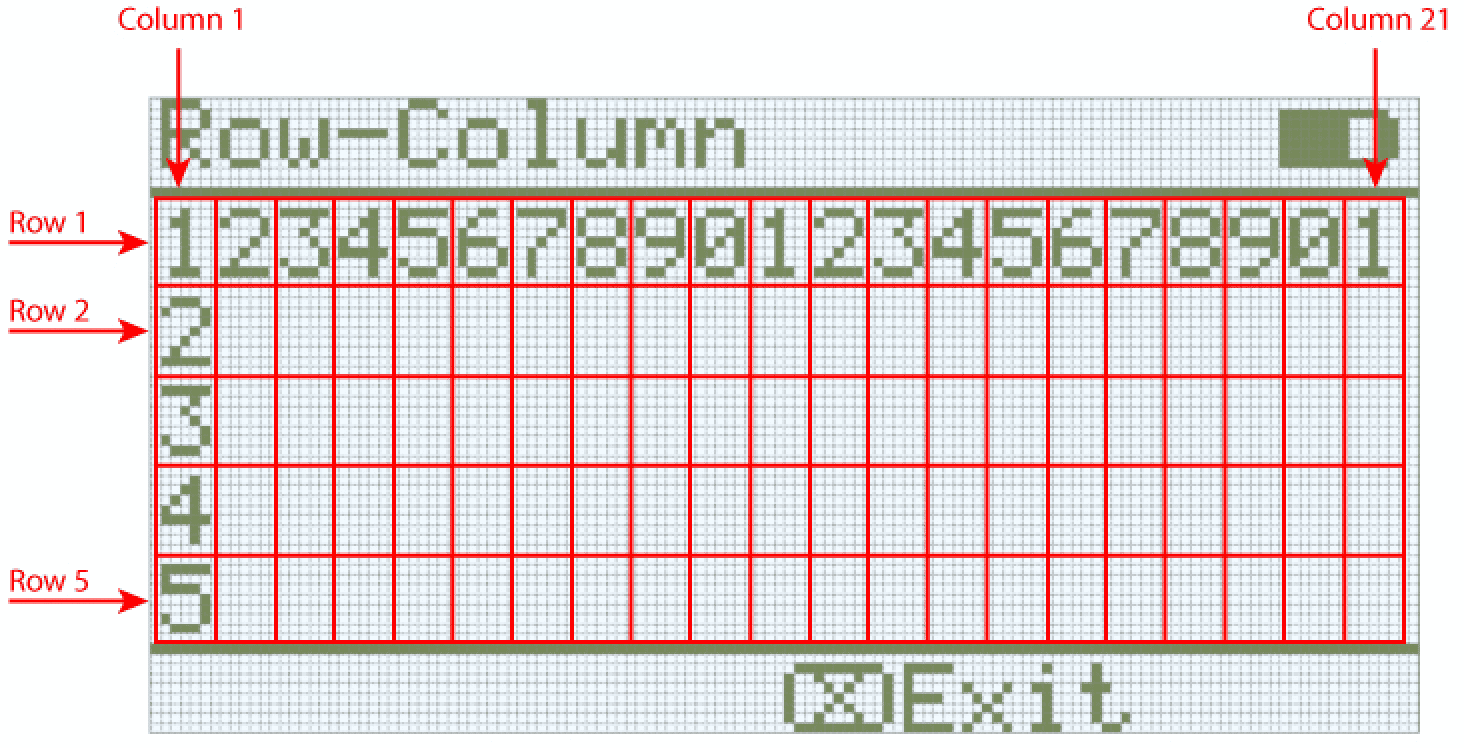
La pantalla cerebral IQ (1.ª generación) admite hasta 5 filas y 21 columnas de texto.
A continuación se muestra una lista de todos los bloques:
Impresión del cursor: muestra texto y valores en el cerebro.
imprimir en pantalla — Imprime texto, números o valores de variables en la pantalla del cerebro.
establecer cursor en fila columna en pantalla — Mueve el cursor a una fila y columna específicas.
colocar el cursor en la siguiente fila de la pantalla — Mueve el cursor a la siguiente fila.
borrar fila en pantalla — Borra una fila específica.
Ajustes: configure las propiedades de visualización de la pantalla.
borrar pantalla — Borra toda la pantalla.
establecer precisión de impresión en pantalla — Establece cuántos lugares decimales se mostrarán al imprimir números.
Impresión del cursor#
imprimir en pantalla#
El bloque de pila imprimir en pantalla imprime texto, números o valores de variables en la pantalla del Cerebro en la posición actual del cursor.
imprimir [VEXcode] en pantalla ▶
Parámetros |
Descripción |
|---|---|
valor |
El texto, número o valor de variable que se imprimirá en la pantalla. |
y colocar el cursor en la siguiente fila |
Seleccione la flecha ( ▶ ) para expandir el bloque y decir y colocar el cursor en la siguiente fila, de modo que el cursor se mueva a la columna 1 de la siguiente fila después de imprimir. |
Ejemplo
cuando inicie
[Display a message at the starting cursor position.]
imprimir [Hello, Robot!] en pantalla ◀ y mover cursor a la siguiente fila
Colocar el cursor en la fila o columna de la pantalla.#
El bloque de pila establecer cursor en fila y columna en pantalla mueve el cursor a una fila y columna específicas en la pantalla del cerebro. El siguiente bloque imprimir en pantalla comenzará a imprimir en esa ubicación.
El IQ (1.ª generación) Brain utiliza una fuente monoespaciada, lo que significa que cada carácter tiene el mismo ancho para una alineación de texto uniforme. La pantalla del IQ (1.ª generación) Brain admite hasta 5 filas y 21 columnas de texto.
mover cursor a fila [1] columna [1] en pantalla
Parámetros |
Descripción |
|---|---|
fila |
La fila a la que mover el cursor. |
columna |
La columna a la que se debe mover el cursor. |
Ejemplo
cuando inicie
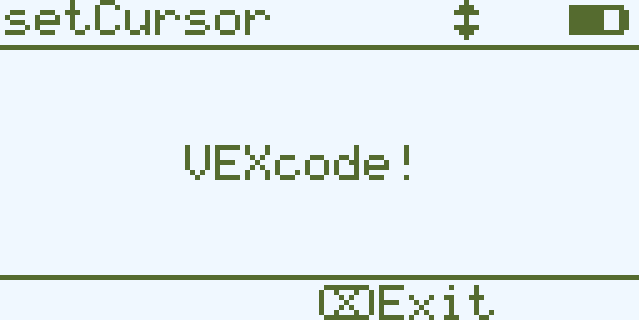
[Display a message in the middle of the screen]
mover cursor a fila (3) columna (7) en pantalla
imprimir [VEXcode!] en pantalla ▶
Colocar el cursor en la siguiente fila de la pantalla.#
El bloque de pila establecer cursor en la siguiente fila de la pantalla mueve el cursor a la columna 1 de la siguiente fila en la pantalla del Cerebro.
mover cursor a la siguiente fila en pantalla
Parámetros |
Descripción |
|---|---|
Este bloque no tiene parámetros. |
Ejemplo
cuando inicie
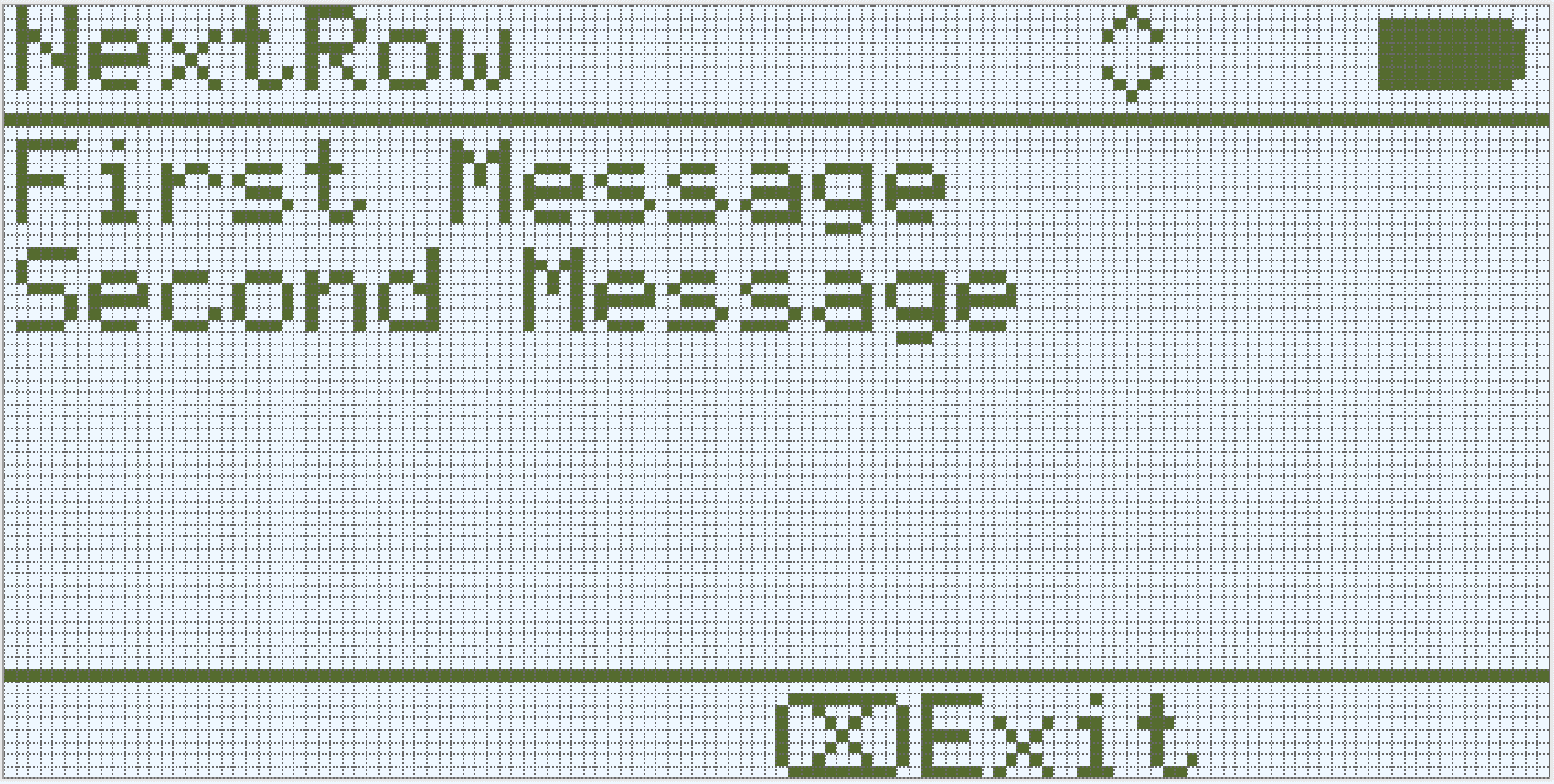
[Display two lines of text.]
imprimir [First Message] en pantalla ▶
mover cursor a la siguiente fila en pantalla
imprimir [Second Message] en pantalla ◀ y mover cursor a la siguiente fila
Borrar fila en la pantalla#
El bloque de pila borrar fila en pantalla borra una sola fila de texto en la pantalla del Cerebro.
limpiar fila (1) en pantalla
Parámetros |
Descripción |
|---|---|
fila |
El número de fila a borrar como un número entero. |
Ejemplo
cuando inicie
[Display text on two rows, but only keep one.]
imprimir [This text stays] en pantalla ◀ y mover cursor a la siguiente fila
imprimir [This disappears] en pantalla ◀ y mover cursor a la siguiente fila
esperar (3) segundos
limpiar fila (2) en pantalla
Ajustes#
pantalla limpia#
El bloque de pila borrar pantalla elimina todo el texto y los dibujos de la pantalla del cerebro.
limpiar pantalla
Parámetros |
Descripción |
|---|---|
Este bloque no tiene parámetros. |
Ejemplo
cuando inicie
[Fill the screen, then clear it after 2 seconds.]
repetir (5)
imprimir [Line] en pantalla ◀ y mover cursor a la siguiente fila
fin
esperar (3) segundos
limpiar pantalla
Ajustar la precisión de impresión en pantalla#
El bloque establecer precisión de impresión en pantalla determina la cantidad de decimales que se muestran al imprimir números en la pantalla del cerebro. Esta precisión de impresión se aplicará a todos los números que se impriman después de que se ejecute este bloque.
establecer precisión de impresión a [0.1 v] en pantalla
Parámetros |
Descripción |
|---|---|
precisión |
Precisión de impresión a utilizar:
|
Ejemplo
cuando inicie
[Print 1/3 as 0.33.]
establecer precisión de impresión a [0.01 v] en pantalla
imprimir ([1] / [3]) en pantalla ◀ y mover cursor a la siguiente fila