Opening a Project#
Opening a Project
This tutorial walks you through opening a saved project in VEXcode 123. By the end, you’ll have your project loaded and ready to work on.
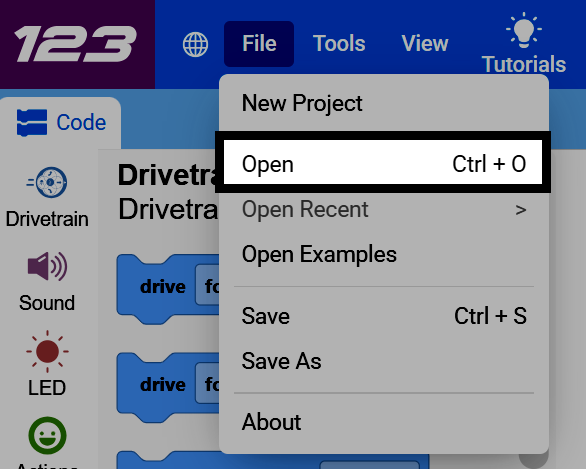
Select File in the top-left of VEXcode, then select Open.
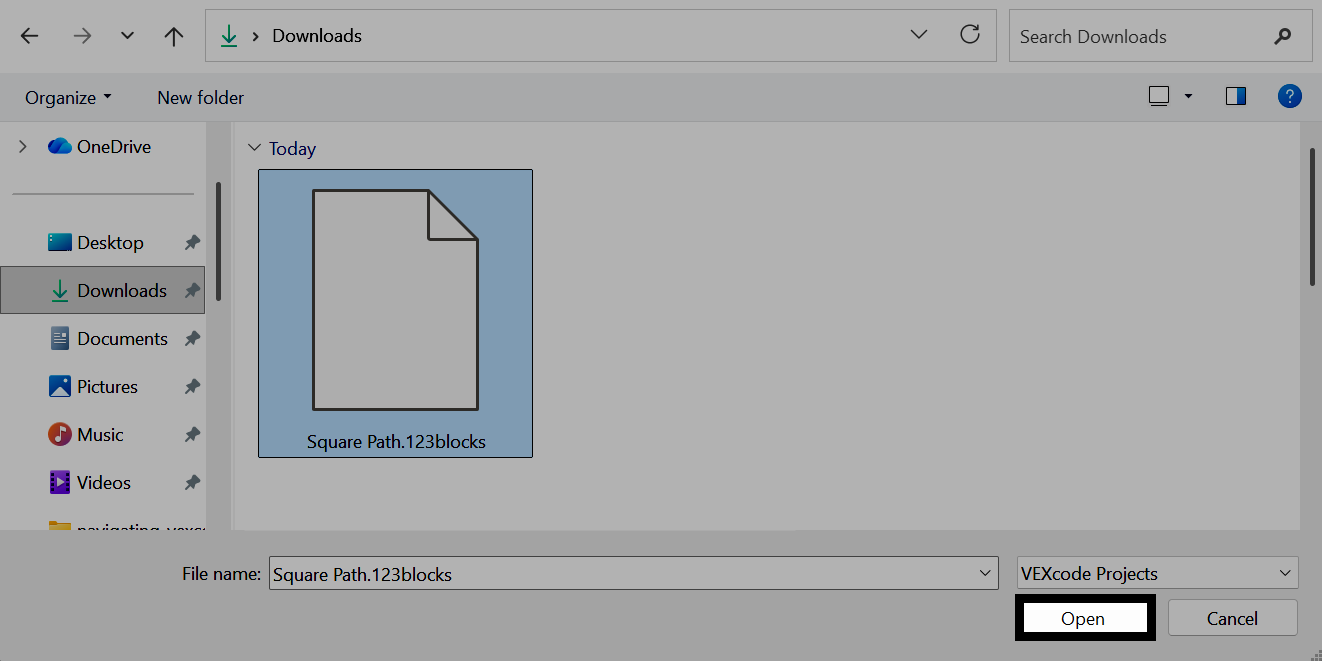
Navigate to and select the project file that you want to open on your device. A Windows device is shown here as an example.
The project will appear in the workspace and the name at the top of VEXcode will change to show the name of the project.