
Moving Your Robot#
Moving Your Robot
This tutorial walks you through using the drive for block to move your VEX 123 Robot forward and backward in VEXcode 123. By the end, you’ll have a project that drives your robot forward, then in reverse.
Attach two drive for blocks below the when started block.
Two drive for blocks connected below when started.#
    when started
        drive [forward v] for (1) [steps v]
        drive [forward v] for (1) [steps v]
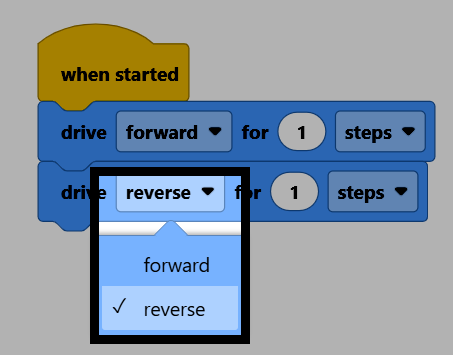
On the second block, change the direction parameter to reverse.
Make sure your robot is connected to VEXcode, then select Start to run the project. The robot will drive forward, then drive the same distance in reverse.
