
Eye#
Introduction#
The VEX GO Eye Sensor can detect objects and colors. It can also report how much light reflects back to the sensor and the hue value of the detected color.
The Eye Sensor has a light that can be turned on or off to help it see objects and colors more clearly. The Eye Sensor can also use a near or far range to detect objects at different distances.
The Eye Sensor can be placed in different positions depending on the build. For example, the Code Base 2.0 - Eye Forward build has the Eye Sensor facing forward. The Code Base 2.0 - Eye Down build, Code Base 2.0 ‑ Eye + Electromagnet, and Super Code Base 2.0 has the Eye Sensor facing down.
Below is a list of all available blocks:
set eye light — Turns the Eye Sensor’s light on or off.
set eye range — Sets how far the Eye Sensor can detect an object.
set eye light power — Set the Eye Sensor’s light power level.
eye found an object — Reports whether or not the Eye Sensor detects an object within range.
eye detects color — Reports whether the Eye Sensor detects a specific color.
eye brightness — Reports the brightness detected by the Eye Sensor.
eye hue — Reports the hue detected by the Eye Sensor.
set eye light#
The set eye light stack block turns the Eye Sensor’s light on or off. The light can help the Eye Sensor detect objects and colors more clearly.
set eye light [on v]
Parameters |
Description |
|---|---|
state |
The state of the Eye Sensor’s light: on or off. |
Example
  when started :: hat events
  [Build Used: Code Base 2.0 - Eye Forward]
  [Turn the light on and off.]
  forever
  set eye light [on v]
  wait [2] seconds
  set eye light [off v]
  wait [2] seconds
set eye range#
The set eye range stack block sets how far an object can be from the Eye Sensor before it can be detected.
Every project begins with the Eye Sensor set to far range by default.
set eye to [near v] range
Parameters |
Description |
|---|---|
range |
The Eye Sensor’s object detection range. near detects objects up to 18 millimeters away, while far detects objects up to 40 millimeters away. |
Example
  when started :: hat events
  [Build Used: Code Base 2.0 - Eye Forward]
  [Drive to an object with different ranges.]
  set eye to [far v] range
  drive [forward v]
  wait until <eye found an object?>
  drive [reverse v] for [100] [mm v] ▶
  wait [1] seconds
  [Closer detection range.]
  set eye to [near v] range
  drive [forward v]
  wait until <eye found an object?>
  stop driving
set eye light power#
The set eye light power stack block sets how bright the Eye Sensor’s light is. The light can help the Eye Sensor detect objects and colors more clearly.
A higher percentage makes the light brighter. A lower percentage makes the light dimmer.
If the Eye Sensor’s light is off, setting the light power above 0% will turn the light on.
If the Eye Sensor’s light is on, setting the light power at 0% will turn the light off.
set eye light power to [50]%
Parameters |
Description |
|---|---|
brightness |
The brightness to set the Eye Sensor’s light to, from 0% to 100%. Use whole numbers. |
Example
  when started :: hat events
  [Build Used: Code Base 2.0 - Eye Forward]
  [Turn on the light at different brightnesses.]
  set eye light power to [25]%
  wait [2] seconds
  set eye light power to [50]%
  wait [2] seconds
  set eye light power to [100]%
eye found an object#
The eye found an object Boolean block reports whether or not the Eye Sensor detects an object within range.
True — The Eye Sensor detects an object.
False — The Eye Sensor does not detect an object.
The detection range can be changed using the set eye range block.
<eye found an object?>
Parameters |
Description |
|---|---|
This block has no parameters. |
Example
  when started :: hat events
  [Build Used: Code Base 2.0 - Eye Forward]
  [Drive forward until an object is detected.]
  drive [forward v]
  wait until <eye found an object?>
  stop driving
eye detects color#
The eye detects color Boolean block reports whether the Eye Sensor detects a specific color, based on the detected hue value.
True — The Eye Sensor detects the selected color.
False — The Eye Sensor does not detect the selected color.
The Eye Sensor works best when the object is close enough to detect and the lighting is clear.
To check the exact hue value detected by the Eye Sensor, use the eye hue reporter block.
<eye detects [red v]?>
Parameters |
Description |
|---|---|
color |
The color for the Eye Sensor to detect:
|
Example
  when started :: hat events
  [Build Used: Super Code Base 2.0]
  [Drive forward until a Green Disk is detected.]
  drive [forward v]
  wait [0.2] seconds
  wait until <eye detects [green v]?>
  stop driving
eye brightness#
The eye brightness reporter block reports how much light is reflected back to the Eye Sensor, as a percentage from 0% to 100%.
A higher percentage means more light is reflected back to the Eye Sensor. A lower percentage means less light is reflected back.
(eye brightness in %)
Parameters |
Description |
|---|---|
This block has no parameters. |
Example
  when started :: hat events
  [Build Used: Super Code Base 2.0]
  [Monitor the brightness until a Red Disk is detected.]
  drive [forward v]
  repeat until <eye detects [red v]?>
  clear all rows
  print (eye brightness in %) ▶
  wait [0.1] seconds
  end
  stop driving
eye hue#
The eye hue reporter block reports the hue detected by the Eye Sensor as a number from 0 to 359 degrees.
Hue is a way to describe color using numbers around a color wheel.
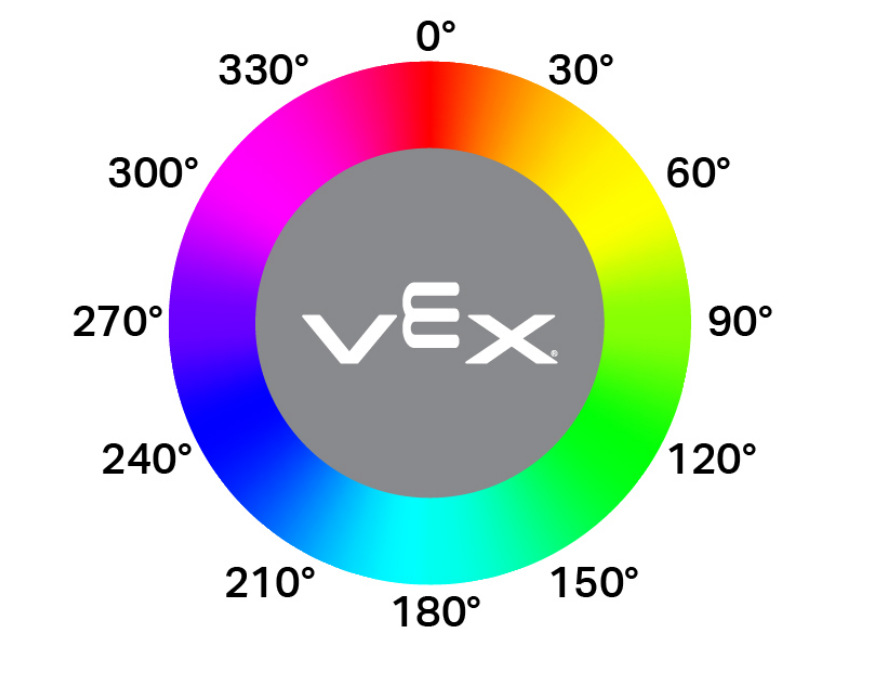
(eye hue in degrees)
Parameters |
Description |
|---|---|
This block has no parameters. |
Example
  when started :: hat events
  [Build Used: Code Base 2.0 - Eye Forward]
  [Display the hue of a pink GO piece.]
  forever
  clear all rows
  if <[10] [math_less_than v] (eye hue in degrees) [math_less_than v] [40]> then
  print [Pink!] ▶
  else
  print [Not pink.] ▶