Console#
Introduction#
The VEXcode 123 Console is displayed in the Console Tab within VEXcode. Console methods can display text, numbers, and variable values while a project is running. They can also move the Console cursor to a new row, clear the Console, read user input, and set the color of text printed after the color is changed.
Below is a list of all methods:
Actions — Output text or clear the Console.
print— Displays text, numbers, or variable values in the Console.new_line— Moves the Console cursor to the start of the next row.clear— Clears all rows in the Console.
Getter — Read user input.
input— Waits for user input and returns the response as text.
Mutator — Format printed text.
set_print_color— Sets the color used for text printed in the Console.
Actions#
print#
print displays text, numbers, or variable values in the Console using the current cursor position.
Use custom string formatting when you want a printed message to include values from your project, like a score, timer, or sensor reading. See the String Formatting page for more information.
Use new_line when you want the next printed value to start on a new row.
Usage:
console.print(value, precision)
Parameters |
Description |
|---|---|
|
The text, number, or variable value to display in the Console. |
|
Optional. The number of decimal places to display when printing a number. The default is |
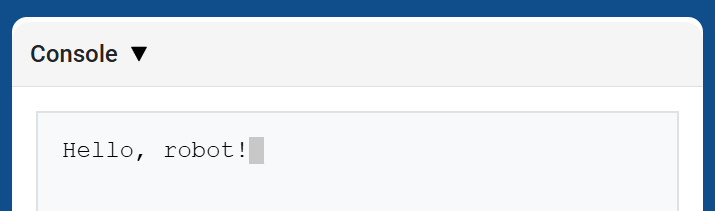
# Display a message in the Console
console.print("Hello, robot!")
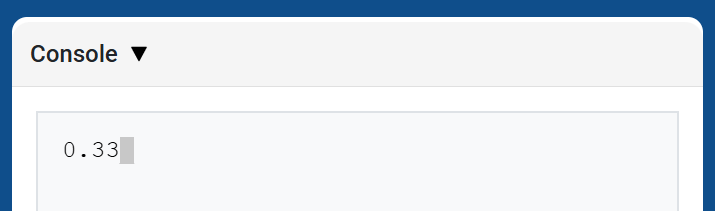
# Display 1/3 with two decimals
console.print(1 / 3, precision=2)
new_line#
new_line moves the cursor to column 1 on the next row in the Console. The next value printed will appear on that row.
Use this method when you want the next printed value to start on a new row.
Usage:
console.new_line()
Parameters |
Description |
|---|---|
This method has no parameters. |
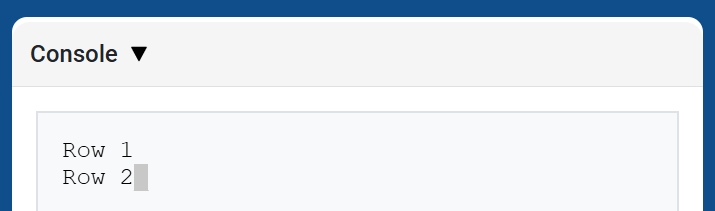
# Print on two lines
console.print("Row 1")
console.new_line()
console.print("Row 2")
clear#
clear clears all rows from the Console.
Usage:
console.clear()
Parameters |
Description |
|---|---|
This method has no parameters. |
# Display text, then clear it after two seconds
console.print("This will disappear...")
wait(2, SECONDS)
console.clear()
Getter#
input#
input waits for the user to enter a response, then returns that response as text.
The project pauses at input() until a response is entered in the Console.
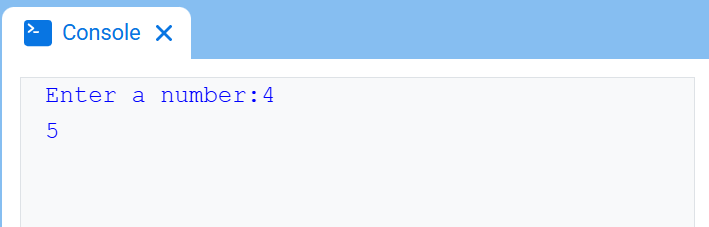
The value returned by input() is always text. To use the response as a number, convert it first with int() or float().
Usage:
input()
Parameters |
Description |
|---|---|
This method has no parameters. |
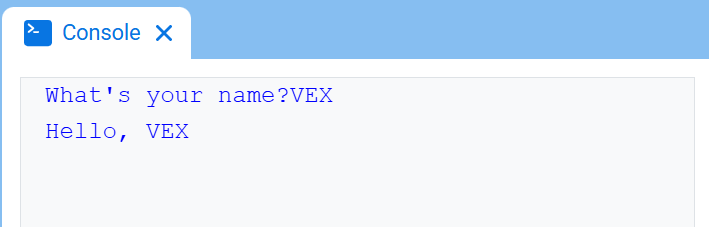
# Ask for a name, then print a greeting
answer = input("What's your name?")
console.print("Hello, " + answer)
# Ask for a number, then use it in math
answer = input("Enter a number:")
number = float(answer)
console.print(number + 1)
Mutator#
set_print_color#
set_print_color sets the color used for text printed in the Console after this method is used. At the start of a project, the Console text color is set to BLUE.
Usage:
console.set_print_color(color)
Parameters |
Description |
|---|---|
|
The color to use for text printed in the Console:
|
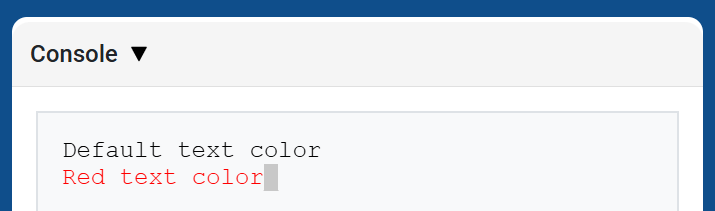
# Print text in different colors
console.print("Default text color")
console.new_line()
console.set_print_color(RED)
console.print("Red text color")