
Optical Sensor#
Introduction#
The EXP Optical Sensor detects the color, brightness, and presence of nearby objects using a combination of an RGB color sensor and proximity sensor. It can also use its built-in LED to illuminate objects for more accurate detection.
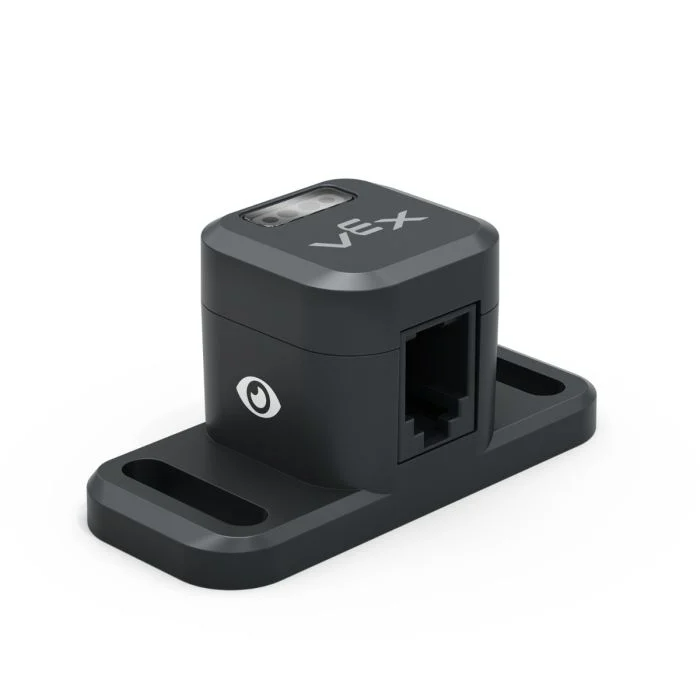
This page uses optical_sensor as the example Optical Sensor name. Replace it with your own configured name as needed.
Below is a list of available methods:
set_light– Turns the Optical Sensor’s LED on or off.set_light_power– Sets the Optical Sensor’s light power level.is_near_object– Returns whether the Optical Sensor detects an object within range.color– Returns the color detected by the Optical Sensor.brightness– Returns the amount of light reflected from the object.hue– Returns the hue detected by the Optical Sensor.object_detected– Registers a function to be called when the Optical Sensor detects an object.object_lost– Registers a function to be called when the Optical Sensor loses an object.
Constructor – Manually initialize an Optical Sensor.
Optical– Creates an Optical Sensor.
set_light#
set_light turns the Optical Sensor’s LED on or off. This can help increase the sensor’s accuracy when detecting colors.
Usage:
optical_sensor.set_light(state)
Parameters |
Description |
|---|---|
state |
Sets the LED on or off. |
# Turn on the sensor's LED
optical_sensor.set_light(LEDStateType.ON)
set_light_power#
set_light_power sets the brightness of the Optical Sensor’s LED. The light can help the Optical Sensor detect objects and colors more clearly.
If the Optical Sensor’s light is off, setting the light power above 0% will turn the light on.
If the Optical Sensor’s light is on, setting the light power at 0% will turn the light off.
A higher percentage makes the light brighter. A lower percentage makes the light dimmer.
Usage:
optical_sensor.set_light_power(percent, units)
Parameters |
Description |
|---|---|
percent |
The brightness to set the LED to as a whole number. |
units |
Optional. The unit to represent the brightness: |
# Turn on the sensor's light at half brightness
optical_sensor.set_light_power(50, PERCENT)
is_near_object#
is_near_object returns a Boolean indicating whether or not the Optical Sensor detects an object within range.
True– The Optical Sensor detects an object.False– The Optical Sensor does not detect an object.
Usage:
optical_sensor.is_near_object()
Parameters |
Description |
|---|---|
This method has no parameters. |
# Drive forward until an object is found
drivetrain.drive(FORWARD)
while not optical_sensor.is_near_object():
  pass
drivetrain.stop()
color#
color returns an instance of a Color class, based on the detected hue value. These can be compared to predefined Color objects to create conditional statements.
Possible colors are:
Color.BLACKColor.WHITEColor.RED- A hue value between 340° - 20°Color.GREEN- A hue value between 80° - 140°Color.BLUE- A hue value between 200° - 240°Color.YELLOW- A hue value between 40° - 60°Color.ORANGE- A hue value between 20° - 40°Color.PURPLE- A hue value between 240° - 280°Color.CYAN- A hue value between 140° - 200°
Note: The Optical Sensor is looking for hue ranges that match the specified color. For detecting specific hue ranges, see hue.
Usage:
optical_sensor.color()
Parameters |
Description |
|---|---|
This method has no parameters. |
# Drive forward until red is found
drivetrain.drive(FORWARD)
while not optical_sensor.color() == Color.RED:
  pass
drivetrain.stop()
brightness#
brightness returns the amount of light reflected from the object as a decimal (float) representing a percent.
A higher percentage means more light is reflected back to the Optical Sensor. A lower percentage means less light is reflected back.
Usage:
optical_sensor.brightness()
Parameters |
Description |
|---|---|
This method has no parameters. |
hue#
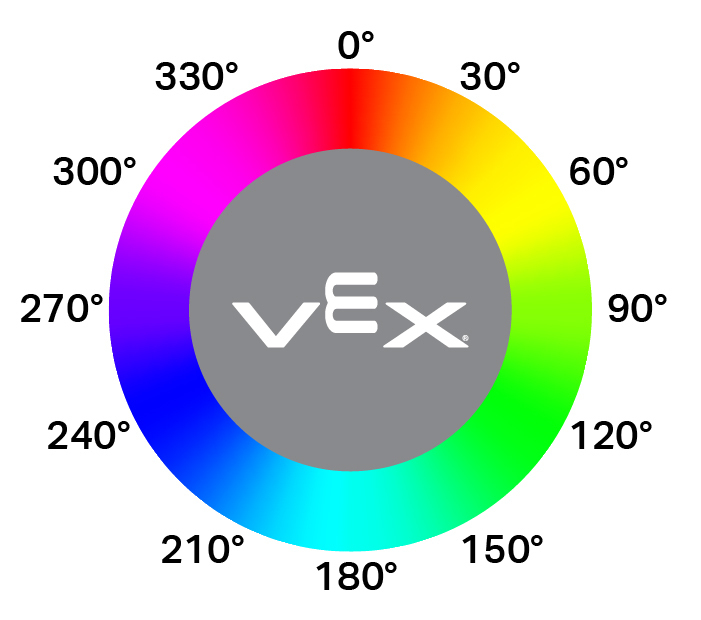
hue returns the hue value of the detected color as a decimal (float) from 0 to 359.
Hue is a way to describe color using numbers around a color wheel.
Usage:
optical_sensor.hue()
Parameters |
Description |
|---|---|
This method has no parameters. |
# Look for the color pink using hue
while True:
  brain.screen.clear_screen()
  brain.screen.set_cursor(1, 1)

  if 300 < optical_sensor.hue() < 359:
    brain.screen.print("This is pink!")
  else:
    brain.screen.print("No pink detected!")
object_detected#
object_detected registers a function to be called whenever the Optical Sensor detects a new object.
Usage:
optical_sensor.object_detected(callback, arg)
Parameters |
Description |
|---|---|
|
A previously defined function that executes when the Optical Sensor detects a new object. |
|
Optional. A tuple containing arguments to pass to the callback function. See Using Functions with Parameters for more information. |
def my_function():
  brain.screen.print("Optical Sensor detected an object")

# Call my_function whenever optical_sensor detects an object
optical_sensor.object_detected(my_function)
object_lost#
object_lost registers a function to be called whenever the Optical Sensor loses a detected object.
Usage:
optical_sensor.object_lost(callback, arg)
Parameters |
Description |
|---|---|
|
A previously defined function that executes when the Optical Sensor loses a detected object. |
|
Optional. A tuple containing arguments to pass to the callback function. See Using Functions with Parameters for more information. |
def my_function():
  brain.screen.print("Optical Sensor lost an object")

# Call my_function whenever optical_sensor loses an object
optical_sensor.object_lost(my_function)
Constructor#
Constructors are used to manually create Optical objects, which are necessary for configuring an Optical Sensor outside of VEXcode.
Optical#
Optical creates an Optical Sensor.
Usage:
Optical(smartport)
Parameter |
Description |
|---|---|
|
The Smart Port that the Optical Sensor is connected to, written as |
# Create an Optical Sensor in Port 10
optical_sensor = Optical(Ports.PORT10)