Device Setup: Drivetrain#
Add a Drivetrain#
Open the Devices Tab#
Select the Devices tab.
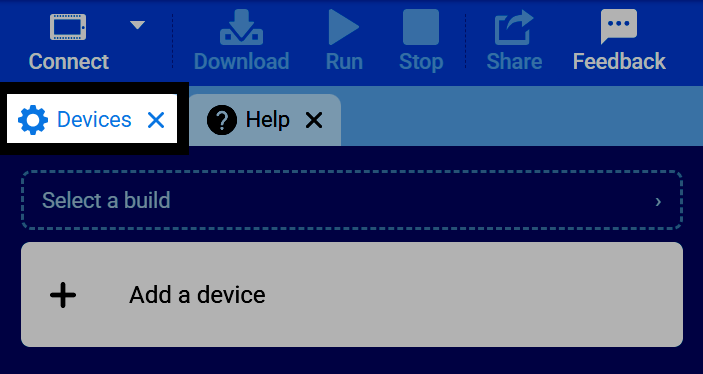
If the Devices tab is not visible, see Add a Tab in the Navigating VEXcode tutorial.
Select Add a Device#
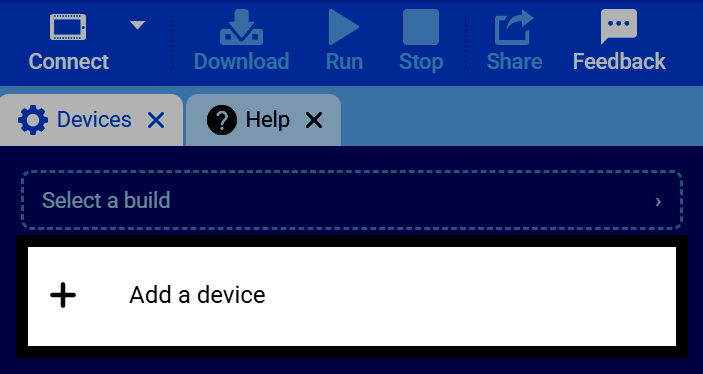
Select Add a Device in the Devices tab.
Select a Drivetrain#
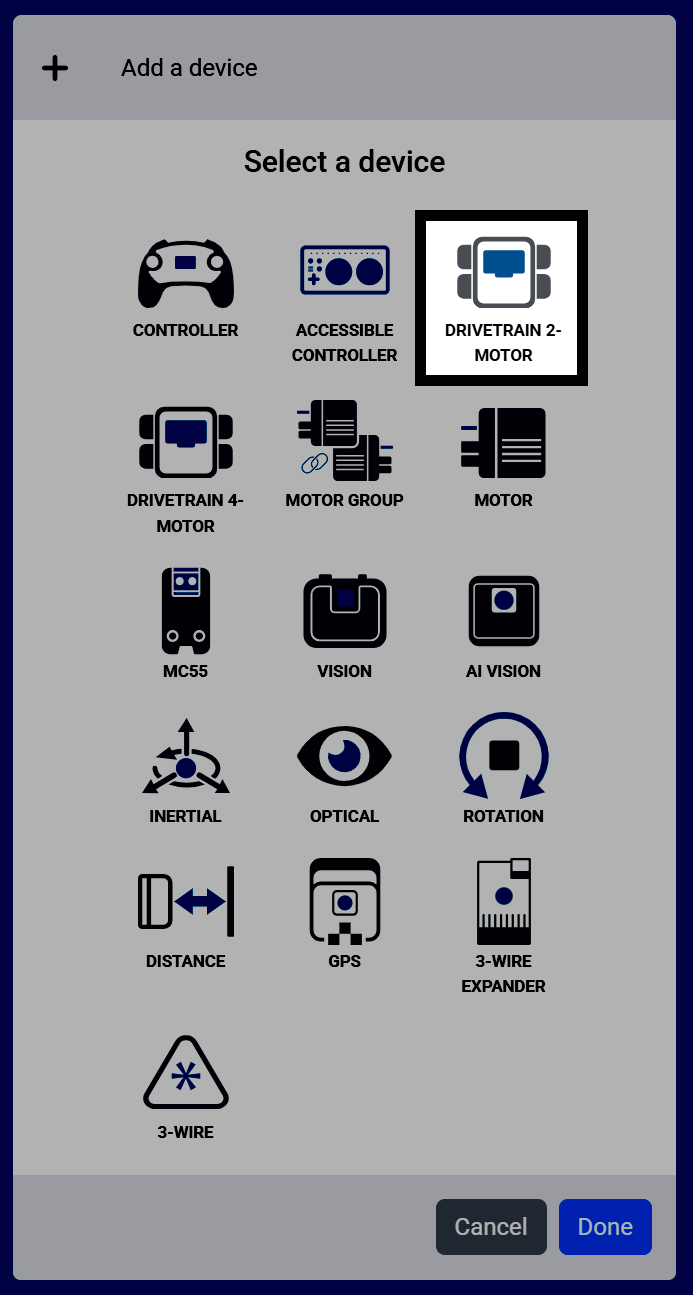
Select Drivetrain 2-Motor or Drivetrain 4-Motor, depending on how many motors you’re using in your drivetrain.
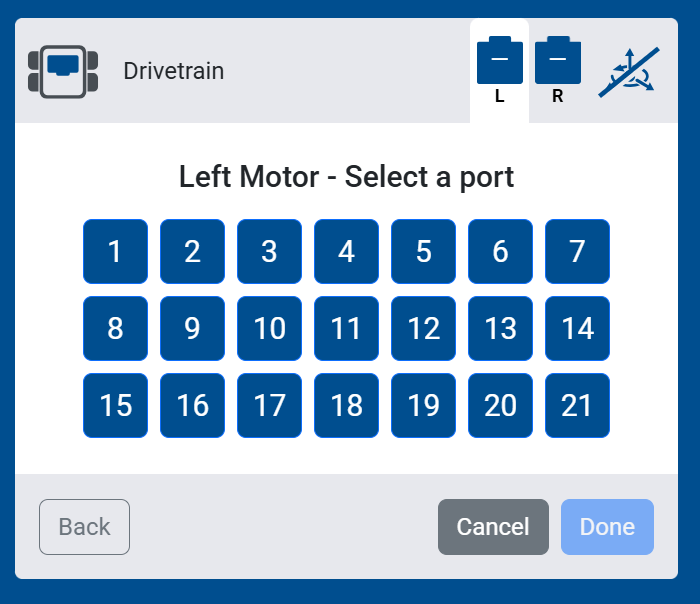
Select the Left Motor Port(s)#
Select the ports for the motors that drive your robot’s left wheels.
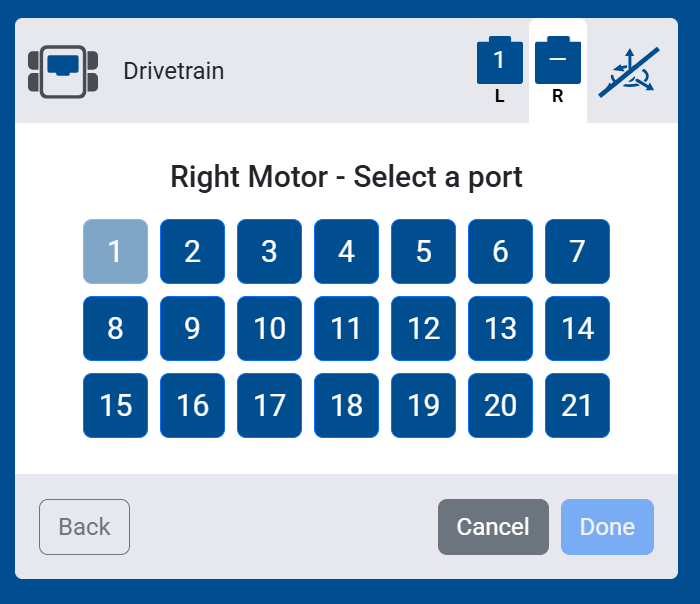
Select the Right Motor Port(s)#
Select the ports for the motors that drive your robot’s right wheels.
Select a Sensor#
Select what sensor you want to use with your Drivetrain:
No Sensor — No Inertial, GPS, or Gyro Sensor will be connected to your Drivetrain. Blocks that rely on these sensors will not appear in your toolbox.
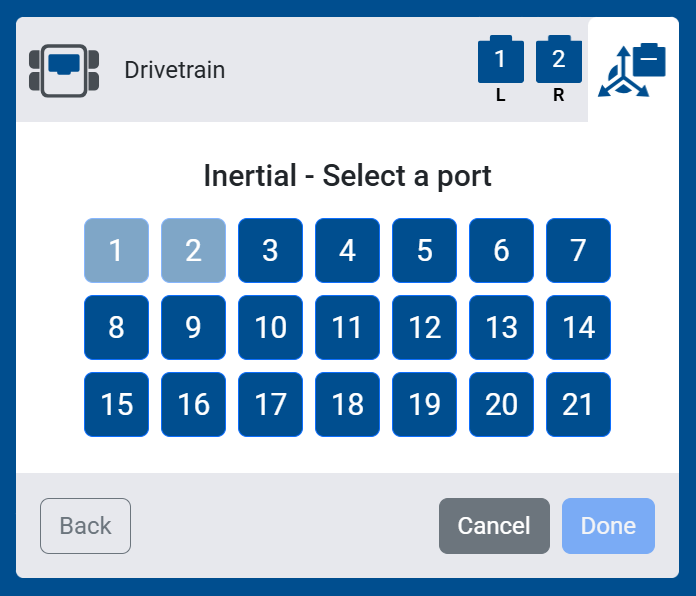
Inertial Sensor — Select the port for an Inertial Sensor to measure the drivetrain’s movements.
GPS Sensor — Select the port for a GPS Sensor to measure the drivetrain’s movements and field position.
3-Wire Gyro — Select the port for a Gyro Sensor to measure the drivetrain’s movements.
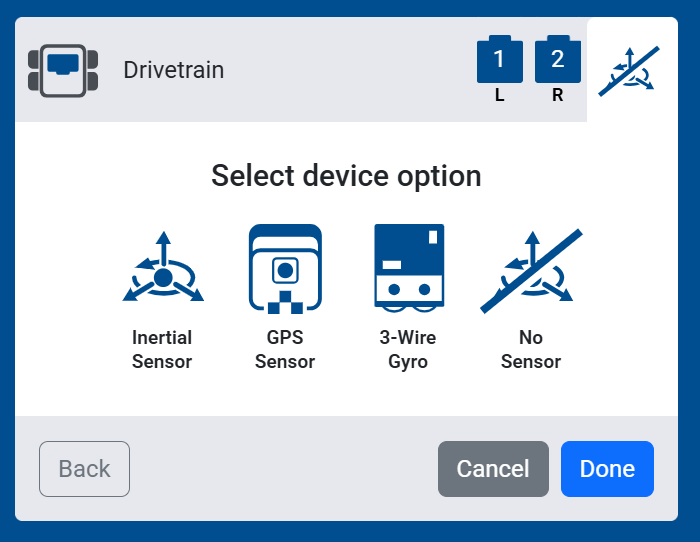
V5 has no built-in Inertial Sensor — unlike some other VEXcode platforms, an Inertial, GPS, or Gyro Sensor must be added separately to enable heading and rotation blocks.
If you selected Inertial Sensor, GPS Sensor, or 3-Wire Gyro, select the port it’s connected to.
Configure Your Drivetrain#
Adjust the Drivetrain Settings#
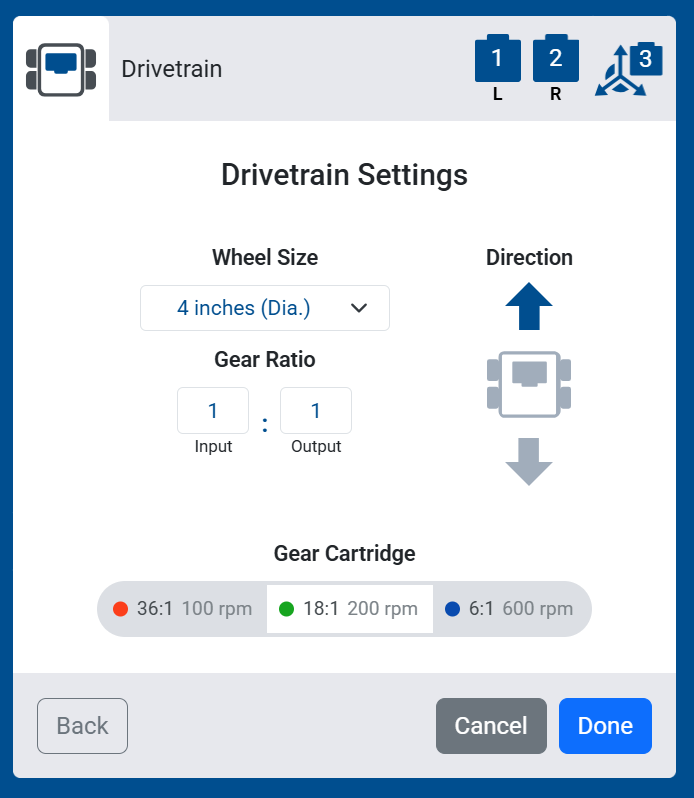
Configure your Drivetrain’s settings. If you’re using a pre-made build, the default values do not need to be changed.
Wheel Size — The diameter, or circumference, of your Drivetrain’s wheels: 2.75 inches (Dia.), 3.25 inches (Dia.), 4 inches (Dia.) (the default), 5 inches (Dia.), 6 inches (Dia.), or 200mm (Cir.) (SDV).
Gear Ratio — The ratio between the Input and Output gears, if your Drivetrain uses external gears. Use 1:1 if no external gears are used.
Direction — Select the up or down arrow to set which direction is forward for the Drivetrain.
Select the Motor Cartridge#
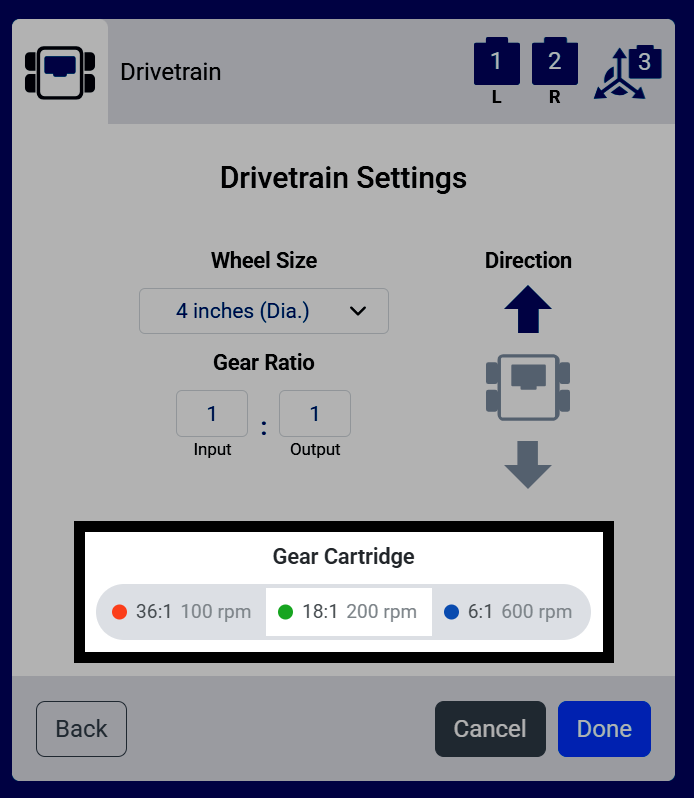
Select the color of the motors’ internal gear cartridges:
red (36:1, 100 RPM)
green (18:1, 200 RPM, the default)
blue (6:1, 600 RPM).
This must match the cartridge physically installed in the drivetrain’s motors.
Additional Settings for No Sensor#
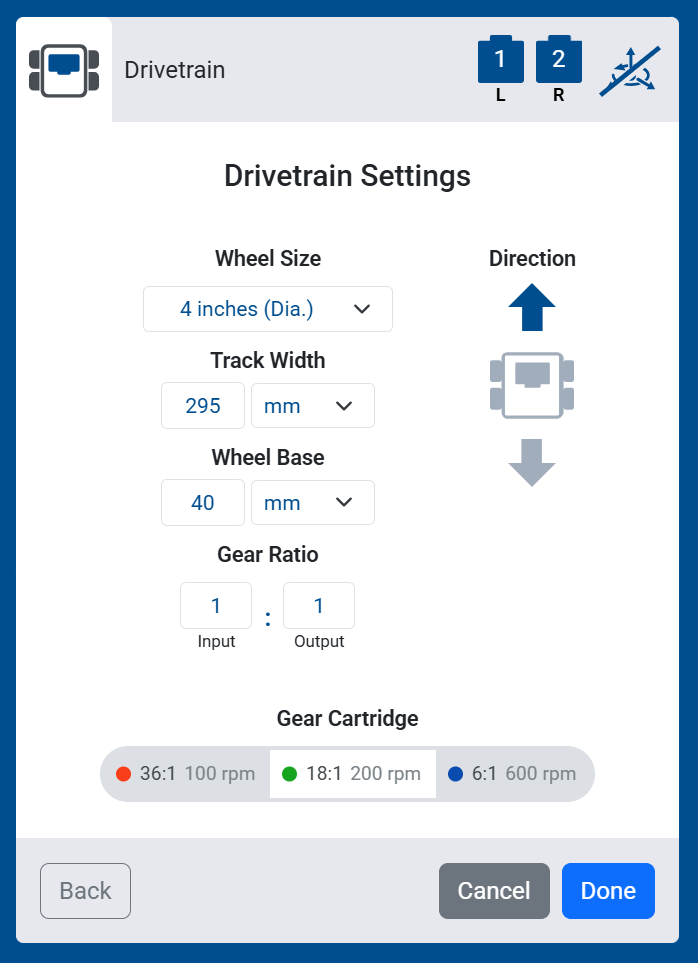
If you selected No Sensor, two additional settings will also appear:
Track Width — The distance between the left and right wheels.
Wheel Base — The distance between the front and back wheels.
These measurements help the Drivetrain estimate its movement without an Inertial, GPS, or Gyro Sensor to measure it directly.
Finish Adding the Drivetrain#
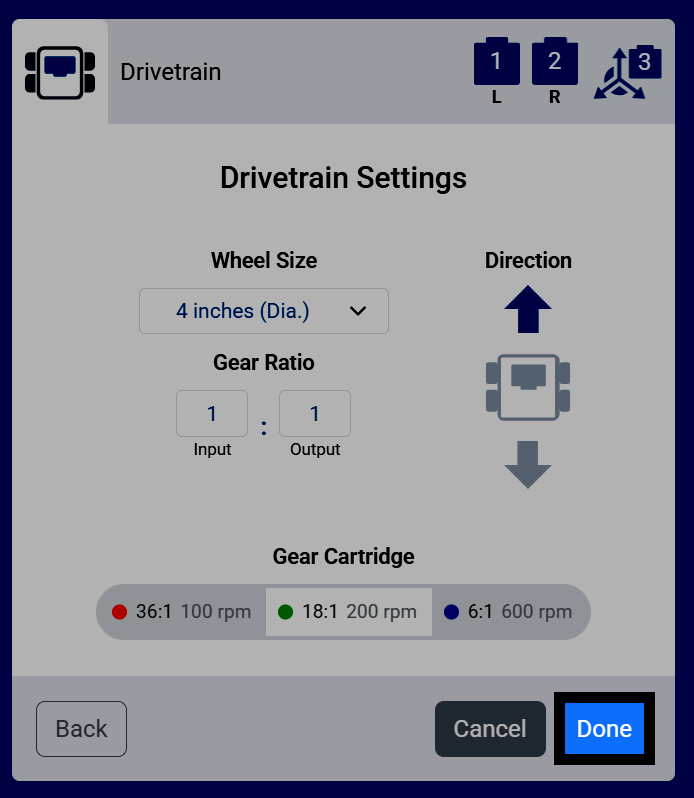
Select Done to add the Drivetrain to your robot.
View the Drivetrain in Your Devices List#
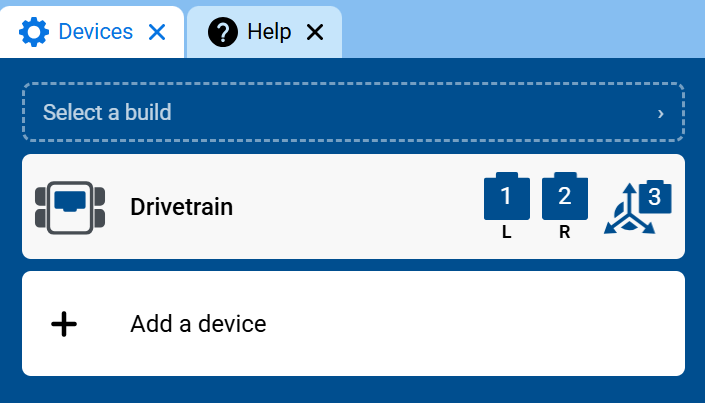
The Drivetrain will now appear in your list of devices, and the Drivetrain category and blocks will be added to your toolbox.