
屏幕#
介绍#
The screen class is derived from the brain base class. It controls how the EXP Brain shows text, numbers, and graphics on its screen.
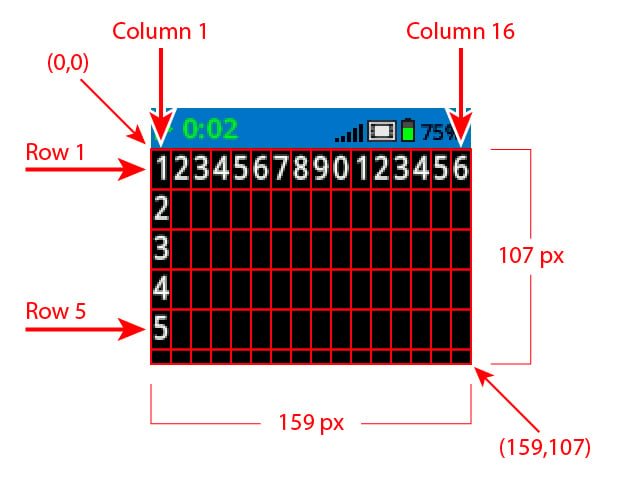
EXP Brain 的屏幕在打印文本时,会设置固定的行数和列数。
By default, the font for printing to the Brain is mono20 which has 7 rows and 20 columns.
大脑的绘图分辨率为 159 x 107 像素。
使用权#
The screen class can be accessed by:
Brain.Screen
笔记#
The
screenobject is provided by the Brain. It is not constructed directly.Projects use a single global
Brainobject, so screen functions are called usingBrain.Screen.
例子#
/* This constructor is required when using VS Code.
A Brain is generated automatically at the start of
VEXcode projects. */

// Create the EXP Brain
brain Brain = brain();

// Print text to the Brain screen
Brain.Screen.print("Hello!");
成员功能#
The screen class includes the following member functions:
print— Prints formatted text, numbers, or Boolean values to the Brain screen.setCursor— Moves the text cursor to a specified row and column.newLine— Clears the remainder of the current line and moves the cursor to the next line.clearLine— Clears the remainder of the current line or clears a specified line.row— Returns the row where text will be printed.column— Returns the column where text will be printed.getStringHeight— Returns the height of a string in pixels using the current font.getStringWidth— Returns the width of a string in pixels using the current font.printAt— Prints formatted text at an x, y pixel location (optionally opaque).clearScreen— Clears the entire screen (optionally to a specified color).setFont— Sets the font used for printing on the screen.setPenWidth— Sets the thickness of drawn lines and shape outlines.setPenColor— Sets the color of text, pixels, lines, and shape outlines.setFillColor— Sets the fill color for drawn shapes and printed text backgrounds.setOrigin— Sets the origin used for screen coordinates.setClipRegion— Restricts screen output to a rectangular region.drawPixel— Draws one pixel at a coordinate.drawLine— Draws a line between two points.drawRectangle— Draws a rectangle at an x, y location with a specified size.drawCircle— Draws a circle at an x, y location with a specified radius.drawImageFromFile— Draws an image from an SD card file onto the screen.render— Enables double buffering or renders the back buffer to the screen.
Before calling any screen member functions, a brain instance must be created, as shown below:
// Create the EXP Brain
brain Brain = brain();
print#
在 EXP Brain 屏幕上显示文本、数字或布尔值。
Available Functions1 — 使用字符串字面量或只读 C 风格字符串打印格式化文本。
void print(
    const char* format,
    ... );
Parameters2 — 使用可修改的字符数组打印格式化文本。
void print(
    char* format,
    ... );
范围 |
类型 |
描述 |
|---|---|---|
|
|
A format string provided as a string literal or read-only C-style string (for example, |
|
|
以可修改字符数组形式提供的格式字符串。 |
|
插入到格式字符串中的一个或多个附加值,以逗号分隔。 |
此函数不返回值。
Notes输出从屏幕上的当前光标位置 开始 。
打印文本使用 笔颜色。
Text printed with
printis always printed with a background, and the background color is determined by the current fill color.使用格式字符串时,传递的值的数量和类型必须与字符串中的 格式说明符 匹配。
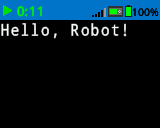
// Display a message at the starting cursor
Brain.Screen.print("Hello, Robot!");
setCursor#
Moves the cursor to a specific row and column on the EXP Brain screen. The next print call will start printing at that location.
void setCursor(
  int32_t row,
  int32_t col );
范围 |
类型 |
描述 |
|---|---|---|
|
|
要将光标移动到的行。 |
|
|
要将光标移动到的列。 |
此函数不返回值。
NotesAffects where subsequent text output begins when using
print.行和列基于当前设置的屏幕字体。
The default font (
mono20) uses 12 rows and 48 columns.Calling
setCursoraffects the position of subsequent text output only.
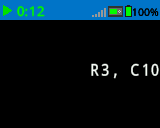
// Display text starting at Row 3 Column 10
Brain.Screen.setCursor(3, 10);
Brain.Screen.print("R3, C10");
newLine#
将光标移动到大脑屏幕上下一行的开头。
Available Functionsvoid newLine();
此函数不接受任何参数。
Return Values此函数不返回值。
NotesIf the cursor is in the middle of a sentence,
newLinewill clear the rest of the row after the cursor before moving to the next row.After calling
newLine, the cursor is positioned at the first column of the next line.The cursor position and row numbering are set using
setCursor.
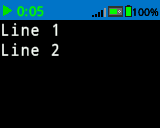
// Display two lines of text
Brain.Screen.print("Line 1");
Brain.Screen.newLine();
Brain.Screen.print("Line 2");
clearLine#
清除 EXP Brain 屏幕上某一行的文本。
Available Functions1 — 清除光标位置的当前行剩余内容。
void clearLine();
2 — 使用当前配置的 填充颜色 清除指定的行。
void clearLine(
    int number );
3 — 使用预定义或 自定义颜色 对象清除指定的行。
void clearLine(
    int          number,
    const color& color );
4 — 使用十六进制颜色值清除指定的行。
void clearLine(
    int         number,
    const char* color );
Parameters5 — 使用色调值清除指定的行。
void clearLine(
    int number,
    int hue );
范围 |
类型 |
描述 |
|---|---|---|
|
|
The row number to clear. Row numbering starts at |
|
|
Clears the row using a
|
|
|
Clears the row using a hexadecimal color value (for example, |
|
|
Clears the row using an integer hue value in the range |
此函数不返回值。
Notes清除一行不会改变当前光标位置。
The cursor position and row numbering are set using
setCursor.The
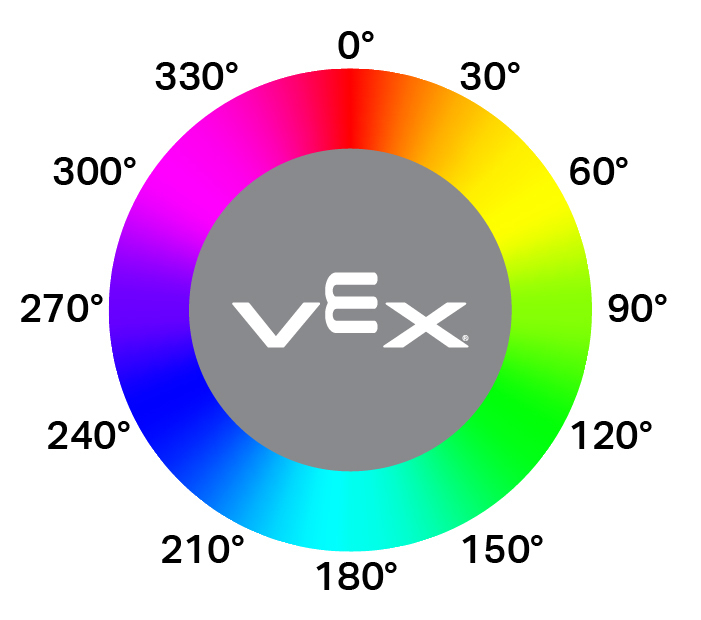
hueparameter value is based on a circular color wheel, as shown below, where values represent degrees around the wheel (for example, red near 0°, green near 120°, and blue near 240°).
// Display text on two rows
Brain.Screen.print("This text stays");
Brain.Screen.newLine();
Brain.Screen.print("This disappears");

// Wait 3 seconds before clearing row 2
wait(3, seconds);
Brain.Screen.clearLine(2);
row#
返回将在 EXP Brain 屏幕上打印文本的行。
Available Functionsint32_t row();
此函数不接受任何参数。
Return ValuesReturns an int32_t representing the row where text will be printed.
行号从1开始。
Notes光标位置基于 屏幕字体。
返回值指示下一个打印输出将显示在哪里。
The row value changes when text is printed or when
setCursoris called.
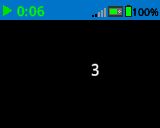
// Display the cursor's current row
Brain.Screen.setCursor(3, 10);
Brain.Screen.print(Brain.Screen.row());
column#
返回 EXP Brain 屏幕上将打印文本的列。
Available Functionsint32_t column();
此函数不接受任何参数。
Return ValuesReturns an int32_t representing the column where text will be printed.
列编号从 1 开始。
Notes光标位置基于 屏幕字体。
返回值指示下一个打印输出将显示在哪里。
The column value changes when text is printed or when
setCursoris called.
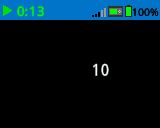
// Display the cursor's current column
Brain.Screen.setCursor(3, 10);
Brain.Screen.print(Brain.Screen.column());
getStringHeight#
返回字符串在 EXP Brain 屏幕上渲染时的高度(以像素为单位)。
Available Functionsint32_t getStringHeight(
const char* cstr );
范围 |
类型 |
描述 |
|---|---|---|
|
|
The text to be measured, provided as a C-style string (for example, |
Returns an int32_t representing the height of the string in pixels when rendered on the Brain screen.
getStringWidth#
返回字符串在 EXP Brain 屏幕上渲染时的宽度(以像素为单位)。
Available Functionsint32_t getStringWidth(
const char* cstr );
范围 |
类型 |
描述 |
|---|---|---|
|
|
The text to be measured, provided as a C-style string (for example, |
Returns an int32_t representing the width of the string in pixels when rendered on the Brain screen.
返回的 取决于当前选定的屏幕字体。
该函数测量字符串的长度,但不将其绘制到屏幕上。
返回的宽度反映了字符串打印时的显示方式。
printAt#
在 EXP Brain 屏幕上的特定坐标处打印文本、数字或布尔值。
Available Functions1 — 在指定的像素位置打印格式化的输出。
void printAt(
    int32_t    x,
    int32_t    y,
    const char* format,
    ... );
Parameters2 — 在指定的像素位置打印格式化的输出,并设置文本背景是不透明还是透明。
void printAt(
    int32_t    x,
    int32_t    y,
    bool       bOpaque,
    const char* format,
    ... );
范围 |
类型 |
描述 |
|---|---|---|
|
|
打印位置的 x 坐标,以屏幕原点为参考。 |
|
|
打印位置的 y 坐标,以屏幕原点为参考。 |
|
|
Controls whether the printed text is drawn opaquely or transparently:
|
|
|
A format string that controls what is printed on the screen (for example, |
|
插入到格式字符串中的一个或多个附加值,以逗号分隔。 |
此函数不返回值。
NotesThe
xandycoordinates are relative to the current screen origin, which can be changed usingsetOrigin.打印文本使用 屏幕字体。
打印文本使用 笔颜色。
使用格式字符串时,传递的值的数量和类型必须与字符串中的 格式说明符 匹配。
// Print the number 1 at pixel (100, 40)
Brain.Screen.printAt(100, 40, "1");
clearScreen#
清除大脑屏幕上的所有图画和文字。
Available Functions1 — 将屏幕清空至黑色。
void clearScreen();
2 — 使用预定义或 自定义颜色 对象清除屏幕。
void clearScreen(
    const color& color );
3 — 使用十六进制颜色值清除屏幕。
void clearScreen(
    const char* color );
Parameters4 — 使用色调值清除屏幕。
void clearScreen(
    int hue );
范围 |
类型 |
描述 |
|---|---|---|
|
|
Clears the screen using a
|
|
|
Clears the screen using a hexadecimal color value represented as a string (for example, |
|
|
Clears the screen using an integer hue value in the range |
此函数不返回值。
NotesThe
hueparameter value is based on a circular color wheel, as shown below, where values represent degrees around the wheel (for example, red near 0°, green near 120°, and blue near 240°).
// Clear screen after 2 seconds
Brain.Screen.print("VEXcode");
wait(2, seconds);
Brain.Screen.clearScreen();
// Clear screen to blue after 2 seconds
Brain.Screen.print("VEXcode");
wait(2, seconds);
Brain.Screen.clearScreen(blue);
setFont#
设置 EXP Brain 屏幕上显示的文本所使用的字体。
This controls the font applied to subsequent text output when using screen text functions such as print.
void setFont(
  fontType font );
范围 |
类型 |
描述 |
|---|---|---|
|
|
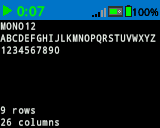
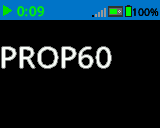
Sets the font to one of the following:
|
|
|
|
|---|---|---|
|
|
|
|
|
|
|
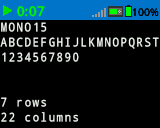
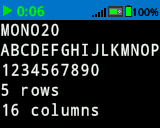
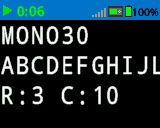
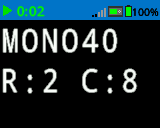
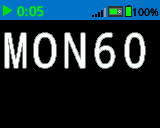
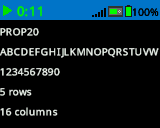
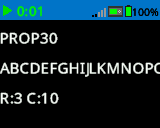
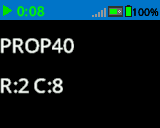
此函数不返回值。
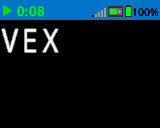
Examples// Print larger text
Brain.Screen.setFont(mono40);
Brain.Screen.print("VEX");
setPenWidth#
设置绘制线条和形状轮廓的粗细。
Available Functionsvoid setPenWidth(
uint32_t width );
范围 |
类型 |
描述 |
|---|---|---|
|
|
笔的宽度以像素为单位,范围从 0 到 32。 |
此函数不返回值。
NotesThe pen width applies to drawing functions such as
drawLine,drawRectangle, anddrawCircle.
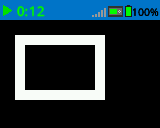
// Draw a rectangle with a pen width of 10
Brain.Screen.setPenWidth(10);
Brain.Screen.drawRectangle(20, 20, 75, 50);
setPenColor#
设置用于绘制线条、形状和文本的画笔颜色。
Available Functions1 — 使用预定义或 自定义颜色 对象设置画笔颜色。
void setPenColor(
    const color& color );
2 — 使用十六进制颜色值设置画笔颜色。
void setPenColor(
    const char* color );
Parameters3 — 使用色调值设置画笔颜色。
void setPenColor(
    int hue );
范围 |
类型 |
描述 |
|---|---|---|
|
|
Sets the pen color using a
|
|
|
Sets the pen color using a hexadecimal color value represented as a string (for example, |
|
|
Sets the pen color using an integer hue value in the range |
此函数不返回值。
NotesThe default pen color at the start of a project is
white.The pen color is used for outlines of shapes (such as with
drawCircleordrawRectangle), text and numeric output (withprintandprintAt), and individual pixels drawn withdrawPixel.The
hueparameter value is based on a circular color wheel, as shown below, where values represent degrees around the wheel (for example, red near 0°, green near 120°, and blue near 240°).
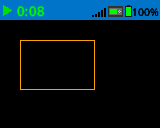
// Draw a rectangle with orange borders
Brain.Screen.setPenColor(orange);
Brain.Screen.drawRectangle(20, 20, 75, 50);
setFillColor#
设置绘制形状时使用的填充颜色。
Available Functions1 — 使用预定义或 自定义颜色 对象设置填充颜色。
void setFillColor(
    const color& color );
2 — 使用十六进制颜色值设置填充颜色。
void setFillColor(
    const char* color );
Parameters3 — 使用色调值设置填充颜色。
void setFillColor(
    int hue );
范围 |
类型 |
描述 |
|---|---|---|
|
|
Sets the fill color using a
|
|
|
Sets the fill color using a hexadecimal color value represented as a string (for example, |
|
|
Sets the fill color using an integer hue value in the range |
此函数不返回值。
NotesThe default fill color at the start of a project is
black.The fill color is used for interior of shapes (such as with
drawCircleordrawRectangle).The fill color is used as the background color for printed text (such as with
printandprintAt).If
transparentis used with printed text, the background will beblack.
The
hueparameter value is based on a circular color wheel, as shown below, where values represent degrees around the wheel (for example, red near 0°, green near 120°, and blue near 240°).
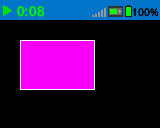
// Draw a rectangle filled with purple
  Brain.Screen.setFillColor(purple);
  Brain.Screen.drawRectangle(20, 20, 75, 50);
setOrigin#
设置大脑屏幕上绘制图形的原点。
Available Functionsvoid setOrigin(
int32_t x,
int32_t y );
范围 |
类型 |
描述 |
|---|---|---|
|
|
原点相对于大脑屏幕左上角的 x 坐标,取值范围为 0 到 159。 |
|
|
原点相对于大脑屏幕左上角的 y 坐标,取值范围为 0 到 107。 |
此函数不返回值。
Notes默认原点位于屏幕左上角坐标 (0, 0)。
The origin applies to coordinate functions such as
drawLine,drawRectangle,drawCircle, andprintAt.该原点设置将一直有效,直到再次更改或项目重置为止。
setClipRegion#
在屏幕上定义一个矩形区域,所有图形和文本都将限制在该区域内。该区域之外的任何内容都不会显示。
Available Functionsvoid setClipRegion(
int x,
int y,
int width,
int height );
范围 |
类型 |
描述 |
|---|---|---|
|
|
剪辑区域左上角的 x 坐标,取值范围为 0 到 159 的整数。 |
|
|
剪辑区域左上角的 y 坐标,取值范围为 0 到 107 的整数。 |
|
|
裁剪区域的宽度(以像素为单位),取值范围为 0 到 159 的整数。 |
|
|
裁剪区域的高度(以像素为单位),取值范围为 0 到 107 的整数。 |
此函数不返回值。
Notes即使绘图函数超出裁剪区域,它们仍然会执行,但只有区域内的部分是可见的。
The
xandycoordinates are relative to the current screen origin, which can be changed usingsetOrigin.剪辑区域仅适用于当前线程。
设置新的剪辑区域会替换当前线程之前设置的任何剪辑区域。
drawPixel#
在 EXP Brain 屏幕上选定的 x 和 y 像素位置绘制一个像素。
Available Functionsvoid drawPixel(
int x,
int y );
范围 |
类型 |
描述 |
|---|---|---|
|
|
像素绘制位置的 x 坐标,取值范围为 0 到 159 之间的整数。 |
|
|
像素绘制位置的 y 坐标,取值范围为 0 到 107 之间的整数。 |
此函数不返回值。
NotesPixels are drawn using the current pen color set with
setPenColor.The
xandycoordinates are relative to the current screen origin, which can be set usingsetOrigin.如果指定的像素位置在屏幕边界之外,则不会绘制该像素。
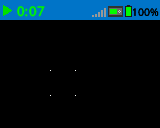
// Draw the pixels marking the corners of a square
Brain.Screen.drawPixel(50, 50);
Brain.Screen.drawPixel(50, 75);
Brain.Screen.drawPixel(75, 50);
Brain.Screen.drawPixel(75, 75);
drawLine#
在EXP Brain屏幕上绘制一条连接两点的直线。
Available Functionsvoid drawLine(
int x1,
int y1,
int x2,
int y2 );
范围 |
类型 |
描述 |
|---|---|---|
|
|
直线的起始 x 坐标,取值范围为 0 到 159 的整数。 |
|
|
直线的起始 y 坐标,取值范围为 0 到 107 的整数。 |
|
|
直线的终点 x 坐标,取值范围为 0 到 159 的整数。 |
|
|
直线的终点 y 坐标,取值范围为 0 到 107 的整数。 |
此函数不返回值。
NotesLines are drawn using the current pen color set with
setPenColor.The width of the line is determined by the current pen width set with
setPenWidth.The
xandycoordinates are relative to the current screen origin, which can be set usingsetOrigin.如果线条的任何部分超出屏幕边界,则只绘制可见部分。
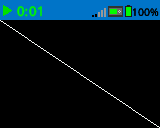
// Draw a line from the top left to bottom right of the screen
Brain.Screen.drawLine(0, 0, 159, 107);
drawRectangle#
在 EXP Brain 屏幕上指定位置和大小绘制一个矩形。
Available Functions1 — 使用当前配置的 填充颜色 绘制并填充矩形。
void drawRectangle(
    int x,
    int y,
    int width,
    int height );
2 — 使用预定义或自定义颜色对象绘制并填充矩形。
void drawRectangle(
    int           x,
    int           y,
    int           width,
    int           height,
    const color&  color );
3 — 使用十六进制颜色值绘制并填充矩形。
void drawRectangle(
    int           x,
    int           y,
    int           width,
    int           height,
    const char*   color );
Parameters4 — 使用色调值绘制并填充矩形。
void drawRectangle(
    int x,
    int y,
    int width,
    int height,
    int hue );
范围 |
类型 |
描述 |
|---|---|---|
|
|
矩形左上角的 x 坐标,取值范围为 0 到 159 的整数。 |
|
|
矩形左上角的 y 坐标,取值范围为 0 到 107 的整数。 |
|
|
矩形的宽度,取值范围为 0 到 159 的整数。 |
|
|
矩形的高度,取值范围为 0 到 107 之间的整数。 |
|
|
Fills the rectangle using a
|
|
|
Fills the rectangle using a hexadecimal color value (for example, |
|
|
Fills the rectangle using a hue value in the range |
此函数不返回值。
NotesThe rectangle outline is drawn using the current pen color set with
setPenColor.The outline thickness is determined by the current pen width set with
setPenWidth.When no
colorparameter is provided, the rectangle interior is filled using the current fill color set withsetFillColor.The
xandycoordinates are relative to the current screen origin, which can be changed usingsetOrigin.如果矩形的任何部分位于屏幕边界之外,则只绘制可见部分。
The
hueparameter value is based on a circular color wheel, as shown below, where values represent degrees around the wheel (for example, red near 0°, green near 120°, and blue near 240°).
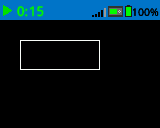
// Draw a rectangle on the screen
Brain.Screen.drawRectangle(20, 20, 80, 30);
drawCircle#
在 EXP Brain 屏幕上,以指定位置和半径绘制一个圆。
Available Functions1 — 使用当前配置的 填充颜色 绘制并填充一个圆。
void drawCircle(
    int x,
    int y,
    int radius );
2 — 使用预定义或自定义颜色对象绘制并填充一个圆。
void drawCircle(
    int           x,
    int           y,
    int           radius,
    const color&  color );
3 — 使用十六进制颜色值绘制并填充一个圆。
void drawCircle(
    int           x,
    int           y,
    int           radius,
    const char*   color );
Parameters4 — 使用色相值绘制并填充圆形。
void drawCircle(
    int x,
    int y,
    int radius,
    int hue );
范围 |
类型 |
描述 |
|---|---|---|
|
|
圆心的 x 坐标,取值范围为 0 到 159 之间的整数。 |
|
|
圆心的 y 坐标,取值范围为 0 到 107 的整数。 |
|
|
圆的半径,取值范围为 0 到 107 像素的整数。 |
|
|
Fills the circle using a
|
|
|
Fills the circle using a hexadecimal color value (for example, |
|
|
Fills the circle using a hue value in the range |
此函数不返回值。
NotesThe circle outline is drawn using the current pen color set with
setPenColor.The outline thickness is determined by the current pen width set with
setPenWidth.When no
colorparameter is provided, the circle interior is filled using the current fill color set withsetFillColor.The
xandycoordinates are relative to the current screen origin, which can be changed usingsetOrigin.The
hueparameter value is based on a circular color wheel, as shown below, where values represent degrees around the wheel (for example, red near 0°, green near 120°, and blue near 240°).
// Draw a circle on the screen
Brain.Screen.drawCircle(80, 50, 20);

drawImageFromFile#
使用存储在 SD 卡 中的图像文件在 EXP Brain 屏幕上绘制图像。
Available Functionsbool drawImageFromFile(
const char* name,
int x,
int y );
范围 |
类型 |
描述 |
|---|---|---|
|
|
The filename of the image on the SD card. The file must have a |
|
|
图像左边缘的 x 坐标(像素值,范围从 0 到 159)。 |
|
|
图像顶部边缘的绘制位置的 y 坐标,以像素为单位,范围从 0 到 107。 |
Returns a Boolean indicating whether the image was successfully drawn:
true— The image was successfully loaded and drawn on the screen.false— The image could not be drawn (for example, if the file does not exist or is invalid).
Supported image formats are
.bmpand.png.The image file size must not exceed
512 KB.建议使用 8 位 RLE 编码以最小化文件大小。
支持的最大图像尺寸为 Brain 屏幕尺寸(约 159 x 107 像素)。
The
xandycoordinates are relative to the current screen origin, which can be changed usingsetOrigin.
// Draw a bmp file on the Brain's screen at coordinate 0, 0
Brain.Screen.drawImageFromFile("test_image.bmp", 0, 0);
render#
Enables double buffering for the Brain’s screen. Once called, any drawing functions (like text, shapes, or images) will no longer appear immediately for the rest of the project. Instead, updates will only be shown when render is used again. This allows for smoother and more controlled screen updates, but means nothing will be visible until render is used.
1 — 启用双缓冲或将后缓冲区渲染到屏幕。
bool render();
Parameters2 — 将后缓冲区渲染到屏幕上,并可控制垂直同步行为和可选的调度程序执行。
bool render(
    bool bVsyncWait,
    bool bRunScheduler = true );
范围 |
类型 |
描述 |
|---|---|---|
|
|
|
|
|
Optional.
|
Returns a Boolean indicating whether the saved drawings in the buffer were successfully rendered to the screen:
true— The drawings were successfully rendered on the screen.false— The drawings could not be rendered on the screen.
Notes
Calling
renderwill requirerenderto be used for the rest of the project.
Brain.Screen.render();

// Draw text to the back buffer
Brain.Screen.print("Render later...");

// Wait for a screen press to render drawings
while (!Brain.Screen.pressing()) {
  wait(20, msec);
}
Brain.Screen.render();