
Sound#
Introduction#
The VEX AIR Drone Controller allows users to play built-in sounds, custom audio files, and musical notes. It also includes controls for stopping sounds and detecting if audio is currently playing.
Below is a list of all available blocks:
Sounds - Play and Stop Sounds
play sound — Plays a built-in sound from a predefined list.
play sound file — Plays a user-uploaded sound.
play note — Plays a musical note with a specified pitch, octave, and duration.
stop sound — Stops any currently playing sound.
sound active — Checks if a sound is currently playing.
Sounds#
play sound#
The play sound stack block plays one of the controller’s built-in sounds.
play sound [move forward v] ▶
Parameters |
Description |
|---|---|
sound |
One of the built-in sounds shown below. |
and don’t wait |
Select the arrow ( ▶ ) to expand the block to say and don’t wait, so the next block in the stack will run right away. |
Sound Name |
Play Sound |
|---|---|
success |
|
fault |
|
sensing |
|
detected |
|
obstacle |
|
looping |
|
complete |
|
pause |
|
resume |
|
send |
|
receive |
Example
  when started
  [Play the looping sound.]
  play sound [looping v] ▶
play sound file#
The play sound file stack plays a custom sound loaded by the user.
play sound file [SOUND1 v] ▶
Parameters |
Description |
|---|---|
sound slot number |
The user-uploaded sound to use. Options will change if image names are edited in the Control Panel. |
and don’t wait |
Select the arrow ( ▶ ) to expand the block to say and don’t wait, so the next block in the stack will run right away. |
Example
  when started
  [Upload a sound file in VEXcode.]
  [Play the custom sound.]
  play sound file [SOUND1 v] ▶
play note#
The play note stack block plays a specific note for a specific duration.
play note [low v] [C v] [note_eight v] ▶
Parameters |
Description |
|---|---|
octave |
The octave of the note:
|
note |
Defines the musical pitch:
|
note length |
Sets the length of the note:
|
and don’t wait |
Select the arrow ( ▶ ) to expand the block to say and don’t wait, so the next block in the stack will run right away. |
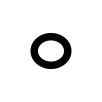 - Whole note
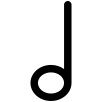 - Half note
 - Quarter note
 - Eighth note
 - Sixteenth note
Example
  when started
  [Play a short tune.]
  play note [low v] [C v] [note_quarter v] ▶
  play note [low v] [D v] [note_quarter v] ▶
  play note [low v] [E v] [note_sixteenth v] ▶
stop sound#
The stop sound stack block stops a sound that is currently playing.
stop sound
Parameters |
Description |
|---|---|
This block has no parameters. |
Example
  when started
  [Upload a sound 10 seconds or greater in VEXcode.]
  [Stop the sound while it is playing.]
  play sound file [1 v] ◀ and don't wait
  wait [6] seconds
  stop sound
sound active#
The sound active Boolean block reports if there is any sound currently playing.
True — There is a sound playing.
False — There is no sound playing.
<sound active?>
Parameters |
Description |
|---|---|
This block has no parameters. |
Example
  when started
  [Display when the sound is playing.]
  play sound [looping v] ◀ and don't wait
  wait until <sound active?>
  print [I hear the sound!] on console ▶