
Motion#
Introduction#
The VEX AIR Drone features four propellers, allowing it to move in any direction and rotate independently. Motion provides methods for movement, turning, velocity adjustments, and position tracking.
Below is a list of available blocks:
Actions — Move and turn the drone.
take off — Lifts the drone to a specified height.
land — Lands the drone.
hover — Keeps the drone at its position.
climb — Moves the drone in a specified vertical direction.
climb for — Moves the drone in a specified vertical direction for a specific distance.
climb to z position — Moves the drone to a specified position on the z-axis.
move — Moves the drone forward, reverse, left, or right.
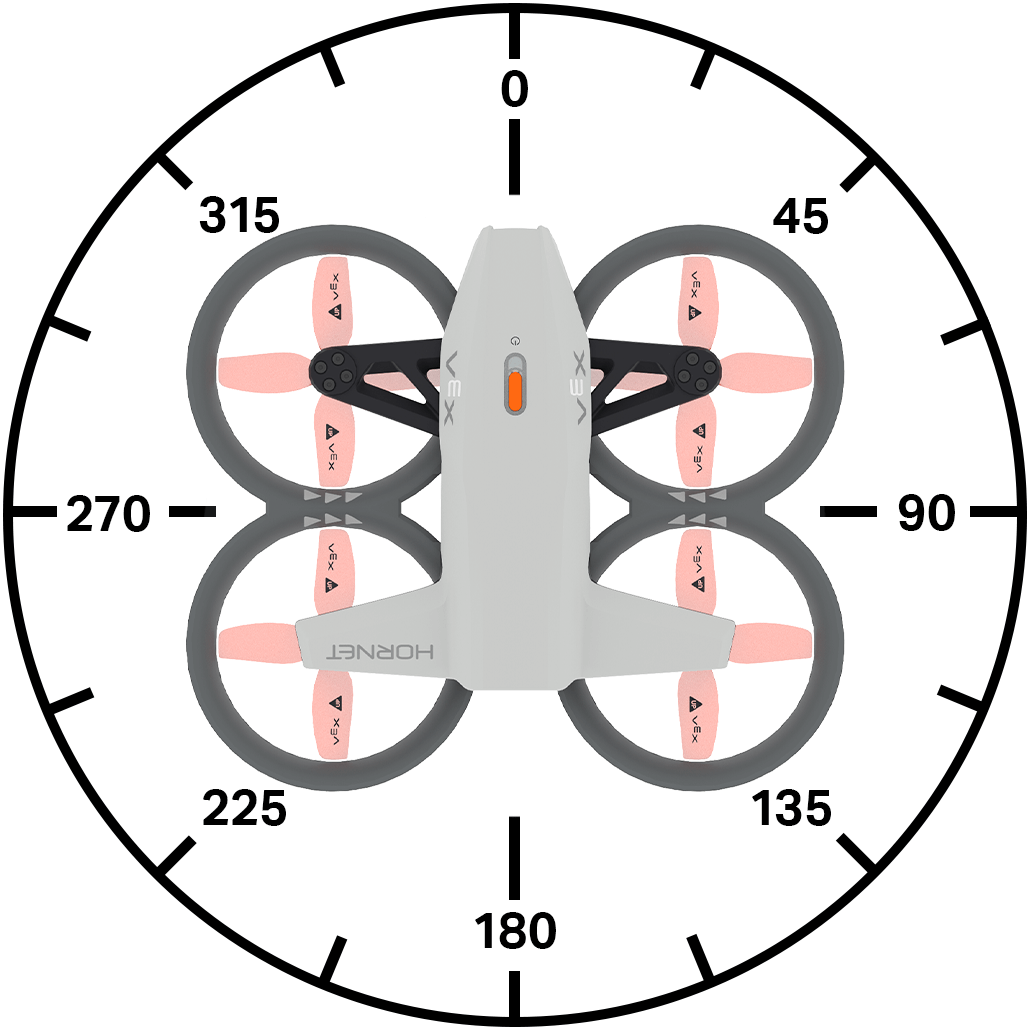
move at angle — Moves the drone in a specified direction using an angle.
move for — Moves the drone in a specific direction for a set distance.
move at angle for — Moves the drone at a specific angle for a set distance.
move to — Moves the drone to a specified position.
turn — Rotates the drone left or right.
turn for — Rotates the drone for a specified number of degrees.
turn to heading — Rotates the drone to face a specific heading.
move with controller — Allows the drone to be driven using the controller.
Flight Control — Adjust flight settings.
set steering POV — Sets the POV for steering the drone.
set movement — Sets the movement style of the drone.
Settings — Adjust movement and turn velocities.
set climb velocity — Sets the default climbing velocity.
set move velocity — Sets the default movement velocity.
set turn velocity — Sets the default turning velocity.
Position — Track and modify the drone’s position.
position — Returns the drone’s current x, y, or z coordinate.
get max z height — Returns the maximum height that the drone can reach.
set max z height - Sets a limit to how high the drone will fly.
set position — Manually sets the drone’s x, y, or z position.
Values — Check movement status.
flight state — Returns the current state of the drone.
safe mode — Returns the drone’s propeller lock state.
climb active — Returns whether the drone is currently climbing.
move active — Returns whether the drone is currently moving.
turn active — Returns whether the drone is currently turning.
hovering — Returns whether the drone is currently hovering.
taking off — Returns whether the drone is currently taking off.
landing — Returns whether the drone is currently landing.
landed — Returns whether the drone has landed.
Actions#
take off#
The take off stack block starts the propellers and lifts the drone into the air. This block must be used before other movements can be made.
take off to [500] [mm v] ▶
Parameters |
Description |
|---|---|
climb to |
The z position (height) the drone will climb to. |
units |
The unit of measurement: mm (millimeters) or inches. |
and don’t wait |
Select the arrow ( ▶ ) to expand the block to say and don’t wait, so the next block in the stack will run right away. |
Example
    when started
    [Fly for 1 second.]
    take off to [500] [mm v] ▶
    wait [1] seconds
    land ▶
land#
The land stack block lowers the drone to the ground. The propellers will continue to run until the project is stopped.
land ▶
Parameters |
Description |
|---|---|
and don’t wait |
Select the arrow ( ▶ ) to expand the block to say and don’t wait, so the next block in the stack will run right away. |
Example
    when started
    [Land after 1 second.]
    take off to (500) [mm v] ▶
    wait [1] seconds
    land ▶
hover#
The hover stack block stops the drone from moving in any direction and holds its current position in the air.
hover
Parameters |
Description |
|---|---|
This block has no parameters. |
Example
    when started
    [Hold current position for 3 seconds after moving forward.]
    take off to (500) [mm v] ▶
    move [forward v]
    wait [1] seconds
    hover
    wait [3] seconds
    land ▶
climb#
The climb stack block moves the drone in a specified vertical direction.
climb [up v]
Parameters |
Description |
|---|---|
direction |
The direction in which the drone will fly: up or down. |
Example
    when started
    [Climb upwards for 2 seconds.]
    take off to (500) [mm v] ▶
    wait [2] seconds
    climb [up v]
    wait [2] seconds
    land ▶
climb for#
The climb for stack block moves the drone in a specified vertical direction for a specific distance.
climb [up v] for (500) [mm v] ▶
Parameters |
Description |
|---|---|
direction |
The direction in which the drone will fly: up or down. |
distance |
The distance the drone will fly for. |
units |
The unit of measurement: mm (millimeters) or inches. |
and don’t wait |
Select the arrow ( ▶ ) to expand the block to say and don’t wait, so the next block in the stack will run right away. |
Example
    when started
    [Lower drone before landing.]
    take off to [700] [mm v] ▶
    wait [1] seconds
    climb [down v] for [300] [mm v] ▶
    wait [1] seconds
    land ▶
climb to z position#
The climb to z position stack block moves the drone to a specified position on the z-axis.
climb to z position [500] [mm v] ▶
Parameters |
Description |
|---|---|
z position |
The z position, as an integer or decimal, the drone will climb to. |
units |
The unit of measurement: mm (millimeters) or inches. |
and don’t wait |
Select the arrow ( ▶ ) to expand the block to say and don’t wait, so the next block in the stack will run right away. |
Example
    when started
    [Reach 500 mm after takeoff.]
    take off to [300] [mm v] ▶
    wait [1] seconds
    climb to z position [500] [mm v] ▶
    wait [1] seconds
    land ▶
move#
The move stack block moves the drone in four specific directions using the current move velocity.
move [forward v]
Parameters |
Description |
|---|---|
direction |
Move the drone in one of the following directions:
|
Example
    when started
    [Move forward for 2 seconds.]
    take off to [500] [mm v] ▶
    move [forward v]
    wait [2] seconds
    land ▶
move at angle#
The move at angle stack block moves the drone at a specified angle using the current move velocity.
move at (90) degrees
Parameters |
Description |
|---|---|
angle |
The angle, as an integer or decimal, at which the drone moves, ranging from 0 to 359 degrees. |
Examples
    when started
    [Move left for 2 seconds.]
    take off to [500] [mm v] ▶
    move at [270] degrees
    wait [2] seconds
    land ▶
move for#
The move for stack block moves the drone in four specific directions for a specific distance using the current move velocity.
move [forward v] for (200) [mm v] ▶
Parameters |
Description |
|---|---|
direction |
Move the drone in one of the following directions:
|
distance |
The distance, as an integer or decimal, that the drone will move. |
units |
The unit of measurement: mm (millimeters) or inches. |
and don’t wait |
Select the arrow ( ▶ ) to expand the block to say and don’t wait, so the next block in the stack will run right away. |
Example
when started
[Move forward for 200 mm.]
take off to [500] [mm v] ▶
move [forward v] for [200] [mm v] ▶
land ▶
move at angle for#
The move at angle for stack block moves the drone at a specific angle for a specified distance using the current move velocity.
move at (45) degrees for (200) [mm v] ▶
Parameters |
Description |
|---|---|
angle |
The angle, as an integer or decimal, at which the drone moves, ranging from 0 to 359 degrees. |
distance |
The distance, as an integer or decimal, that the drone will move. |
units |
The unit of measurement: mm (millimeters) or inches. |
and don’t wait |
Select the arrow ( ▶ ) to expand the block to say and don’t wait, so the next block in the stack will run right away. |
Examples
when started
[Move diagonally for 500 mm.]
take off to [300] [mm v] ▶
move at [45] degrees for [500] [mm v] ▶
land ▶
move to#
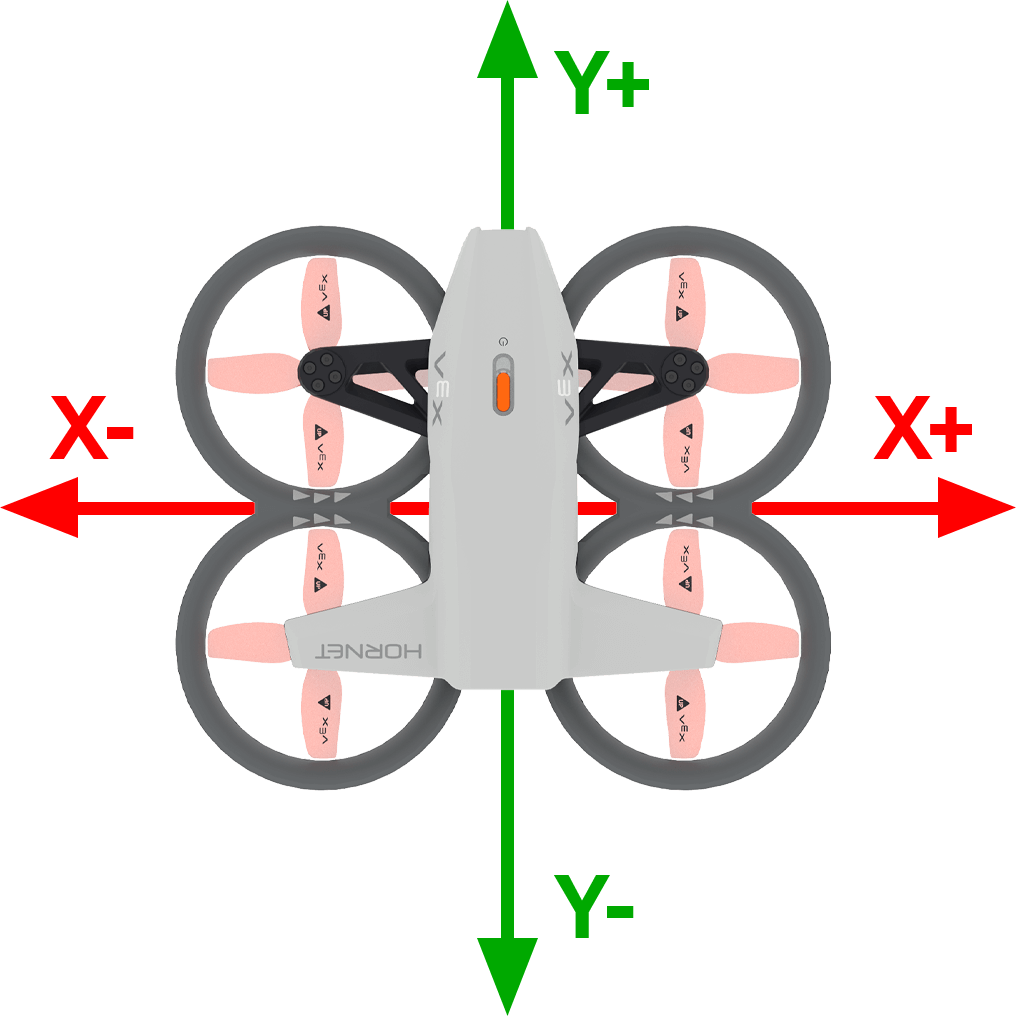
The move to stack block moves the drone to a specified position in the air while maintaining the same heading.
move to x: [1000] y: [1000] z: [1000] [mm v] ▶
Parameters |
Description |
|---|---|
x |
The x coordinate that the drone will move to. |
y |
The y coordinate that the drone will move to. |
z |
The z coordinate that the drone will climb to. |
units |
The unit of measurement: mm (millimeters) or inches. |
Examples
when started
[Move diagonally to (300, 300, 500).]
take off to [300] [mm v] ▶
wait [2] seconds
move to x: [300] y: [300] z: [500] [mm v] ▶
wait [2] seconds
land ▶
turn#
The turn stack block turns the drone in a specific direction using the current turn velocity.
turn [right v]
Parameters |
Description |
|---|---|
direction |
The direction in which the drone turns: right or left. |
Example
when started
[Turn to the right for 2 seconds.]
take off to [500] [mm v] ▶
turn [right v]
wait [2] seconds
land ▶
turn for#
The turn for stack block turns the drone in a specified direction for a set distance relative to its current facing direction using the current turn velocity.
turn [right v] for (90) degrees ▶
Parameters |
Description |
|---|---|
direction |
The direction in which the drone turns: right or left. |
angle |
The angle, as an integer or decimal, at which the drone moves, ranging from 0 to 359 degrees. |
and don’t wait |
Select the arrow ( ▶ ) to expand the block to say and don’t wait, so the next block in the stack will run right away. |
Examples
when started
[Turn around, then land.]
take off to [500] [mm v] ▶
turn [right v] for [180] degrees ▶
land ▶
turn to heading#
The turn to heading stack block turns the drone to face a specific heading using the current turn velocity.
turn to heading (270) degrees ▶
Parameters |
Description |
|---|---|
heading |
The heading that the drone will turn to face from 0 to 359 degrees. |
and don’t wait |
Select the arrow ( ▶ ) to expand the block to say and don’t wait, so the next block in the stack will run right away. |
Examples
when started
[Turn to face each of the cardinal headings.]
take off to [500] [mm v] ▶
turn to heading (90) degrees ▶
wait [1] seconds
turn to heading (180) degrees ▶
wait [1] seconds
turn to heading (270) degrees ▶
wait [1] seconds
turn to heading (0) degrees ▶
wait [1] seconds
land ▶
move with controller#
The move with controller stack block lets you control the drone using the VEX AIR Drone Controller. This block must be used inside of a loop to continuously control the drone. If the loop stops and there are no other blocks telling the drone to move, the drone will keep moving in the last direction it was moving in.
move with controller
Parameters |
Description |
|---|---|
This block has no parameters. |
Example
    when started
    [Move with controller until button 7 is pressed.]
    take off to [500] [mm v] ▶
    repeat until <controller button [7 v] pressed?>
    move with controller
    end
    land ▶
Flight Control#
set steering POV#
The set steering POV stack block sets the viewpoint that is used when steering the drone.
set steering POV to [standard v]
Parameters |
Description |
|---|---|
style |
Sets the viewpoint that is used to steer the drone. standard means movements are based on the direction that the drone is currently facing. headless means movements are based on the drone’s orientation at the start of a project. |
Example
    when started
    [Steer based on the drone's starting orienation until button 7 is pressed.]
    take off to [500] [mm v] ▶
    set steering POV to [headless v]
    repeat until <controller button [7 v] pressed?>
    move with controller
    end
    land ▶
set movement#
The set movement stack block sets the drone’s movement style.
This movement style is used when flying the drone with a controller.
set movement to [precision v]
Parameters |
Description |
|---|---|
style |
Sets the style that is used to steer the drone:
|
Example
    when started
    [Control the drone with the balanced movement style.]
    take off to [500] [mm v] ▶
    set movement to [balanced v]
    repeat until <controller button [7 v] pressed?>
    move with controller
    end
    land ▶
Settings#
set climb velocity#
The set climb velocity stack block sets the default climbing velocity as a percentage. This will affect any following blocks related to climbing. The default climb velocity is 50%.
set climb velocity to [100] %
Parameters |
Description |
|---|---|
velocity |
The velocity at which the drone will climb as a percent. |
Example
    when started
    [Raise the drone quickly before landing.]
    take off to [300] [mm v] ▶
    wait [1] seconds
    set climb velocity to [100] %
    climb [up v] for (500) [mm v] ▶
    land ▶
set move velocity#
The set move velocity stack block sets the default movement velocity as a percentage. This will affect any following blocks related to moving. The default move velocity is 50%.
set move velocity to [100] %
Parameters |
Description |
|---|---|
velocity |
The velocity at which the drone will move as a percent. |
Example
    when started
    [Move forward quickly, then reverse slowly.]
    take off to [500] [mm v] ▶
    set move velocity to [100] %
    move [forward v] for [500] [mm v] ▶
    wait (1) seconds
    set move velocity to [20] %
    move [reverse v] for [500] [mm v] ▶
    land ▶
set turn velocity#
The set turn velocity stack block sets the default turning velocity as a percentage. This will affect any following blocks related to turning. The default turn velocity is 50%.
set turn velocity to [100] %
Parameters |
Description |
|---|---|
velocity |
The velocity at which the drone will turn as a percent. |
Example
    when started
    [Turn clockwise quickly, then counterclockwise slowly.]
    take off to [500] [mm v] ▶
    set turn velocity to [100] %
    turn [right v] for [360] degrees ▶
    wait (1) seconds
    set turn velocity to [20] %
    turn [left v] for [360] degrees ▶
    land ▶
Position#
position#
The position reporter block reports the drone’s current x, y, or z coordinate as an integer. At the start of a project, the drone’s current position is automatically set to (0, 0, 0).
[x v] position in [mm v]
Parameters |
Description |
|---|---|
axis |
Which axis to report the coordinate of:
|
units |
The unit of measurement: mm (millimeters) or inches. |
Example
    when started
    [Fly to position (0, 300, 500).]
    take off to [500] [mm v] ▶
    wait [1] seconds
    move [forward v]
    wait until <([y v] position in [mm v]) [math_greater_than v] [300]>
    hover
    wait [1] seconds
    land ▶
get max z height#
The get max z height reporter block reports the maximum height that the drone can reach.
(get max z height in [mm v])
Parameters |
Description |
|---|---|
units |
The unit of measurement: mm (millimeters) or inches. |
Example
    when started :: hat events
    [Display the new z height limit.]
    print (get max z height in [mm v]) on screen ▶
    set cursor to next row on screen
    take off to [500] [mm v] ▶
    set max z height to [1000] in [mm v]
    print (get max z height in [mm v]) on screen ▶
    wait [1] seconds
    land ▶
set max z height#
The set max z height stack block sets a limit to how high the drone will fly.
set max z height to [2500] in [mm v]
Parameters |
Description |
|---|---|
max z height |
The maximum z-axis value, as an integer or decimal, that the drone will not fly above, in a range from 1000 to 5000 mm or 40 to 196 inches. |
units |
The unit of measurement: mm (millimeters) or inches. |
Example
    when started
    [Fly with controller under 1000 mm.]
    set max z height to [1000] in [mm v]
    take off to (500) [mm v] ▶
    repeat until <controller button [7 v] pressed?>
    move with controller
    end
    land ▶
set position#
The set position stack block sets the drone’s current x, y, or z coordinate to a specified value.
set [x v] position to [0] [mm v]
Parameters |
Description |
|---|---|
axis |
The coordinate axis to set the position for:
|
coordinate |
The new position value to set. |
units |
The unit of measurement: mm (millimeters) or inches. |
Example
    when started
    [Set a new z position, then fly to z position -300.]
    take off to [800] [mm v] ▶
    set [z v] position to [0] [mm v]
    wait [1] seconds
    climb [down v]
    wait until <([z v] position in [mm v]) [math_less_than v] [-300]>
    hover
    wait [1] seconds
    land ▶
Values#
flight state#
The flight state Boolean block reports whether or not the drone is in the specified flight state.
True — The drone is in the specified state.
False — The drone is not in the specified state.
<flight state is [motors off v]?>
Parameters |
Description |
|---|---|
state |
The flight state to check:
|
Example
    when started
    [Report the flight status as the drone takes off.]
    print [Preparing for flight!] on screen ◀ and set cursor to next row
    take off to [800] [mm v] ◀ and don't wait
    wait until <flight state is [motor start v]>
    print [Motors starting...] on screen ◀ and set cursor to next row
    wait until <flight state is [flight v]>
    print [Take off!] on screen ▶
safe mode#
The safe mode Boolean block reports whether the Propeller Lock is enabled on the drone.
True — Propeller Lock is enabled.
False — Propeller Lock is not enabled.
<safe mode?>
Parameters |
Description |
|---|---|
This block has no parameters. |
Example
    when started
    [Change the sound by enabling the Propeller Lock.]
    forever
    if <safe mode?> then
    play sound [fault v]
    else
    play sound [success v]
climb active#
The climb active Boolean block reports whether the drone is climbing.
True — The drone is currently climbing.
False — The drone is not climbing.
<climb active?>
Parameters |
Description |
|---|---|
This block has no parameters. |
Example
    when started
    [After the drone starts to climb, play a sound and land.]
    take off to [500] [mm v] ▶
    climb [up v]
    wait [1] seconds
    if <climb active?> then
    play sound [looping v] ▶
    land ▶
move active#
The move active Boolean block reports whether the drone is currently using a move block.
True — The drone is currently using a move block.
False — The drone is not currently using a move block.
<move active?>
Parameters |
Description |
|---|---|
This block has no parameters. |
Example
    when started
    [After the drone starts to move, play a sound and land.]
    take off to [500] [mm v] ▶
    move [forward v]
    wait [1] seconds
    if <move active?> then
    play sound [looping v] ▶
    land ▶
turn active#
The turn active Boolean block reports whether the drone is turning.
True — The drone is currently turning.
False — The drone is not turning.
<turn active?>
Parameters |
Description |
|---|---|
This block has no parameters. |
Example
    when started
    [After the drone starts to turn, play a sound and land.]
    take off to (500) [mm v] ▶
    turn [right v]
    wait [1] seconds
    if <turn active?> then
    play sound [detected v] ▶
    land ▶
hovering#
The hovering Boolean block reports whether the drone is maintaining its position (hovering).
True — The drone is currently maintaining its position (hovering).
False — The drone is currently changing its position.
<hovering?>
Parameters |
Description |
|---|---|
This block has no parameters. |
Example
    when started
    [Play a sound after the drone has finished taking off.]
    take off to [700] [mm v] ▶
    wait until <hovering?>
    wait [2] seconds
    play sound [pause v] ▶
    land ▶
taking off#
The taking off Boolean block reports whether the drone is in the process of taking off.
True — The drone is currently in the process of taking off.
False — The drone is not in the process of taking off.
<taking off?>
Parameters |
Description |
|---|---|
This block has no parameters. |
Example
    when started
    [Play sounds while the drone is taking off.]
    take off to [700] [mm v] ◀ and don't wait
    wait [1] seconds
    while <taking off?>
    play sound [sensing v] ▶
landing#
The landing Boolean block reports whether the drone is in the process of landing.
True — The drone is currently in the process of landing.
False — The drone is not in the process of landing.
<landing?>
Parameters |
Description |
|---|---|
This block has no parameters. |
Example
    when started
    [Play sounds while the drone is landing.]
    take off to (500) [mm v] ▶
    wait [1] seconds
    land ◀ and don't wait
    wait [1] seconds
    while <landing?>
    play sound [looping v] ▶
landed#
The landed Boolean block reports whether the drone has landed.
True — The drone has landed.
False — The drone has not landed.
<landed?>
Parameters |
Description |
|---|---|
This block has no parameters. |
Example
    when started
    [Celebrate a successful landing.]
    take off to (500) [mm v] ▶
    wait (1) seconds
    land ▶
    if <landed> then
    play sound [success v] ▶