• VEXcode Robotics Logo VEX Robotics Logo
  • VEX API Home Button VEX API Home Button
  • VEX 123 logo in purple VEX 123 logo in white
  • VEX GO logo in lime green VEX GO logo in white
  • VEXcode AIM logo in blue VEXcode AIM logo in white
  • VEX IQ logo in blue VEX IQ logo in white
  • VEX EXP logo in red VEX EXP logo in white
  • VEX V5 logo in red VEX V5 logo in white
  • VEX CTE logo in green VEX CTE logo in white
  • VEX AIR logo in orange VEX AIR logo in white
  • VEXcode VR logo in gold VEXcode VR logo in white
Skip to main content
Ctrl+K

< Back to Platform Select

  • VEX AIR
  • VEXcode Tutorials
English
  • Spanish
  • 简体中文
  • VEXcode Robotics Logo

Section Navigation

  • Blocks
  • Python
  • VEXcode Tutorials
    • Creating, Opening, and Saving a Project
    • Downloading, Running, and Stopping a Project
    • Renaming the VEX AIR Drone Controller
    • Connecting with a Wired Connection (Mac)
    • Connecting with a Wired Connection (Windows)
    • Pre-Flight Checklist & Takeoff
    • LED Indicator Status Guide
    • Using the VEX AIR Drone Propeller Lock
    • Uploading Custom Sounds
    • Uploading Custom Images
    • Using the Console
    • Flight Safety with the Drone
    • Connecting to the Console Serial Port (Mac)
    • Connecting to the Console Serial Port (Windows)
    • Capturing Images and Videos
    • Using the VEX AIR Flight Simulator
    • Using Flight School

Platform Navigation

  • VEX 123 logo in purple VEX 123 logo in white
  • VEX GO logo in lime green VEX GO logo in white
  • VEXcode AIM logo in blue VEXcode AIM logo in white
  • VEX IQ logo in blue VEX IQ logo in white
  • VEX EXP logo in red VEX EXP logo in white
  • VEX V5 logo in red VEX V5 logo in white
  • VEX CTE logo in green VEX CTE logo in white
  • VEX AIR logo in orange VEX AIR logo in white
  • VEXcode VR logo in gold VEXcode VR logo in white

VEXcode Tutorials#

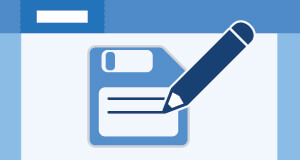
A VEXcode AIR project being created, opened, and saved.

Creating, Opening, and Saving a Project

Download, run, and stop controls in VEXcode AIR.

Downloading, Running, and Stopping a Project

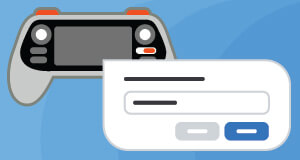
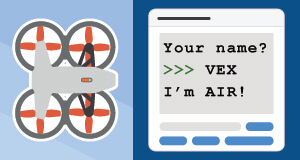
A VEX AIR Drone Controller being renamed.

Naming the Controller

A wired connection from a device to VEXcode AIR.

Connecting with a Wired Connection (Mac)

A wired connection from a device to VEXcode AIR.

Connecting with a Wired Connection (Windows)

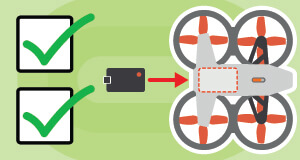
The VEX AIR Pre-Flight Checklist.

Pre-Flight Checklist

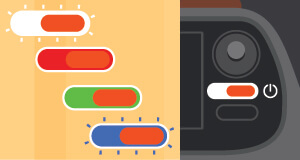
VEX AIR LED indicator lights.

Indicator Lights

The VEX AIR Drone Propeller Lock interface.

Using the Propeller Lock

A custom sound being uploaded in VEXcode AIR.

Uploading Custom Sounds

A custom image being uploaded in VEXcode AIR.

Uploading Custom Images

The VEX AIR Console interface in VEXcode AIR.

Using the Console

A VEX AIR Drone safety reminder graphic.

Flight Safety with the Drone

A VEX AIR Console Serial Port connection screen.

Connecting to the Console Serial Port (Mac)

A VEX AIR Console Serial Port connection screen.

Connecting to the Console Serial Port (Windows)

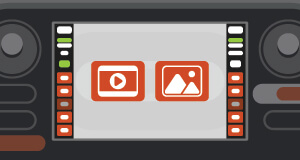
VEX AIR image and video capture controls.

Capturing Images and Videos

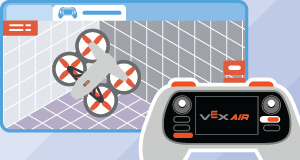
The VEX AIR Flight Simulator interface.

Using the Simulator

The VEX AIR Flight Simulator interface.

Using Flight School

previous

Python Libraries

next

Creating, Opening, and Saving a Project

Innovation First, International

VEX and VEX Robotics are trademarks or service marks of Innovation First, Inc. Copyright ©2026. All Rights Reserved. VEX Robotics, Inc. is a subsidiary of Innovation First International, Inc. All other product names / marks of others are the property of their respective owners. Patents and / or Patents Pending - innovationfirst.com/patents
Site Privacy Policy / Site Terms of Use / Cookie Policy / Software Privacy Policy

Visit the VEX Robotics Facebook Page Visit the VEX Robotics Twitter Page Visit the VEX Robotics Instagram Page Visit the VEX Robotics YouTube Page
VEX API Feedback Form

We value your feedback! Use this form to share suggestions, compliments, or report errors with the VEX API. Your input helps us enhance the VEX API documentation.

If you are experiencing technical issues or require customer support, please visit support.vex.com.

  • Send Happy Feedback
  • Send Sad Feedback

Note: the current URL will be shared with your message

By including your email address, you agree that VEX may send you email emails if we have questions about your feedback.
Privacy Policy >
Please provide your feedback. Feedback submitted successfully!
Choose Which VEX IQ Generation to View

VEX IQ (1st gen)

VEX IQ (2nd gen)