
Turning Your Robot#
Turning Your Robot
This tutorial walks you through using the turn for block to turn your robot in VEXcode EXP. By the end, you’ll have a project that turns your robot around.
Make sure your robot is configured with a Drivetrain, so you see the Drivetrain blocks in the toolbox.
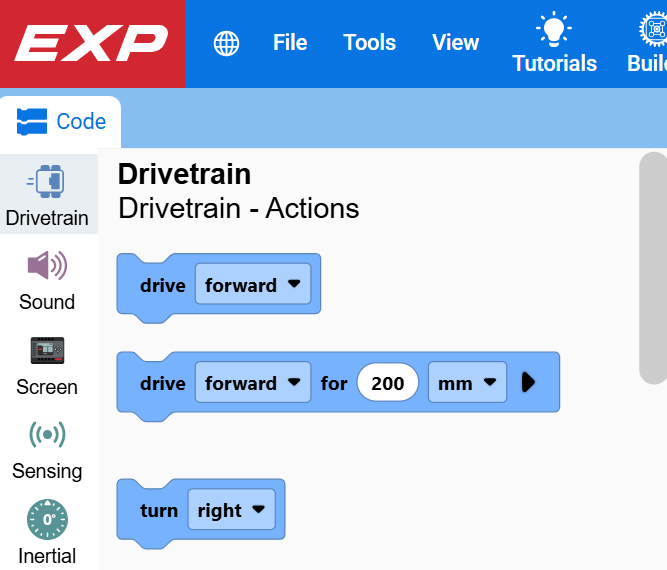
Attach a turn for block below the when started block.
A turn for block connected below when started.#
    when started
        turn [right v] for (90) degrees ▶
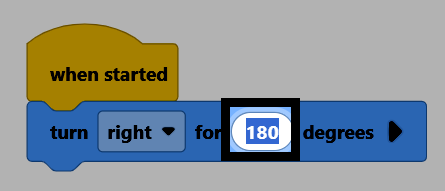
Change the degrees parameter to 180.
Make sure your robot is connected to VEXcode, then select Download to download the project to the Brain.

Select Run to run the project. The robot will turn around to face the opposite direction.
