Connecting to Your Robot#
This tutorial walks you through connecting your robot to VEXcode EXP with a USB cable. By the end, you’ll have your Brain connected and ready to download projects to.
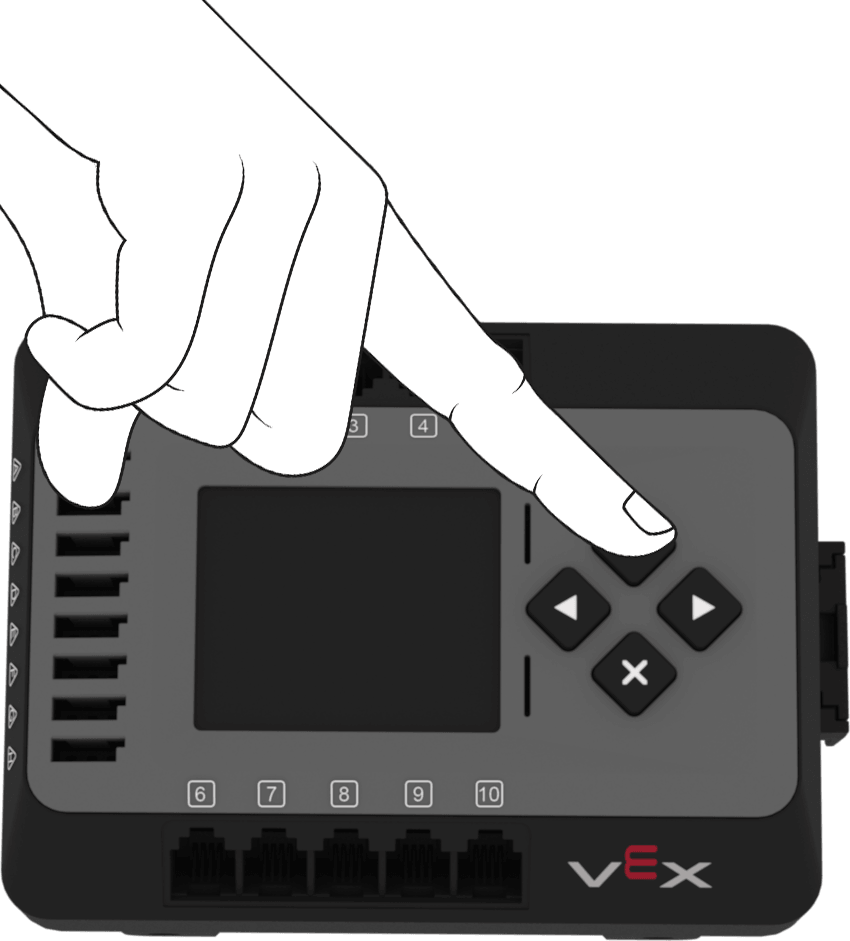
Press the Check button on the Brain to turn it on.
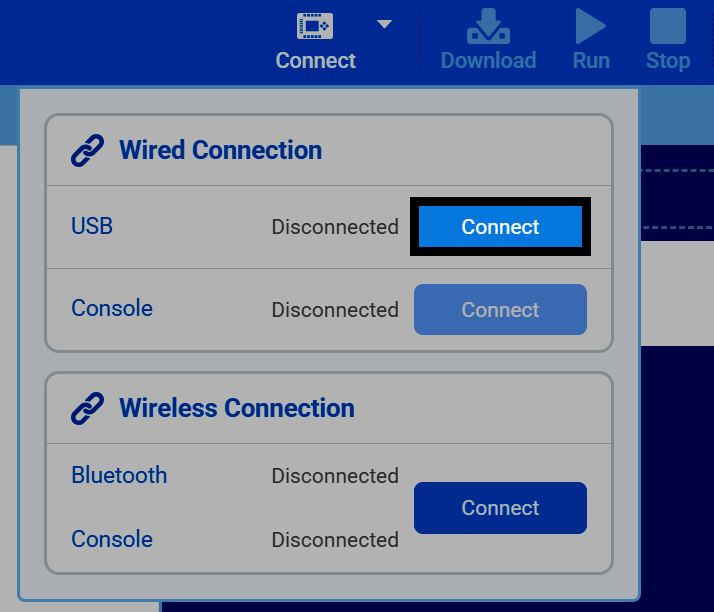
Connect your Brain to your computer with a USB cable, then select the Connect button at the top-right of VEXcode.

Select Connect next to USB under Wired Connection.
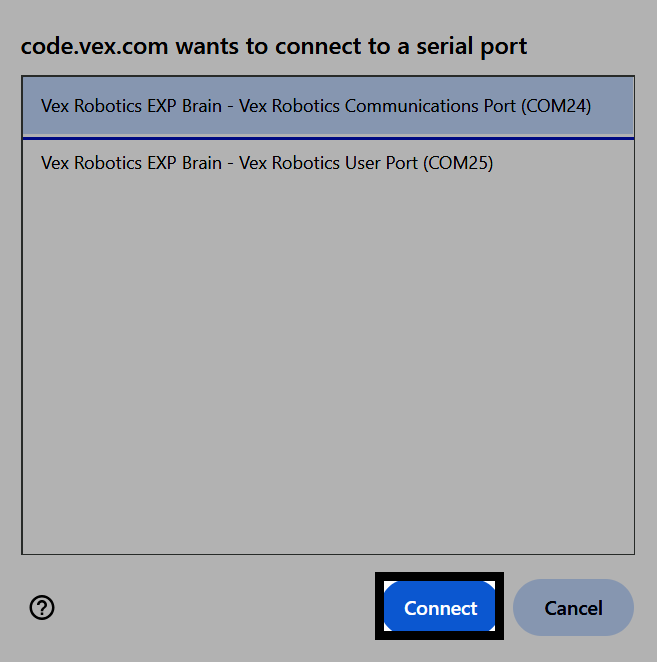
Your browser will ask which serial port to connect to. On Windows, select Vex Robotics Communications Port.
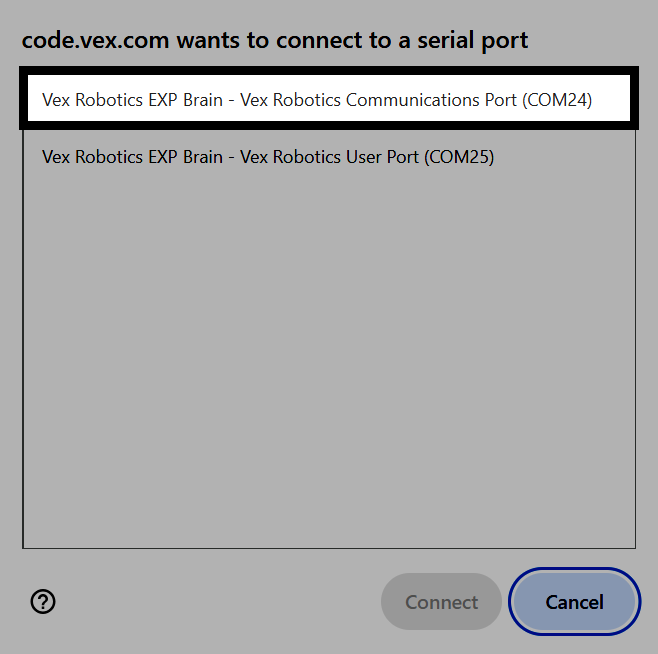
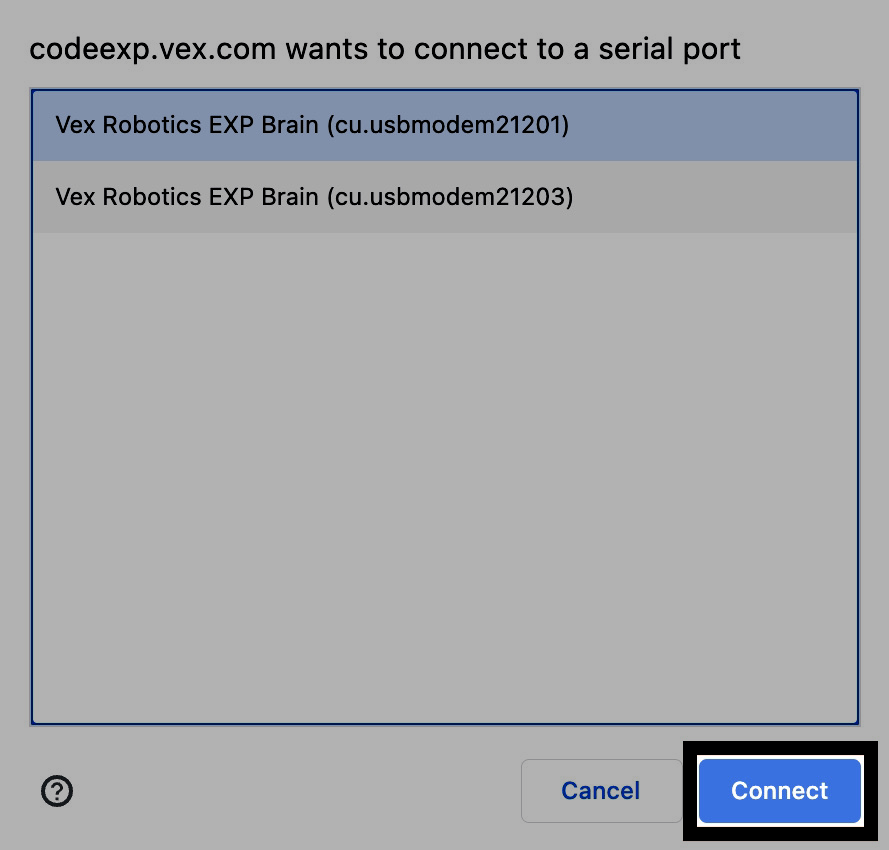
On macOS, select the lower-numbered Vex Robotics EXP Brain entry.
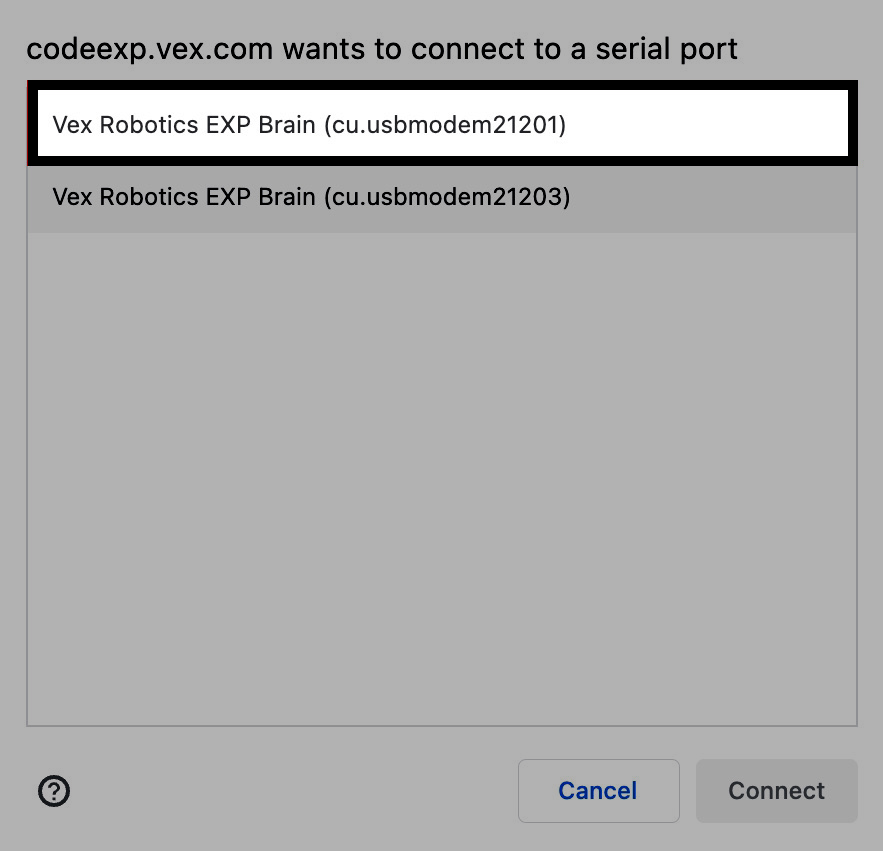
Select Connect.
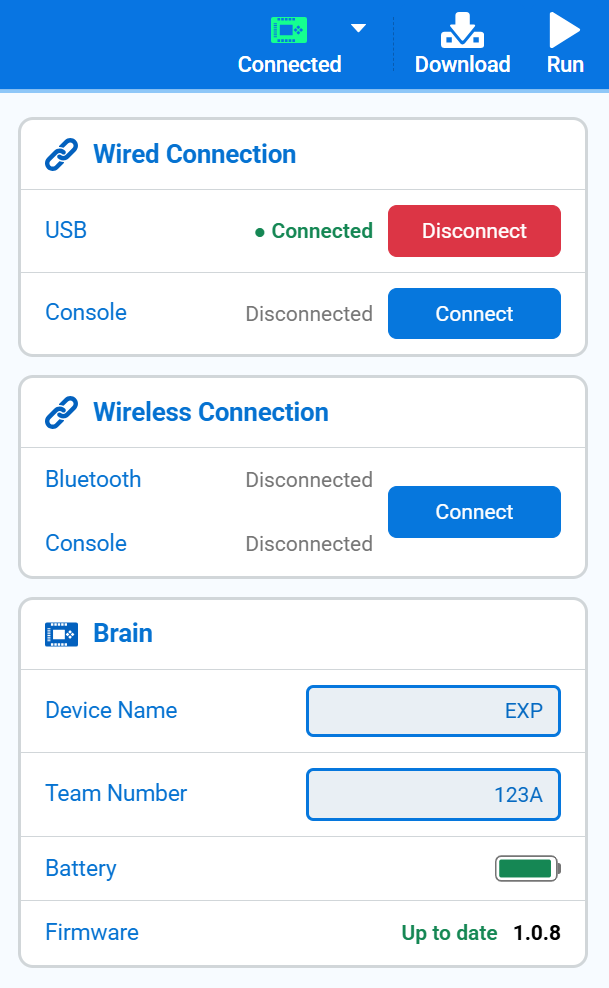
Once connected, USB will show as Connected, and the Brain section will appear, showing its Device Name, Team Number, battery, and firmware version. From here, you can also edit the Brain’s name and Team Number.