Updating Brain Firmware#
Updating Brain Firmware
This tutorial walks you through updating your Brain’s firmware in VEXcode IQ (2nd gen). By the end, you’ll have your Brain’s firmware up to date.
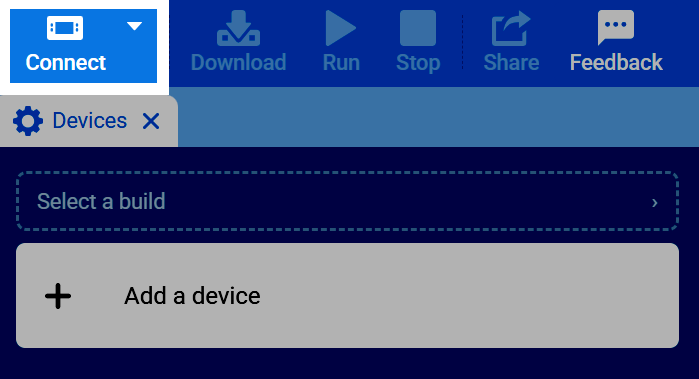
Select the Connect button in the top-right of VEXcode.
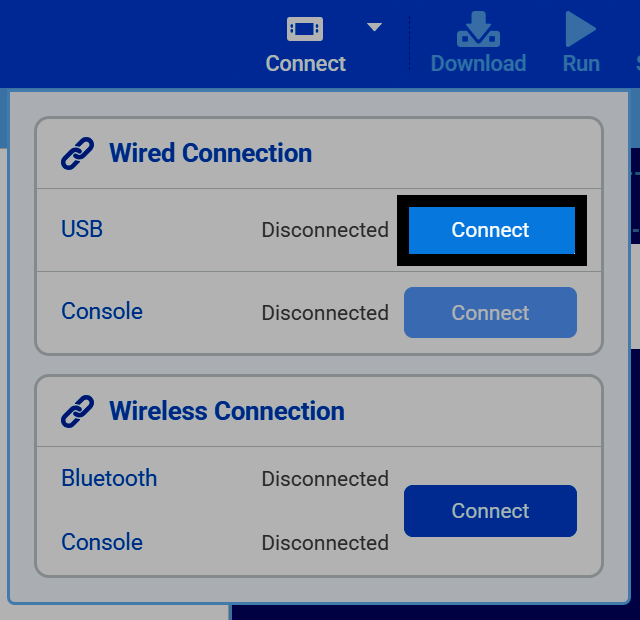
To update your Brain, you must connect it to your device with a wired connection, using a USB cable. Select the Connect button under the Wired Connection section, next to USB.
For help selecting the correct port on your device, see Connecting to Your Robot.
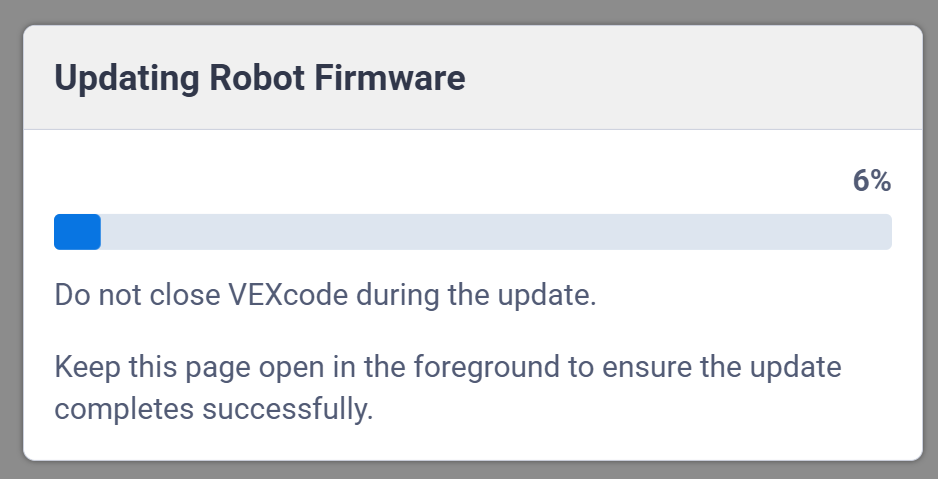
If your Brain’s firmware is out of date, VEXcode will automatically start updating it.
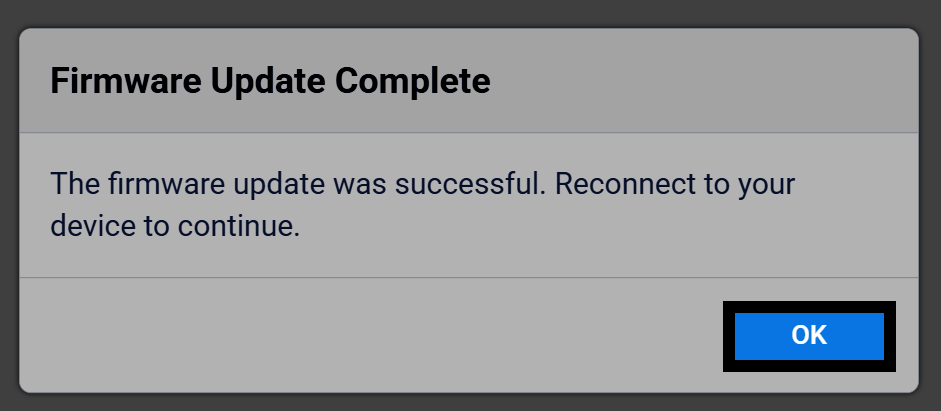
Once the update is complete, select OK to finish. Reconnect the Brain to VEXcode to begin downloading projects to it again.