
Storing Data#
This tutorial covers how to create and use variables in VEXcode IQ (2nd gen). By the end, you’ll know how to create a variable and use it in a project.
Variables let you store data during a project, such as a number, a true/false value, or a list of items.
Go to the Logic - Variables category in the toolbox, and select Make a Variable.
Select the type of variable you want to create.
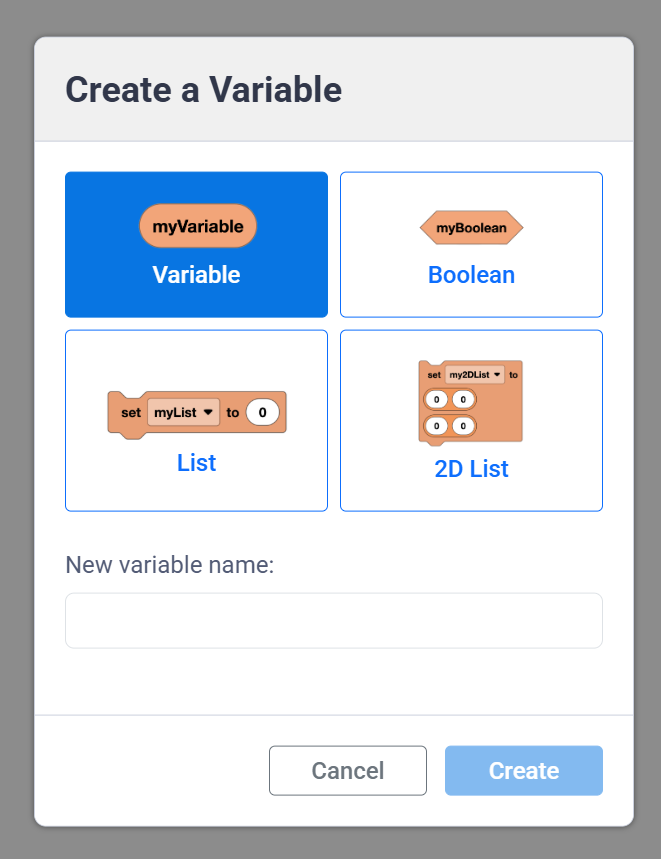
Numeric variables can store text or a number.
(my_variable)
Booleans store true or false values.
<my_boolean>
Lists store a sequence of text and/or numbers.
set [my_list v] to (0) (0) (0)
2D Lists store a sequence of text and/or numbers, organized into rows and columns. These are useful when you want to store a lot of data at once and keep all the values organized.
set [my_2d_list v] to ([0][0]) ([0][0])
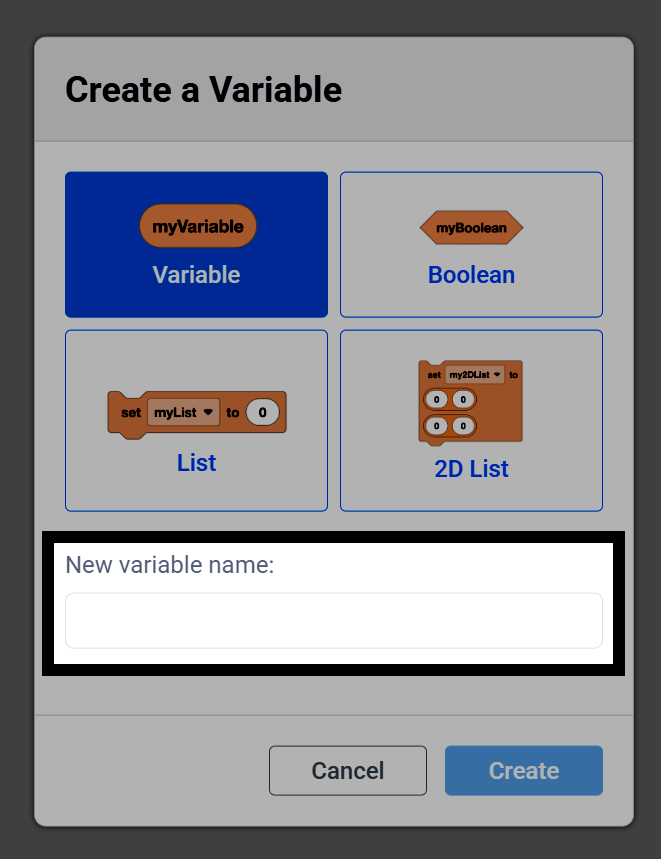
Type a name for your variable.
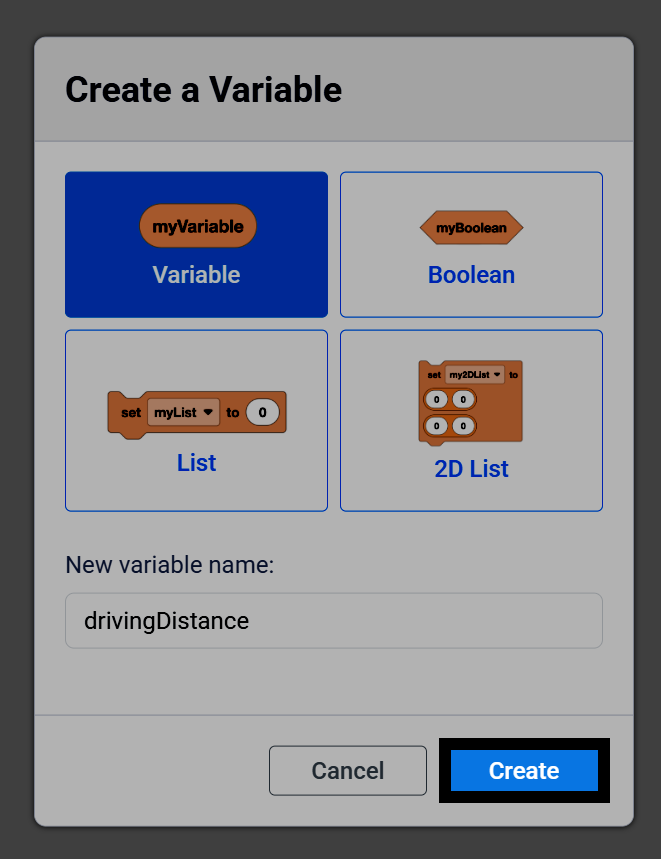
Select Create to add your variable to the toolbox.
Along with your variable, there will also be blocks in the toolbox you can use to change its value in the middle of a project. For example, numeric variables include a reporter block, along with the set numeric variable and change numeric variable blocks.
(my_variable)
set [my_variable v] to (1)
change [my_variable v] by (1)
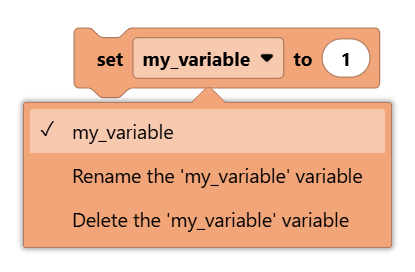
Select a variable block’s dropdown to choose a different variable, or to rename or delete the currently selected variable.
In this project, pressing the Brain’s Check button will add 1 to a variable named count and display it on the Console, while pressing the Brain’s Left button will reset it back to 0.
    when started
        set [count v] to [0]
        forever
            if <Brain [Check v] button pressed?> then
                [Add 1 to the count.]
                change [count v] by (1)
                print (count) on console ◀ and set cursor to next row
            else if <Brain [◀ v] button pressed?> then
                [Reset the count back to 0.]
                set [count v] to [0]
                print (count) on console ◀ and set cursor to next row
            end
        end