
螢幕#
介紹#
screen 類別衍生自 brain 基底類別。它控制 IQ(第二代)大腦如何在其內建螢幕上顯示文字、數字和圖形。
預設情況下,印到大腦的字體是等寬小號。
大腦的繪圖解析度為 160 x 108 像素。
使用權#
可以透過以下方式存取 screen 類:
Brain.Screen
筆記#
The
screenobject is provided by the Brain. It is not constructed directly.項目使用單一全域
Brain對象,因此螢幕函數使用Brain.Screen呼叫。
例子#
/* This constructor is required when using VS Code.
A Brain is generated automatically at the start of
VEXcode projects. */

// Create the Brain
brain Brain = brain();

// Print text to the Brain screen
Brain.Screen.print("Hello!");
成員功能#
screen 類別包含以下成員函數:
print— 將格式化的文字、數字或布林值列印到 Brain 畫面。setCursor— 將文字遊標移到指定的行和列。newLine— 清除目前行的剩餘內容並將遊標移至下一行。clearLine— 清除目前行的剩餘部分或清除指定的行。row— 傳回要列印文字的行。column— 傳回要列印文字的列。getStringHeight— 使用目前字體傳回字串的像素高度。getStringWidth— 使用目前字體傳回字串的像素寬度。printAt— 在 x, y 像素位置列印格式化文字(可選不透明)。clearScreen— 清除整個畫面(可選擇清除為指定顏色)。setFont— 設定用於螢幕列印的字型。setPenWidth— 設定繪製的線條和形狀輪廓的粗細。setPenColor— 設定文字、像素、線條和形狀輪廓的顏色。setFillColor— 設定繪製形狀和列印文字背景的填滿顏色。setOrigin— 設定螢幕座標的原點。setClipRegion— 將螢幕輸出限制在長方形區域內。drawPixel— 在座標處繪製一個像素。drawLine— 在兩點之間畫一條線。drawRectangle— 在 x, y 位置繪製一個指定大小的矩形。drawCircle— 在 x, y 位置繪製一個具有指定半徑的圓。drawImageFromFile— 將 SD 卡檔案中的影像繪製到螢幕上。render— 啟用雙緩衝或將後緩衝區渲染到螢幕。pressing— 返回螢幕目前是否被按下。xPosition— 傳回最近一次畫面按下的 x 座標。yPosition— 傳回最近一次畫面按下的 y 座標。pressed— 註冊一個在螢幕被按下時運行的回呼函數。released— 註冊一個回呼函數,當螢幕被按下後釋放時運行。
在呼叫任何 screen 成員函數之前,必須建立一個 brain 實例,如下所示:
// Create the Brain
brain Brain = brain();
print#
在 IQ(第二代)大腦螢幕上顯示文字、數字或布林值。
Available Functions1 — 使用字串字面量或唯讀 C 風格字串列印格式化文字。
void print(
    const char* format,
    ... );
Parameters2 — 使用可修改的字元陣列列印格式化文字。
void print(
    char* format,
    ... );
範圍 |
類型 |
描述 |
|---|---|---|
|
|
以字串字面量或唯讀 C 風格字串形式提供的格式字串(例如, |
|
|
以可修改字元數組形式提供的格式字串。 |
|
插入到格式字串中的一個或多個附加價值,以逗號分隔。 |
此函數不傳回值。
NotesOutput begins at the current cursor position on the screen.
列印文字使用 螢幕字體。
列印文字使用 筆顏色。
使用
print列印的文字始終帶有背景,背景顏色由 目前填滿顏色決定。使用格式字串時,傳遞的值的數量和類型必須與字串中的 格式說明符 相符。
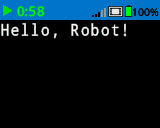
// Display a message at the starting cursor
Brain.Screen.print("Hello, Robot!");
setCursor#
將遊標移到 IQ(第二代)Brain 螢幕上的特定行和列。下一次 print 呼叫將從該位置開始列印。
void setCursor(
  int32_t row,
  int32_t col );
範圍 |
類型 |
描述 |
|---|---|---|
|
|
要將遊標移到的行。 |
|
|
要將遊標移到的列。 |
此函數不傳回值。
Notes Examplesint main() {
// Initializing Robot Configuration. DO NOT REMOVE!
vexcodeInit();
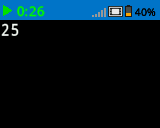
// Repeatedly print the Brain timer at top-left
while (true) {
Brain.Screen.print("%d", Brain.Timer.time(seconds));
Brain.Screen.newLine();
wait(1, seconds);
Brain.Screen.clearScreen();
Brain.Screen.setCursor(1, 1);
}
}
newLine#
將遊標移到大腦螢幕上下一行的開頭。
Available Functionsvoid newLine();
此函數不接受任何參數。
Return Values此函數不傳回值。
Notes如果遊標位於句子的中間,則
newLine將清除遊標之後的行的其餘部分,然後再移至下一行。呼叫
newLine後,遊標位於下一行的第一列。使用
setCursor設定遊標位置和行號。
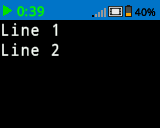
// Display two lines of text
Brain.Screen.print("Line 1");
Brain.Screen.newLine();
Brain.Screen.print("Line 2");
clearLine#
清除 IQ(第二代)大腦螢幕上某一行的文字。
Available Functions1 — 清除遊標位置的目前行剩餘內容。
void clearLine();
2 — 使用目前配置的 填滿顏色 清除指定的行。
void clearLine(
    int number );
3 — 使用預先定義或 自訂顏色 物件清除指定的行。
void clearLine(
    int          number,
    const color& color );
4 — 使用十六進位顏色值清除指定的行。
void clearLine(
    int         number,
    const char* color );
Parameters5 — 使用色調值清除指定的行。
void clearLine(
    int number,
    int hue );
範圍 |
類型 |
描述 |
|---|---|---|
|
|
要清除的行號。行號從 |
|
|
使用
|
|
|
使用十六進位顏色值清除行(例如, |
|
|
使用 |
此函數不傳回值。
Notes清除一行不會改變目前遊標位置。
使用
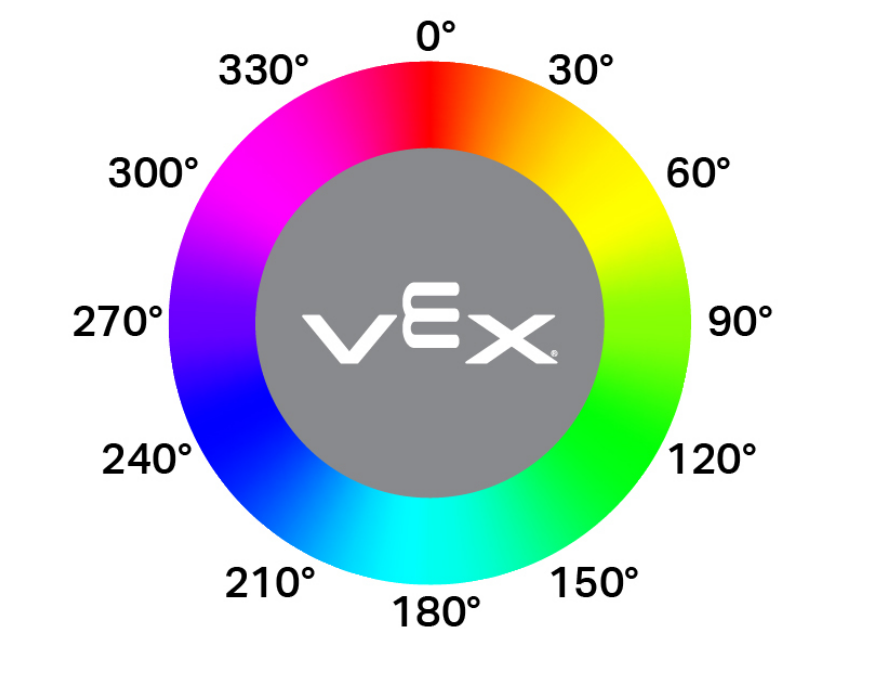
setCursor設定遊標位置和行號。hue參數值基於圓形色輪,如下圖所示,其中值表示色輪上的度數(例如,紅色接近 0°,綠色接近 120°,藍色接近 240°)。
// Display text on two rows
Brain.Screen.print("This text stays");
Brain.Screen.newLine();
Brain.Screen.print("This disappears");

// Wait 3 seconds before clearing row 2
wait(3, seconds);
Brain.Screen.clearLine(2);
row#
返回 IQ(第二代)Brain 螢幕上將列印文字的行。
Available Functionsint32_t row();
此函數不接受任何參數。
Return Values傳回 int32_t ,表示要列印文字的行。
行號從1開始。
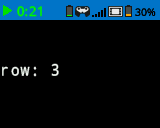
Notes Examples// Display the cursor's current row
Brain.Screen.setCursor(3, 12);
Brain.Screen.print("row: ", Brain.Screen.row());
column#
返回 IQ(第二代)大腦螢幕上將列印文字的列。
Available Functionsint32_t column();
此函數不接受任何參數。
Return Values傳回 int32_t ,表示要列印文字的列。
列編號從 1 開始。
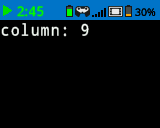
Notes Examples// Display the cursor's current column
Brain.Screen.print("column: ", Brain.Screen.column());
getStringHeight#
傳回字串在 IQ(第二代)Brain 螢幕上渲染時的高度(以像素為單位)。
Available Functionsint32_t getStringHeight(
const char* cstr );
範圍 |
類型 |
描述 |
|---|---|---|
|
|
要測量的文本,以 C 風格字串 的形式提供(例如, |
傳回 int32_t ,表示字串在 Brain 螢幕上渲染時的像素高度。
getStringWidth#
傳回字串在 IQ(第二代)Brain 螢幕上渲染時的寬度(以像素為單位)。
Available Functionsint32_t getStringWidth(
const char* cstr );
範圍 |
類型 |
描述 |
|---|---|---|
|
|
要測量的文本,以 C 風格字串 的形式提供(例如, |
傳回 int32_t ,表示字串在 Brain 螢幕上渲染時的像素寬度。
傳回的 取決於目前選定的螢幕字體。
此函數測量字串的長度,但不將其繪製到螢幕上。
傳回的寬度反映了字串列印時的顯示方式。
printAt#
在 IQ(第二代)大腦螢幕上的特定座標處列印文字、數字或布林值。
Available Functions1 — 在指定的像素位置列印格式化的輸出。
void printAt(
    int32_t    x,
    int32_t    y,
    const char* format,
    ... );
Parameters2 — 在指定的像素位置列印格式化的輸出,並設定文字背景是不透明還是透明。
void printAt(
    int32_t    x,
    int32_t    y,
    bool       bOpaque,
    const char* format,
    ... );
範圍 |
類型 |
描述 |
|---|---|---|
|
|
列印位置的 x 座標,以螢幕原點為參考。 |
|
|
列印位置的 y 座標,以螢幕原點為參考。 |
|
|
Controls whether the printed text is drawn opaquely or transparently:
|
|
|
控制螢幕上列印內容的格式字串(例如, |
|
插入到格式字串中的一個或多個附加價值,以逗號分隔。 |
此函數不傳回值。
Notesx和y座標是相對於目前螢幕原點的,可以使用setOrigin進行更改。列印文字使用 螢幕字體。
列印文字使用 筆顏色。
使用格式字串時,傳遞的值的數量和類型必須與字串中的 格式說明符 相符。
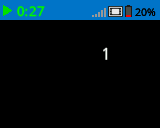
// Print the number 1 at pixel (100, 40)
Brain.Screen.printAt(100, 40, 1);
clearScreen#
清除大腦螢幕上的所有圖畫和文字。
Available Functions1 — 將螢幕清空至黑色。
void clearScreen();
2 — 使用預先定義或 自訂顏色 物件清除螢幕。
void clearScreen(
    const color& color );
3 — 使用十六進位顏色值清除螢幕。
void clearScreen(
    const char* color );
Parameters4 — 使用色調值清除螢幕。
void clearScreen(
    int hue );
範圍 |
類型 |
描述 |
|---|---|---|
|
|
使用
|
|
|
使用以字串形式表示的十六進位顏色值清除螢幕(例如, |
|
|
使用 |
此函數不傳回值。
Noteshue參數值基於圓形色輪,如下圖所示,其中值表示色輪上的度數(例如,紅色接近 0°,綠色接近 120°,藍色接近 240°)。
// Clear screen after 2 seconds
Brain.Screen.print("VEXcode");
wait(2, seconds);
Brain.Screen.clearScreen();
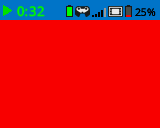
// Clear screen to blue after 2 seconds
Brain.Screen.print("VEXcode");
wait(2, seconds);
Brain.Screen.clearScreen(red);
setFont#
設定 IQ(第二代)大腦螢幕上顯示的文字所使用的字體。
這控制在使用螢幕文字功能(例如 print)時應用於後續文字輸出的字體。
void setFont(
  fontType font );
範圍 |
類型 |
描述 |
|---|---|---|
|
|
將字體設置為以下選項之一:
|
|
|
|
|---|---|---|
|
|
|
|
|
|
|
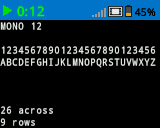
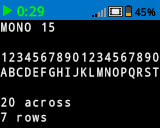
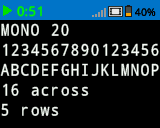
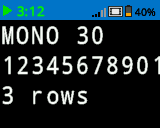
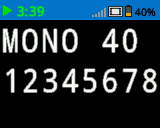
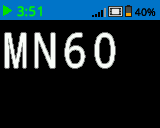
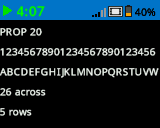
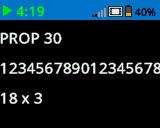
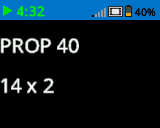
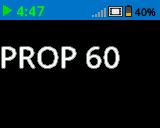
此函數不傳回值。
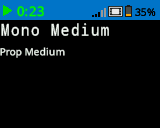
Examples// Display two different fonts on
// two separate lines
Brain.Screen.setFont(mono20);
Brain.Screen.print("Mono Medium");
Brain.Screen.newLine();
Brain.Screen.setFont(prop20);
Brain.Screen.print("Prop Medium");
setPenWidth#
設定繪製線條和形狀輪廓的粗細。
Available Functionsvoid setPenWidth(
uint32_t width );
範圍 |
類型 |
描述 |
|---|---|---|
|
|
筆的寬度,以像素為單位,範圍從 0 到 32。 |
此函數不傳回值。
Notes筆寬適用於諸如
drawLine、drawRectangle和drawCircle之類的繪圖函數。
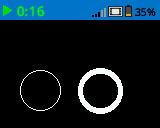
// Draw a circle with a pen width of 5
Brain.Screen.drawCircle(40, 70, 20);
Brain.Screen.setPenWidth(5);
Brain.Screen.drawCircle(100, 70, 20);
setPenColor#
設定文字、像素、線條和形狀輪廓的顏色。
Available Functions1 — 使用預先定義或 自訂顏色 物件設定畫筆顏色。
void setPenColor(
    const color& color );
2 — 使用十六進位顏色值設定畫筆顏色。
void setPenColor(
    const char* color );
Parameters3 — 使用色調值設定畫筆顏色。
void setPenColor(
    int hue );
範圍 |
類型 |
描述 |
|---|---|---|
|
|
使用
|
|
|
使用以字串形式表示的十六進位顏色值來設定畫筆顏色(例如, |
|
|
使用 |
此函數不傳回值。
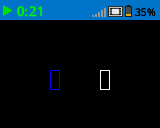
Notes項目開始時的預設畫筆顏色為
white。笔的颜色用于绘制形状的轮廓(例如使用
drawCircle或drawRectangle),文本和数字输出(使用print和printAt),以及使用drawPixel绘制的单个像素。hue參數值基於圓形色輪,如下圖所示,其中值表示色輪上的度數(例如,紅色接近 0°,綠色接近 120°,藍色接近 240°)。
Brain.Screen.drawRectangle(100, 50, 10, 20);
Brain.Screen.setPenColor(blue);
Brain.Screen.drawRectangle(50, 50, 10, 20);
setFillColor#
設定繪製形狀時所使用的填滿顏色。
Available Functions1 — 使用預先定義或 自訂顏色 物件設定填滿顏色。
void setFillColor(
    const color& color );
2 — 使用十六進位顏色值設定填滿顏色。
void setFillColor(
    const char* color );
Parameters3 — 使用色調值設定填滿顏色。
void setFillColor(
    int hue );
範圍 |
類型 |
描述 |
|---|---|---|
|
|
使用
|
|
|
使用以字串形式表示的十六進位顏色值設定填滿顏色(例如, |
|
|
使用 |
此函數不傳回值。
Notes項目開始時的預設填滿顏色為
black。填滿顏色用於形狀的內部(例如使用
drawCircle或drawRectangle)。填滿顏色用作列印文字的背景顏色(例如使用
print和printAt)。如果
transparent與印刷文本一起使用,則背景將為black。
hue參數值基於圓形色輪,如下圖所示,其中值表示色輪上的度數(例如,紅色接近 0°,綠色接近 120°,藍色接近 240°)。
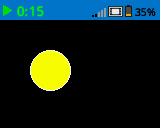
// Draw a circle filled with yellow
Brain.Screen.setFillColor(yellow);
Brain.Screen.drawCircle(50, 50, 20);
setOrigin#
設定大腦螢幕上用於繪圖和基於座標的列印的原點。
Available Functionsvoid setOrigin(
int32_t x,
int32_t y );
範圍 |
類型 |
描述 |
|---|---|---|
|
|
原點相對於大腦螢幕左上角的 x 座標,取值範圍為 0 到 159。 |
|
|
原點相對於大腦螢幕左上角的 y 座標,取值範圍為 0 到 107。 |
此函數不傳回值。
Notes預設原點位於螢幕左上角座標 (0, 0)。
原點適用於座標函數,例如
drawLine、drawRectangle、drawCircle和printAt。此原點設定將一直有效,直到再次變更或項目重設為止。
setClipRegion#
在螢幕上定義一個矩形區域,所有圖形和文字都將限制在該區域內。該區域以外的任何內容都不會顯示。
Available Functionsvoid setClipRegion(
int x,
int y,
int width,
int height );
範圍 |
類型 |
描述 |
|---|---|---|
|
|
剪輯區域左上角的 x 座標,取值範圍為 0 到 159 的整數。 |
|
|
剪輯區域左上角的 y 座標,取值範圍為 0 到 107 的整數。 |
|
|
裁切區域的寬度(以像素為單位),取值範圍為 0 到 159 的整數。 |
|
|
裁切區域的高度(以像素為單位),取值範圍為 0 到 107 的整數。 |
此函數不傳回值。
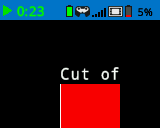
Notes即使繪圖函數超出裁切區域,它們仍然會執行,但只有區域內的部分是可見的。
x和y座標是相對於目前螢幕原點的,可以使用setOrigin進行更改。剪輯區域僅適用於目前執行緒。
設定新的剪輯區域會取代目前執行緒之前設定的任何剪輯區域。
// Restrict text and drawings to a specific region
Brain.Screen.setClipRegion(0, 0, 120, 120);
Brain.Screen.drawRectangle(60, 60, 100, 100, red);
Brain.Screen.printAt(60, 60, "Cut off!");
drawPixel#
在 IQ(第二代)大腦螢幕上選定的 x 和 y 像素位置繪製一個像素。
Available Functionsvoid drawPixel(
int x,
int y );
範圍 |
類型 |
描述 |
|---|---|---|
|
|
像素繪製位置的 x 座標,取值範圍為 0 到 159 之間的整數。 |
|
|
像素繪製位置的 y 座標,取值範圍為 0 到 107 之間的整數。 |
此函數不傳回值。
Notes使用
setPenColor設定目前畫筆顏色來繪製像素。x和y座標是相對於目前螢幕原點的,可以使用setOrigin進行設定。如果指定的像素位置在螢幕邊界之外,則不會繪製該像素。
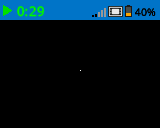
// Draw one pixel at the center
// of the screen
Brain.Screen.drawPixel(80, 50);
drawLine#
在 IQ(第二代)腦力測試畫面上,畫一條直線連接兩點。
Available Functionsvoid drawLine(
int x1,
int y1,
int x2,
int y2 );
範圍 |
類型 |
描述 |
|---|---|---|
|
|
直線的起始 x 座標,取值範圍為 0 到 159 的整數。 |
|
|
直線的起始 y 座標,取值範圍為 0 到 107 的整數。 |
|
|
直線的終點 x 座標,取值範圍為 0 到 159 的整數。 |
|
|
直線的終點 y 座標,取值範圍為 0 到 107 的整數。 |
此函數不傳回值。
Notes使用
setPenColor設定目前畫筆顏色來繪製線條。線條的寬度由目前筆寬決定,該筆寬透過
setPenWidth設定。x和y座標是相對於目前螢幕原點的,可以使用setOrigin進行設定。如果線條的任何部分超出螢幕邊界,則只繪製可見部分。
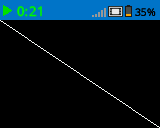
// Draw a line from the top left to
// bottom right of the screen
Brain.Screen.drawLine(0, 0, 159, 107);
drawRectangle#
在 IQ(第二代)Brain 畫面上,按指定位置和大小繪製一個矩形。
Available Functions1 — 使用目前配置的 填滿顏色 繪製並填滿矩形。
void drawRectangle(
    int x,
    int y,
    int width,
    int height );
2 — 使用預先定義或自訂顏色物件繪製並填滿矩形。
void drawRectangle(
    int           x,
    int           y,
    int           width,
    int           height,
    const color&  color );
3 — 使用十六進位顏色值繪製並填滿矩形。
void drawRectangle(
    int           x,
    int           y,
    int           width,
    int           height,
    const char*   color );
Parameters4 — 使用色調值繪製並填滿矩形。
void drawRectangle(
    int x,
    int y,
    int width,
    int height,
    int hue );
範圍 |
類型 |
描述 |
|---|---|---|
|
|
矩形左上角的 x 座標,取值範圍為 0 到 159 的整數。 |
|
|
矩形左上角的 y 座標,取值範圍為 0 到 107 的整數。 |
|
|
矩形的寬度,取值範圍為 0 到 159 的整數。 |
|
|
矩形的高度,取值範圍為 0 到 107 之間的整數。 |
|
|
使用
|
|
|
使用十六進位顏色值填滿矩形(例如, |
|
|
使用 |
此函數不傳回值。
Notes使用
setPenColor設定目前畫筆顏色來繪製矩形輪廓。輪廓線粗細由目前筆寬決定,該筆寬透過
setPenWidth設定。當未提供
color參數時,矩形內部將使用setFillColor設定的目前填滿顏色進行填滿。x和y座標是相對於目前螢幕原點的,可以使用setOrigin進行更改。如果矩形的任何部分位於螢幕邊界之外,則只繪製可見部分。
hue參數值基於圓形色輪,如下圖所示,其中值表示色輪上的度數(例如,紅色接近 0°,綠色接近 120°,藍色接近 240°)。
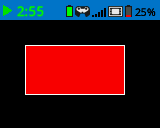
// Draw a red rectangle on the screen
Brain.Screen.drawRectangle(25, 25, 100, 50, red);
drawCircle#
在 IQ(第二代)大腦畫面上,按指定位置和半徑畫一個圓。
Available Functions1 — 使用目前配置的 填滿顏色 繪製並填入圓形。
void drawCircle(
    int x,
    int y,
    int radius );
2 — 使用預先定義或自訂顏色物件繪製並填入圓形。
void drawCircle(
    int           x,
    int           y,
    int           radius,
    const color&  color );
3 — 使用十六進位顏色值繪製並填滿一個圓。
void drawCircle(
    int           x,
    int           y,
    int           radius,
    const char*   color );
Parameters4 — 使用色相值繪製並填滿圓形。
void drawCircle(
    int x,
    int y,
    int radius,
    int hue );
範圍 |
類型 |
描述 |
|---|---|---|
|
|
圓心的 x 座標,取值範圍為 0 到 159 之間的整數。 |
|
|
圓心的 y 座標,取值範圍為 0 到 107 的整數。 |
|
|
圓的半徑,取值範圍為 0 到 107 像素的整數。 |
|
|
使用
|
|
|
使用十六進位顏色值填滿圓圈(例如, |
|
|
使用 |
此函數不傳回值。
Notes使用
setPenColor設定目前畫筆顏色來繪製圓形的輪廓。輪廓線粗細由目前筆寬決定,該筆寬透過
setPenWidth設定。當未提供
color參數時,圓的內部將使用setFillColor設定的目前填滿顏色進行填滿。x和y座標是相對於目前螢幕原點的,可以使用setOrigin進行更改。hue參數值基於圓形色輪,如下圖所示,其中值表示色輪上的度數(例如,紅色接近 0°,綠色接近 120°,藍色接近 240°)。
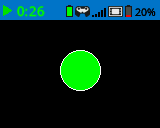
// Draw a green circle on the screen
Brain.Screen.drawCircle(80, 50, 20, green);
drawImageFromFile#
使用儲存在 SD 卡 中的影像文件,在 IQ(第二代)Brain 螢幕上繪製影像。
Available Functionsbool drawImageFromFile(
const char* name,
int x,
int y );
範圍 |
類型 |
描述 |
|---|---|---|
|
|
SD卡上影像的檔案名稱。檔案必須具有 |
|
|
影像左邊緣的 x 座標(像素值,範圍從 0 到 159)。 |
|
|
影像頂部邊緣的繪製位置的 y 座標,以像素為單位,範圍從 0 到 107。 |
傳回布林值指示影像是否成功繪製:
true— 影像已成功載入並繪製到螢幕上。 4false— 影像無法繪製(例如,檔案不存在或無效)
支援的圖像格式有:
.bmp和.png。影像檔案大小不得超過
512 KB。建議使用 8 位元 RLE 編碼以最小化檔案大小。
支援的最大影像尺寸為 Brain 螢幕尺寸(160 x 108 像素)。
x和y座標是相對於目前螢幕原點的,可以使用setOrigin進行更改。
// Draw a bmp file on the Brain's screen at coordinate 0, 0
Brain.Screen.drawImageFromFile("test_image.bmp", 0, 0);
render#
啟用大腦螢幕的雙緩衝功能。呼叫後,任何繪圖功能(例如文字、形狀或圖像)在專案剩餘時間內都不會立即顯示。相反,更新內容僅在再次使用渲染 render 才會顯示。這可以實現更流暢、更可控的螢幕更新,但意味著在 render 之前,螢幕內容將不可見。
1 — 啟用雙緩衝或將後緩衝區渲染到螢幕。
bool render();
Parameters2 — 將後緩衝區渲染到螢幕上,並可控制垂直同步行為和可選的調度程序執行。
bool render(
    bool bVsyncWait,
    bool bRunScheduler = true );
範圍 |
類型 |
描述 |
|---|---|---|
|
|
|
|
|
可選
|
傳回布林值指示緩衝區中儲存的圖形是否已成功渲染到螢幕上:
true— 圖形已成功渲染到螢幕上。 4false— 圖形無法渲染到螢幕上
Notes
調用
render將需要render用於專案的其餘部分。
Brain.Screen.render();

// Draw text to the back buffer
Brain.Screen.print("Render later...");

// Wait for a screen press to render drawings
while (!Brain.Screen.pressing()) {
  wait(20, msec);
}
Brain.Screen.render();