
AI Vision Sensor#
Introduction#
The AI Vision Sensor can detect and track objects, colors, and AprilTag IDs. This allows the robot to analyze its surroundings, follow objects, and react based on detected visual data.
Below is a list of available blocks:
Actions – Capture data from the AI Vision Sensor for a selected signature.
take snapshot – Captures data for a specific signature, such as a configured color, a pre-trained object, or an AprilTag ID.
Settings – Choose which object to interact with.
set AI Vision object item – Selects a specific object from the detected object list.
Values – Access and use the captured data.
AI Vision object exists – Reports whether an object is detected.
AI Vision object is – Checks if a detected object matches a specific classification.
AI Vision object is AprilTag ID – Checks if a detected AprilTag ID matches a specific ID.
AI Vision object count – Reports the number of detected objects.
AI Vision object property – Reports details such as:
centerX & centerY – Center position coordinates in the sensor’s view.
angle – Orientation of the object.
originX & originY – Top-left corner position coordinates in the sensor’s view.
tagID – Identification number of an AprilTag ID.
score – How confident the model is in its identification as a percentage.
Actions#
take snapshot#
The take snapshot stack block filters data from the AI Vision Sensor frame to a single signature — a saved description of something the sensor can recognize, such as a pre-trained object, an AprilTag ID, or a configured color or color code.
Colors and color codes must be configured first in the AI Vision Utility before they can be used with this block.
The dataset stores objects ordered from largest to smallest by width, starting at index 0. Each object’s properties can be accessed using the AI Vision object property block. An empty dataset is reported if no matching objects are detected.
take a [AIVision1 v] snapshot of [SELECT_A_SIG v]
Parameter |
Description |
|---|---|
device |
Which AI Vision Sensor to use. |
signature |
Filters the dataset to only include data of the given signature. Available signatures are:
|
Note: For AprilTag ID or AI Classification options to appear, their detection must be enabled in the AI Vision Utility.
Example
  when started
  [Drive forward if an AprilTag ID is detected.]
  forever
  take a [AIVision1 v] snapshot of [AprilTag IDs v]
  if <[AIVIsion1 v] object exists?> then
  drive [forward v] for [10] [mm v] ▶
AI Classifications#
The AI Vision Sensor can detect different objects under certain AI Classifications. Depending on the AI Classification model selected when configuring the AI Vision Sensor in the Devices window, different objects will be detected. The currently available models are:
Classroom Objects
BlueBall
GreenBall
RedBall
BlueRing
GreenRing
RedRing
BlueCube
GreenCube
RedCube
VEX V5 Robotics Competition Push Back
BlueBlock
RedBlock
VEX V5 Robotics Competition High Stakes
MobileGoal
RedRing
BlueRing
VEX V5 Robotics Competition Override
RedBluePin
BlueYellowPin
RedYellowPin
YellowPin
Cup
Color Signatures#
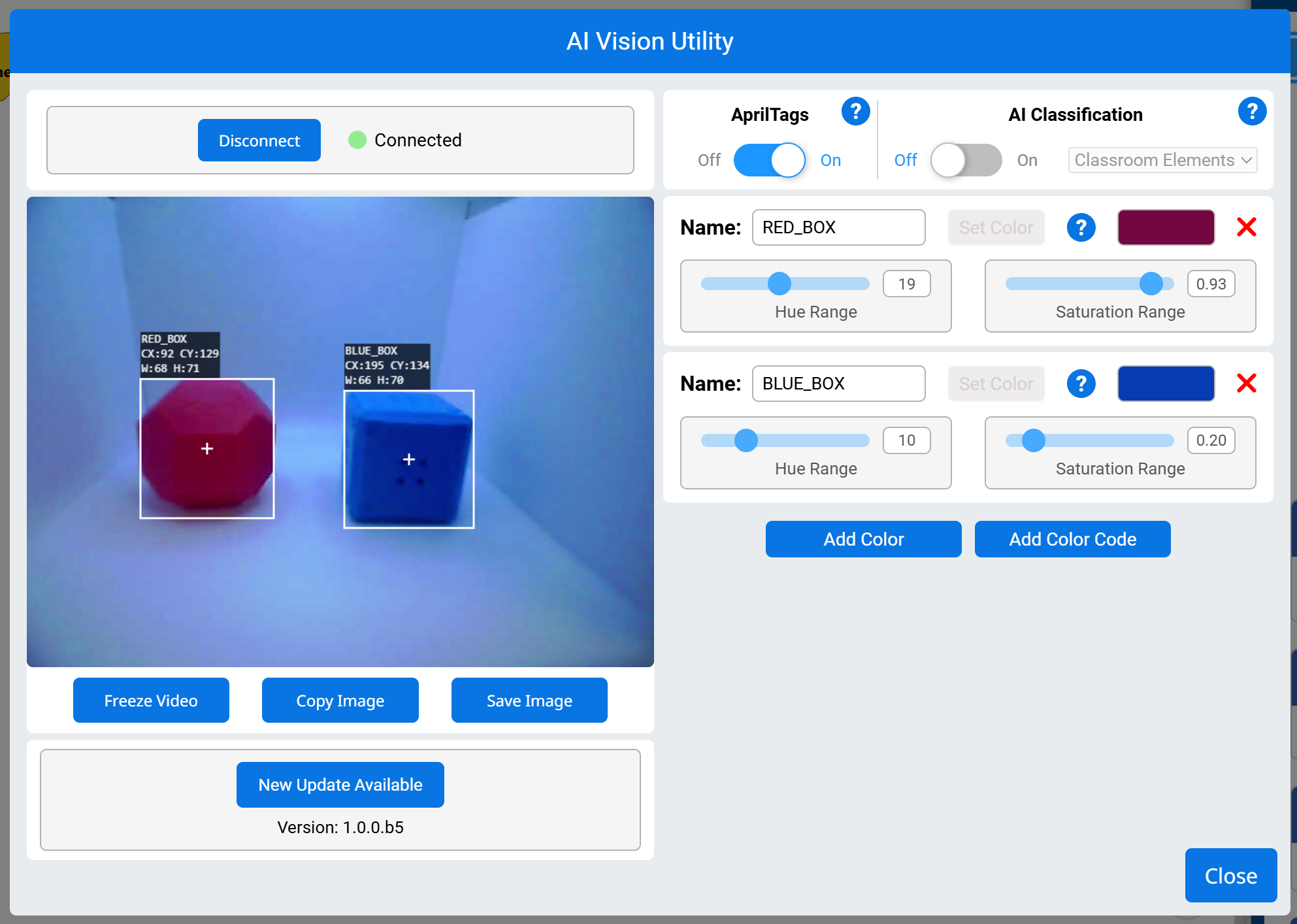
A Color Signature is a unique color that the AI Vision Sensor can recognize. These signatures allow the sensor to detect and track objects based on their color. Once a Color Signature is configured, the sensor can identify objects with that specific color in its field of view.
Color Signatures are used in the take snapshot block to process and detect colored objects in real-time. Up to 7 Color Signatures can be configured at a time.
Example
  when started
  [Display if any objects matching the RED_BOX signature is detected.]
  forever
  set cursor to row [1] column [1] on screen
  clear row [1] on screen
  [Change the signature to any configured Color Signature.]
  take a [AIVision1 v] snapshot of [RED_BOX v]
  if <[AIVision1 v] object exists?> then
  print [Color detected!] on screen ▶
Color Codes#
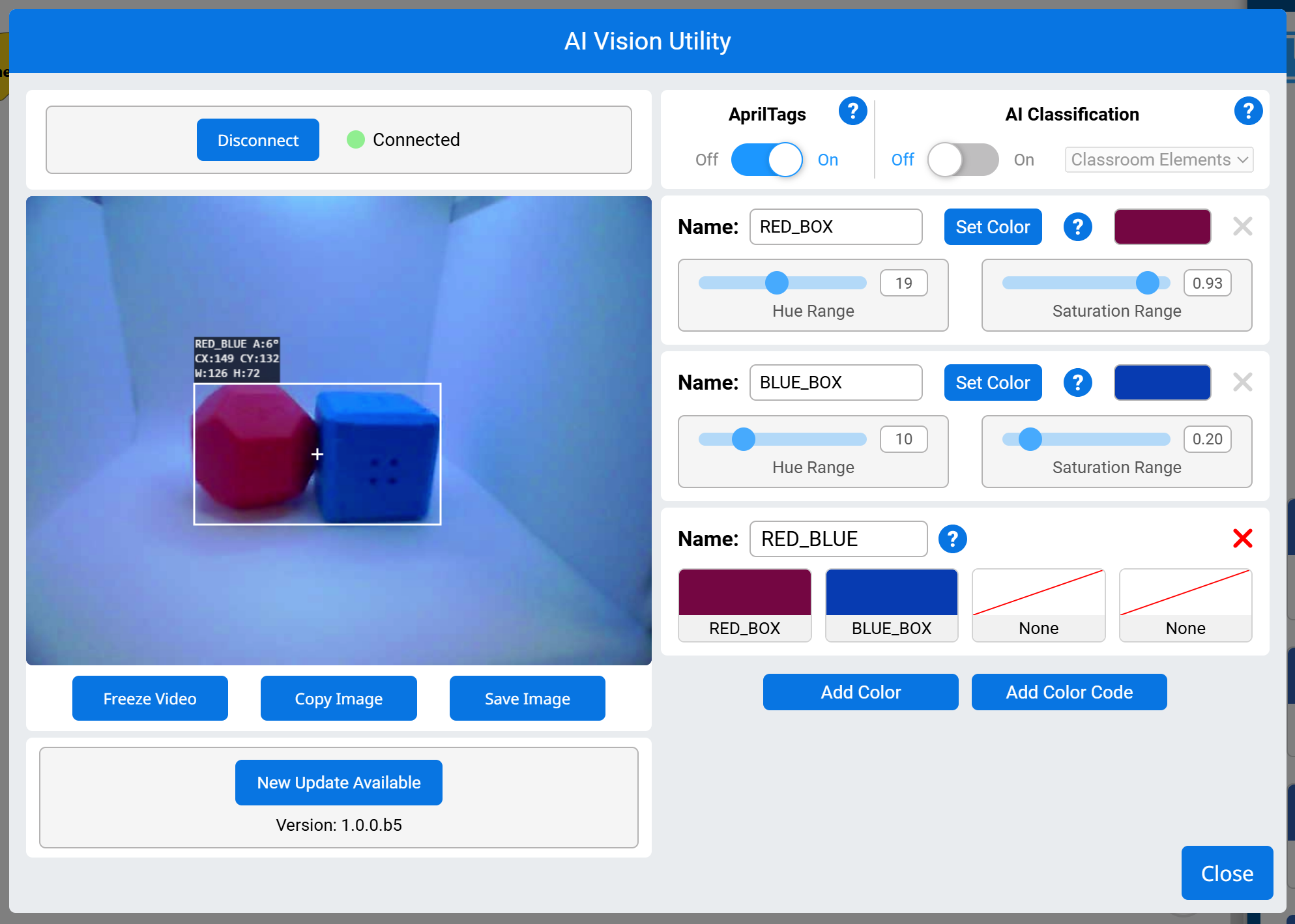
A Color Code is a structured pattern made up of 2 to 4 Color Signatures arranged in a specific order. These codes allow the AI Vision Sensor to recognize predefined patterns of colors.
Color Codes are particularly useful for identifying complex objects, aligning with game elements, or creating unique markers for autonomous navigation. Up to 8 Color Codes can be configured at a time.
Example
  when started
  [Display if any objects matching the RED_BLUE code is detected.]
  forever
  set cursor to row [1] column [1] on screen
  clear row [1] on screen
  [Change the signature to any configured Color Code.]
  take a [AIVision1 v] snapshot of [RED_BLUE v]
  if <[AIVision1 v] object exists?> then
  print [Code detected!] on screen ▶
Settings#
set AI Vision object item#
The set AI Vision object item stack block sets which item in the dataset to use.
set [AIVision1 v] object item to (1)
Parameters |
Description |
|---|---|
device |
Which AI Vision Sensor to use. |
item |
The number of the item in the dataset to use. |
Example
  when started
  [Display the largest detected AprilTag ID.]
  forever
  take a [AIVision1 v] snapshot of [AprilTag IDs v]
  clear row [1] on screen
  set cursor to row [1] column [1] on screen
  if <[AIVision1 v] object exists?> then
  set [AIVision1 v] object item to ([AIVision1 v]object count)
  print ([AIVision1 v] object [tagID v]) on screen ▶
Values#
AI Vision object exists#
The AI Vision object exists Boolean block reports whether any object is detected in the dataset.
True – The dataset includes a detected object.
False – The dataset does not include any detected objects.
<[AIVision1 v] object exists?>
Parameters |
Description |
|---|---|
device |
Which AI Vision Sensor to use. |
Example
  when started
  [Drive forward if an object is detected.]
  forever
  take a [AIVision1 v] snapshot of [AI Classifications v]
  if <[AIVision1 v] object exists?> then
  drive [forward v] for [10] [mm v] ▶
AI Vision object is#
The AI Vision object is Boolean block reports whether a detected object matches a specific classification.
True – The item in the dataset is the specific object.
False – The item in the dataset is not the specific object.
<[AIVision1 v] object is [BlueBall v]?>
Parameter |
Description |
|---|---|
device |
Which AI Vision Sensor to use. |
object |
Which AI Classification to compare the item to. |
Example
  when started
  [Display if a Blue Cube is detected.]
  forever
  take a [AIVision1 v] snapshot of [AI Classifications v]
  clear row [1] on screen
  set cursor to row [1] column [1] on screen
  if <[AIVision1 v] object exists?> then
  if <[AIVision1 v] object is [BlueCube v]?> then
  print [Cube detected!] on screen ▶
  wait [0.5] seconds
AI Vision object is AprilTag ID#
The AI Vision object is AprilTag ID Boolean block reports whether a detected AprilTag ID matches a specific ID.
True – The AprilTag ID is the number.
False – The AprilTag ID is not the number.
<[AIVision1 v] object is AprilTag ID [1] ?>
Parameters |
Description |
|---|---|
device |
Which AI Vision Sensor to use. |
AprilTag ID number |
The number to compare against the detected AprilTag ID number. |
Example:
  when started
  [Report if AprilTag ID 3 is detected.]
  forever
  clear screen
  set cursor to row [1] column [1] on screen
  take a [AIVision1 v] snapshot of [AprilTag IDs v]
  if <[AIVision1 v] object exists?> then
  if <[AIVision1 v] object is AprilTag ID [3] ?> then
  print [That is 3!] on screen ▶
  else
  print [That isn't 3!] on screen ▶
  end
  end
  wait [0.1] seconds
AI Vision object count#
The AI Vision object count reporter block reports the number of detected objects in the dataset as a whole number.
([AIVision1 v] object count)
Parameters |
Description |
|---|---|
device |
Which AI Vision Sensor to use. |
Example
  when started
  [Display the total amount of cubes, rings, and balls.]
  forever
  clear row [1] on screen
  set cursor to row [1] column [1] on screen
  take a [AIVision1 v] snapshot of [AI Classifications v]
  if <[AIVision1 v] object exists?> then
  print ([AIVision1 v] object count) on screen ▶
  end
  wait [0.5] seconds
AI Vision object property#
There are nine properties that are included with each object (shown below) stored after the take snapshot block is used.
([AIVision1 v] object [width v])
All property values except tagID and score describe the detected object’s position and size in the AI Vision Sensor’s view at the moment the take snapshot block was used. These values are measured in pixels, based on the sensor’s 320 by 240 pixel resolution.
Parameter |
Description |
|---|---|
device |
Which AI Vision Sensor to use. |
property |
Which property of the detected object to use: |
width#
The width property reports the width of the detected object in pixels as a whole number from 1 to 320.
([AIVision1 v] object [width v])
Example
  when started
  [Drive towards an object until its width is larger than 100 pixels.]
  forever
  take a [AIVision1 v] snapshot of [AI Classifications v]
  if <[AIVision1 v] object exists?> then
  if <([AIVision1 v] object [width v]) [math_less_than v] [100]> then
  drive [forward v]
  else
  stop driving
  end
height#
The height property reports the height of the detected object in pixels as a whole number from 1 to 240.
([AIVision1 v] object [height v])
Example
  when started
  [Drive towards an object until its height is larger than 100 pixels.]
  forever
  take a [AIVision1 v] snapshot of [AI Classifications v]
  if <[AIVision1 v] object exists?> then
  if <([AIVision1 v] object [height v]) [math_less_than v] [100]> then
  drive [forward v]
  else
  stop driving
  end
centerX#
The centerX property reports the x-coordinate of the center of the detected object in pixels as a whole number from 0 to 320.
([AIVision1 v] object [centerX v])
Example
  when started
  [Turn slowly until an object is centered in front of the robot.]
  set turn velocity to [30] [% v]
  turn [right v]
  forever
  take a [AIVision1 v] snapshot of [AI Classifications v]
  if <[AIVision1 v] object exists?> then
  if <[140] [math_less_than v] ([AIVision1 v] object [centerX v]) [math_less_than v] [180]> then
  stop driving
centerY#
The centerY property reports the y-coordinate of the center of the detected object in pixels as a whole number from 0 to 240.
([AIVision1 v] object [centerY v])
Example
  when started
  [Drive towards an object until its center y-coordinate is more than 140 pixels.]
  forever
  take a [AIVision1 v] snapshot of [AI Classifications v]
  if <[AIVision1 v] object exists?> then
  if <([AIVision1 v] object [centerY v]) [math_less_than v] [140]> then
  drive [forward v]
  else
  stop driving
  end
angle#
The angle property reports the orientation of the detected Color Code or AprilTag ID as a whole number in degrees from 0 to 359.
([AIVision1 v] object [angle v])
Example
  when started
  [Slide left or right depending on how the Color Code is rotated.]
  forever
  take a [AIVision1 v] snapshot of [RED_BLUE v]
  if <[AIVision1 v] object exists?> then
  if <[50] [math_less_than v] ([AIVision1 v] object [angle v]) [math_less_than v] [100]> then
  drive [right v]
  else if <[270] [math_less_than v] ([AIVision1 v] object [angle v]) [math_less_than v] [330]> then
  drive [left v]
  else
  stop driving
  end
  else
  stop driving
originX#
The originX property reports the x-coordinate of the top-left corner of the detected object’s bounding box in pixels as a whole number from 0 to 320.
([AIVision1 v] object [originX v])
Example
  when started
  [Display if an object is to the left or the right.]
  forever
  clear row [1] on screen
  set cursor to row [1] column [1] on screen
  take a [AIVision1 v] snapshot of [AI Classifications v]
  if <[AIVision1 v] object exists?> then
  if <([AIVision1 v] object [originX v]) [math_less_than v] [160]> then
  print [To the left!] on screen ▶
  else
  print [To the right!] on screen ▶
  end
  wait [0.5] seconds
originY#
The originY property reports the y-coordinate of the top-left corner of the detected object’s bounding box in pixels as a whole number from 0 to 240.
([AIVision1 v] object [originY v])
Example
  when started
  [Display if an object is close or far from the robot.]
  forever
  clear row [1] on screen
  set cursor to row [1] column [1] on screen
  take a [AIVision1 v] snapshot of [AI Classifications v]
  if <[AIVision1 v] object exists?> then
  if <([AIVision1 v] object [originY v]) [math_less_than v] [80]> then
  print [Far!] on screen ▶
  else
  print [Close!] on screen ▶
  end
  wait [0.5] seconds
tagID#
The tagID property reports the identification number of the detected AprilTag ID as a whole number.
([AIVision1 v] object [tagID v])
Example
  when started
  [Drive forward when AprilTag ID 0 is detected.]
  forever
  take a [AIVision1 v] snapshot of [AprilTag IDs v]
  if <[AIVision1 v] object exists?> then
  if <([AIVision1 v] object [tagID v]) [math_equal v] [0]> then
  drive [forward v]
  else
  stop driving
  end
  wait [0.5] seconds
score#
The score property reports how confident the model is in the detected AI Classification as a percentage from 70% to 100%.
A lower score means the sensor is less confident about the detected object, while a higher score means the sensor is more confident.
([AIVision1 v] object [score v])