Screen#
Introduction#
The Screen blocks control the EXP Brain’s screen, allowing your robot to show text, numbers, and graphics, and respond to touch input.
By default, the font for printing to the Brain is monospaced small which has 7 rows and 20 columns.
For drawing, the Brain’s resolution is 159 x 107 pixels.
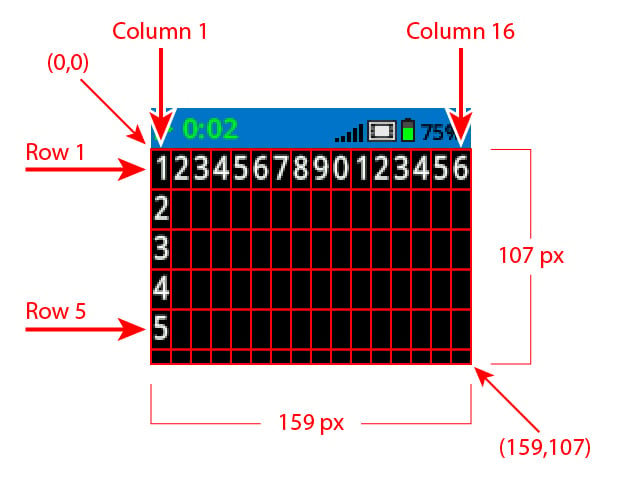
Below is a list of available blocks:
Cursor Print – Display text and manage the print cursor.
print on screen – Prints text, numbers, or variable values on the Brain screen.
set cursor to row column on screen – Moves the cursor to a specific row and column.
set cursor to next row on screen – Moves the cursor to column 1 of the next row.
clear row on screen – Clears a specific row of text.
cursor column – Reports the column number where text will be printed.
cursor row – Reports the row number where text will be printed.
Settings – Change the appearance of text and graphics.
clear screen – Erases all text and drawings from the screen.
set font on screen – Changes the font type and size for text display.
set print precision on screen – Sets how many decimal places to show when printing numbers.
set pen width on screen – Sets the thickness of drawn lines and shape outlines.
set pen / font color on screen – Sets the color of text, pixels, lines, and shape outlines.
set fill color on screen – Sets the fill color for drawn shapes.
Draw – Create shapes, lines, and graphics on the Brain screen.
draw pixel on screen – Draws a single pixel at a coordinate.
draw line on screen – Draws a line between two points.
draw rectangle on screen – Draws a rectangle using two corner points.
draw circle on screen – Draws a circle with a defined center and radius.
Cursor Print#
print on screen#
The print on screen stack block prints text, numbers, or variable values on the Brain screen at the current cursor position and font.
  when started
  print [VEXcode] on screen ▶
Parameters |
Description |
|---|---|
value |
The text, number, or variable value to print on the screen. |
and set cursor to next row |
Select the arrow ( ▶ ) to expand the block to say and set cursor to next row, so the cursor moves to column 1 of the next row after printing. |
Example
    when started
    [Display a message at the starting cursor position.]
    print [Hello, Robot!] on screen ▶

set cursor to row column on screen#
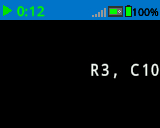
The set cursor to row column on screen stack block moves the cursor to a specific row and column on the Brain screen. The next print on screen block will start printing at that location.
How many rows and columns can comfortably fit depends on the selected font. With the default monospaced medium font, up to 8 rows and 13 columns can be displayed clearly. Text placed beyond this range may be cut off or become difficult to read.
Monospaced fonts have characters that are all the same width, making text placement consistent. In contrast, proportional fonts vary in character width, so some letters take up more space than others. However, regardless of which type is used, the set cursor to row column on screen stack block positions the cursor based on row and column size, not font style. The font size can be adjusted using the set font on screen stack block.
set cursor to row [1] column [1] on screen
Parameters |
Description |
|---|---|
row |
The row to move the cursor to. |
column |
The column to move the cursor to. |
Example
    when started
    [Display text starting at Row 3 Column 10.]
    set cursor to row [3] column [10] on screen
    print [R3, C10] on screen ▶
set cursor to next row on screen#
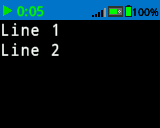
The set cursor to next row on screen stack block moves the cursor to column 1 on the next row on the Brain screen.
set cursor to next row on screen
Parameters |
Description |
|---|---|
This block has no parameters. |
Example
    when started
    [Display two lines of text.]
    print [Line 1] on screen ▶
    set cursor to next row on screen
    print [Line 2] on screen ▶
clear row on screen#
The clear row on screen stack block clears a row of text on the Brain screen.
clear row [1] on screen
Parameters |
Description |
|---|---|
row |
The row number to clear. |
Example
    when started
    [Only keep the text on row 1.]
    print [This text stays] on screen ▶
    set cursor to next row on screen
    print [This text disappears] on screen ▶
    wait [3] seconds
    clear row [2] on screen
cursor column#
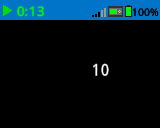
The cursor column reporter block reports the column number where text will be printed as a whole number.
(cursor column)
Parameters |
Description |
|---|---|
This block has no parameters. |
Example
    when started
    [Display the cursor's current column.]
    set cursor to row [3] column [10] on screen
    print (cursor column) on screen ▶
cursor row#
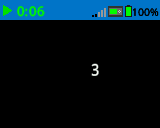
The cursor row reporter block reports the row number where text will be printed as a whole number.
(cursor row)
Parameters |
Description |
|---|---|
This block has no parameters. |
Example
    when started
    [Display the cursor's current row.]
    set cursor to row [3] column [10] on screen
    print (cursor row) on screen ▶
Settings#
clear screen#
The clear screen stack block clears all drawings and text from the Brain screen.
clear screen
Parameters |
Description |
|---|---|
This block has no parameters. |
Example
    when started
    [Draw a circle, and clear it after 2 seconds.]
    draw circle [120] [120] [40] on screen
    wait [2] seconds
    clear screen
set font on screen#
The set font on screen stack block sets the font and size used for displaying text on the Brain screen. This font will apply to all text printed after this block runs.
set font to [monospaced v] [medium v] on screen
Parameters |
Description |
|---|---|
style |
The font style: monospaced or proportional |
size |
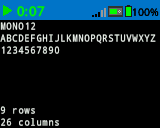
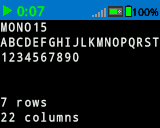
The font size (examples below):
|
|
|
|
|---|---|---|
|
|
|
|
|
|
|
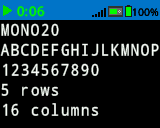
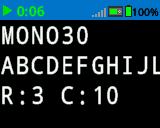
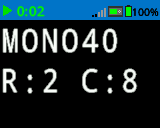
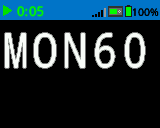
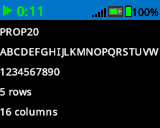
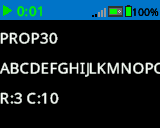
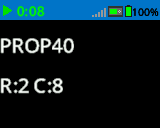
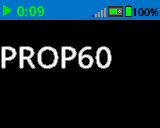
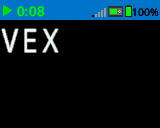
Example
    when started
    [Display text using a larger font]
    set font to [monospaced v] [extra large v] on screen
    print [VEX] on screen ▶
set print precision on screen#
The set print precision on screen stack block sets how many decimal places are shown when numbers are printed on the Brain screen. This print precision will apply to all numbers printed after this block runs.
set print precision to [0.1 v] on screen
Parameters |
Description |
|---|---|
precision |
The print precision to use:
|
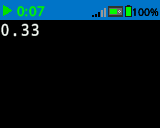
Example
    when started
    [Print 1/3 as 0.33.]
    set print precision to [0.01 v] on screen
    print ([1] [math_division v] [3]) on screen ▶
set pen width on screen#
The set pen width on screen stack block sets the thickness of drawn lines and shape outlines.
set pen width to [10] on screen
Parameters |
Description |
|---|---|
width |
The pen width, in pixels, from 0 to 32. |
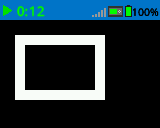
Example
    when started
    [Draw a rectangle with a pen width of 10.]
    set pen width to [10] on screen
    draw rectangle [20] [20] [75] [50] on screen
set pen / font color on screen#
The set pen / font color on screen stack block sets the color of text, pixels, lines, and shape outlines.
set pen / font color to [red v] on screen
Parameters |
Description |
|---|---|
color |
The pen and font color to use:
|
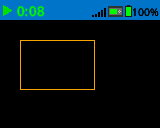
Example
    when started
    [Draw a rectangle with orange borders.]
    set pen / font color to [orange v] on screen
    draw rectangle [20] [20] [75] [50] on screen
set fill color on screen#
The set fill color on screen stack block sets the fill color used when shapes are drawn.
set fill color to [red v] on screen
Parameters |
Description |
|---|---|
color |
The fill color to use:
|
Examples
    when started
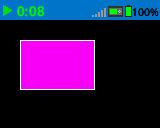
    [Draw a purple rectangle.]
    set fill color to [purple v] on screen
    draw rectangle [20] [20] [75] [50] on screen
Draw#
draw pixel on screen#
The draw pixel on screen stack block draws one pixel at the selected x and y coordinate using the current pen color.
draw pixel [0] [0] on screen
Parameters |
Description |
|---|---|
x |
The x-coordinate to draw the pixel from 0 to 159. |
y |
The y-coordinate to draw the pixel from 0 to 107. |
Example
    when started
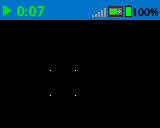
    [Draw the pixels marking the corners of a square.]
    draw pixel [50] [50] on screen
    draw pixel [50] [75] on screen
    draw pixel [75] [50] on screen
    draw pixel [75] [75] on screen
draw line on screen#
The draw line on screen stack block draws a line from the first screen coordinate (x1, y1) to the second screen coordinate (x2, y2) using the current pen width and pen color.
draw line [0] [0] [10] [10] on screen
Parameters |
Description |
|---|---|
x1 |
The x-coordinate in pixels of the start of the line from 0 to 159. |
y1 |
The y-coordinate in pixels of the start of the line from 0 to 107. |
x2 |
The x-coordinate in pixels of the end of the line from 0 to 159. |
y2 |
The y-coordinate in pixels of the end of the line from 0 to 107. |
Example
    when started
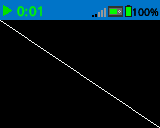
    [Draw a line from the top left to bottom right of the screen.]
    draw line [0] [0] [159] [107] on screen
draw rectangle on screen#
The draw rectangle on screen stack block draws a rectangle using the current pen width, pen color, and fill color.
draw rectangle [0] [0] [10] [10] on screen
Parameters |
Description |
|---|---|
x |
The x-coordinate in pixels of the top-left corner of the rectangle from 0 to 159. |
y |
The y-coordinate in pixels of the top-left corner of the rectangle from 0 to 107. |
width |
The width of the rectangle in pixels. |
height |
The height of the rectangle in pixels. |
Example
    when started
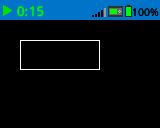
    [Draw a rectangle on the screen.]
    draw rectangle [20] [20] [80] [30] on screen
draw circle on screen#
The draw circle on screen stack block draws a circle using the current pen width, pen color, and fill color.
draw circle [0] [0] [10] on screen
Parameters |
Description |
|---|---|
x |
The x-coordinate in pixels of the center of the circle from 0 to 159. |
y |
The y-coordinate in pixels of the center of the circle from 0 to 107. |
radius |
The radius of the circle in pixels. |
Example
    when started
    [Draw a circle on the screen.]
    draw circle [80] [50] [20] on screen