Screen#

Introduction#

The Screen blocks control the EXP Brain’s touchscreen, allowing your robot to show text, numbers, and graphics, and respond to touch input.

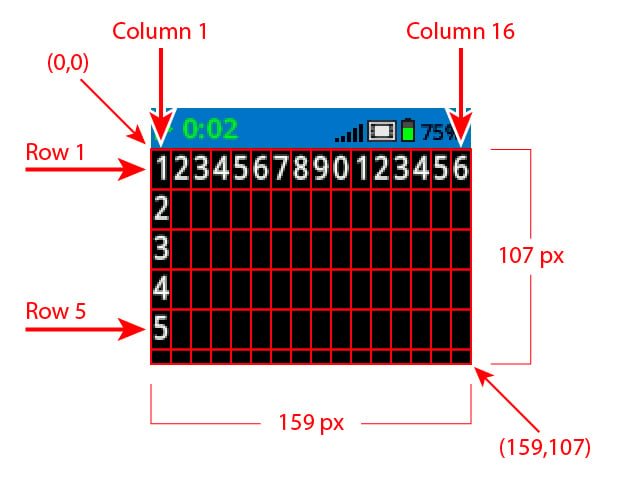
By default, the font for printing to the Brain is monospaced small which has 7 rows and 20 columns.

For drawing, the Brain’s resolution is 159 x 107 pixels.

A labeled grid diagram of the VEX Brain screen showing rows, columns, pixel dimensions, and coordinates, with red lines outlining the grid.

Below is a list of available blocks:

Cursor Print – Display text and manage the print cursor.

Settings – Change the appearance of text and graphics.

Draw – Create shapes, lines, and graphics on the Brain screen.

Cursor Print#

set cursor to row column on screen#

When using the set cursor to row column on screen block, the cursor is placed at a specific row and column on the screen. How many rows and columns can comfortably fit depends on the selected font. With the default monospaced medium font, up to 8 rows and 13 columns can be displayed clearly. Text placed beyond this range may be cut off or become difficult to read.

Monospaced fonts have characters that are all the same width, making text placement consistent. In contrast, proportional fonts vary in character width, so some letters take up more space than others. However, regardless of which type is used, the set cursor to row column block positions the cursor based on row and column size, not font style. The font size can be adjusted using the set font on screen block.

Set cursor stack block#
在屏幕上设定光标至 [1] 行 [1] 列

Parameters

Description

row

The row of the cursor.

column

The column of the cursor.

Example

When started, moves the cursor to row 3, column 2 on the screen and prints ‘Row 3, Column 2’.#
当开始
[Display text starting at Row 3 Column 10.]
在屏幕上设定光标至 [3] 行 [10] 列
在屏幕上打印 [R3, C10]▶
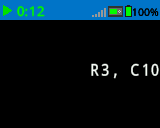
A screenshot of the EXP Brain showing "R3, C10" printed on the screen.

set cursor to next row on screen#

The set cursor to next row on screen block moves the cursor to column 1 on the next row on the robot’s screen.

set cursor to next row stack block#
在屏幕上设定光标至下一行

Parameters

Description

This block has no parameters.

Example

When started, prints ‘Line 1’ on the screen, moves the cursor to the next row, and then prints ‘Line 2’.#
当开始
[Display two lines of text.]
在屏幕上打印 [Line 1]▶
在屏幕上设定光标至下一行
在屏幕上打印 [Line 2]▶
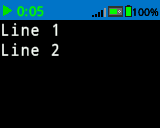
A screenshot of the EXP Brain showing the text "Line 1" printed above "Line 2".

clear row on screen#

The clear row on screen block clears a row of text on the robot’s screen.

Clear row stack block#
清除屏幕第 [1] 行

Parameters

Description

row

The row number to clear.

Example

When started, prints text on two rows. The first row remains, while the second row disappears after 3 seconds.#
当开始
[Only keep the text on row 1.]
在屏幕上打印 [This text stays]▶
在屏幕上设定光标至下一行
在屏幕上打印 [This text disappears]▶
等待 [3] 秒
清除屏幕第 [2] 行

screen cursor column#

The screen cursor column block returns the column number where text will be printed as an integer.

screen cursor column reporter block#
(屏幕光标列数)

Parameters

Description

This block has no parameters.

Example

When started, moves the cursor to row 3, column 2 on the screen and prints the current cursor column number.#
当开始
[Display the cursor's current column.]
在屏幕上设定光标至 [3] 行 [10] 列
在屏幕上打印 (屏幕光标列数)▶

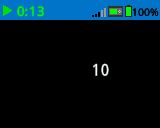
A screenshot of the EXP Brain showing the text "15" on column 15.

screen cursor row#

The screen cursor row block returns the row number where text will be printed as an integer.

screen cursor row reporter block#
(屏幕光标行数)

Parameters

Description

This block has no parameters.

Example

When started, moves the cursor to row 6, column 2 on the screen and prints the current cursor row number.#
当开始
[Display the cursor's current row.]
在屏幕上设定光标至 [3] 行 [10] 列
在屏幕上打印 (屏幕光标行数)▶

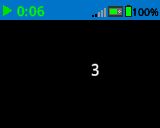
A screenshot of the EXP Brain showing the text "3" on row 3.

Settings#

clear screen#

The clear screen block clears all drawings and text from the robot’s screen.

clear screen block#
清屏

Parameters

Description

This block has no parameters.

Example

When started, draws a circle with center (120,120) and radius 40 pixels. After 2 seconds, the screen is cleared.#
当开始
[Draw a circle, and clear it after 2 seconds.]
在屏幕 [120] [120] [40] 上画圆形
等待 [2] 秒
清屏

set font on screen#

The set font on screen block sets the font and size used for displaying text on the robot’s screen. This font will apply to all subsequently printed text.

set font stack block#
设定屏幕字体为 [等宽字体 v] [中 v]

Parameters

Description

style

The font style:

  • monospaced
  • proportional

size

The font size (examples below):

  • extra small
  • small
  • medium
  • large
  • extra large
  • super large
Note: Extra small and small sizes are not available for proportional fonts.

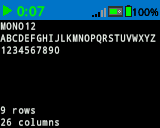
The Brain's screen printed numbers and letters with size MONO 12 font. It shows A through Z and all numbers. On the bottom of the screen, it says 9 rows, 26 columns.
monospaced extra small

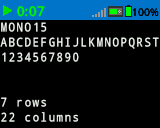
The Brain's screen printed numbers and letters with size MONO 15 font. It shows A through T and all numbers. On the bottom of the screen, it says 7 rows, 22 columns.
monospaced small

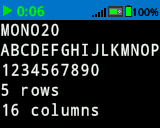
The Brain's screen printed numbers and letters with size MONO 20 font. It shows A through P and all numbers. On the bottom of the screen, it says 5 rows, 16 columns.
monospaced medium

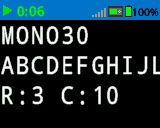
The Brain's screen printed numbers and letters with size MONO 30 font. It shows A through J. On the bottom of the screen, it says R:3 C:10.
monospaced large

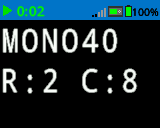
The Brain's screen printed numbers and letters with size MONO 40 font. On the bottom of the screen, it says R:2 C:8.
monospaced extra large

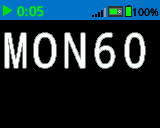
The Brain's screen printed numbers and letters with size MONO 60 font. Only MON60 is displayed.
monospaced super large

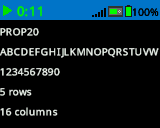
The Brain's screen printed numbers and letters with size PROP 20 font. It shows A through W and all numbers. On the bottom of the screen, it says 5 rows, 16 columns.
proportional medium

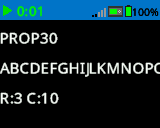
The Brain's screen printed numbers and letters with size PROP 30 font. It shows A through P. On the bottom of the screen, it says R:3 C:10.
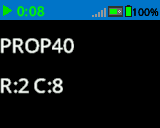
proportional large

The Brain's screen printed numbers and letters with size PROP 40 font. On the bottom of the screen, it says R:2 C:8.
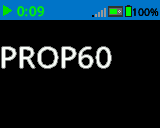
proportional extra large

TThe Brain's screen printed numbers and letters with size PROP 60 font. Only PROP60 is displayed.
proportional super large

Example

When started, sets the font to ‘monospaced extra large’ and prints ‘VEX’ on the screen.#
当开始
[Display text using a larger font]
设定屏幕字体为 [等宽字体 v] [特大 v]
在屏幕上打印 [VEX]▶
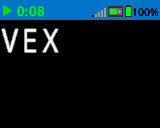
A screenshot of the EXP Brain showing the text "VEX" in larger font than the default.

set print precision on screen#

The set print precision on screen block sets the precision formatting used for displaying numbers on the robot’s screen. This print precision will apply to all subsequently printed numbers.

set print precision stack block#
在屏幕上设定打印精度为 [0.1 v]

Parameters

Description

precision

Sets the print precision to:

  • 1
  • 0.1
  • 0.01
  • 0.001
  • All Digits

Example

When started, sets print precision to two decimal places and prints 1/3 as 0.33 on the screen.#
当开始
[Print 1/3 as 0.33.]
在屏幕上设定打印精度为 [0.01 v]
在屏幕上打印 ([1] [math_division v] [3])▶
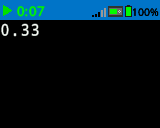
A screenshot of the EXP Brain showing the text "0.33".

set pen width on screen#

The set pen width on screen block sets the pen width used for drawing lines and shapes.

set pen width block#
设定屏幕笔宽为 [10]

Parameters

Description

width

The pen width in pixels in a range from 0 to 32.

Example

When started, sets the pen width to 10 pixels and draws a rectangle with the top-left corner at (50,50), width 130 pixels, and height 60 pixels.#
当开始
[Draw a rectangle with a pen width of 10.]
设定屏幕笔宽为 [10]
在屏幕 [20] [20] [75] [50] 上画矩形
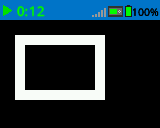
A screenshot of the EXP Brain showing a rectangle with thick borders.

set pen / font color on screen#

The set pen / font color on screen block sets the pen color used for drawing lines, shapes, and text on the robot’s screen.

set pen font color#
设定屏幕笔/字体颜色为 [红色 v]

Parameters

Description

color

Sets the pen color to:

  • red
  • green
  • blue
  • black
  • white
  • yellow
  • orange
  • purple
  • cyan
  • transparent

Example

When started, sets the pen color to orange and draws a rectangle with the top-left corner at (50, 50), width 130 pixels, and height 60 pixels.#
当开始
[Draw a rectangle with orange borders.]
设定屏幕笔/字体颜色为 [orange v]
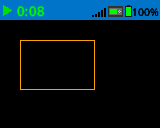
在屏幕 [20] [20] [75] [50] 上画矩形

A screenshot of the EXP Brain showing a rectangle with orange borders.

set fill color on screen#

The set fill color on screen block sets the fill color used when shapes are drawn.

set fill color stack block#
设定屏幕填充色为 [红色 v]

Parameters

Description

color

Sets the fill color to:

  • red
  • green
  • blue
  • black
  • white
  • yellow
  • orange
  • purple
  • cyan
  • transparent

Examples

When started, sets the fill color to purple and draws a rectangle. It is at (50, 130) with a width of 100 pixels and a height of 60 pixels.#
当开始
[Draw a purple rectangle.]
设定屏幕填充色为 [purple v]
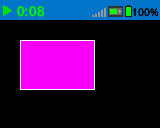
在屏幕 [20] [20] [75] [50] 上画矩形

A screenshot of the EXP Brain showing a rectangle filled with purple.

Draw#

draw pixel on screen#

The draw pixel on screen block draws a pixel at the specified (x, y) screen coordinate in the current pen color.

draw pixel stack block#
在屏幕 [0] [0] 上画点

Parameters

Description

x

The x-coordinate to draw the pixel from 0 to 479.

y

The y-coordinate to draw the pixel from 0 to 239.

Example

When started, draws a pixel at the center of the screen at coordinates (120, 120).#
当开始
[Draw the pixels marking the corners of a square.]
在屏幕 [50] [50] 上画点
在屏幕 [50] [75] 上画点
在屏幕 [75] [50] 上画点
在屏幕 [75] [75] 上画点
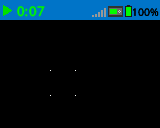
A screenshot of the EXP Brain showing an assortment of pixels showing the corners of a square.

draw line on screen#

The draw line on screen block draws a line from the first specified screen coordinate (x1, y1) to the second specified screen coordinate (x2, y2) using the current pen width and pen color.

draw line stack block#
在屏幕 [0] [0] [10] [10] 上画线段

Parameters

Description

x1

The x-coordinate in pixels of the start of the line from 0 to 159.

y1

The y-coordinate in pixels of the start of the line from 0 to 107.

x2

The x-coordinate in pixels of the end of the line from 0 to 159.

y2

The y-coordinate in pixels of the end of the line from 0 to 107.

Example

When started, draws a diagonal line from the top-left corner (0,0) to the bottom-right corner (240,240) of the screen.#
当开始
[Draw a line from the top left to bottom right of the screen.]
在屏幕 [0] [0] [159] [107] 上画线段
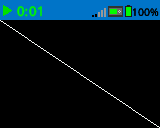
The Brain's screen shows a thin diagonal line across the center, from the upper left corner to the lower right corner.

draw rectangle on screen#

The draw rectangle on screen block draws a rectangle using the current pen width, pen color, and fill colors.

draw rectangle block#
在屏幕 [0] [0] [10] [10] 上画矩形

Parameters

Description

x

The x-coordinate in pixels of the top-left corner of the rectangle from 0 to 159.

y

The y-coordinate in pixels of the top-left corner of the rectangle from 0 to 107.

width

The width of the rectangle in pixels.

height

The height of the rectangle in pixels.

Example

When started, draws a rectangle on the screen with the top-left corner at (50,50), width of 130 pixels, and height of 60 pixels.#
当开始
[Draw a rectangle on the screen.]
在屏幕 [20] [20] [80] [30] 上画矩形
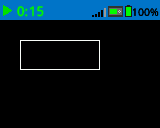
The Brain's screen shows a rectangle with a thin white border on the screen.

draw circle on screen#

The draw circle on screen block draws a circle using the current pen width, pen color, and fill colors.

draw circle stack block#
在屏幕 [0] [0] [10] 上画圆形

Parameters

Description

x

The x-coordinate in pixels of the center of the circle from 0 to 479.

y

The y-coordinate in pixels of the center of the circle from 0 to 239.

radius

The radius of the circle in pixels.

Example

When started, draws a circle on the screen with the center at (120,120) and a radius of 40 pixels.#
当开始
[Draw a circle on the screen.]
在屏幕 [80] [50] [20] 上画圆形
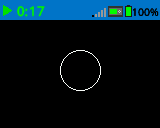
The Brain's screen shows a circle with a thin white border drawn in the center.