Pantalla#
Introducción#
Los bloques de pantalla controlan la pantalla del EXP Brain, lo que permite que tu robot muestre texto, números y gráficos, y responda a la entrada táctil.
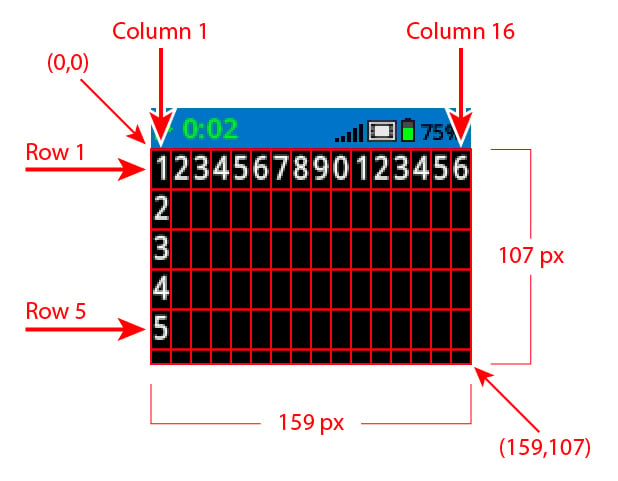
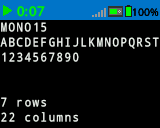
Por defecto, la fuente para imprimir en el Brain es monoespaciada pequeña, que tiene 7 filas y 20 columnas.
Para dibujar, la resolución del Brain es de 159 x 107 píxeles.
A continuación se muestra una lista de los bloques disponibles:
Impresión con cursor: muestra el texto y gestiona el cursor de impresión.
imprimir en pantalla – Imprime texto, números o valores de variables en la pantalla del cerebro.
establecer cursor en fila columna en pantalla – Mueve el cursor a una fila y columna específicas.
establecer cursor en la siguiente fila de la pantalla – Mueve el cursor a la columna 1 de la siguiente fila.
borrar fila en pantalla – Borra una fila de texto específica.
columna del cursor – Indica el número de columna donde se imprimirá el texto.
fila del cursor – Indica el número de fila donde se imprimirá el texto.
Ajustes: Cambia la apariencia del texto y los gráficos.
borrar pantalla – Borra todo el texto y los dibujos de la pantalla.
establecer fuente en pantalla – Cambia el tipo y tamaño de fuente para la visualización del texto.
establecer precisión de impresión en pantalla – Establece cuántos lugares decimales se mostrarán al imprimir números.
establecer ancho del lápiz en la pantalla – Establece el grosor de las líneas dibujadas y los contornos de las formas.
establecer color de lápiz/fuente en pantalla – Establece el color del texto, píxeles, líneas y contornos de formas.
establecer color de relleno en pantalla – Establece el color de relleno para las formas dibujadas.
Dibuja: crea formas, líneas y gráficos en la pantalla del cerebro.
dibujar píxel en la pantalla – Dibuja un solo píxel en una coordenada.
dibujar línea en la pantalla – Dibuja una línea entre dos puntos.
dibujar rectángulo en la pantalla – Dibuja un rectángulo usando dos puntos de esquina.
dibujar círculo en la pantalla – Dibuja un círculo con un centro y un radio definidos.
Impresión del cursor#
imprimir en pantalla#
El bloque de pila imprimir en pantalla imprime texto, números o valores de variables en la pantalla del sistema en la posición y fuente actuales del cursor.
cuando inicie
imprimir [VEXcode] en pantalla ▶
Parámetros |
Descripción |
|---|---|
valor |
El texto, número o valor de variable que se imprimirá en la pantalla. |
y colocar el cursor en la siguiente fila |
Seleccione la flecha ( ▶ ) para expandir el bloque y decir y colocar el cursor en la siguiente fila, de modo que el cursor se mueva a la columna 1 de la siguiente fila después de imprimir. |
Ejemplo
cuando inicie
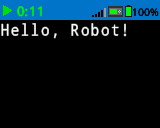
[Display a message at the starting cursor position.]
imprimir [Hello, Robot!] en pantalla ▶
Colocar el cursor en la fila o columna de la pantalla.#
El bloque de pila establecer cursor en fila y columna en pantalla mueve el cursor a una fila y columna específicas en la pantalla del cerebro. El siguiente bloque imprimir en pantalla comenzará a imprimir en esa ubicación.
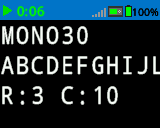
La cantidad de filas y columnas que caben cómodamente depende de la fuente seleccionada. Con la fuente monoespaciada mediana predeterminada, se pueden mostrar con claridad hasta 8 filas y 13 columnas. El texto que exceda este rango puede quedar cortado o resultar difícil de leer.
Las fuentes monoespaciadas tienen caracteres del mismo ancho, lo que garantiza una colocación uniforme del texto. En cambio, las fuentes proporcionales varían en ancho de carácter, por lo que algunas letras ocupan más espacio que otras. Sin embargo, independientemente del tipo de fuente, el bloque de pila establecer cursor en fila y columna en pantalla posiciona el cursor según el tamaño de fila y columna, no según el estilo de fuente. El tamaño de la fuente se puede ajustar mediante el bloque de pila establecer fuente en pantalla.
mover cursor a fila [1] columna [1] en pantalla
Parámetros |
Descripción |
|---|---|
fila |
La fila a la que mover el cursor. |
columna |
La columna a la que se debe mover el cursor. |
Ejemplo
cuando inicie
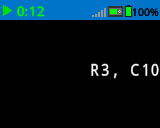
[Display text starting at Row 3 Column 10.]
mover cursor a fila [3] columna [10] en pantalla
imprimir [R3, C10] en pantalla ▶
Colocar el cursor en la siguiente fila de la pantalla.#
El bloque de pila establecer cursor en la siguiente fila de la pantalla mueve el cursor a la columna 1 de la siguiente fila en la pantalla del Cerebro.
mover cursor a la siguiente fila en pantalla
Parámetros |
Descripción |
|---|---|
Este bloque no tiene parámetros. |
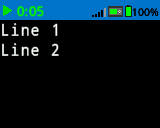
Ejemplo
cuando inicie
[Display two lines of text.]
imprimir [Line 1] en pantalla ▶
mover cursor a la siguiente fila en pantalla
imprimir [Line 2] en pantalla ▶
Borrar fila en la pantalla#
El bloque de pila borrar fila en pantalla borra una fila de texto en la pantalla del cerebro.
limpiar fila [1] en pantalla
Parámetros |
Descripción |
|---|---|
fila |
El número de fila a borrar. |
Ejemplo
cuando inicie
[Only keep the text on row 1.]
imprimir [This text stays] en pantalla ▶
mover cursor a la siguiente fila en pantalla
imprimir [This text disappears] en pantalla ▶
esperar [3] segundos
limpiar fila [2] en pantalla
columna del cursor#
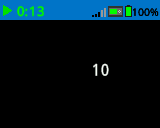
El bloque de informe columna del cursor informa el número de columna donde se imprimirá el texto como un número entero.
(columna del cursor)
Parámetros |
Descripción |
|---|---|
Este bloque no tiene parámetros. |
Ejemplo
cuando inicie
[Display the cursor's current column.]
mover cursor a fila [3] columna [10] en pantalla
imprimir (columna del cursor) en pantalla ▶
fila del cursor#
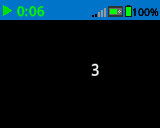
El bloque de informe fila del cursor informa el número de fila donde se imprimirá el texto como un número entero.
(fila del cursor)
Parámetros |
Descripción |
|---|---|
Este bloque no tiene parámetros. |
Ejemplo
cuando inicie
[Display the cursor's current row.]
mover cursor a fila [3] columna [10] en pantalla
imprimir (fila del cursor) en pantalla ▶
Ajustes#
pantalla limpia#
El bloque de pila borrar pantalla elimina todos los dibujos y el texto de la pantalla del cerebro.
limpiar pantalla
Parámetros |
Descripción |
|---|---|
Este bloque no tiene parámetros. |
Ejemplo
cuando inicie
[Draw a circle, and clear it after 2 seconds.]
dibujar círculo [120] [120] [40] en pantalla
esperar [2] segundos
limpiar pantalla
establecer fuente en pantalla#
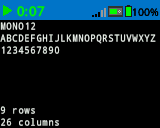
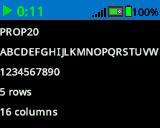
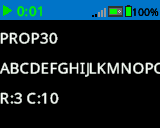
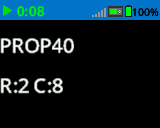
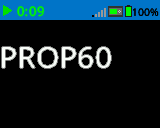
El bloque establecer fuente en pantalla define la fuente y el tamaño que se usarán para mostrar el texto en la pantalla del cerebro. Esta fuente se aplicará a todo el texto que se imprima después de que se ejecute este bloque.
establecer fuente a [monoespaciada v] [mediano v] en pantalla
Parámetros |
Descripción |
|---|---|
estilo |
Estilo de fuente: monoespaciada o proporcional |
tamaño |
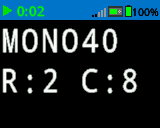
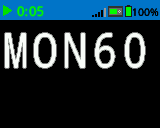
El tamaño de fuente (ejemplos a continuación):
|
|
|
|
|---|---|---|
|
|
|
|
|
|
|

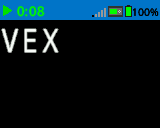
Ejemplo
cuando inicie
[Display text using a larger font]
establecer fuente a [monoespaciada v] [extra grande v] en pantalla
imprimir [VEX] en pantalla ▶
Ajustar la precisión de impresión en pantalla#
El bloque establecer precisión de impresión en pantalla determina la cantidad de decimales que se muestran al imprimir números en la pantalla del cerebro. Esta precisión de impresión se aplicará a todos los números que se impriman después de que se ejecute este bloque.
establecer precisión de impresión a [0.1 v] en pantalla
Parámetros |
Descripción |
|---|---|
precisión |
Precisión de impresión a utilizar:
|
Ejemplo
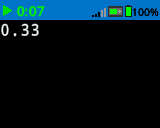
cuando inicie
[Print 1/3 as 0.33.]
establecer precisión de impresión a [0.01 v] en pantalla
imprimir ([1] [math_division v] [3]) en pantalla ▶
Ajustar el ancho del lápiz en la pantalla#
El bloque establecer ancho del lápiz en pantalla permite ajustar el grosor de las líneas dibujadas y los contornos de las formas.
establecer ancho de pluma a [10] en pantalla
Parámetros |
Descripción |
|---|---|
ancho |
El ancho del lápiz, en píxeles, va de 0 a 32. |
Ejemplo
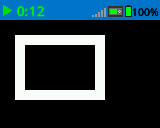
cuando inicie
[Draw a rectangle with a pen width of 10.]
establecer ancho de pluma a [10] en pantalla
dibujar rectángulo [20] [20] [75] [50] en pantalla
Configurar el color del lápiz/fuente en la pantalla#
El bloque de pila establecer color de lápiz/fuente en pantalla establece el color del texto, los píxeles, las líneas y los contornos de las formas.
establecer color de pluma/fuente a [rojo v] en pantalla
Parámetros |
Descripción |
|---|---|
color |
El color del bolígrafo y la fuente a utilizar:
|
Ejemplo
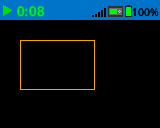
cuando inicie
[Draw a rectangle with orange borders.]
establecer color de pluma/fuente a [naranja v] en pantalla
dibujar rectángulo [20] [20] [75] [50] en pantalla
establecer color de relleno en la pantalla#
El bloque de pila establecer color de relleno en pantalla establece el color de relleno que se utiliza al dibujar formas.
establecer color de relleno a [rojo v] en pantalla
Parámetros |
Descripción |
|---|---|
color |
Color de relleno a utilizar:
|
Ejemplos
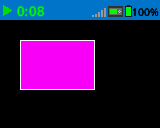
cuando inicie
[Draw a purple rectangle.]
establecer color de relleno a [morado v] en pantalla
dibujar rectángulo [20] [20] [75] [50] en pantalla
Dibujar#
dibujar píxeles en la pantalla#
El bloque de pila dibujar píxel en pantalla dibuja un píxel en la coordenada x e y seleccionada utilizando el [color del lápiz] actual (#set-pen–font-color-on-screen).
dibujar píxel [0] [0] en pantalla
Parámetros |
Descripción |
|---|---|
incógnita |
La coordenada x para dibujar el píxel de 0 a 159. |
y |
La coordenada y para dibujar el píxel de 0 a 107. |
Ejemplo
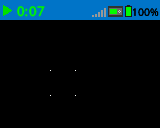
cuando inicie
[Draw the pixels marking the corners of a square.]
dibujar píxel [50] [50] en pantalla
dibujar píxel [50] [75] en pantalla
dibujar píxel [75] [50] en pantalla
dibujar píxel [75] [75] en pantalla
dibujar una línea en la pantalla#
El bloque de pila dibujar línea en pantalla dibuja una línea desde la primera coordenada de la pantalla (x1, y1) hasta la segunda coordenada de la pantalla (x2, y2) utilizando el [ancho del lápiz] (#set-pen-width-on-screen) y el [color del lápiz] (#set-pen–font-color-on-screen ) actuales.
dibujar línea [0] [0] [10] [10] en pantalla
Parámetros |
Descripción |
|---|---|
x1 |
La coordenada x en píxeles del inicio de la línea, desde 0 hasta 159. |
año 1 |
La coordenada y en píxeles del inicio de la línea, de 0 a 107. |
x2 |
La coordenada x en píxeles del final de la línea, de 0 a 159. |
y2 |
La coordenada y en píxeles del final de la línea, de 0 a 107. |
Ejemplo
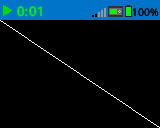
cuando inicie
[Draw a line from the top left to bottom right of the screen.]
dibujar línea [0] [0] [159] [107] en pantalla
Dibujar un rectángulo en la pantalla#
El bloque de pila dibujar rectángulo en pantalla dibuja un rectángulo usando el [ancho del lápiz] (#set-pen-width-on-screen), el [color del lápiz] (#set-pen–font-color-on-screen) y el [color de relleno] (#set-fill-color-on-screen ) actuales.
dibujar rectángulo [0] [0] [10] [10] en pantalla
Parámetros |
Descripción |
|---|---|
incógnita |
La coordenada x en píxeles de la esquina superior izquierda del rectángulo, de 0 a 159. |
y |
La coordenada y en píxeles de la esquina superior izquierda del rectángulo, de 0 a 107. |
ancho |
El ancho del rectángulo en píxeles. |
altura |
La altura del rectángulo en píxeles. |
Ejemplo
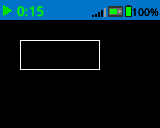
cuando inicie
[Draw a rectangle on the screen.]
dibujar rectángulo [20] [20] [80] [30] en pantalla
dibujar un círculo en la pantalla#
El bloque de pila dibujar círculo en pantalla dibuja un círculo usando el [ancho del lápiz] (#set-pen-width-on-screen), el [color del lápiz] (#set-pen–font-color-on-screen) y el [color de relleno] (#set-fill-color-on-screen ) actuales.
dibujar círculo [0] [0] [10] en pantalla
Parámetros |
Descripción |
|---|---|
incógnita |
La coordenada x en píxeles del centro del círculo, de 0 a 159. |
y |
La coordenada y en píxeles del centro del círculo, de 0 a 107. |
radio |
El radio del círculo en píxeles. |
Ejemplo
cuando inicie
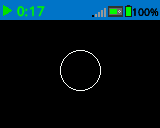
[Draw a circle on the screen.]
dibujar círculo [80] [50] [20] en pantalla