
屏幕#
介绍#
屏幕方法控制 V5 大脑如何在触摸屏上显示文本、数字和图形,以及如何响应触摸输入。
默认情况下,打印到大脑的字体是等宽小号,它有 12 行 48 列。
大脑的绘图分辨率为 480 x 240 像素。
V5 大脑屏幕,红色网格线显示了总共 12 行 48 列的布局。像素尺寸为 479 宽 x 239 高。左上角起始于 (0,0) 像素,位于第 1 行第 1 列;右下角结束于 (479, 239) 像素,位于第 12 行第/_static/img/screen/brain-resolution.png列。
以下是所有方法的列表:
光标打印 — 放置并打印文本。
print— Prints text, numbers, or variable values at the current cursor position.set_cursor— Moves the cursor to a specific row and column.next_row— Moves the cursor to column 1 of the next row.clear_row— Clears a row of text.row— Returns the row where text will be printed.column— Returns the column where text will be printed.print_at— Prints text, numbers, or variable values at a specific x and y coordinate.get_string_width— Returns the width of a string in pixels using the current font.get_string_height— Returns the height of a string in pixels using the current font.clear_line— Clears a line of text.new_line— Moves the cursor to a new line.
修改器——更改屏幕设置、颜色和绘制行为。
clear_screen— Clears the screen of all drawings and text.set_font— Sets the font for printed text.set_pen_width— Sets the thickness of drawn lines and shape outlines.set_pen_color— Sets the color of text, pixels, lines, and shape outlines.set_fill_color— Sets the fill color for drawn shapes and printed text backgrounds.set_origin— Sets the origin used for coordinate-based printing and drawing.
绘制 — 在屏幕上添加图形。
draw_pixel— Draws one pixel at a coordinate.draw_line— Draws a line between two points.draw_rectangle— Draws a rectangle.draw_circle— Draws a circle.render— Updates the Brain’s screen with text and drawings only when called.set_clip_region— Restricts where drawings and text can appear.
获取器 — 检查触摸状态和触摸位置。
pressing— Returns whether the screen is being pressed.x_position— Returns the x-coordinate of the last screen press.y_position— Returns the y-coordinate of the last screen press.
回调函数——响应屏幕上的触摸事件。
pressed— Registers a function to be called when the screen is pressed.released— Registers a function to be called when the screen is released.
For information on constructing a Brain to gain access to the screen methods, see Brain.
光标打印#
print#
print prints text, numbers, or variable values on the Brain screen at the current cursor position and font.
用法:
brain.screen.print(text, sep, precision)
参数 |
描述 |
|---|---|
|
要打印的文本、数字或变量值。 |
|
Optional. A string to insert between values. This must be written as a keyword argument (sep=). The default is |
|
Optional. The number of decimal places to display when printing simple numbers. This must be written as a keyword argument( |
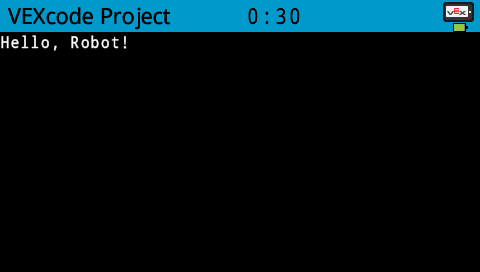
# Print on the Brain's screen
brain.screen.print("Hello, Robot!")
set_cursor#
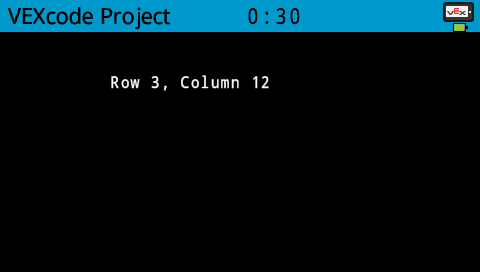
set_cursor moves the cursor to a specific row and column on the Brain screen. The next print call will start printing at that location. How many rows and columns can comfortably fit depends on the selected font. With the default monospaced medium font, up to 8 rows and 13 columns can be displayed clearly. Text placed beyond this range may be cut off or become difficult to read.
Monospaced fonts have characters that are all the same width, making text placement consistent. In contrast, proportional fonts vary in character width, so some letters take up more space than others. However, regardless of which type is used, set_cursor positions the cursor based on row and column size, not font style. The font size can be adjusted using the set_font.
用法:
brain.screen.set_cursor(row, column)
参数 |
描述 |
|---|---|
|
要将光标移动到的行。 |
|
要将光标移动到的列。 |
# Display text starting at Row 3 Column 12
brain.screen.set_cursor(3, 12)
brain.screen.print("Row 3, Column 12")
next_row#
next_row moves the cursor to the next row.
用法:
brain.screen.next_row()
参数 |
描述 |
|---|---|
此方法没有参数。 |
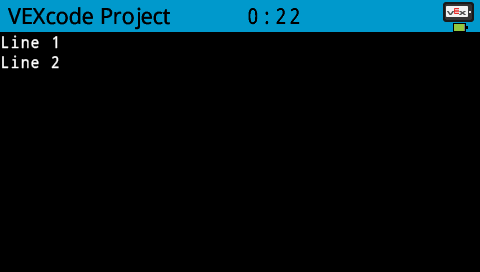
# Print two lines of text on the Brain's screen
brain.screen.print("Line 1")
brain.screen.next_row()
brain.screen.print("Line 2")
clear_row#
clear_row clears a single row of text on the Brain screen.
用法:
brain.screen.clear_row(row, color)
参数 |
描述 |
|---|---|
|
可选。要清除的行。默认值为当前光标所在行。 |
|
可选。有效的颜色、十六进制值或网页字符串。 |
# Only keep the text on row 1
brain.screen.print("This text stays")
brain.screen.next_row
brain.screen.print("This text disappears")
wait(3, SECONDS)

brain.screen.clear_row()
row#
row returns the row where text will be printed as an integer.
用法:
brain.screen.row()
参数 |
描述 |
|---|---|
此方法没有参数。 |
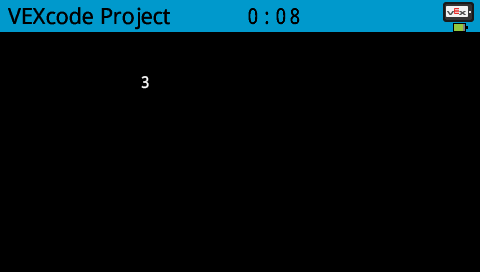
# Display the cursor's current row
brain.screen.set_cursor(3, 2)
brain.screen.print(brain.screen.row())
column#
column returns the column where text will be printed as an integer.
用法:
brain.screen.column()
参数 |
描述 |
|---|---|
此方法没有参数。 |
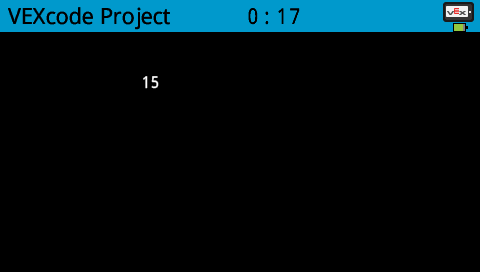
# Display the cursor's current column
brain.screen.set_cursor(3, 15)
brain.screen.print(brain.screen.column())
print_at#
print_at prints text, numbers, or variable values on the Brain screen at specific x and y coordinates with the current font and origin.
用法:
brain.screen.print_at(text, x, y, sep, precision, opaque)
参数 |
描述 |
|---|---|
|
要打印的文本、数字或变量值。 |
|
The x-coordinate to print at as a keyword argument ( |
|
The y-coordinate to print at as a keyword argument ( |
|
Optional. A string to insert between values. This must be written as a keyword argument (sep=). The default is |
|
Optional. The number of decimal places to display when printing simple numbers. This must be written as a keyword argument( |
|
Optional. A Boolean value indicating whether or not the text should clear background pixels. The default is |
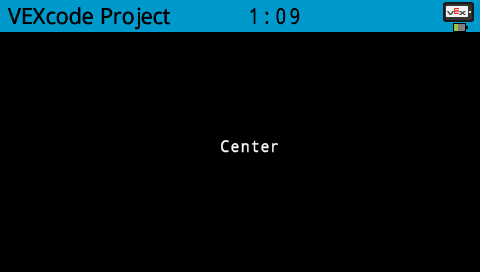
# Display text at the center of the screen
brain.screen.print_at("Center", x=220, y=120)
get_string_width#
get_string_width returns the width of a string in pixels as an integer, using the current font.
Usage:
brain.screen.get_string_width(string)
参数 |
描述 |
|---|---|
|
待测量的绳子。 |
get_string_height#
get_string_height returns the height of a string in pixels as an integer, using the current font.
Usage:
brain.screen.get_string_height(string)
参数 |
描述 |
|---|---|
|
待测量的绳子。 |
clear_line#
clear_line clears the current row of text.
Usage:
brain.screen.clear_line()
参数 |
描述 |
|---|---|
此方法没有参数。 |
new_line#
new_line moves the cursor to column 1 on the next row on the Brain screen.
用法:
brain.screen.new_line()
参数 |
描述 |
|---|---|
此方法没有参数。 |
变异体#
clear_screen#
clear_screen clears all drawings and text from the Brain screen.
用法:
brain.screen.clear_screen(color)
参数 |
描述 |
|---|---|
|
Optional. A valid color option:
|
# Print VEXcode on the screen
brain.screen.print("VEXcode")
wait(2, SECONDS)
# Clear screen to black
brain.screen.clear_screen()
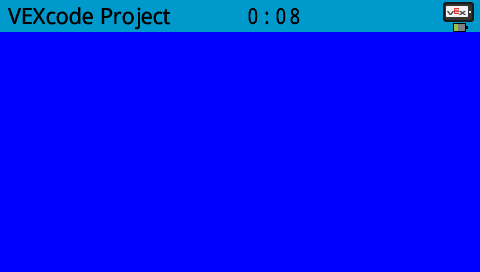
# Print VEXcode on the screen
brain.screen.print("VEXcode")

# Clear screen to blue using predefined color
brain.screen.clear_screen(Color.BLUE)
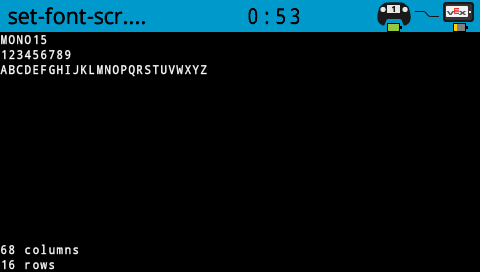
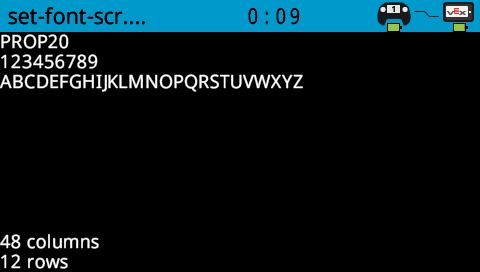
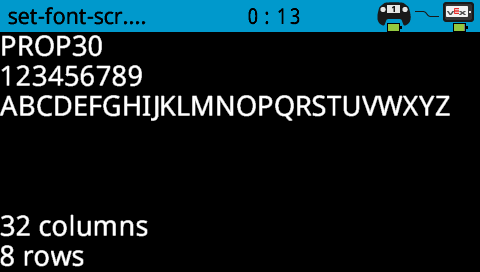
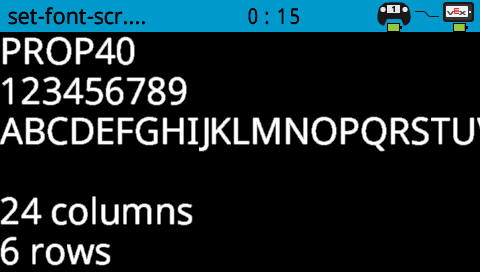
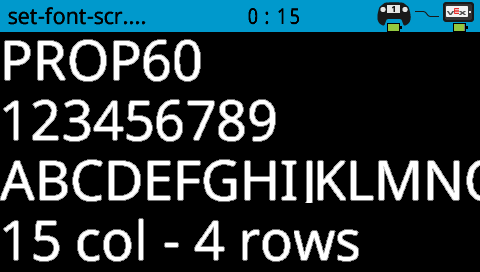
set_font#
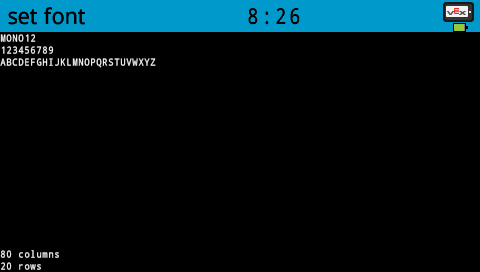
set_font sets the font used for displaying text on the Brain screen. This font will apply to all text printed after this method runs.
用法:
brain.screen.set_font(font)
参数 |
描述 |
|---|---|
|
以下是一个有效的字体选项。 |
|
|
|
|---|---|---|
|
|
|
|
|
|
|


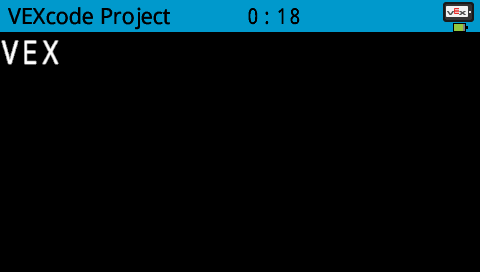
# Set the font type to MONO40
brain.screen.set_font(FontType.MONO40)
brain.screen.print("VEX")
set_pen_width#
set_pen_width sets the thickness of drawn lines and shape outlines.
用法:
brain.screen.set_pen_width(value)
参数 |
描述 |
|---|---|
|
笔的宽度,以像素为单位,范围从 0 到 32。 |
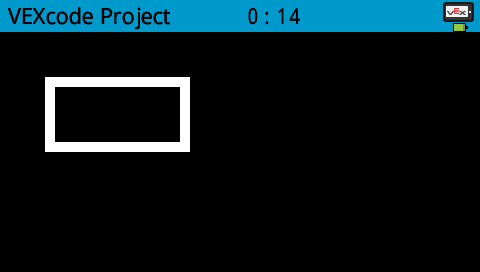
# Draw a rectangle with a pen width of 10
brain.screen.set_pen_width(10)
brain.screen.draw_rectangle(50, 50, 130, 60)
set_pen_color#
set_pen_color sets the color of text, pixels, lines, and shape outlines.
用法:
brain.screen.set_pen_color(color)
参数 |
描述 |
|---|---|
|
The pen and font color to use. Options include:
|
# Draw a rectangle with orange borders
brain.screen.set_pen_color(Color.ORANGE)
brain.screen.draw_rectangle(50, 50, 130, 60)

set_fill_color#
set_fill_color sets the fill color used when shapes are drawn.
用法:
brain.screen.set_fill_color(color)
参数 |
描述 |
|---|---|
|
The fill color to use. Options include:
|
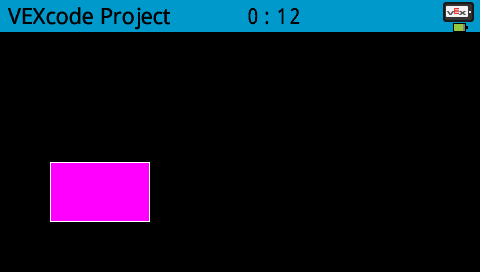
# Draw a purple rectangle
brain.screen.set_fill_color(Color.PURPLE)
brain.screen.draw_rectangle(50, 130, 100, 60)
set_origin#
set_origin sets the origin used for drawing and coordinate-based printing on the Brain screen. By default, the origin is the top-left corner of the screen.
用法:
brain.screen.set_origin(x, y)
参数 |
描述 |
|---|---|
|
要设置的原点 x 坐标,范围从 0 到 479。 |
|
设置为原点的 y 坐标,范围从 0 到 239。 |
画#
draw_pixel#
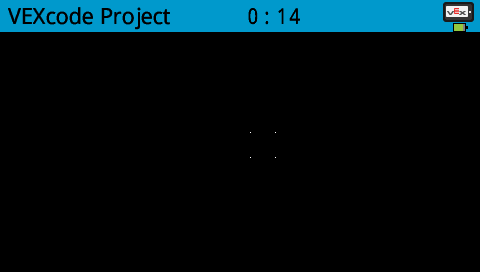
draw_pixel draws one pixel at the selected x and y coordinate using the current pen color.
用法:
brain.screen.draw_pixel(x, y)
参数 |
描述 |
|---|---|
|
绘制像素的 x 坐标,范围从 0 到 479,以屏幕原点为参考。 |
|
绘制像素的 y 坐标,范围从 0 到 239,以屏幕原点为参考。 |
# Draw the pixels marking the corners of a square
brain.screen.draw_pixel(250, 100)
brain.screen.draw_pixel(275, 100)
brain.screen.draw_pixel(250, 125)
brain.screen.draw_pixel(275, 125)
draw_line#
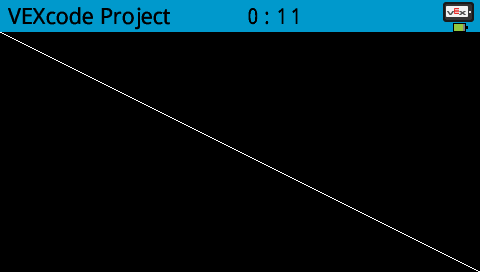
draw_line draws a line from the first screen coordinate to the second screen coordinate using the current pen width and pen color.
用法:
brain.screen.draw_line(start_x, start_y, end_x, end_y)
参数 |
描述 |
|---|---|
|
行首的 x 坐标(以像素为单位),范围从 0 到 479,参考屏幕原点。 |
|
行首的 y 坐标(以像素为单位),范围从 0 到 239,参考屏幕原点。 |
|
行尾的 x 坐标(以像素为单位),范围从 0 到 479,参考屏幕原点。 |
|
行尾的 y 坐标(以像素为单位),范围从 0 到 239,以屏幕原点为参考。 |
# Draw a line from the top left to bottom right of the screen
brain.screen.draw_line(0, 0, 479, 239)
draw_rectangle#
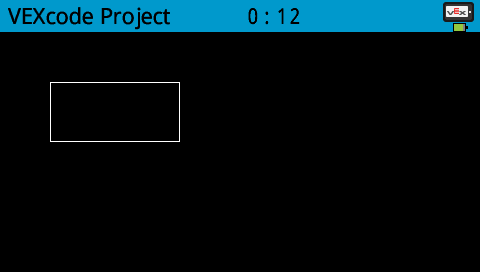
draw_rectangle draws a rectangle using the current pen width, pen color, and fill color, unless the optional color parameter is used.
用法:
brain.screen.draw_rectangle(x, y, width, height, color)
参数 |
描述 |
|---|---|
|
矩形左上角的 x 坐标(像素),取值范围为 0 到 479。 |
|
矩形左上角的 y 坐标(像素),取值范围为 0 到 239。 |
|
矩形的宽度。 |
|
矩形的高度。 |
|
Optional. A valid color option:
|
# Draw a rectangle on the screen
brain.screen.draw_rectangle(50, 50, 130, 60)
draw_circle#
draw_circle draws a circle using the current pen width, pen color, and fill color, unless the optional color parameter is used.
用法:
brain.screen.draw_circle(x, y, radius, color)
参数 |
描述 |
|---|---|
|
圆心的 x 坐标(以像素为单位),范围从 0 到 479,参考屏幕原点。 |
|
圆心的 y 坐标(以像素为单位),范围从 0 到 239,参考屏幕原点。 |
|
圆的半径,以像素为单位。 |
|
Optional. The fill color to use. Options include:
|
# Draw a circle on the screen
brain.screen.draw_circle(120, 120, 40)

render#
render enables double buffering for the Brain’s screen. Once called, any drawing commands (like text, shapes, or images) will no longer appear immediately for the rest of the project. Instead, updates will only be shown when render is used again. This allows for smoother and more controlled screen updates, but means nothing will be visible until render is used.
用法:
brain.screen.render()
参数 |
描述 |
|---|---|
此方法没有参数。 |
# Render text after moving
brain.screen.render()
brain.screen.print("Render later...")
drivetrain.drive_for(FORWARD, 100, MM)
drivetrain.turn_for(RIGHT, 90, DEGREES)
brain.screen.render()
set_clip_region#
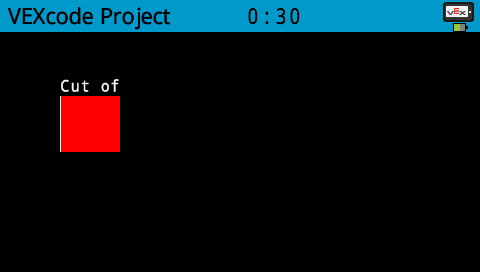
set_clip_region defines a rectangular area on the screen where all drawings and text will be confined. Any content outside this region will not be displayed.
用法:
brain.screen.set_clip_region(x, y, width, height)
参数 |
描述 |
|---|---|
|
矩形左上角的 x 坐标,以屏幕原点为参考。 |
|
矩形左上角的 y 坐标,以屏幕原点为参考。 |
|
矩形的宽度。 |
|
矩形的高度。 |
# Restrict text and drawings to a specific region
brain.screen.set_clip_region(0, 0, 120, 120)
brain.screen.draw_rectangle(60, 60, 100, 100, Color.RED)
brain.screen.print_at("Cut off!", x=60, y=60)
触碰#
pressing#
pressing returns a Boolean indicating whether the Brain screen is currently being pressed.
True- The screen is being pressed.False- The screen is not being pressed.
用法:
brain.screen.pressing()
参数 |
描述 |
|---|---|
此方法没有参数。 |
# Change the screen's color after it's pressed
while not brain.screen.pressing():
    wait(5, MSEC)
brain.screen.set_fill_color(Color.GREEN)
brain.screen.draw_rectangle(0, 0, 479, 239)
# Display different messages after the screen is pressed
while not brain.screen.pressing():
    wait(5, MSEC)
brain.screen.print("First message!")
brain.screen.next_row()
# Lift finger to press the screen again
while brain.screen.pressing():
    wait(5, MSEC)
while not brain.screen.pressing():
    wait(5, MSEC)
brain.screen.print("Second message!")
brain.screen.next_row()
x_position#
x_position returns the x-coordinate of the last screen press as an integer from 0 (left) to 479 (right).
用法:
brain.screen.x_position()
参数 |
描述 |
|---|---|
此方法没有参数。 |
# Display a circle where the screen is pressed
while not brain.screen.pressing():
    wait(5, MSEC)
brain.screen.set_fill_color(Color.WHITE)
brain.screen.draw_circle(brain.screen.x_position(), brain.screen.y_position(), 20)
y_position#
y_position returns the y-coordinate of the last screen press as an integer from 0 (top) to 239 (bottom).
用法:
brain.screen.y_position()
参数 |
描述 |
|---|---|
此方法没有参数。 |
# Display a circle where the screen is pressed
while not brain.screen.pressing():
    wait(5, MSEC)
brain.screen.set_fill_color(Color.WHITE)
brain.screen.draw_circle(brain.screen.x_position(), brain.screen.y_position(), 20)
回调函数#
pressed#
pressed registers a function to be called when the Brain’s Screen is pressed.
用法:
brain.screen.pressed(callback, arg)
参数 |
描述 |
|---|---|
|
一个先前定义的函数,当按下大脑屏幕时执行。 |
|
def my_function():
  brain.screen.print("Screen pressed")

# Call my_function whenever the Brain screen is pressed
brain.screen.pressed(my_function)
released#
released registers a function to be called when the screen is released (touch removed).
用法:
brain.screen.released(callback, arg)
参数 |
描述 |
|---|---|
|
先前定义的 函数 在大脑屏幕释放时执行。 |
|
def my_function():
  brain.screen.print("Screen released")

# Call my_function whenever the Brain screen is released
brain.screen.released(my_function)