Uso del simulador de vuelo VEX AIR#
Accediendo al Simulador#
Conecte el controlador VEX AIR a VEXcode AIR.
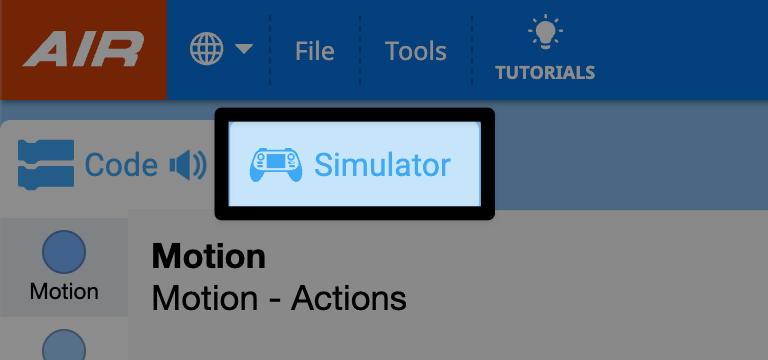
Seleccione la pestaña Simulador.
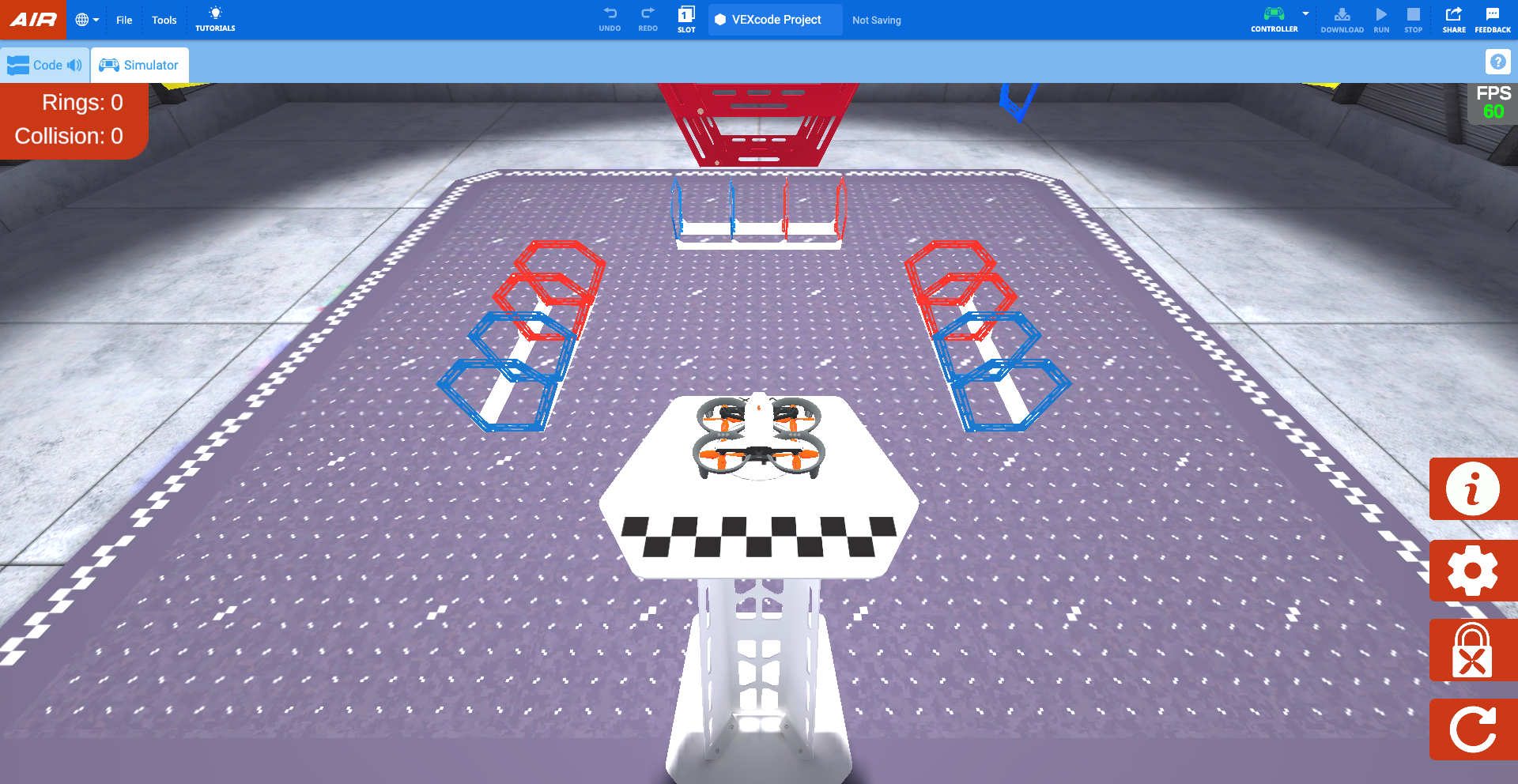
En VEXcode, el simulador se abrirá con el diseño de Rings, mostrando la vista del piloto.
Cuando se abra el simulador, el mando emitirá un sonido y aparecerá un mensaje en la pantalla del mando que indica que hay un dron conectado y que el bloqueo de hélices está activado.
Bloqueo de la hélice#
Por defecto, el bloqueo de hélices está activado al abrir el simulador. El bloqueo de hélices del dron VEX AIR es una importante función de seguridad que ayuda a garantizar un funcionamiento seguro del dron.
El dron no puede despegar cuando el bloqueo de hélices está activado. Al igual que en el dron físico, las hélices se bloquearán cada vez que se reinicie el simulador o se modifique la configuración.
Mientras el bloqueo de hélices esté activado, el botón de encendido del dron virtual en el simulador parpadeará en azul, como se muestra en este video. El botón de encendido del control remoto físico también parpadeará en azul.
Seleccione el botón de encendido del dron virtual en el cuadro de diálogo para desactivar el bloqueo de las hélices, como se muestra en este video. De esta forma, las hélices se desbloquearán y el dron estará listo para volar.
Uso del controlador con el simulador#
Con el bloqueo de hélice desactivado, el dron se puede pilotar con los mismos controles que en un vuelo real. El simulador utiliza los mismos controles que el proyecto default_fly.
Volando en el simulador#
Despega usando el botón Despegue y aterrizaje del control remoto. Pulsa el botón para abrir el menú del proyecto. Luego, mantén pulsado el botón hasta que el dron despegue de la plataforma.
Al pulsar el botón Despegue y aterrizaje durante el vuelo en el simulador, el dron aterrizará. Pulsa el botón para abrir el menú. A continuación, vuelve a pulsarlo o toca el botón Aterrizar en la pantalla del mando para aterrizar el dron en su ubicación actual.
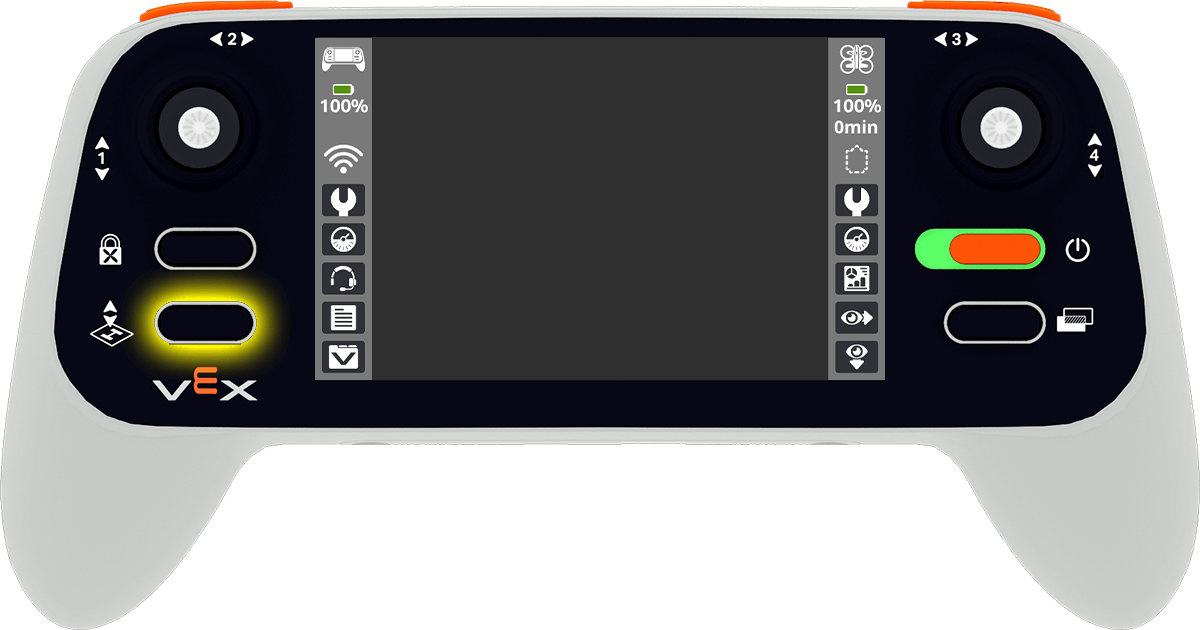
El movimiento del dron se controla mediante los joysticks. El siguiente video muestra cómo el joystick izquierdo se mueve hacia adelante a lo largo del Eje 1 para elevar el dron, y luego hacia abajo a lo largo del mismo eje para descenderlo.
Opciones de cámara#
Para cambiar la vista de la cámara del dron, seleccione el botón Cambiar vista en el controlador.
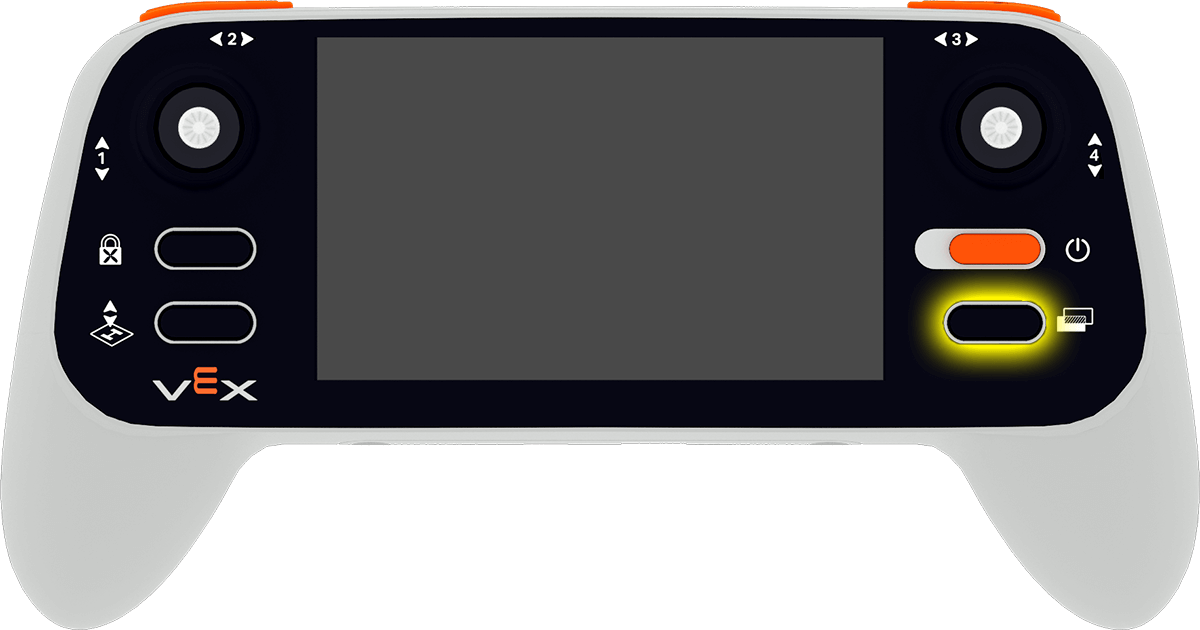
Esto rotará entre las siguientes opciones de cámara:
Vista del piloto: muestra el dron desde la posición del piloto fuera del campo de vuelo, como en una competición. Esta vista ayuda a desarrollar la percepción espacial y a practicar el vuelo visual.
Cámara frontal: Muestra la imagen de la cámara frontal (que coincide con la cámara delantera del dron) para mostrar lo que el dron ve justo delante. Es útil para sortear obstáculos o alinearse con objetivos.
Cámara inferior - Muestra la vista de la cámara orientada hacia abajo (que coincide con la cámara inferior del dron). Esto es útil para alinearse con objetos y puntuar elementos.
Vista de seguimiento: Sigue al dron mientras se mueve. Esta vista ofrece una perspectiva dinámica que ayuda a visualizar las trayectorias de vuelo y los cambios de dirección.
Pantalla dividida 1: combina la Vista del piloto en la parte superior y la Cámara frontal en la parte inferior.
Pantalla dividida 2: combina la Vista del piloto en la parte superior y la Cámara inferior en la parte inferior.
Configuración del controlador#
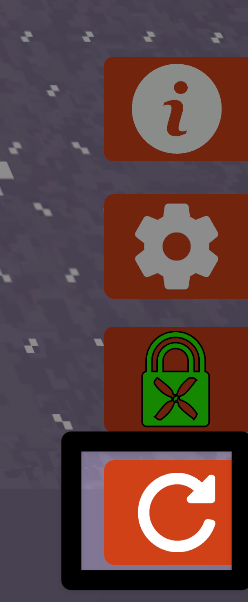
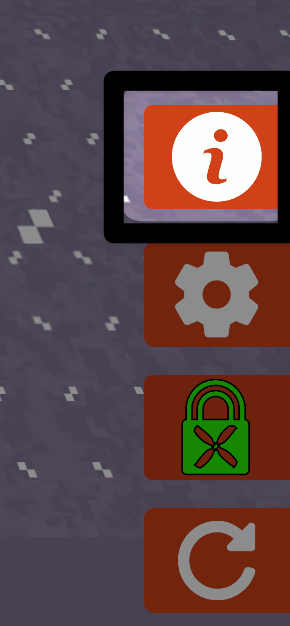
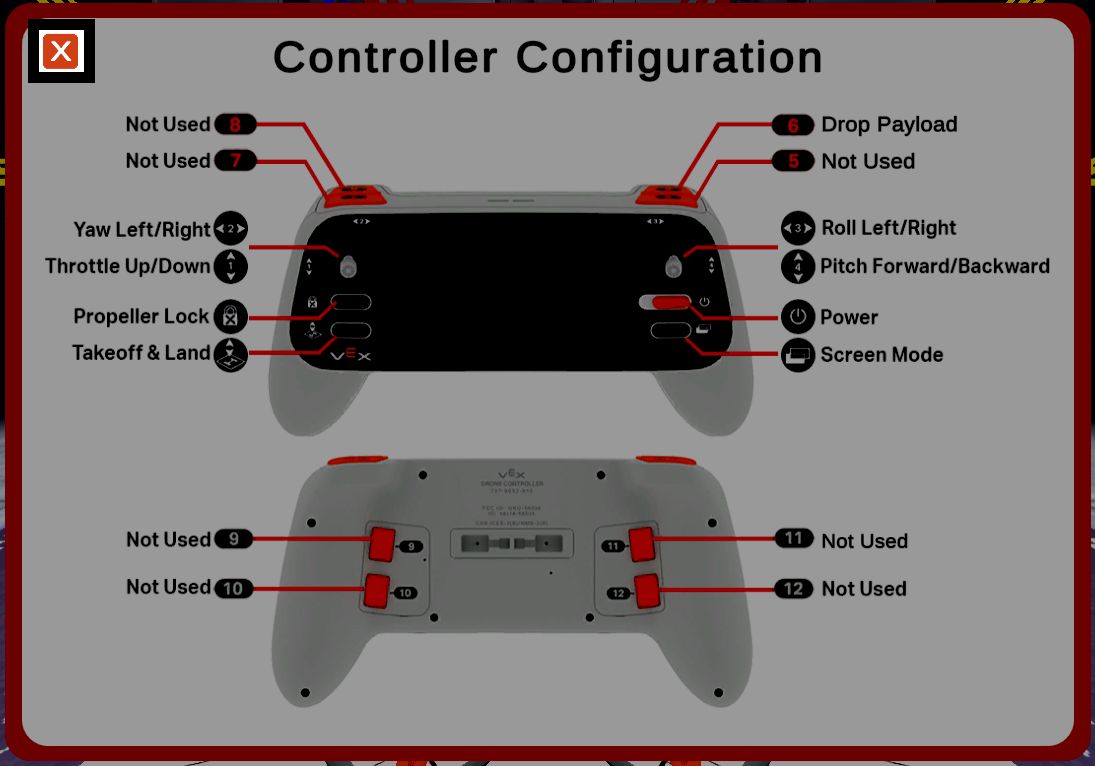
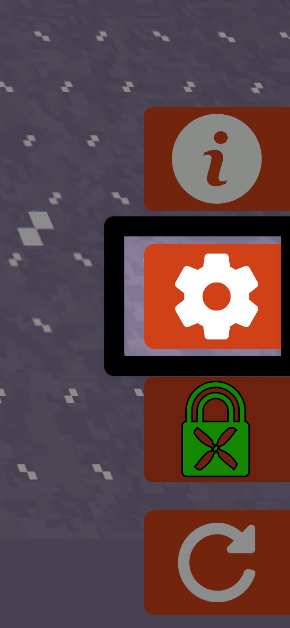
Seleccione el botón Información en la parte inferior derecha de la pantalla para ver la configuración del controlador.
Seleccione el botón X en la esquina superior izquierda para cerrar la configuración y regresar al campo.
Menú de lista de verificación previa al vuelo#
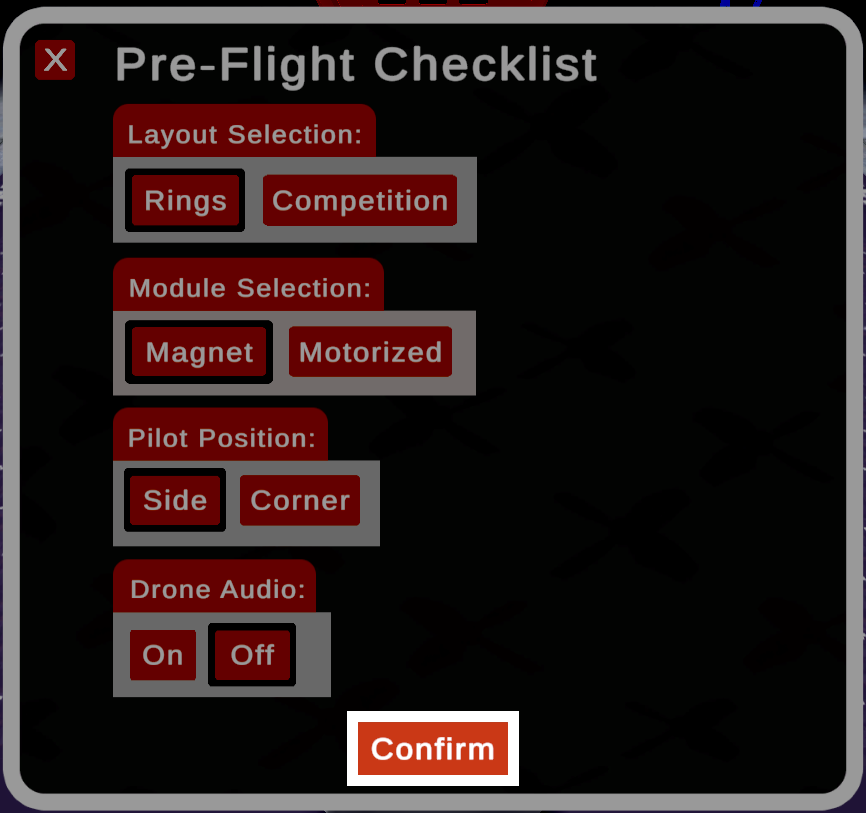
Seleccione el ícono Engranaje en la parte inferior derecha de la pantalla para abrir la Lista de verificación previa al vuelo.
Seleccione el botón Confirmar en la parte inferior de la ventana para guardar sus selecciones. Al seleccionar el botón X en la esquina superior izquierda, se cerrará la lista de verificación sin guardar sus elecciones.
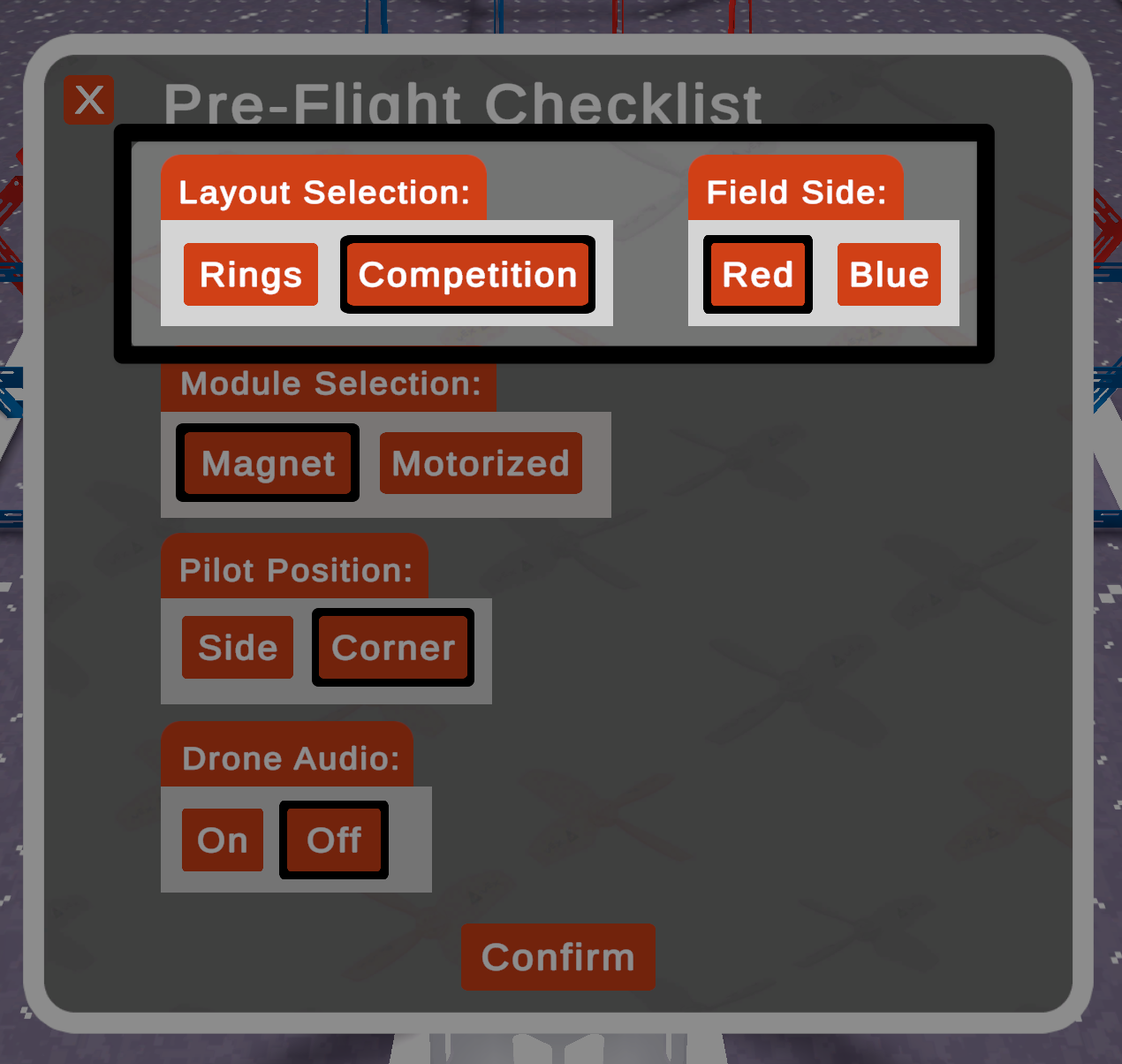
Cuando se selecciona el diseño Competición, aparece la opción adicional de Lado del campo.
Tanteo#
En el diseño Anillos, el contador indica la cantidad de anillos por los que se vuela y la cantidad de veces que el dron choca con un anillo.
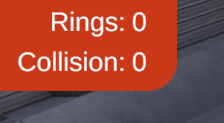
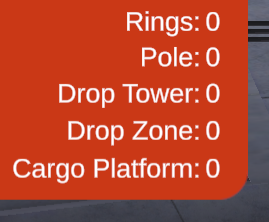
En el diseño de Competición, el contador indica la cantidad de anillos que han volado a través de él y la cantidad de objetos de juego colocados dentro o sobre cada uno de los elementos del juego.
Reinicio#
Seleccione el botón Reiniciar en la esquina inferior derecha de la pantalla para reiniciar el campo y devolver el dron a la posición inicial en la plataforma, con el bloqueo de hélices activado.