Usando ejemplos#
This tutorial walks you through opening and using example projects in VEXcode GO. By the end, you’ll have an example project open and ready to explore.
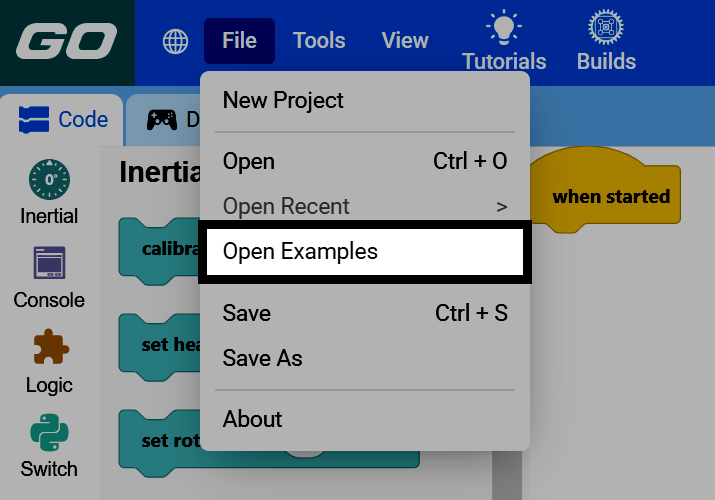
Select File in the top-left of VEXcode, then select Open Examples.
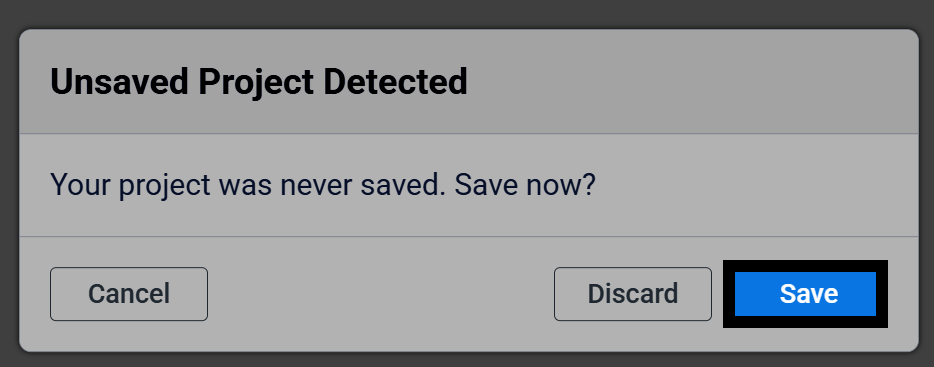
Opening the Examples page will open a new project, so be sure to save any unsaved work first. If your project hasn’t been saved yet, select Save to save it before continuing.
The Open Examples page shows all the available example projects.
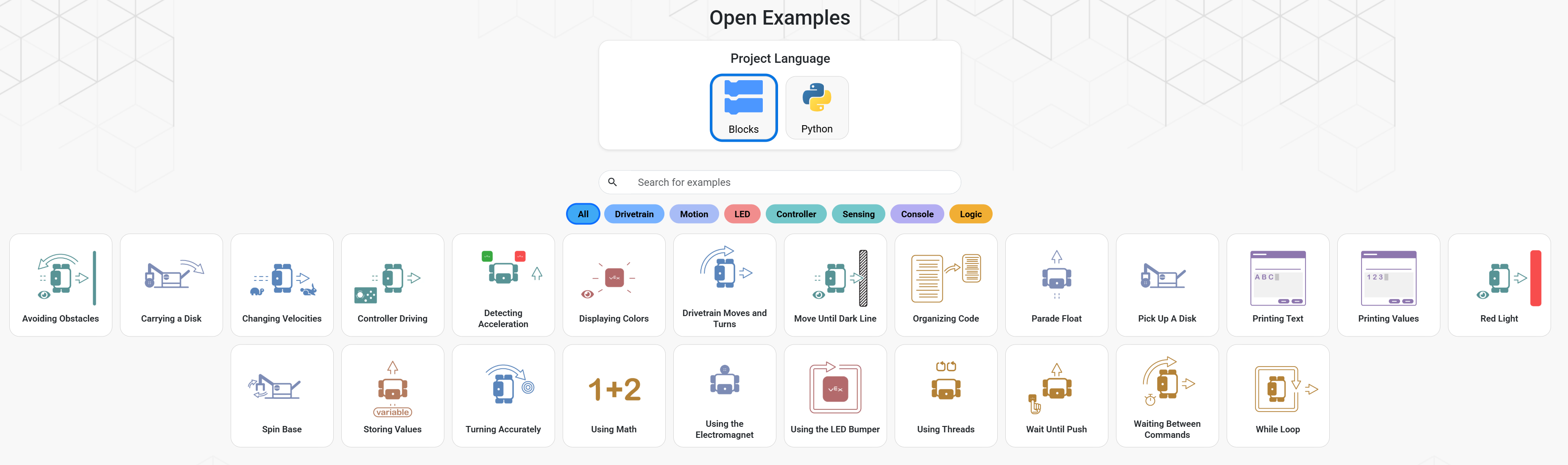
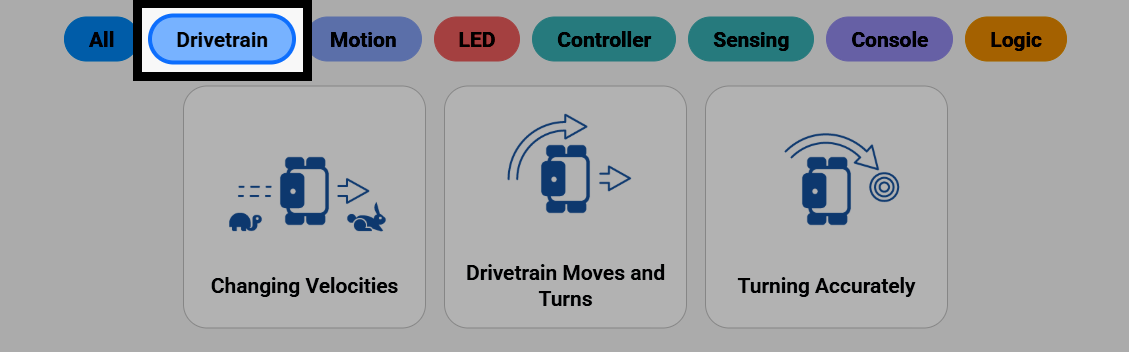
Select one of the filters to narrow down the example projects shown, such as Drivetrain to only show example projects demonstrating how to code the robot’s drivetrain.
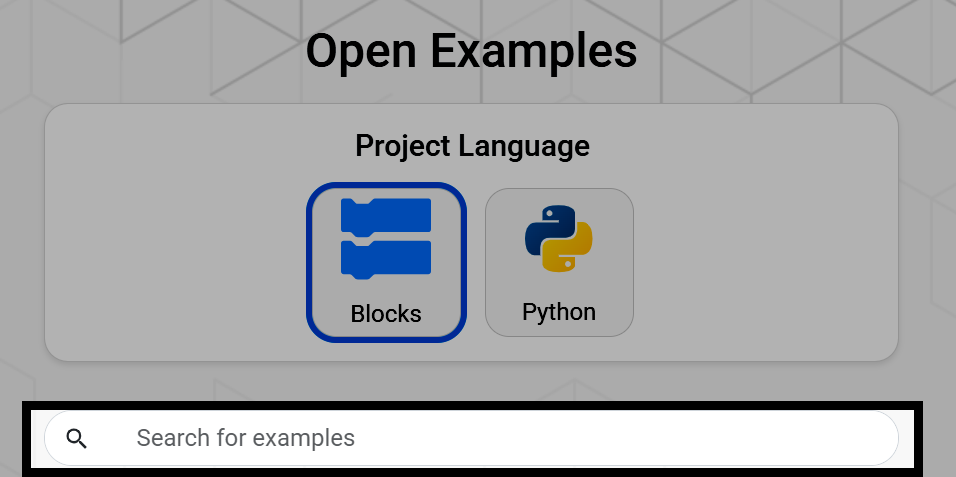
You can also use the search bar to search for the name of an example project.
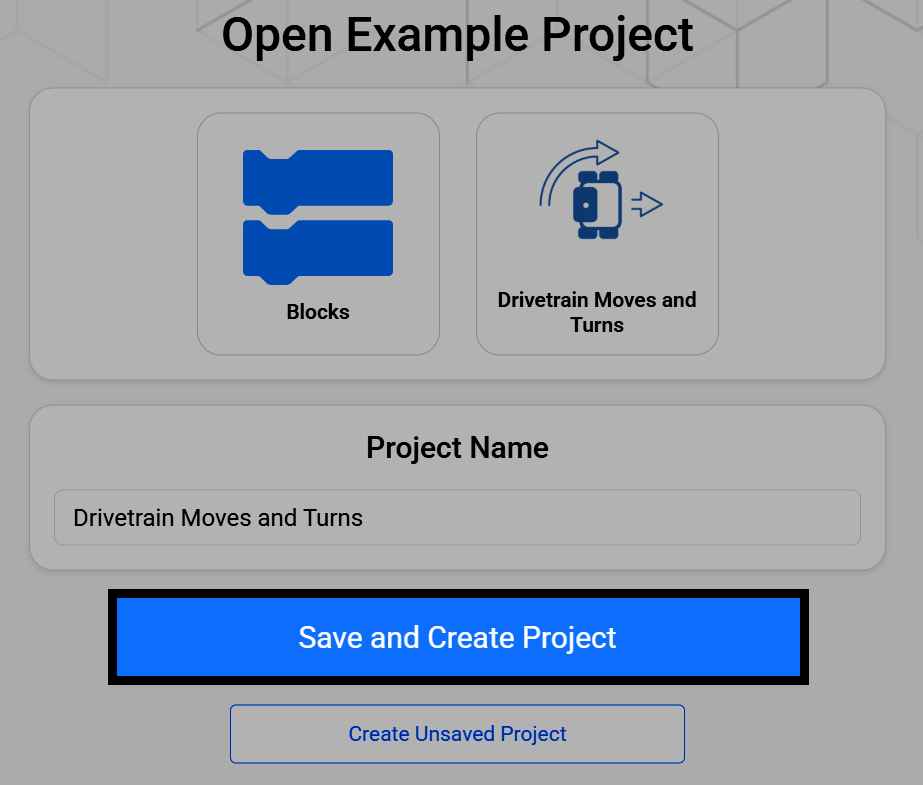
Select an example project, then select Save and Create Project to save the new project to your device.
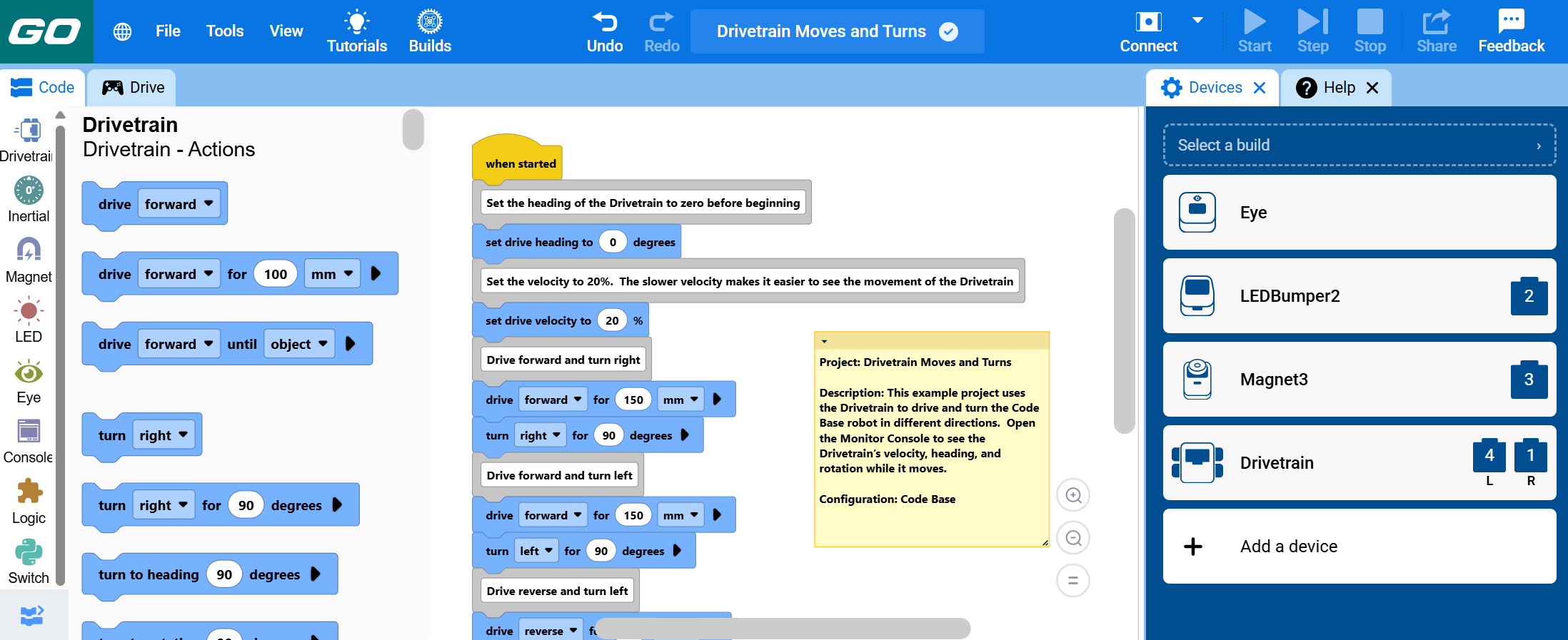
The project will open in VEXcode with code demonstrating the example already in the workspace. The robot will already be configured in the Devices menu, and a note in the workspace will explain what the project does and what device configuration to use with it.