Configuring Smart Port Devices#

Configuring Smart Port Devices

This tutorial walks you through configuring a Smart Port device in VEXcode V5, using an Optical Sensor as an example. By the end, you’ll have added an Optical Sensor and be ready to use its blocks.

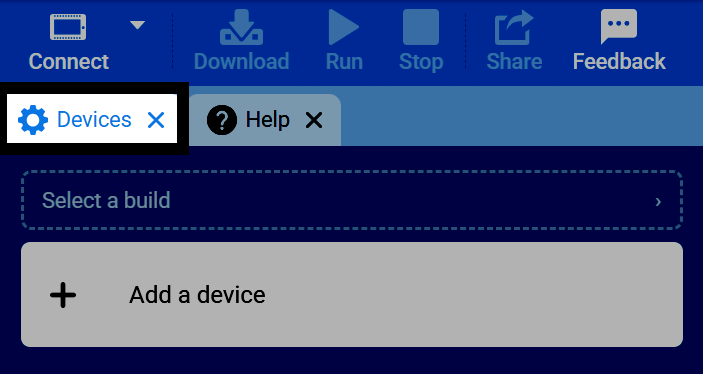
  1. Select the Devices tab.

Screenshot of VEXcode's tab bar, with the Devices tab highlighted.
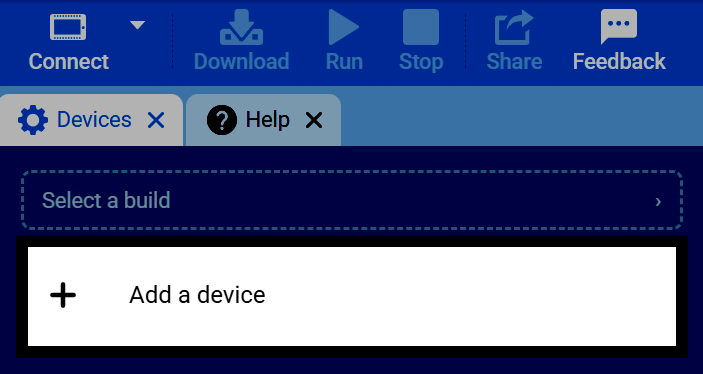
  1. Select Add a Device.

Screenshot of the Devices tab, with the Add a Device button highlighted.
  1. Select Optical.

Screenshot of the Select a device screen, with Optical highlighted.
  1. Select which Smart Port the Optical Sensor is connected to on the Brain.
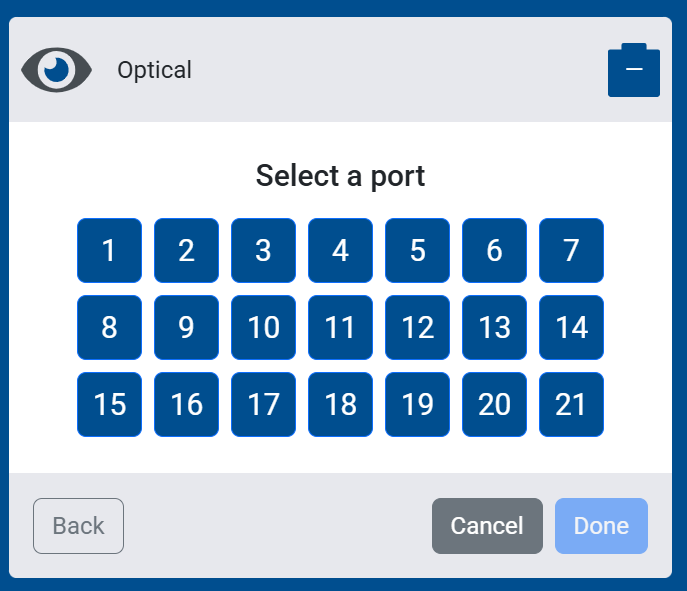
Screenshot of the Select a port screen for an Optical Sensor, showing ports 1 through 21 to choose from.
  1. Select Done to add it to your robot.
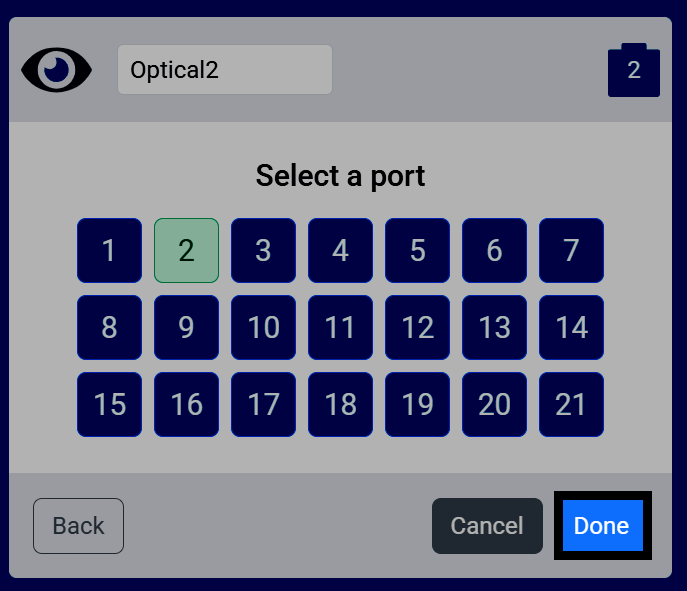
Screenshot of the Select a port screen for an Optical Sensor, with port 2 selected and the Done button highlighted.
  1. The Optical Sensor will now appear in your list of Devices.
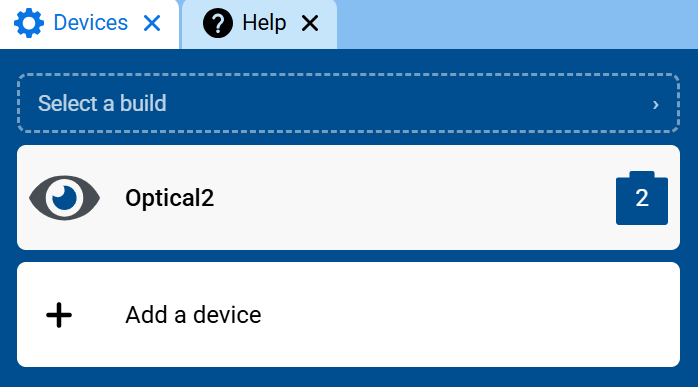
Screenshot of the Devices tab, showing Optical2 in the list of devices.
  1. The Optical Sensor’s blocks will now appear in the toolbox, within the Sensing category.
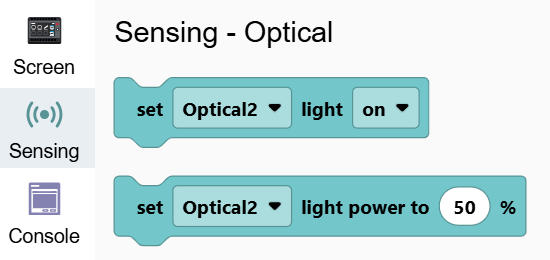
Screenshot of the toolbox with the Sensing category open, showing the set Optical2 light blocks.