
屏幕#
介绍#
屏幕方法控制 EXP Brain 如何在其屏幕上显示文本、数字和图形。
默认情况下,打印到大脑的字体是等宽小号,它有7行20列。
大脑的绘图分辨率为 159 x 107 像素。
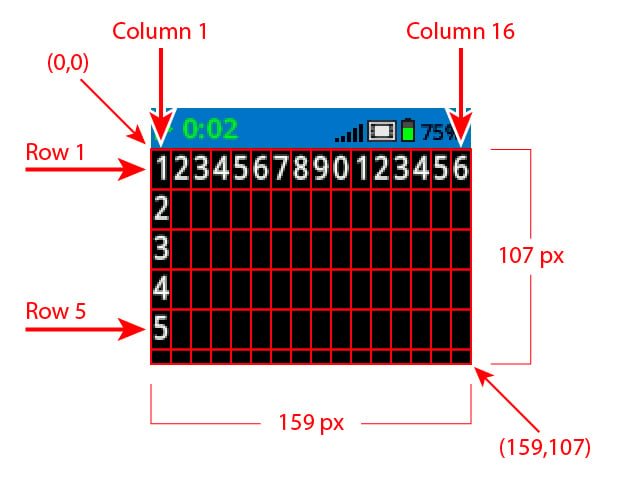
以下是可用方法列表:
光标打印 – 显示文本并管理打印光标。
print– Prints text, numbers, or variable values at the current cursor position.print_at– Prints text, numbers, or variable values at specific x and y coordinates.set_cursor– Moves the cursor to a specific row and column.set_origin– Sets the origin used for coordinate-based printing and drawing.next_row– Moves the cursor to the next row.clear_row– Clears a row of text.row– Returns the row where text will be printed.column– Returns the column where text will be printed.get_string_width– Returns the width of a string in pixels using the current font.get_string_height– Returns the height of a string in pixels using the current font.
修改器 – 更改屏幕设置、颜色和绘制行为。
clear_screen– Clears all drawings and text from the Brain screen.set_font– Sets the font type used for printing text on the Brain’s screen.set_pen_width– Sets the thickness of drawn lines and shape outlines.set_pen_color– Sets the color of text, pixels, lines, and shape outlines.set_fill_color– Sets the fill color for drawn shapes and printed text backgrounds.
绘图 – 在大脑屏幕上创建形状、线条和图形。
draw_pixel– Draws one pixel at a coordinate.draw_line– Draws a line between two points.draw_rectangle– Draws a rectangle using the current pen and fill colors.draw_circle– Draws a circle using the current pen and fill colors.draw_image_from_file– Draws an image from the SD card.render– Switches drawing to double buffered and renders the Brain’s screen.set_clip_region– Sets the clip region for drawing the supplied rectangle.
光标打印#
print#
print prints text, numbers, or variable values on the Brain screen at the current cursor position and font.
用法:
brain.screen.print(text, sep, precision)
参数 |
描述 |
|---|---|
|
要打印的文本、数字或变量值。 |
|
Optional. A string to inset between values. This must be written as a keyword argument (sep=). The default is |
|
Optional. The number of decimal places to display when printing simple numbers. This must be written as a keyword argument( |
brain.screen.print("Hello, Robot!")
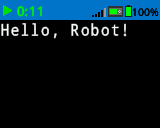
# Print the number 1 on the Brain's screen at current
# cursor position.
brain.screen.print(1)

# Print the numbers 1, 2, 3 and 4 on the Brain's screen at
# current cursor position separated by a '-'.
brain.screen.print(1, 2, 3, 4, sep='-')
print_at#
print_at prints text, numbers, or variable values on the Brain screen at specific x and y coordinates.
用法:
brain.screen.print_at(text, x, y, sep, precision, opaque)
参数 |
描述 |
|---|---|
|
要打印的文本、数字或变量值。 |
|
The x-coordinate to print at as a keyword argument ( |
|
The y-coordinate to print at as a keyword argument ( |
|
Optional. A string to inset between values. This must be written as a keyword argument (sep=). The default is |
|
Optional. The number of decimal places to display when printing simple numbers. This must be written as a keyword argument( |
|
Optional. |
# Print the number 1 on the Brain's screen at position (100, 40).
brain.screen.print_at(1, x=100, y=40)
set_cursor#
set_cursor moves the cursor to a specific row and column on the Brain screen. The next print call will start printing at that location. The row and column spacing will take into account the selected font. The default cursor position is Row 1, Column 1.
用法:
brain.screen.set_cursor(row, column)
参数 |
描述 |
|---|---|
|
要将光标移动到的行。 |
|
要将光标移动到的列。 |
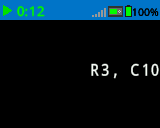
# Display text starting at Row 3 Column 10.
brain.screen.set_cursor(3, 10)
brain.screen.print("R3, C10")
set_origin#
set_origin sets the origin used for drawing and coordinate-based printing on the Brain screen. By default, the origin is the top-left corner of the screen.
用法:
brain.screen.set_origin(x, y)
参数 |
描述 |
|---|---|
|
原点相对于左上角的 x 坐标,范围从 0 到 159。 |
|
原点相对于左上角的 y 坐标,范围从 0 到 107。 |
next_row#
next_row moves the cursor to column 1 on the next row on the Brain screen.
用法:
brain.screen.next_row()
参数 |
描述 |
|---|---|
此方法没有参数。 |
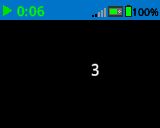
# Display two lines of text.
brain.screen.print("Line 1")
brain.screen.next_row()
brain.screen.print("Line 2")
clear_row#
clear_row clears a single row of text on the Brain screen.
用法:
brain.screen.clear_row(row)
参数 |
描述 |
|---|---|
|
可选。要清除的行。默认值为当前光标所在行。 |
|
Optional. A valid ColorType, a hex value, or a web string.
|
# Clear Brain's screen to black.
brain.screen.clear_row()

# Clear Brain's screen to blue using predefined color.
brain.screen.clear_row(2, Color.BLUE)
row#
row returns the row where text will be printed as an integer.
用法:
brain.screen.row()
参数 |
描述 |
|---|---|
此方法没有参数。 |
# Display the cursor's current row.
brain.screen.set_cursor(3, 10)
brain.screen.print(brain.screen.row())
column#
column returns the column where text will be printed as an integer.
用法:
brain.screen.column()
参数 |
描述 |
|---|---|
此方法没有参数。 |
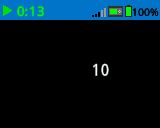
# Display the cursor's current column.
brain.screen.set_cursor(3, 10)
brain.screen.print(brain.screen.column())
get_string_width#
get_string_width returns the width of a string in pixels as an integer, using the current font.
用法:
brain.screen.get_string_width(string)
参数 |
描述 |
|---|---|
|
待测量的绳子。 |
get_string_height#
get_string_height returns the height of a string in pixels as an integer, using the current font.
用法:
brain.screen.get_string_height(string)
参数 |
描述 |
|---|---|
|
待测量的绳子。 |
变异体#
clear_screen#
clear_screen clears all drawings and text from the Brain’s screen.
用法:
brain.screen.clear_screen(color)
参数 |
描述 |
|---|---|
|
Optional. A valid ColorType, a hex value, or a web string.
|
# Print VEXcode on the Brain's screen.
brain.screen.print("VEXcode")

# Clear screen to black.
brain.screen.clear_screen()

# Print VEXcode on the Brain's screen.
brain.screen.print("VEXcode")

# Clear screen to blue using predefined color.
brain.screen.clear_screen(Color.BLUE)
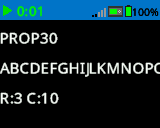
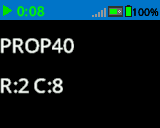
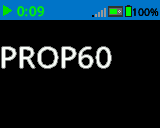
set_font#
set_font sets the font used for displaying text on the Brain screen. This font will apply to all text printed after this method runs.
用法:
brain.screen.set_font(fontname)
参数 |
描述 |
|---|---|
|
The font size (examples below):
|
|
|
|
|---|---|---|
|
|
|
|
|
|
|
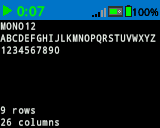
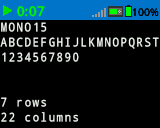
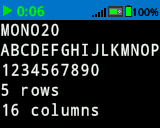
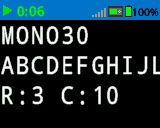
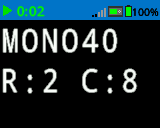
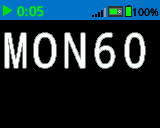
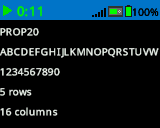
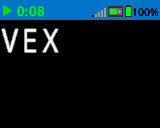
# Set the font type to MONO40.
brain.screen.set_font(FontType.MONO40)
brain.screen.print("VEX")
set_pen_width#
set_pen_width sets the thickness of drawn lines and shape outlines.
用法:
brain.screen.set_pen_width(width)
参数 |
描述 |
|---|---|
|
笔的宽度,以像素为单位,范围从 0 到 32。 |
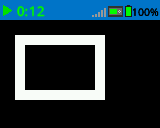
# Draw a rectangle with a pen width of 10.
brain.screen.set_pen_width(10)
brain.screen.draw_rectangle(20, 20, 75, 50)
set_pen_color#
set_pen_color sets the color of text, pixels, lines, and shape outlines.
用法:
brain.screen.set_pen_color(color)
参数 |
描述 |
|---|---|
|
The pen and font color to use. This can be a valid ColorType, a hex value, or a web string.
|
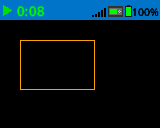
# Draw a rectangle with orange borders.
brain.screen.set_pen_color(Color.ORANGE)
brain.screen.draw_rectangle(20, 20, 75, 50)
# Set pen color red using a hex value.
brain.screen.set_pen_color(0xFF0000)

# Set pen color blue using predefined color.
brain.screen.set_pen_color(Color.BLUE)

# Set pen color green using web string.
brain.screen.set_pen_color("#00FF00")
set_fill_color#
set_fill_color sets the fill color used for drawing rectangles and circles.
用法:
brain.screen.set_fill_color(color)
参数 |
描述 |
|---|---|
|
The fill color to use. This can be a valid ColorType, a hex value, or a web string.
|
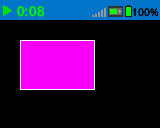
# Draw a purple rectangle.
brain.screen.set_fill_color(Color.PURPLE)
brain.screen.draw_rectangle(20, 20, 75, 50)
# Set fill color red using a hex value.
brain.screen.set_fill_color(0xFF0000)

# Set fill color blue using predefined color.
brain.screen.set_fill_color(Color.BLUE)

# Set fill color green using web string.
brain.screen.set_fill_color("#00FF00")
画#
draw_pixel#
draw_pixel draws one pixel at the selected x and y coordinate using the current pen color.
用法:
brain.screen.draw_pixel(x, y)
参数 |
描述 |
|---|---|
|
绘制像素的 x 坐标,范围从 0 到 159,以屏幕原点为参考。 |
|
绘制像素的 y 坐标,范围从 0 到 107,以屏幕原点为参考。 |
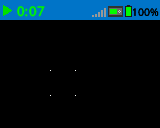
# Draw the pixels marking the corners of a square.
brain.screen.draw_pixel(50, 50)
brain.screen.draw_pixel(50, 75)
brain.screen.draw_pixel(75, 50)
brain.screen.draw_pixel(75, 75)
draw_line#
draw_line draws a line from the first screen coordinate (x1, y1) to the second screen coordinate (x2, y2) using the current pen width and pen color.
用法:
brain.screen.draw_line(x1, y1, x2, y2)
参数 |
描述 |
|---|---|
|
行首的 x 坐标(以像素为单位),范围从 0 到 159,参考屏幕原点。 |
|
行首的 y 坐标(以像素为单位),范围从 0 到 107,参考屏幕原点。 |
|
行尾的 x 坐标(以像素为单位),范围从 0 到 159,参考屏幕原点。 |
|
行尾的 y 坐标(以像素为单位),范围从 0 到 107,参考屏幕原点。 |
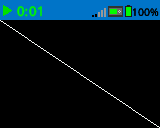
# Draw a line from the top left to bottom right of the screen.
brain.screen.draw_line(0, 0, 159, 107)
draw_rectangle#
draw_rectangle draws a rectangle using the current pen width, pen color, and fill color, unless the optional color parameter is used.
用法:
brain.screen.draw_rectangle(x, y, width, height, color)
参数 |
描述 |
|---|---|
|
矩形左上角的 x 坐标(以像素为单位),范围从 0 到 159,参考屏幕原点。 |
|
矩形左上角的 y 坐标(以像素为单位),范围从 0 到 107,参考屏幕原点。 |
|
矩形的宽度。 |
|
矩形的高度。 |
|
Optional. A valid ColorType, a hex value, or a web string.
|
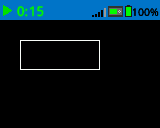
# Draw a rectangle on the screen.
brain.screen.draw_rectangle(20, 20, 80, 30)
# Draw a green rectangle on the screen that is filled using blue.
brain.screen.set_pen_color(Color.GREEN)
brain.screen.set_fill_color(Color.BLUE)
brain.screen.draw_rectangle(10, 10, 20, 20)

# Draw a green rectangle on the screen that is filled using red.
brain.screen.set_pen_color(Color.GREEN)
brain.screen.draw_rectangle(50, 50, 20, 20, Color.RED)
draw_circle#
draw_circle draws a circle using the current pen width, pen color, and fill color, unless the optional color parameter is used.
用法:
brain.screen.draw_circle(x, y, radius, color)
参数 |
描述 |
|---|---|
|
圆心的 x 坐标(以像素为单位),范围从 0 到 159,参考屏幕原点。 |
|
圆心的 y 坐标(以像素为单位),范围从 0 到 107,参考屏幕原点。 |
|
圆的半径。 |
|
Optional. A valid ColorType, a hex value, or a web string.
|
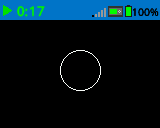
# Draw a circle on the screen.
brain.screen.draw_circle(80, 50, 20)
# Draw a green circle on the Brain's screen that is filled using blue.
brain.screen.set_pen_color(Color.GREEN)
brain.screen.set_fill_color(Color.BLUE)
brain.screen.draw_circle(50, 50, 10)

# Draw a green circle on the Brain's screen that is filled using red.
brain.screen.set_pen_color(Color.GREEN)
brain.screen.draw_circle(100, 50, 10, Color.RED)
draw_image_from_file#
draw_image_from_file draws an image from the SD card. The filename you put when calling the method must be located on the SD card.
用法:
brain.screen.draw_image_from_file(filename, x, y)
参数 |
描述 |
|---|---|
|
图片的文件名。 |
|
屏幕上图像左上角的 x 坐标。 |
|
屏幕上图像左上角的 y 坐标。 |
# Draw the vex.bmp image on the Brain's screen at coordinate 0, 0.
brain.screen.draw_image_from_file('vex.bmp', 0, 0)
render#
render switches drawing to double buffered and renders the Brain’s screen. Once called, further drawing will not appear on the Brain’s screen until the next time render is called.
Trueif buffer was successfully rendered to the screen.Falseif buffer was not successfully rendered to the screen.
用法:
brain.screen.render()
参数 |
描述 |
|---|---|
此方法没有参数。 |
set_clip_region#
set_clip_region defines a rectangular area on the screen where all drawings and text will be confined. Any content outside this region will not be displayed.
用法:
brain.screen.set_clip_region(x, y, width, height)
参数 |
描述 |
|---|---|
|
矩形左上角的 x 坐标,以屏幕原点为参考。 |
|
矩形左上角的 y 坐标,以屏幕原点为参考。 |
|
矩形的宽度。 |
|
矩形的高度。 |