
Pantalla#
Introducción#
Los métodos de pantalla controlan cómo el EXP Brain muestra texto, números y gráficos en su pantalla.
Por defecto, la fuente para imprimir en el Brain es monoespaciada pequeña, que tiene 7 filas y 20 columnas.
Para dibujar, la resolución del Brain es de 159 x 107 píxeles.
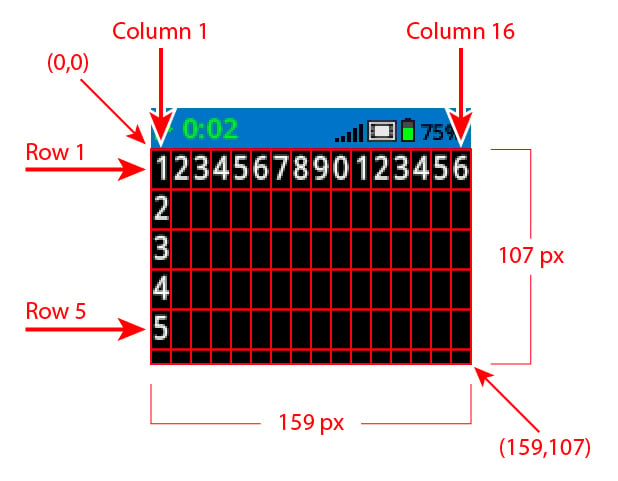
A continuación se muestra una lista de los métodos disponibles:
Impresión con cursor: muestra el texto y gestiona el cursor de impresión.
print– Prints text, numbers, or variable values at the current cursor position.print_at– Prints text, numbers, or variable values at specific x and y coordinates.set_cursor– Moves the cursor to a specific row and column.set_origin– Sets the origin used for coordinate-based printing and drawing.next_row– Moves the cursor to the next row.clear_row– Clears a row of text.row– Returns the row where text will be printed.column– Returns the column where text will be printed.get_string_width– Returns the width of a string in pixels using the current font.get_string_height– Returns the height of a string in pixels using the current font.
Motadores: Cambian la configuración de la pantalla, los colores y el comportamiento de dibujo.
clear_screen– Clears all drawings and text from the Brain screen.set_font– Sets the font type used for printing text on the Brain’s screen.set_pen_width– Sets the thickness of drawn lines and shape outlines.set_pen_color– Sets the color of text, pixels, lines, and shape outlines.set_fill_color– Sets the fill color for drawn shapes and printed text backgrounds.
Dibuja: crea formas, líneas y gráficos en la pantalla del cerebro.
draw_pixel– Draws one pixel at a coordinate.draw_line– Draws a line between two points.draw_rectangle– Draws a rectangle using the current pen and fill colors.draw_circle– Draws a circle using the current pen and fill colors.draw_image_from_file– Draws an image from the SD card.render– Switches drawing to double buffered and renders the Brain’s screen.set_clip_region– Sets the clip region for drawing the supplied rectangle.
Impresión del cursor#
print#
print prints text, numbers, or variable values on the Brain screen at the current cursor position and font.
Uso:
brain.screen.print(text, sep, precision)
Parámetros |
Descripción |
|---|---|
|
El texto, número o valor de variable que se imprimirá. |
|
Optional. A string to inset between values. This must be written as a keyword argument (sep=). The default is |
|
Optional. The number of decimal places to display when printing simple numbers. This must be written as a keyword argument( |
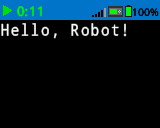
brain.screen.print("Hello, Robot!")
# Print the number 1 on the Brain's screen at current
# cursor position.
brain.screen.print(1)

# Print the numbers 1, 2, 3 and 4 on the Brain's screen at
# current cursor position separated by a '-'.
brain.screen.print(1, 2, 3, 4, sep='-')
print_at#
print_at prints text, numbers, or variable values on the Brain screen at specific x and y coordinates.
Uso:
brain.screen.print_at(text, x, y, sep, precision, opaque)
Parámetros |
Descripción |
|---|---|
|
El texto, número o valor de variable que se imprimirá. |
|
The x-coordinate to print at as a keyword argument ( |
|
The y-coordinate to print at as a keyword argument ( |
|
Optional. A string to inset between values. This must be written as a keyword argument (sep=). The default is |
|
Optional. The number of decimal places to display when printing simple numbers. This must be written as a keyword argument( |
|
Optional. |
# Print the number 1 on the Brain's screen at position (100, 40).
brain.screen.print_at(1, x=100, y=40)
set_cursor#
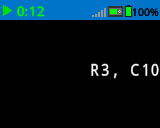
set_cursor moves the cursor to a specific row and column on the Brain screen. The next print call will start printing at that location. The row and column spacing will take into account the selected font. The default cursor position is Row 1, Column 1.
Uso:
brain.screen.set_cursor(row, column)
Parámetros |
Descripción |
|---|---|
|
La fila a la que mover el cursor. |
|
La columna a la que se debe mover el cursor. |
# Display text starting at Row 3 Column 10.
brain.screen.set_cursor(3, 10)
brain.screen.print("R3, C10")
set_origin#
set_origin sets the origin used for drawing and coordinate-based printing on the Brain screen. By default, the origin is the top-left corner of the screen.
Uso:
brain.screen.set_origin(x, y)
Parámetros |
Descripción |
|---|---|
|
La posición x del origen con respecto a la esquina superior izquierda, de 0 a 159. |
|
La posición y del origen con respecto a la esquina superior izquierda, de 0 a 107. |
next_row#
next_row moves the cursor to column 1 on the next row on the Brain screen.
Uso:
brain.screen.next_row()
Parámetros |
Descripción |
|---|---|
Este método no tiene parámetros. |
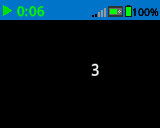
# Display two lines of text.
brain.screen.print("Line 1")
brain.screen.next_row()
brain.screen.print("Line 2")
clear_row#
clear_row clears a single row of text on the Brain screen.
Uso:
brain.screen.clear_row(row)
Parámetros |
Descripción |
|---|---|
|
Opcional. La fila que se va a borrar. Por defecto, se utiliza la fila donde se encuentra el cursor. |
|
Optional. A valid ColorType, a hex value, or a web string.
|
# Clear Brain's screen to black.
brain.screen.clear_row()

# Clear Brain's screen to blue using predefined color.
brain.screen.clear_row(2, Color.BLUE)
row#
row returns the row where text will be printed as an integer.
Uso:
brain.screen.row()
Parámetros |
Descripción |
|---|---|
Este método no tiene parámetros. |
# Display the cursor's current row.
brain.screen.set_cursor(3, 10)
brain.screen.print(brain.screen.row())
column#
column returns the column where text will be printed as an integer.
Uso:
brain.screen.column()
Parámetros |
Descripción |
|---|---|
Este método no tiene parámetros. |
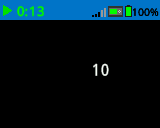
# Display the cursor's current column.
brain.screen.set_cursor(3, 10)
brain.screen.print(brain.screen.column())
get_string_width#
get_string_width returns the width of a string in pixels as an integer, using the current font.
Uso:
brain.screen.get_string_width(string)
Parámetros |
Descripción |
|---|---|
|
La cuerda para medir. |
get_string_height#
get_string_height returns the height of a string in pixels as an integer, using the current font.
Uso:
brain.screen.get_string_height(string)
Parámetros |
Descripción |
|---|---|
|
La cuerda para medir. |
Mutadores#
clear_screen#
clear_screen clears all drawings and text from the Brain’s screen.
Uso:
brain.screen.clear_screen(color)
Parámetros |
Descripción |
|---|---|
|
Optional. A valid ColorType, a hex value, or a web string.
|
# Print VEXcode on the Brain's screen.
brain.screen.print("VEXcode")

# Clear screen to black.
brain.screen.clear_screen()

# Print VEXcode on the Brain's screen.
brain.screen.print("VEXcode")

# Clear screen to blue using predefined color.
brain.screen.clear_screen(Color.BLUE)
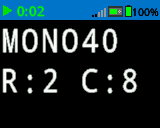
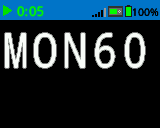
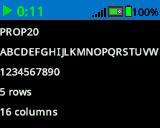
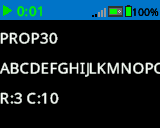
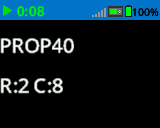
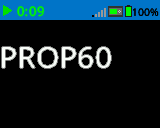
set_font#
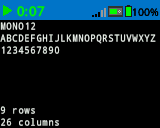
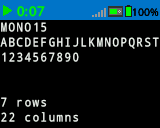
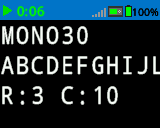
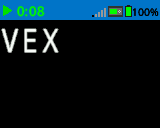
set_font sets the font used for displaying text on the Brain screen. This font will apply to all text printed after this method runs.
Uso:
brain.screen.set_font(fontname)
Parámetros |
Descripción |
|---|---|
|
The font size (examples below):
|
|
|
|
|---|---|---|
|
|
|
|
|
|
|

# Set the font type to MONO40.
brain.screen.set_font(FontType.MONO40)
brain.screen.print("VEX")
set_pen_width#
set_pen_width sets the thickness of drawn lines and shape outlines.
Uso:
brain.screen.set_pen_width(width)
Parámetros |
Descripción |
|---|---|
|
El ancho del lápiz, en píxeles, va de 0 a 32. |
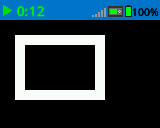
# Draw a rectangle with a pen width of 10.
brain.screen.set_pen_width(10)
brain.screen.draw_rectangle(20, 20, 75, 50)
set_pen_color#
set_pen_color sets the color of text, pixels, lines, and shape outlines.
Uso:
brain.screen.set_pen_color(color)
Parámetros |
Descripción |
|---|---|
|
The pen and font color to use. This can be a valid ColorType, a hex value, or a web string.
|
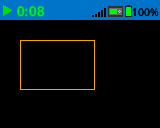
# Draw a rectangle with orange borders.
brain.screen.set_pen_color(Color.ORANGE)
brain.screen.draw_rectangle(20, 20, 75, 50)
# Set pen color red using a hex value.
brain.screen.set_pen_color(0xFF0000)

# Set pen color blue using predefined color.
brain.screen.set_pen_color(Color.BLUE)

# Set pen color green using web string.
brain.screen.set_pen_color("#00FF00")
set_fill_color#
set_fill_color sets the fill color used for drawing rectangles and circles.
Uso:
brain.screen.set_fill_color(color)
Parámetros |
Descripción |
|---|---|
|
The fill color to use. This can be a valid ColorType, a hex value, or a web string.
|
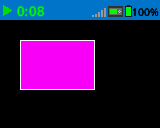
# Draw a purple rectangle.
brain.screen.set_fill_color(Color.PURPLE)
brain.screen.draw_rectangle(20, 20, 75, 50)
# Set fill color red using a hex value.
brain.screen.set_fill_color(0xFF0000)

# Set fill color blue using predefined color.
brain.screen.set_fill_color(Color.BLUE)

# Set fill color green using web string.
brain.screen.set_fill_color("#00FF00")
Dibujar#
draw_pixel#
draw_pixel draws one pixel at the selected x and y coordinate using the current pen color.
Uso:
brain.screen.draw_pixel(x, y)
Parámetros |
Descripción |
|---|---|
|
La coordenada x para dibujar el píxel, de 0 a 159, con referencia al origen de la pantalla. |
|
La coordenada Y para dibujar el píxel, de 0 a 107, con referencia al origen de la pantalla. |
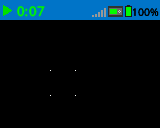
# Draw the pixels marking the corners of a square.
brain.screen.draw_pixel(50, 50)
brain.screen.draw_pixel(50, 75)
brain.screen.draw_pixel(75, 50)
brain.screen.draw_pixel(75, 75)
draw_line#
draw_line draws a line from the first screen coordinate (x1, y1) to the second screen coordinate (x2, y2) using the current pen width and pen color.
Uso:
brain.screen.draw_line(x1, y1, x2, y2)
Parámetros |
Descripción |
|---|---|
|
La coordenada x en píxeles del inicio de la línea, de 0 a 159, con respecto al origen de la pantalla. |
|
La coordenada y en píxeles del inicio de la línea, de 0 a 107, con respecto al origen de la pantalla. |
|
La coordenada x en píxeles del final de la línea, de 0 a 159, con respecto al origen de la pantalla. |
|
La coordenada y en píxeles del final de la línea, de 0 a 107, con respecto al origen de la pantalla. |
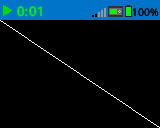
# Draw a line from the top left to bottom right of the screen.
brain.screen.draw_line(0, 0, 159, 107)
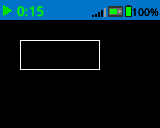
draw_rectangle#
draw_rectangle draws a rectangle using the current pen width, pen color, and fill color, unless the optional color parameter is used.
Uso:
brain.screen.draw_rectangle(x, y, width, height, color)
Parámetros |
Descripción |
|---|---|
|
La coordenada x en píxeles de la esquina superior izquierda del rectángulo, de 0 a 159, con respecto al origen de la pantalla. |
|
La coordenada y en píxeles de la esquina superior izquierda del rectángulo, de 0 a 107, con respecto al origen de la pantalla. |
|
El ancho del rectángulo. |
|
La altura del rectángulo. |
|
Optional. A valid ColorType, a hex value, or a web string.
|
# Draw a rectangle on the screen.
brain.screen.draw_rectangle(20, 20, 80, 30)
# Draw a green rectangle on the screen that is filled using blue.
brain.screen.set_pen_color(Color.GREEN)
brain.screen.set_fill_color(Color.BLUE)
brain.screen.draw_rectangle(10, 10, 20, 20)

# Draw a green rectangle on the screen that is filled using red.
brain.screen.set_pen_color(Color.GREEN)
brain.screen.draw_rectangle(50, 50, 20, 20, Color.RED)
draw_circle#
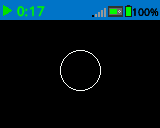
draw_circle draws a circle using the current pen width, pen color, and fill color, unless the optional color parameter is used.
Uso:
brain.screen.draw_circle(x, y, radius, color)
Parámetros |
Descripción |
|---|---|
|
La coordenada x en píxeles del centro del círculo, de 0 a 159, con respecto al origen de la pantalla. |
|
La coordenada y en píxeles del centro del círculo, de 0 a 107, con respecto al origen de la pantalla. |
|
El radio del círculo. |
|
Optional. A valid ColorType, a hex value, or a web string.
|
# Draw a circle on the screen.
brain.screen.draw_circle(80, 50, 20)
# Draw a green circle on the Brain's screen that is filled using blue.
brain.screen.set_pen_color(Color.GREEN)
brain.screen.set_fill_color(Color.BLUE)
brain.screen.draw_circle(50, 50, 10)

# Draw a green circle on the Brain's screen that is filled using red.
brain.screen.set_pen_color(Color.GREEN)
brain.screen.draw_circle(100, 50, 10, Color.RED)
draw_image_from_file#
draw_image_from_file draws an image from the SD card. The filename you put when calling the method must be located on the SD card.
Uso:
brain.screen.draw_image_from_file(filename, x, y)
Parámetros |
Descripción |
|---|---|
|
El nombre del archivo de la imagen. |
|
La coordenada x de la esquina superior izquierda de la imagen en la pantalla. |
|
La coordenada y de la esquina superior izquierda de la imagen en la pantalla. |
# Draw the vex.bmp image on the Brain's screen at coordinate 0, 0.
brain.screen.draw_image_from_file('vex.bmp', 0, 0)
render#
render switches drawing to double buffered and renders the Brain’s screen. Once called, further drawing will not appear on the Brain’s screen until the next time render is called.
Trueif buffer was successfully rendered to the screen.Falseif buffer was not successfully rendered to the screen.
Uso:
brain.screen.render()
Parámetros |
Descripción |
|---|---|
Este método no tiene parámetros. |
set_clip_region#
set_clip_region defines a rectangular area on the screen where all drawings and text will be confined. Any content outside this region will not be displayed.
Uso:
brain.screen.set_clip_region(x, y, width, height)
Parámetros |
Descripción |
|---|---|
|
La posición x de la esquina superior izquierda del rectángulo, con respecto al origen de la pantalla. |
|
La posición Y de la esquina superior izquierda del rectángulo, con respecto al origen de la pantalla. |
|
El ancho del rectángulo. |
|
La altura del rectángulo. |