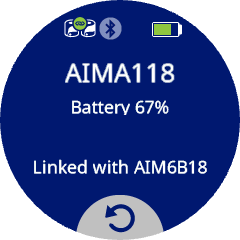


Linking Two Robots#
This tutorial walks you through linking two VEX AIM Coding Robots. By the end, you’ll have two robots linked together and be able to see each one’s name on the other.
Make sure both robots are turned on and within Bluetooth range of one another.
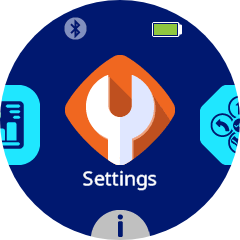
On both robots, navigate to Settings and select it.
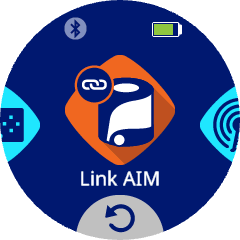
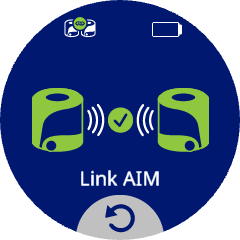
Navigate to Link AIM and select it.
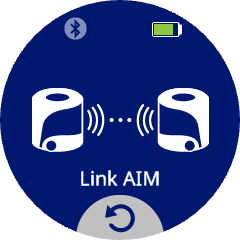
The linking animation will play while the robots are linking.
Note: When linking, a robot will try to connect with the closest robot to it. Be mindful of this if you are linking more than one pair of robots at the same time.
Once linking is finished, the robots will show green, and the indicator icon in the top-left corner of the screen will show that the robots are linked.
To see the linked robot’s name, select the i at the bottom of the home menu to open the Info screen.
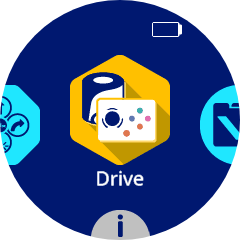
The linked robot’s name will appear at the bottom of the Info screen.