
Pantalla#
Introducción#
The screen class is derived from the brain base class. It controls how the V5 Brain shows text, numbers, and graphics on its touchscreen, and how it responds to touch input.
Por defecto, la fuente para imprimir en el Brain es monoespaciada pequeña, que tiene 12 filas y 48 columnas.
Para dibujar, la resolución del Brain es de 480 x 240 píxeles.

Acceso#
The screen class can be accessed by:
Brain.Screen
Notas#
The
screenobject is provided by the Brain. It is not constructed directly.Projects use a single global
Brainobject, so screen functions are called usingBrain.Screen.
Ejemplo#
/* This constructor is required when using VS Code.
A Brain is generated automatically at the start of
VEXcode projects. */

// Create the V5 Brain
brain Brain = brain();

// Print text to the Brain screen
Brain.Screen.print("Hello!");
Funciones de los miembros#
The screen class includes the following member functions:
print— Prints formatted text, numbers, or Boolean values to the Brain screen.setCursor— Moves the text cursor to a specified row and column.newLine— Clears the remainder of the current line and moves the cursor to the next line.clearLine— Clears the remainder of the current line or clears a specified line.row— Returns the row where text will be printed.column— Returns the column where text will be printed.getStringHeight— Returns the height of a string in pixels using the current font.getStringWidth— Returns the width of a string in pixels using the current font.printAt— Prints formatted text at an x, y pixel location.clearScreen— Clears all drawings and text from the Brain screen.setFont— Sets the font used for printing on the screen.setPenWidth— Sets the thickness of drawn lines and shape outlines.setPenColor— Sets the color of text, pixels, lines, and shape outlines.setFillColor— Sets the fill color for drawn shapes and printed text backgrounds.setOrigin— Sets the origin used for screen coordinates.setClipRegion— Restricts screen output to a rectangular region.drawPixel— Draws one pixel at a coordinate.drawLine— Draws a line between two points.drawRectangle— Draws a rectangle at an x, y location with a specified size.drawCircle— Draws a circle at an x, y location with a specified radius.drawImageFromFile— Draws an image from an SD card file onto the screen.render— Enables double buffering or renders the back buffer to the screen.pressing— Returns whether the screen is currently being pressed.xPosition— Returns the x-coordinate of the most recent screen press.yPosition— Returns the y-coordinate of the most recent screen press.pressed— Registers a callback function to run when the screen is pressed.released— Registers a callback function to run when the screen is released after being pressed.
Before calling any screen member functions, a brain instance must be created, as shown below:
// Create the V5 Brain
brain Brain = brain();
print#
Muestra texto, números o valores booleanos en la pantalla del V5 Brain.
Available Functions1 — Imprime texto formateado usando literales de cadena o cadenas de estilo C de solo lectura.
void print(
    const char* format,
    ... );
Parameters2 — Imprime texto formateado utilizando matrices de caracteres modificables.
void print(
    char* format,
    ... );
Parámetro |
Tipo |
Descripción |
|---|---|---|
|
|
A format string provided as a string literal or read-only C-style string (for example, |
|
|
Una cadena de formato proporcionada como una matriz de caracteres modificable. |
|
Uno o más valores adicionales que se insertan en la cadena de formato, separados por comas. |
Esta función no devuelve ningún valor.
NotesLa salida comienza en la posición actual del cursor posición en la pantalla.
Text printed with
printis always printed with a background, and the background color is determined by the current fill color.Al utilizar una cadena de formato, el número y los tipos de valores pasados deben coincidir con los especificadores de formato en la cadena.
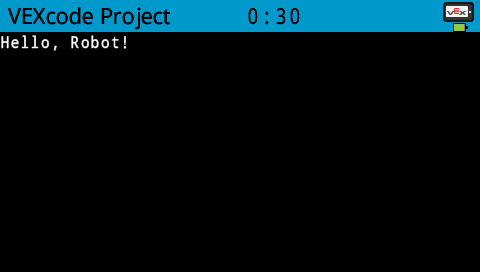
// Display a message at the starting cursor
Brain.Screen.print("Hello, Robot!");
setCursor#
Moves the cursor to a specific row and column on the V5 Brain screen. The next print call will start printing at that location.
void setCursor(
  int32_t row,
  int32_t col );
Parámetro |
Tipo |
Descripción |
|---|---|---|
|
|
La fila a la que mover el cursor. |
|
|
La columna a la que se debe mover el cursor. |
Esta función no devuelve ningún valor.
NotesAffects where subsequent text output begins when using
print.Las filas y columnas se basan en la fuente de pantalla configurada actualmente.
The default font (
mono20) uses 12 rows and 48 columns.Calling
setCursoraffects the position of subsequent text output only.
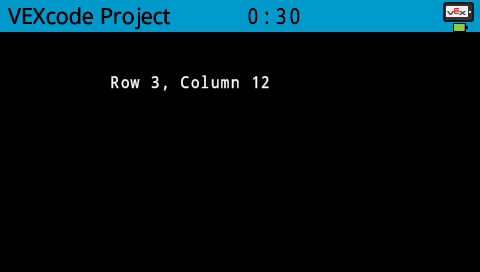
// Display text starting at Row 3 Column 12
Brain.Screen.setCursor(3, 12);
Brain.Screen.print("Row 3, Column 12");
newLine#
Mueve el cursor al principio de la siguiente fila en la pantalla del cerebro.
Available Functionsvoid newLine();
Esta función no acepta ningún parámetro.
Return ValuesEsta función no devuelve ningún valor.
NotesIf the cursor is in the middle of a sentence,
newLinewill clear the rest of the row after the cursor before moving to the next row.After calling
newLine, the cursor is positioned at the first column of the next line.The cursor position and row numbering are set using
setCursor.
// Display two lines of text
Brain.Screen.print("Line 1");
Brain.Screen.newLine();
Brain.Screen.print("Line 2");

clearLine#
Borra el texto de una fila en la pantalla del V5 Brain.
Available Functions1 — Borra el resto de la línea actual desde la posición del cursor.
void clearLine();
2 — Borra la fila especificada usando el color de relleno configurado actualmente.
void clearLine(
    int number );
3 — Borra la fila especificada usando un objeto de color predefinido o…/Logic/Custom_color.md.
void clearLine(
    int          number,
    const color& color );
4 — Borra la fila especificada utilizando un valor de color hexadecimal.
void clearLine(
    int         number,
    const char* color );
Parameters5 — Borra la fila especificada usando un valor de tono.
void clearLine(
    int number,
    int hue );
Parámetro |
Tipo |
Descripción |
|---|---|---|
|
|
The row number to clear. Row numbering starts at |
|
|
Clears the row using a
|
|
|
Clears the row using a hexadecimal color value (for example, |
|
|
Clears the row using an integer hue value in the range |
Esta función no devuelve ningún valor.
NotesBorrar una línea no cambia la posición actual del cursor.
The cursor position and row numbering are set using
setCursor.The
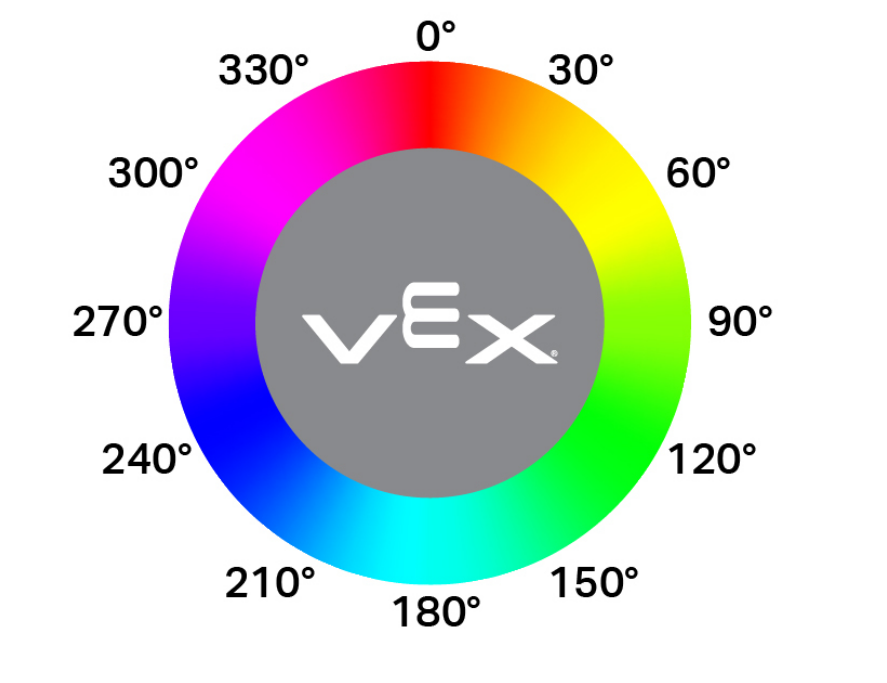
hueparameter value is based on a circular color wheel, as shown below, where values represent degrees around the wheel (for example, red near 0°, green near 120°, and blue near 240°).
// Display text on two rows
Brain.Screen.print("This text stays");
Brain.Screen.newLine();
Brain.Screen.print("This disappears");

// Wait 3 seconds before clearing row 2
wait(3, seconds);
Brain.Screen.clearLine(2);
row#
Devuelve la fila donde se imprimirá el texto en la pantalla del V5 Brain.
Available Functionsint32_t row();
Esta función no acepta ningún parámetro.
Return ValuesReturns an int32_t representing the row where text will be printed.
La numeración de las filas comienza en el 1.
NotesLa posición del cursor se basa en la fuente de pantalla actual .
El valor devuelto indica dónde aparecerá la siguiente impresión.
The row value changes when text is printed or when
setCursoris called.
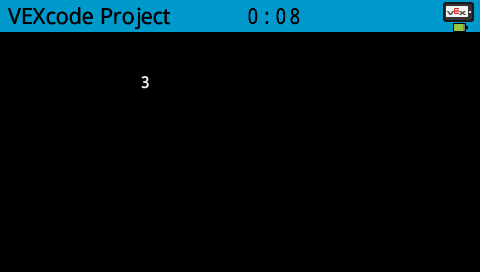
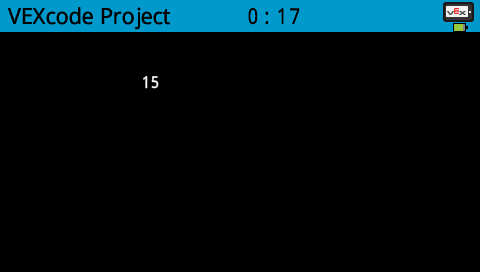
// Display the cursor's current row
Brain.Screen.setCursor(3, 12);
Brain.Screen.print(Brain.Screen.row());
column#
Devuelve la columna donde se imprimirá el texto en la pantalla del V5 Brain.
Available Functionsint32_t column();
Esta función no acepta ningún parámetro.
Return ValuesReturns an int32_t representing the column where text will be printed.
La numeración de las columnas comienza en 1.
NotesLa posición del cursor se basa en la fuente de pantalla actual .
El valor devuelto indica dónde aparecerá la siguiente impresión.
The column value changes when text is printed or when
setCursoris called.
// Display the cursor's current column
Brain.Screen.setCursor(5, 15);
Brain.Screen.print(Brain.Screen.column());
getStringHeight#
Devuelve la altura, en píxeles, de una cadena cuando se muestra en la pantalla del V5 Brain.
Available Functionsint32_t getStringHeight(
const char* cstr );
Parámetro |
Tipo |
Descripción |
|---|---|---|
|
|
The text to be measured, provided as a C-style string (for example, |
Returns an int32_t representing the height of the string in pixels when rendered on the Brain screen.
getStringWidth#
Devuelve el ancho, en píxeles, de una cadena cuando se muestra en la pantalla del V5 Brain.
Available Functionsint32_t getStringWidth(
const char* cstr );
Parámetro |
Tipo |
Descripción |
|---|---|---|
|
|
The text to be measured, provided as a C-style string (for example, |
Returns an int32_t representing the width of the string in pixels when rendered on the Brain screen.
printAt#
Imprime texto, números o valores booleanos en una coordenada específica de la pantalla del V5 Brain.
Available Functions1 — Imprime la salida formateada en la ubicación de píxeles especificada.
void printAt(
    int32_t    x,
    int32_t    y,
    const char* format,
    ... );
Parameters2 — Imprime la salida formateada en la ubicación de píxeles especificada y establece si el fondo del texto es opaco o transparente.
void printAt(
    int32_t    x,
    int32_t    y,
    bool       bOpaque,
    const char* format,
    ... );
Parámetro |
Tipo |
Descripción |
|---|---|---|
|
|
La posición x en la que se imprimirá, con respecto al origen de la pantalla. |
|
|
La posición Y en la que se imprimirá, con respecto al origen de la pantalla. |
|
|
Controls whether the printed text is drawn opaquely or transparently:
|
|
|
A format string that controls what is printed on the screen (for example, |
|
Uno o más valores adicionales que se insertan en la cadena de formato, separados por comas. |
Esta función no devuelve ningún valor.
NotesThe
xandycoordinates are relative to the current screen origin, which can be changed usingsetOrigin.Al utilizar una cadena de formato, el número y los tipos de valores pasados deben coincidir con los especificadores de formato en la cadena.
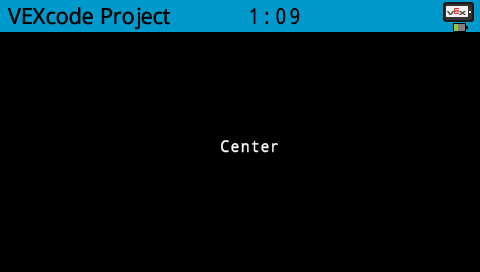
// Print "Center" at the center of the screen
Brain.Screen.printAt(220, 120, "Center");
clearScreen#
Borra todos los dibujos y el texto de la pantalla del cerebro y restablece la posición del cursor a la fila 1, columna 1.
Available Functions1 — Borra la pantalla y la deja en negro.
void clearScreen();
2 — Borra la pantalla usando un objeto de color predefinido o color personalizado.
void clearScreen(
    const color& color );
3 — Borra la pantalla usando un valor de color hexadecimal.
void clearScreen(
    const char* color );
Parameters4 — Borra la pantalla usando un valor de tono.
void clearScreen(
    int hue );
Parámetro |
Tipo |
Descripción |
|---|---|---|
|
|
Clears the screen using a
|
|
|
Clears the screen using a hexadecimal color value represented as a string (for example, |
|
|
Clears the screen using an integer hue value in the range |
Esta función no devuelve ningún valor.
NotesThe
hueparameter value is based on a circular color wheel, as shown below, where values represent degrees around the wheel (for example, red near 0°, green near 120°, and blue near 240°).
// Clear screen after 2 seconds
Brain.Screen.print("VEXcode");
wait(2, seconds);
Brain.Screen.clearScreen();
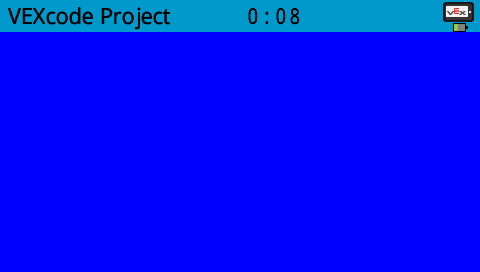
// Clear screen to blue after 2 seconds
Brain.Screen.print("VEXcode");
wait(2, seconds);
Brain.Screen.clearScreen(blue);
setFont#
Establece la fuente que se utiliza para el texto que se muestra en la pantalla del V5 Brain.
This controls the font applied to subsequent text output when using screen text functions such as print.
void setFont(
  fontType font );
Parámetro |
Tipo |
Descripción |
|---|---|---|
|
|
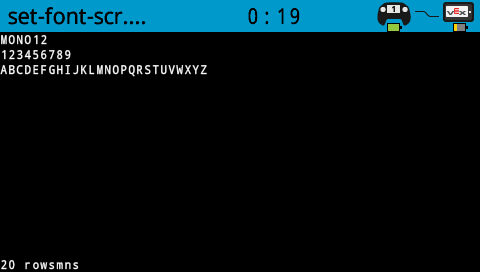
Sets the font to one of the following:
|
|
|
|
|---|---|---|
|
|
|
|
|
|
|
|

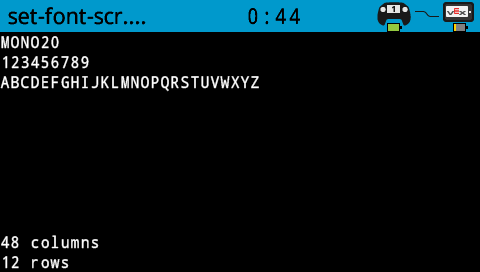
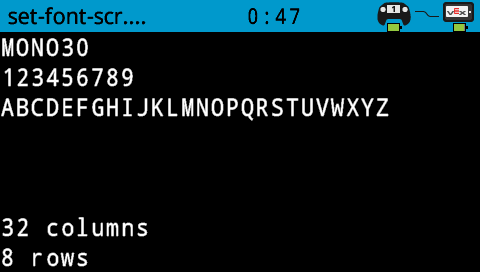
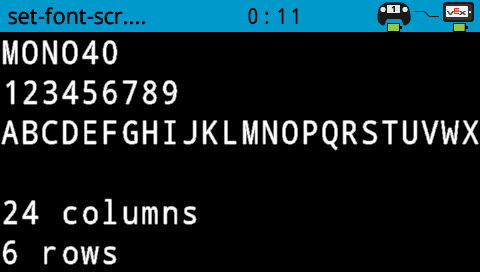
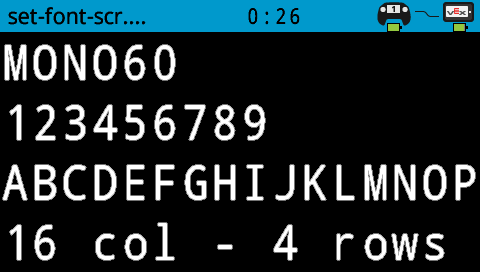
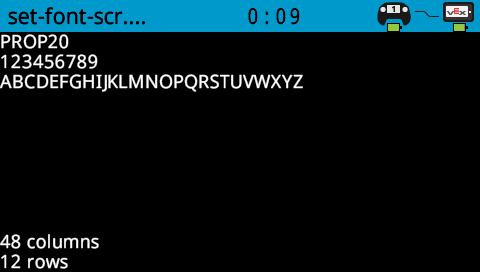
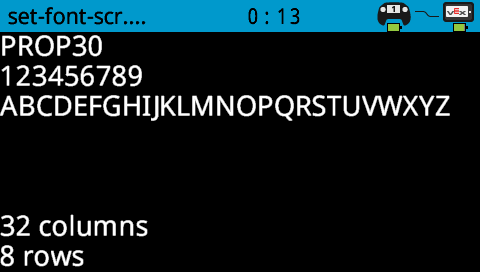
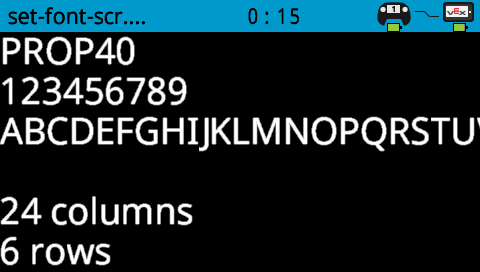
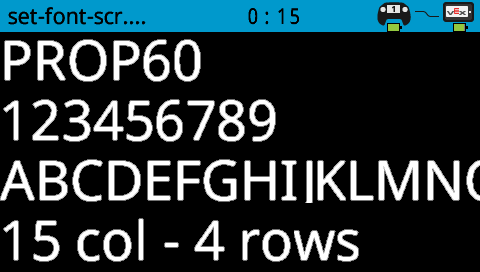
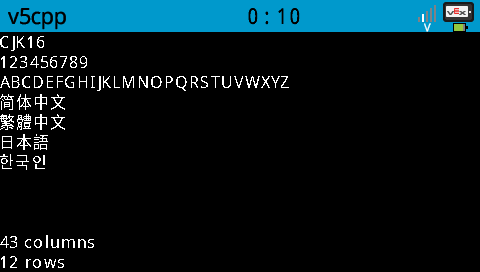
Esta función no devuelve ningún valor.
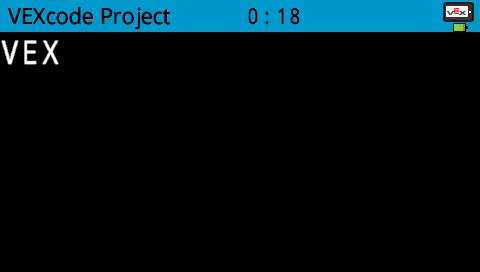
Examples// Print larger text
Brain.Screen.setFont(mono40);
Brain.Screen.print("VEX");
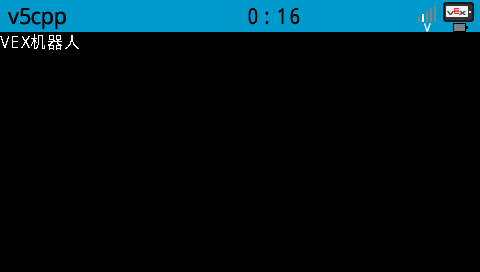
// Print in Chinese
Brain.Screen.setFont(fontType::cjk16);
Brain.Screen.print("VEX机器人");
setPenWidth#
Establece el grosor de las líneas dibujadas y los contornos de las formas.
Available Functionsvoid setPenWidth(
uint32_t width );
Parámetro |
Tipo |
Descripción |
|---|---|---|
|
|
El ancho del lápiz, en píxeles, va de 0 a 32. |
Esta función no devuelve ningún valor.
NotesThe pen width applies to drawing functions such as
drawLine,drawRectangle, anddrawCircle.
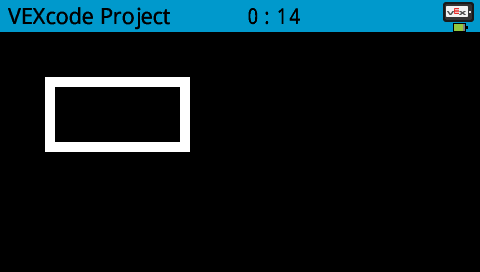
// Draw a rectangle with a pen width of 10
Brain.Screen.setPenWidth(10);
Brain.Screen.drawRectangle(50, 50, 130, 60);
setPenColor#
Establece el color del texto, los píxeles, las líneas y los contornos de las formas.
Available Functions1 — Establece el color del lápiz usando un objeto predefinido o color personalizado.
void setPenColor(
    const color& color );
2 — Establece el color del lápiz usando un valor de color hexadecimal.
void setPenColor(
    const char* color );
Parameters3 — Establece el color del lápiz usando un valor de tono.
void setPenColor(
    int hue );
Parámetro |
Tipo |
Descripción |
|---|---|---|
|
|
Sets the pen color using a
|
|
|
Sets the pen color using a hexadecimal color value represented as a string (for example, |
|
|
Sets the pen color using an integer hue value in the range |
Esta función no devuelve ningún valor.
NotesThe default pen color at the start of a project is
white.The pen color is used for outlines of shapes (such as with
drawCircleordrawRectangle), text and numeric output (withprintandprintAt), and individual pixels drawn withdrawPixel.The
hueparameter value is based on a circular color wheel, as shown below, where values represent degrees around the wheel (for example, red near 0°, green near 120°, and blue near 240°).
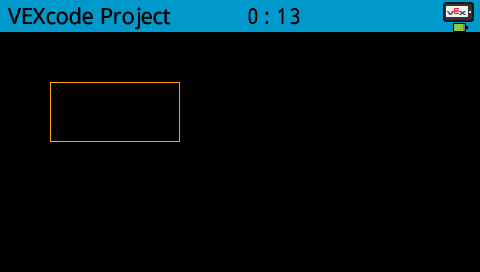
// Draw a rectangle with orange borders
Brain.Screen.setPenColor(orange);
Brain.Screen.drawRectangle(50, 50, 130, 60);
setFillColor#
Establece el color de relleno que se utiliza al dibujar formas.
Available Functions1 — Establece el color de relleno usando un objeto predefinido o color personalizado.
void setFillColor(
    const color& color );
2 — Establece el color de relleno utilizando un valor de color hexadecimal.
void setFillColor(
    const char* color );
Parameters3 — Establece el color de relleno usando un valor de tono.
void setFillColor(
    int hue );
Parámetro |
Tipo |
Descripción |
|---|---|---|
|
|
Sets the fill color using a
|
|
|
Sets the fill color using a hexadecimal color value represented as a string (for example, |
|
|
Sets the fill color using an integer hue value in the range |
Esta función no devuelve ningún valor.
NotesThe default fill color at the start of a project is
black.The fill color is used for interior of shapes (such as with
drawCircleordrawRectangle).The fill color is used as the background color for printed text (such as with
printandprintAt).If
transparentis used with printed text, the background will beblack.
The
hueparameter value is based on a circular color wheel, as shown below, where values represent degrees around the wheel (for example, red near 0°, green near 120°, and blue near 240°).
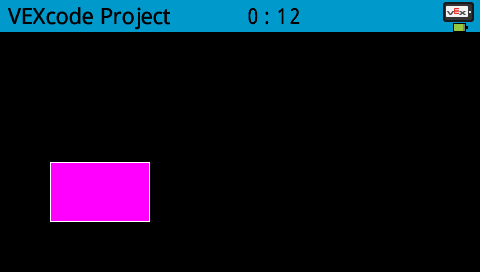
// Draw a rectangle filled with purple
  Brain.Screen.setFillColor(purple);
  Brain.Screen.drawRectangle(50, 100, 130, 60);
setOrigin#
Establece el origen utilizado para el dibujo y la impresión basada en coordenadas en la pantalla del sistema Brain.
Available Functionsvoid setOrigin(
int32_t x,
int32_t y );
Parámetro |
Tipo |
Descripción |
|---|---|---|
|
|
La posición x del origen en relación con la esquina superior izquierda de la pantalla del Cerebro, de 0 a 479. |
|
|
La posición y del origen en relación con la esquina superior izquierda de la pantalla del cerebro, de 0 a 239. |
Esta función no devuelve ningún valor.
NotesEl origen predeterminado es la esquina superior izquierda de la pantalla en la coordenada (0, 0).
The origin applies to coordinate functions such as
drawLine,drawRectangle,drawCircle, andprintAt.El origen permanece vigente hasta que se modifique de nuevo o se reinicie el proyecto.
setClipRegion#
Define un área rectangular en la pantalla donde se mostrarán todos los dibujos y el texto. Cualquier contenido fuera de esta región no se mostrará.
Available Functionsvoid setClipRegion(
int x,
int y,
int width,
int height );
Parámetro |
Tipo |
Descripción |
|---|---|---|
|
|
La coordenada x de la esquina superior izquierda de la región de recorte, dada como un número entero entre 0 y 479. |
|
|
La coordenada y de la esquina superior izquierda de la región de recorte, dada como un número entero entre 0 y 239. |
|
|
El ancho de la región de recorte en píxeles, expresado como un número entero entre 0 y 479. |
|
|
La altura de la región de recorte en píxeles, expresada como un número entero entre 0 y 239. |
Esta función no devuelve ningún valor.
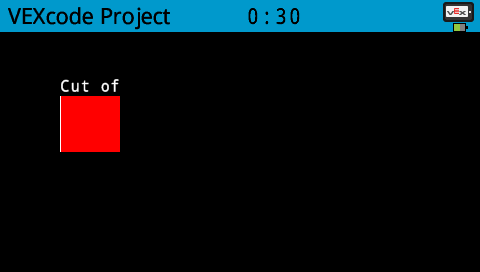
NotesLas funciones de dibujo se siguen ejecutando aunque queden fuera de la región de recorte, pero solo se ve la parte que está dentro de dicha región.
The
xandycoordinates are relative to the current screen origin, which can be changed usingsetOrigin.La región de recorte se aplica únicamente al hilo actual.
Al establecer una nueva región de recorte, se reemplaza cualquier región de recorte establecida previamente para el hilo actual.
// Restrict text and drawings to a specific region
Brain.Screen.setClipRegion(0, 0, 120, 120);
Brain.Screen.drawRectangle(60, 60, 100, 100, red);
Brain.Screen.printAt(60, 60, "Cut off!");
drawPixel#
Dibuja un píxel en la pantalla del V5 Brain en la ubicación de píxeles x e y seleccionada.
Available Functionsvoid drawPixel(
int x,
int y );
Parámetro |
Tipo |
Descripción |
|---|---|---|
|
|
La coordenada x donde se dibujará el píxel, dada como un número entero del 0 al 479. |
|
|
La coordenada y donde se dibujará el píxel, dada como un número entero del 0 al 239. |
Esta función no devuelve ningún valor.
NotesPixels are drawn using the current pen color set with
setPenColor.The
xandycoordinates are relative to the current screen origin, which can be set usingsetOrigin.Si la ubicación del píxel especificada está fuera de los límites de la pantalla, el píxel no se dibuja.
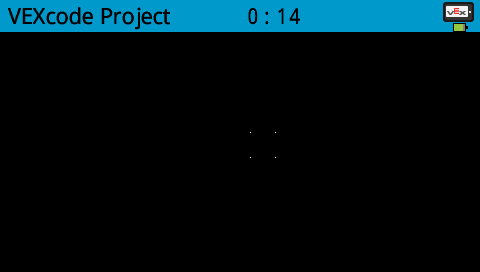
// Draw the pixels marking the corners of a square
Brain.Screen.drawPixel(250, 100);
Brain.Screen.drawPixel(275, 100);
Brain.Screen.drawPixel(250, 125);
Brain.Screen.drawPixel(275, 125);
drawLine#
Dibuja una línea recta que conecta dos puntos en la pantalla del cerebro V5.
Available Functionsvoid drawLine(
int x1,
int y1,
int x2,
int y2 );
Parámetro |
Tipo |
Descripción |
|---|---|---|
|
|
La coordenada x inicial de la línea, dada como un número entero entre 0 y 479. |
|
|
La coordenada y inicial de la línea, dada como un número entero entre 0 y 239. |
|
|
La coordenada x final de la línea, dada como un número entero entre 0 y 479. |
|
|
La coordenada y final de la línea, dada como un número entero entre 0 y 239. |
Esta función no devuelve ningún valor.
NotesLines are drawn using the current pen color set with
setPenColor.The width of the line is determined by the current pen width set with
setPenWidth.The
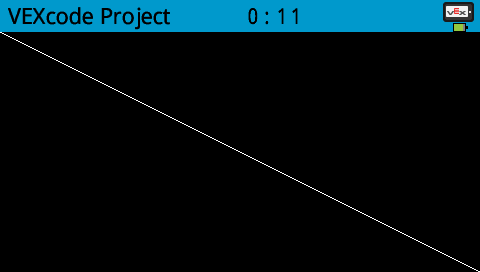
xandycoordinates are relative to the current screen origin, which can be set usingsetOrigin.Si alguna parte de la línea queda fuera de los límites de la pantalla, solo se dibuja la parte visible.
// Draw a line from the top left to bottom right of the screen
Brain.Screen.drawLine(0, 0, 479, 239);
drawRectangle#
Dibuja un rectángulo en la pantalla del V5 Brain en la posición y el tamaño especificados.
Available Functions1 — Dibuja y rellena un rectángulo usando el color de relleno configurado actualmente.
void drawRectangle(
    int x,
    int y,
    int width,
    int height );
2 — Dibuja y rellena un rectángulo usando un objeto de color predefinido o color personalizado.
void drawRectangle(
    int           x,
    int           y,
    int           width,
    int           height,
    const color&  color );
3 — Dibuja y rellena un rectángulo utilizando un valor de color hexadecimal.
void drawRectangle(
    int           x,
    int           y,
    int           width,
    int           height,
    const char*   color );
Parameters4 — Dibuja y rellena un rectángulo usando un valor de tono.
void drawRectangle(
    int x,
    int y,
    int width,
    int height,
    int hue );
Parámetro |
Tipo |
Descripción |
|---|---|---|
|
|
La coordenada x de la esquina superior izquierda del rectángulo, dada como un número entero entre 0 y 479. |
|
|
La coordenada y de la esquina superior izquierda del rectángulo, dada como un número entero entre 0 y 239. |
|
|
El ancho del rectángulo, dado como un número entero de 0 a 479. |
|
|
La altura del rectángulo, dada como un número entero de 0 a 239. |
|
|
Fills the rectangle using a
|
|
|
Fills the rectangle using a hexadecimal color value (for example, |
|
|
Fills the rectangle using a hue value in the range |
Esta función no devuelve ningún valor.
NotesThe rectangle outline is drawn using the current pen color set with
setPenColor.The outline thickness is determined by the current pen width set with
setPenWidth.When no
colorparameter is provided, the rectangle interior is filled using the current fill color set withsetFillColor.The
xandycoordinates are relative to the current screen origin, which can be changed usingsetOrigin.Si alguna parte del rectángulo queda fuera de los límites de la pantalla, solo se dibujará la parte visible.
The
hueparameter value is based on a circular color wheel, as shown below, where values represent degrees around the wheel (for example, red near 0°, green near 120°, and blue near 240°).
// Draw a rectangle on the screen
Brain.Screen.drawRectangle(50, 50, 130, 60);

drawCircle#
Dibuja un círculo en la pantalla del V5 Brain en la posición y el radio especificados.
Available Functions1 — Dibuja y rellena un círculo usando el color de relleno configurado actualmente.
void drawCircle(
    int x,
    int y,
    int radius );
2 — Dibuja y rellena un círculo usando un objeto de color predefinido o color personalizado.
void drawCircle(
    int           x,
    int           y,
    int           radius,
    const color&  color );
3 — Dibuja y rellena un círculo utilizando un valor de color hexadecimal.
void drawCircle(
    int           x,
    int           y,
    int           radius,
    const char*   color );
Parameters4 — Dibuja y rellena un círculo usando un valor de tono.
void drawCircle(
    int x,
    int y,
    int radius,
    int hue );
Parámetro |
Tipo |
Descripción |
|---|---|---|
|
|
La coordenada x del centro del círculo, dada como un número entero entre 0 y 479. |
|
|
La coordenada y del centro del círculo, dada como un número entero entre 0 y 239. |
|
|
El radio del círculo, expresado como un número entero entre 0 y 239 píxeles. |
|
|
Fills the circle using a
|
|
|
Fills the circle using a hexadecimal color value (for example, |
|
|
Fills the circle using a hue value in the range |
Esta función no devuelve ningún valor.
NotesThe circle outline is drawn using the current pen color set with
setPenColor.The outline thickness is determined by the current pen width set with
setPenWidth.When no
colorparameter is provided, the circle interior is filled using the current fill color set withsetFillColor.The
xandycoordinates are relative to the current screen origin, which can be changed usingsetOrigin.The
hueparameter value is based on a circular color wheel, as shown below, where values represent degrees around the wheel (for example, red near 0°, green near 120°, and blue near 240°).
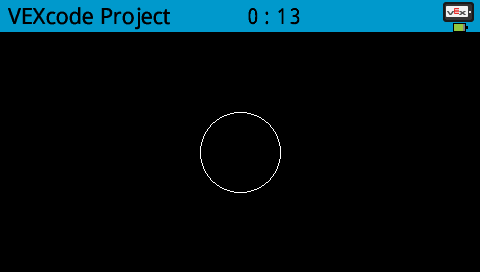
// Draw a circle on the screen
Brain.Screen.drawCircle(240, 120, 40);
drawImageFromFile#
Dibuja una imagen en la pantalla del cerebro V5 utilizando un archivo de imagen almacenado en la tarjeta SD.
Available Functionsbool drawImageFromFile(
const char* name,
int x,
int y );
Parámetro |
Tipo |
Descripción |
|---|---|---|
|
|
The filename of the image on the SD card. The file must have a |
|
|
La coordenada x, en píxeles de 0 a 479, en la que se dibujará el borde izquierdo de la imagen. |
|
|
La coordenada y, en píxeles de 0 a 239, en la que se dibujará el borde superior de la imagen. |
Returns a Boolean indicating whether the image was successfully drawn:
true— The image was successfully loaded and drawn on the screen.false— The image could not be drawn (for example, if the file does not exist or is invalid).
Supported image formats are
.bmpand.png.The image file size must not exceed
512 KB.Se recomienda la codificación RLE de 8 bits para minimizar el tamaño del archivo.
Las dimensiones máximas de imagen admitidas son las del tamaño de la pantalla del dispositivo Brain (aproximadamente 479 x 239 píxeles).
The
xandycoordinates are relative to the current screen origin, which can be changed usingsetOrigin.
// Draw a bmp file on the Brain's screen at coordinate 0, 0
Brain.Screen.drawImageFromFile("test_image.bmp", 0, 0);
render#
Enables double buffering for the Brain’s screen. Once called, any drawing functions (like text, shapes, or images) will no longer appear immediately for the rest of the project. Instead, updates will only be shown when render is used again. This allows for smoother and more controlled screen updates, but means nothing will be visible until render is used.
1 — Habilita el doble búfer o renderiza el búfer de respaldo en la pantalla.
bool render();
Parameters2 — Renderiza el búfer de fondo en la pantalla con control sobre el comportamiento de sincronización vertical y ejecución del programador opcional.
bool render(
    bool bVsyncWait,
    bool bRunScheduler = true );
Parámetro |
Tipo |
Descripción |
|---|---|---|
|
|
|
|
|
Optional.
|
Returns a Boolean indicating whether the saved drawings in the buffer were successfully rendered to the screen:
true— The drawings were successfully rendered on the screen.false— The drawings could not be rendered on the screen.
Notes
Calling
renderwill requirerenderto be used for the rest of the project.
Brain.Screen.render();

// Draw text to the back buffer
Brain.Screen.print("Render later...");

// Wait for a screen press to render drawings
while (!Brain.Screen.pressing()) {
  wait(20, msec);
}
Brain.Screen.render();
pressing#
Informa si la pantalla V5 Brain está siendo presionada en este momento.
Available Functionsbool pressing();
Esta función no acepta ningún parámetro.
Return ValuesReturns a Boolean indicating the current pressed state of the screen:true — The screen is currently being pressed. or false — The screen is not being pressed.
// Change the screen's color after it's pressed
while (Brain.Screen.pressing() == false) {
  wait(5, msec);
}

Brain.Screen.setFillColor(green);
Brain.Screen.drawRectangle(0, 0, 479, 239);
// Display different messages after the screen is pressed
while (!Brain.Screen.pressing()) {
  wait(5, msec);
}
Brain.Screen.print("First message!");
Brain.Screen.newLine();

// Lift finger to press the screen again
while (Brain.Screen.pressing()) {
  wait(5, msec);
}
while (Brain.Screen.pressing() == false) {
  wait(5, msec);
}
Brain.Screen.print("Second message!");
Brain.Screen.newLine();
xPosition#
Devuelve la coordenada x de la última pulsación en la pantalla del V5 Brain.
Available Functionsint32_t xPosition();
Esta función no acepta ningún parámetro.
Return ValuesReturns an int32_t representing the x-coordinate, in pixels from 0 to 479, of the last screen press.
// Display a circle where the screen is pressed
while (Brain.Screen.pressing() == false) {
  wait(5, msec);
}

Brain.Screen.drawCircle(Brain.Screen.xPosition(), Brain.Screen.yPosition(), 20, white);
yPosition#
Devuelve la coordenada Y de la última pulsación en la pantalla del V5 Brain.
Available Functionsint32_t yPosition();
Esta función no acepta ningún parámetro.
Return ValuesReturns an int32_t representing the y-coordinate, in pixels from 0 to 239, of the last screen press.
// Display a circle where the screen is pressed
while (Brain.Screen.pressing() == false) {
  wait(5, msec);
}

Brain.Screen.drawCircle(Brain.Screen.xPosition(), Brain.Screen.yPosition(), 20, white);
pressed#
Registra una función que se llamará cuando se presione la pantalla del cerebro V5.
Available Functions1 — Llama a una función cuando se presiona la pantalla.
void pressed(
    void (*callback)(void)
);
Parameters2 — Llama a una función cuando se presiona la pantalla y pasa un argumento definido por el usuario a la función de devolución de llamada.
void pressed(
    void (*callback)(void*),
    void* arg );
Parámetro |
Tipo |
Descripción |
|---|---|---|
|
|
Una función que se llama cuando se pulsa la pantalla. |
|
|
Una función que se llama cuando se pulsa la pantalla y que recibe un argumento definido por el usuario. |
|
|
Un valor definido por el usuario que se pasa a la función de devolución de llamada cuando se pulsa la pantalla. |
Esta función no devuelve ningún valor.
NotesLa función de devolución de llamada se ejecuta cada vez que se pulsa la pantalla del cerebro.
Only one callback function can be registered at a time; calling
pressedagain replaces the previous callback.The callback function must return
void.
Define the callback function (outside of
int main())// Tracks how many times the screen is pressed. void onScreenPressed(void* arg) { int* count = (int*)arg; (*count)++; Brain.Screen.clearScreen(); Brain.Screen.setCursor(1, 1); Brain.Screen.print("Pressed %d times", *count); }Register the callback inside
int main()int main() { int pressCount = 0; // Register the callback and pass a value to update. Brain.Screen.pressed(onScreenPressed, &pressCount); while (true) { wait(20, msec); } }
released#
Registra una función que se llamará cuando se suelte la pantalla del V5 Brain después de haber sido pulsada.
Available Functions1 — Llama a una función cuando se suelta la pantalla después de haber sido presionada.
void released(
    void (*callback)(void)
);
Parameters2 — Llama a una función cuando se suelta la pantalla después de haber sido presionada y pasa un argumento definido por el usuario a la función de devolución de llamada.
void released(
    void (*callback)(void*),
    void* arg );
Parámetro |
Tipo |
Descripción |
|---|---|---|
|
|
Una función que se llama cuando se suelta la pantalla después de haber sido pulsada. |
|
|
Una función que se llama cuando se suelta la pantalla después de haber sido pulsada y que recibe un argumento definido por el usuario. |
|
|
Un valor definido por el usuario que se pasa a la función de devolución de llamada cuando se suelta la pantalla después de haber sido pulsada. |
Esta función no devuelve ningún valor.
NotesLa función de devolución de llamada se ejecuta cada vez que se suelta la pantalla del cerebro después de haber sido pulsada.
Only one callback function can be registered at a time; calling
releasedagain replaces the previous callback.The callback function must return
void.
Define the callback function (outside of
int main())// Tracks how many times the screen is released. void onScreenReleased(void* arg) { int* count = (int*)arg; (*count)++; Brain.Screen.clearScreen(); Brain.Screen.setCursor(1, 1); Brain.Screen.print("Released %d times", *count); }Register the callback inside
int main()int main() { int releaseCount = 0; // Register the callback and pass a value to update. Brain.Screen.released(onScreenReleased, &releaseCount); while (true) { wait(20, msec); } }