Device Setup: Drivetrain#
Add a Drivetrain#
Open the Devices Tab#
Select the Devices tab.
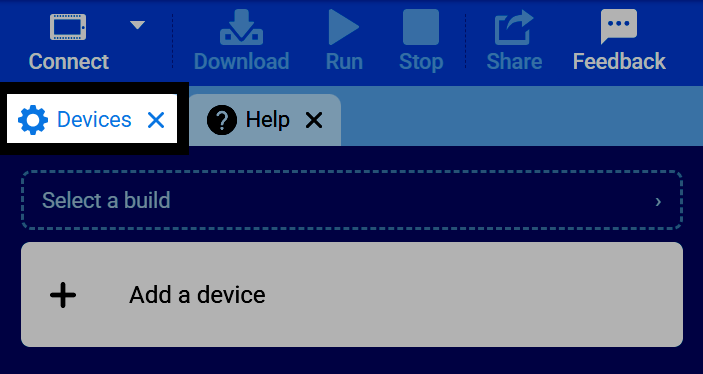
If the Devices tab is not visible, see Add a Tab in the Navigating VEXcode tutorial.
Select ‘Add a Device’#
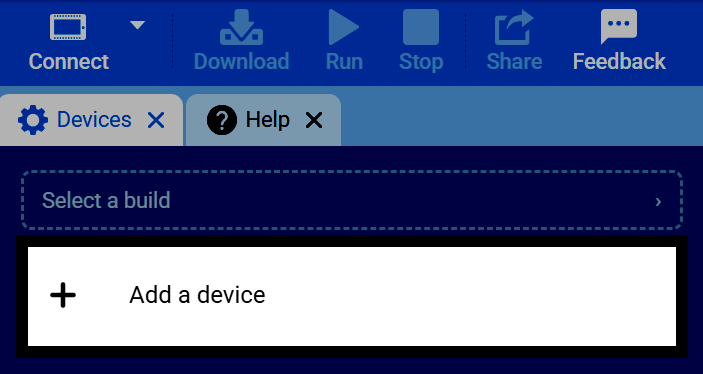
Select Add a Device in the Devices tab.
Select a Drivetrain#
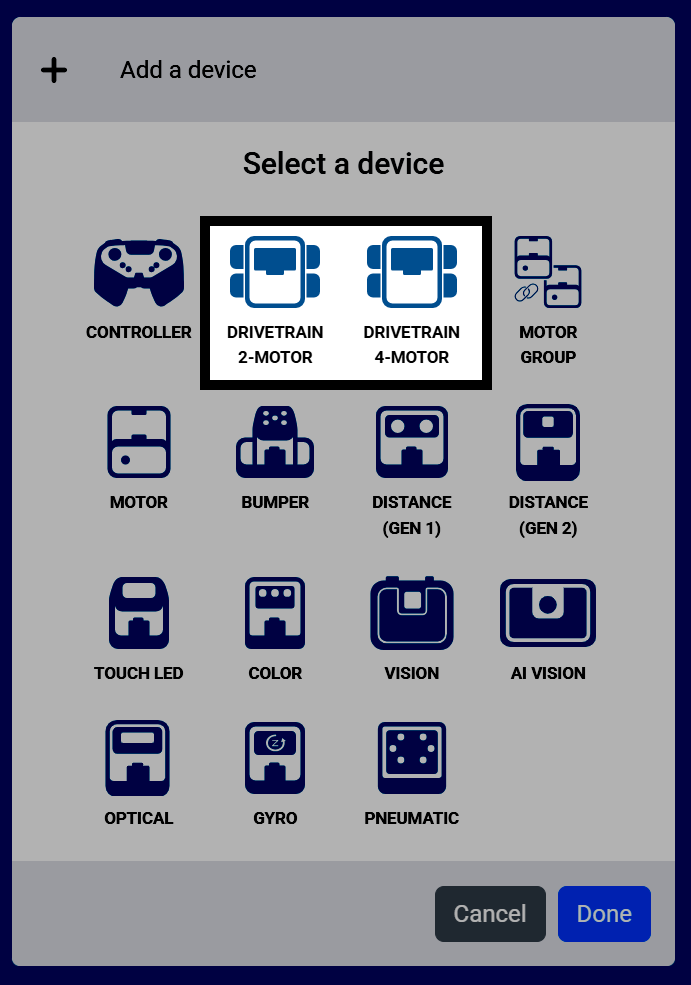
Select Drivetrain 2-Motor or Drivetrain 4-Motor, depending on how many motors you’re using in your drivetrain.
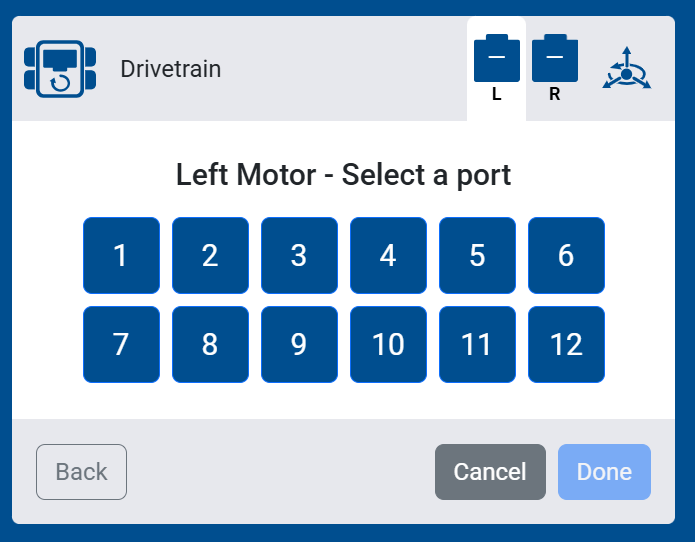
Select the Left Motor Port(s)#
Select the ports for the motors that drive your robot’s left wheels.
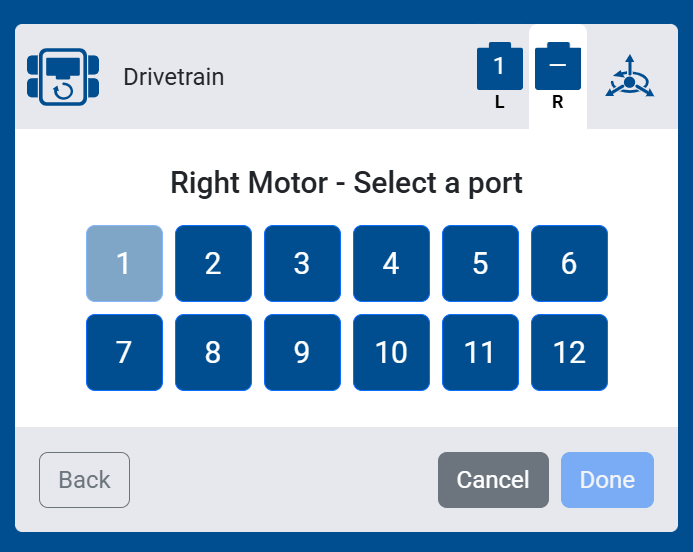
Select the Right Motor Port(s)#
Select the ports for the motors that drive your robot’s right wheels.
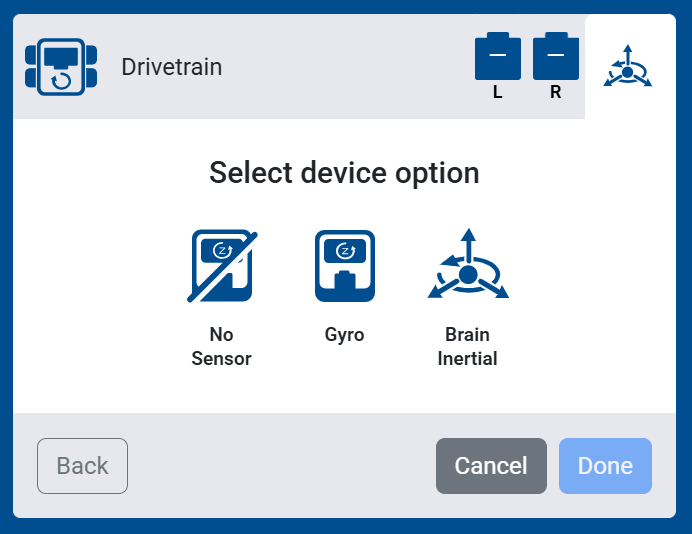
Select a Sensor#
Select what sensor you want to use with your Drivetrain:
No Sensor — No Inertial or Gyro Sensor will be connected to your Drivetrain. Blocks that rely on these sensors will not appear in your toolbox.
Gyro — Select the port for an external Gyro Sensor to measure the drivetrain’s movements.
Brain Inertial — Use the VEX IQ (2nd gen) Brain’s built-in Inertial Sensor to measure the drivetrain’s movements.
Configure Your Drivetrain#
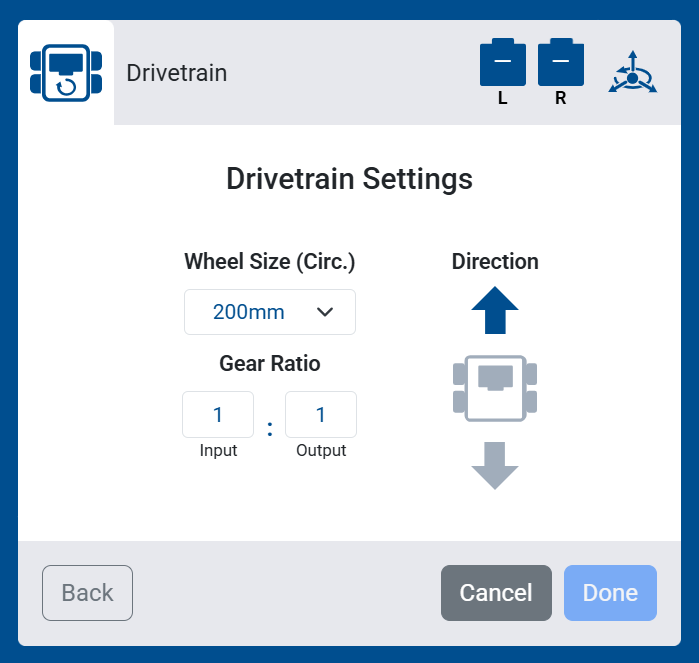
Adjust the Drivetrain Settings#
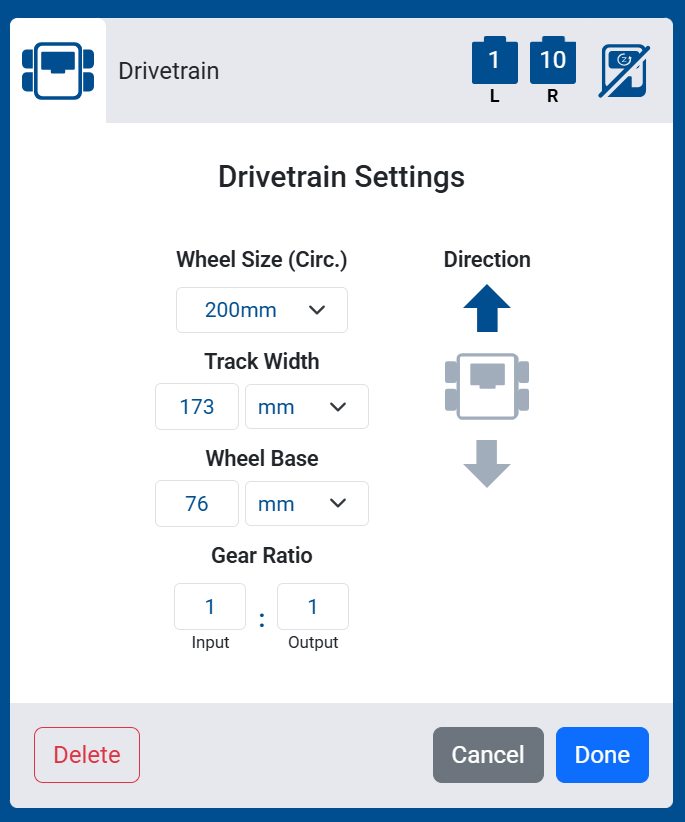
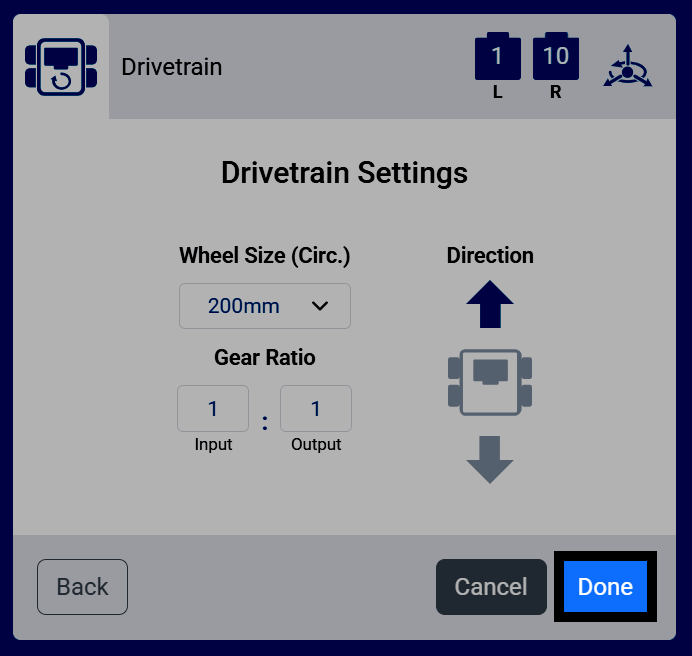
Configure your Drivetrain’s settings. If you’re using a pre-made build, the default values do not need to be changed.
Wheel Size (Circ.) — The circumference of your Drivetrain’s wheels: 100mm, 160mm, 200mm, or 250mm.
Gear Ratio — The ratio between the Input and Output gears, if your Drivetrain uses external gears. Use 1:1 if no external gears are used.
Direction — The direction the Drivetrain moves when driving forward.
Additional Settings for No Sensor#
If you selected No Sensor, two additional settings will also appear:
Track Width — The distance between the left and right wheels.
Wheel Base — The distance between the front and back wheels.
These measurements help the Drivetrain estimate its movement without a Gyro or Inertial Sensor to measure it directly.
Finish Adding the Drivetrain#
Select Done to add the Drivetrain to your robot.
View the Drivetrain in Your Devices List#
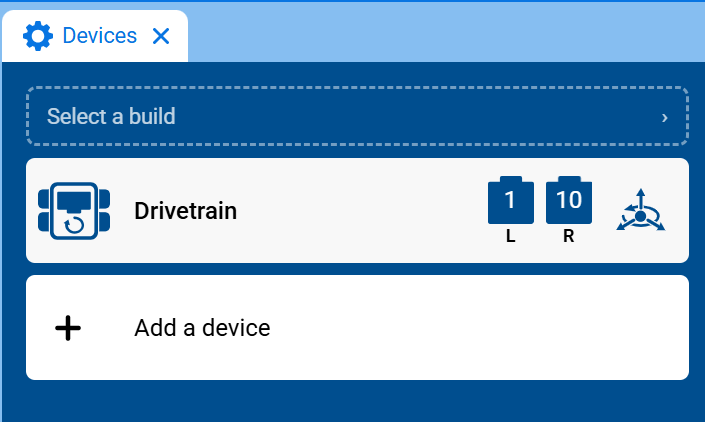
The Drivetrain will now appear in your list of devices, and the Drivetrain category and blocks will be added to your toolbox.