
Opening the Claw#
To use the claw on your VEX IQ Clawbot, first you need to configure the Clawbot in VEXcode. The easiest way to do this is to open a Clawbot template.
Configure the Clawbot#
Select a Build#
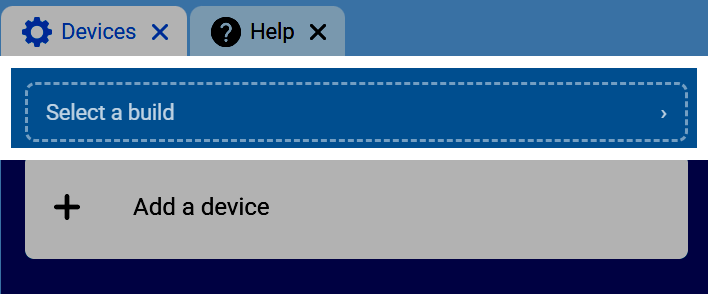
Go to the Devices tab, then select Select a build.
Select the Clawbot Build#
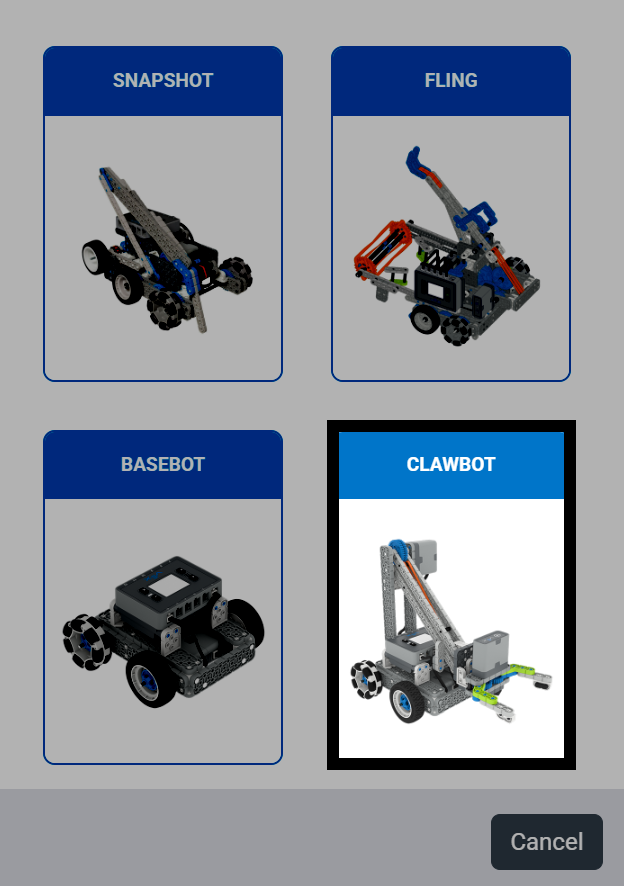
Scroll down and select the Clawbot build.
Choose the Clawbot Variant#
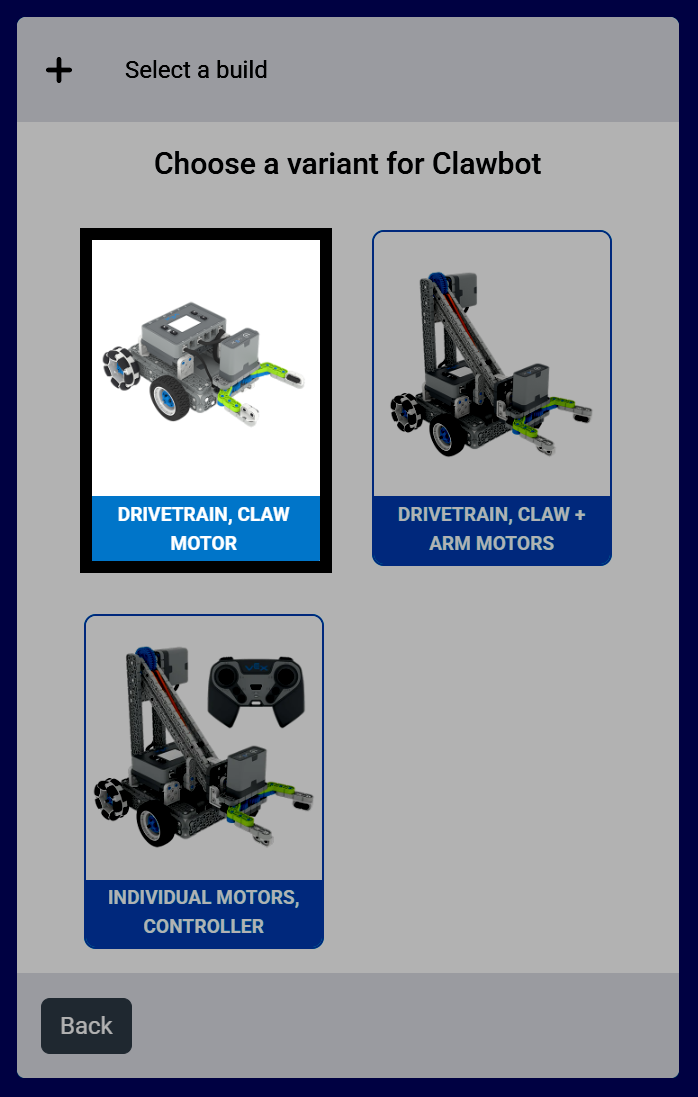
The build used for this tutorial is the Drivetrain, Claw Motor version of the Clawbot.
Confirm the Configuration#
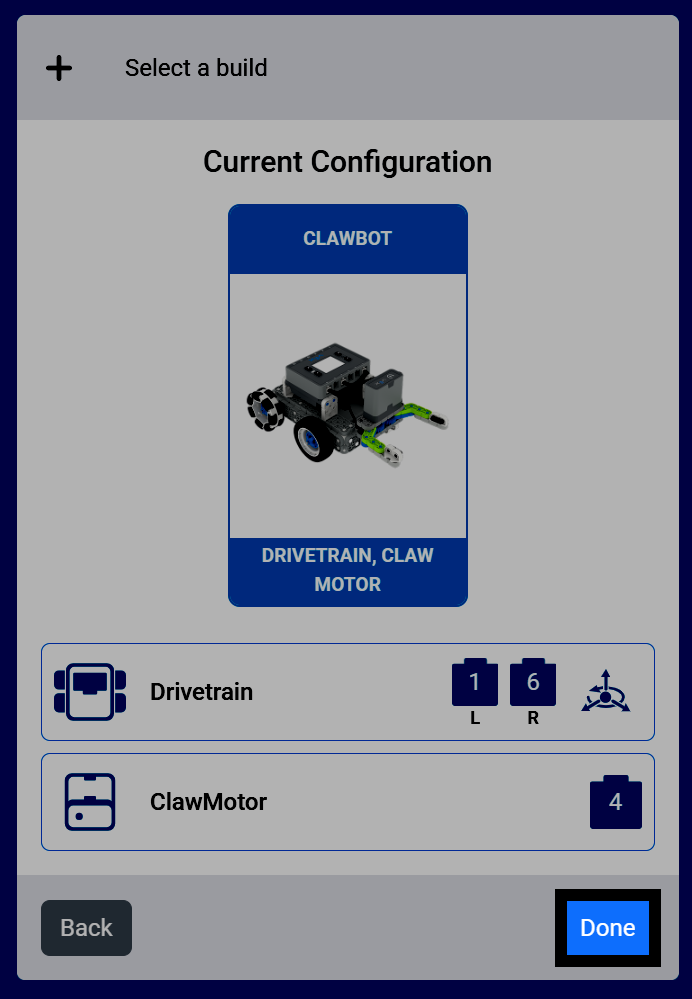
Select Done to add this build to your project.
Code the Claw#
Open the Motion Category#
Select the Motion category in the toolbox to find the Motion blocks, including the spin blocks for the ClawMotor.
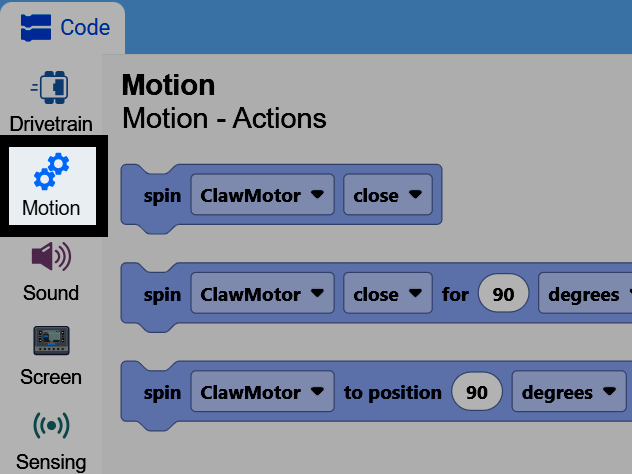
Attach the Spin Block#
Attach the spin motor for block to the when started block.
spin [ClawMotor v] [close v] for (90) [degrees v] ▶
Open the Claw#
Change the direction parameter to open instead of close, and change the distance parameter to 60. This will open the robot’s claw 60 degrees from its current position.
    when started
        spin [ClawMotor v] [open v] for (60) [degrees v] ▶
You can also change the units parameter to turns instead of degrees. One turn is equal to 360 degrees.
spin [ClawMotor v] [open v] for (1) [turns v] ▶
Using Motor Timeouts#
One tip is to use the set motor timeout block before using the spin motor for block.
set [ClawMotor v] timeout to (1) seconds
If you accidentally set the spin motor for block to too great of a distance, the set motor timeout block will force it to end, and the project to move on, even if the motor hasn’t reached the position it wanted to.
    when started
        set [ClawMotor v] timeout to (1) seconds
        spin [ClawMotor v] [open v] for (600) [degrees v] ▶