安慰#
介紹#
VEXcode 123 控制台顯示在 VEXcode 的「控制台」標籤中。控制台方法可以在專案執行時顯示文字、數字和變數值。它們還可以將控制台遊標移動到新的一行、清除控制台、讀取用戶輸入以及設定更改顏色後列印文字的顏色。
以下是所有方法的清單:
操作-輸出文字或清空控制台。
Getter 方法-讀取使用者輸入。
input— 等待使用者輸入並以文字形式回傳回應。
Mutator — 格式化列印文字。
set_print_color— 設定控制台中列印文字的顏色。
行動#
print#
print 使用目前遊標位置在控制台中顯示文字、數字或變數值。
如果您希望列印訊息中包含項目中的值(例如分數、計時器或感測器讀數),請使用自訂字串格式。有關更多信息,請參閱字串格式頁面。
當您希望下一個列印值從新的一行開始時,請使用 new_line。
Usage:
console.print(value, precision)
參數 |
描述 |
|---|---|
|
若要在控制台中顯示的文字、數字或變數值。 |
|
可選。列印數字時顯示的小數位數。預設值為 |
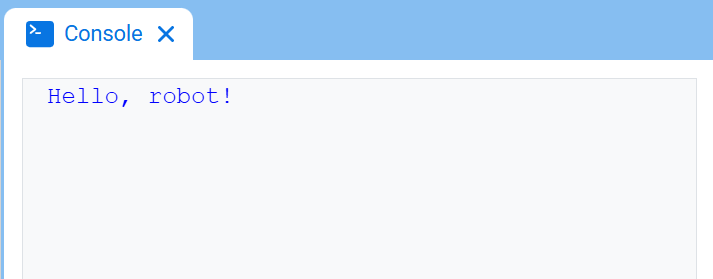
# Display a message in the Console
console.print("Hello, robot!")
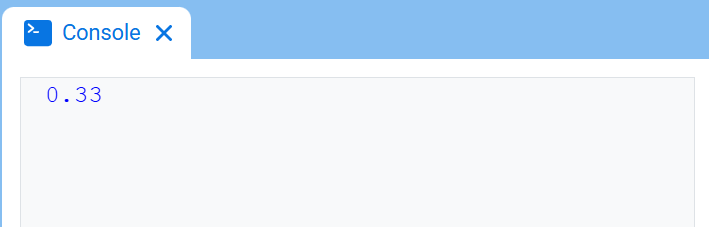
# Display 1/3 with two decimals
console.print(1 / 3, precision=2)
new_line#
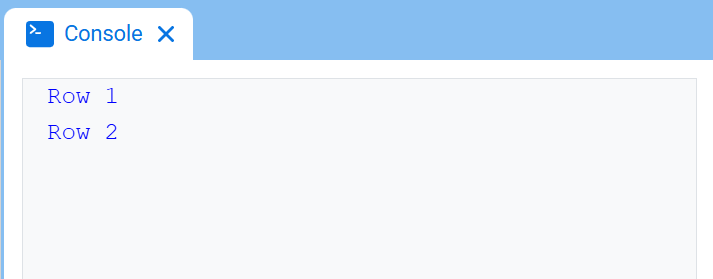
new_line 將遊標移到控制台中下一行的第 1 列。下一個列印的值將顯示在該行。
當您希望下一個列印值從新的一行開始時,請使用此方法。
Usage:
console.new_line()
參數 |
描述 |
|---|---|
此方法沒有參數。 |
# Print on two lines
console.print("Row 1")
console.new_line()
console.print("Row 2")
clear#
clear 清除控制台中的所有行。
Usage:
console.clear()
參數 |
描述 |
|---|---|
此方法沒有參數。 |
# Display text, then clear it after two seconds
console.print("This will disappear...")
wait(2, SECONDS)
console.clear()
Getter#
input#
input 等待使用者輸入回應,然後將該回應作為文字傳回。
項目在 input() 處暫停,直到在控制台中輸入回應。
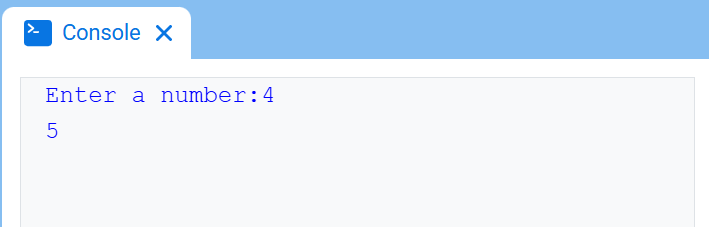
input() 是文字。若要將回應用作數字,請先使用 int() 或 float()。
Usage:
input()
參數 |
描述 |
|---|---|
此方法沒有參數。 |
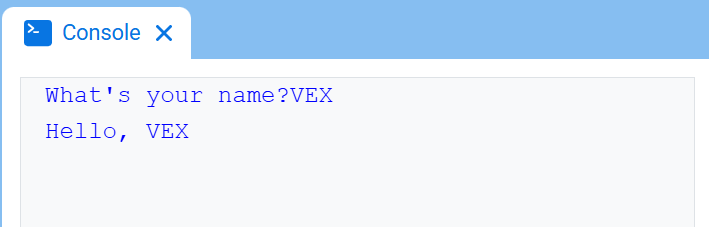
# Ask for a name, then print a greeting
answer = input("What's your name?")
console.print("Hello, " + answer)
# Ask for a number, then use it in math
answer = input("Enter a number:")
number = float(answer)
console.print(number + 1)
變異體#
set_print_color#
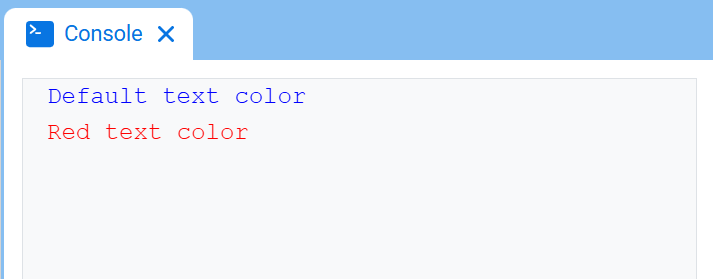
set_print_color 設定使用此方法後控制台中列印的文字顏色。在專案開始時,控制台文字顏色設定為 BLUE。
Usage:
console.set_print_color(color)
參數 |
描述 |
|---|---|
|
控制台列印文字的顏色:
|
# Print text in different colors
console.print("Default text color")
console.new_line()
console.set_print_color(RED)
console.print("Red text color")