
കളർ സെൻസർ#
ആമുഖം#
കളർ സെൻസറിൽ നിന്നുള്ള ഡാറ്റ ആക്സസ് ചെയ്യാൻ colorsensor ക്ലാസ് ഉപയോഗിക്കുന്നു. വസ്തുക്കളെ കണ്ടെത്താനും, നിറങ്ങൾ തിരിച്ചറിയാനും, തെളിച്ചവും നിറവും അളക്കാനും ഇത് പ്രതിഫലിച്ച പ്രകാശം ഉപയോഗിക്കുന്നു.
ക്ലാസ് കൺസ്ട്രക്റ്റർ#
colorsensor Color1 = colorsensor(index);
ക്ലാസ് ഡിസ്ട്രക്റ്റർ#
colorsensor ഒബ്ജക്റ്റിനെ നശിപ്പിക്കുകയും അനുബന്ധ ഉറവിടങ്ങൾ പുറത്തുവിടുകയും ചെയ്യുന്നു.
virtual ~colorsensor();
പാരാമീറ്ററുകൾ#
പാരാമീറ്റർ |
ടൈപ്പ് ചെയ്യുക |
വിവരണം |
|---|---|---|
|
|
കളർ സെൻസർ ബന്ധിപ്പിച്ചിരിക്കുന്ന സ്മാർട്ട് പോർട്ട്, |
ഉദാഹരണങ്ങൾ#
// Create an colorsensor instance in Port 1
colorsensor Color1 = colorsensor(PORT1);
അംഗ പ്രവർത്തനങ്ങൾ#
colorsensor ക്ലാസ്സിൽ ഇനിപ്പറയുന്ന അംഗ ഫംഗ്ഷനുകൾ ഉൾപ്പെടുന്നു:
setLight– കളർ സെൻസറിന്റെ LED ഓൺ, ഓഫ്, അല്ലെങ്കിൽ ഒരു നിശ്ചിത തെളിച്ച നിലയിലേക്ക് മാറ്റുന്നു.isNearObject– ഒരു വസ്തു കളർ സെൻസറിന് സമീപമാണോ അല്ലയോ എന്ന് നൽകുന്നു.detectsകണ്ടെത്തുന്നു – കളർ സെൻസർ ഒരു നിർദ്ദിഷ്ട നിറം കണ്ടെത്തിയോ ഇല്ലയോ എന്ന് നൽകുന്നു.colorname– കളർ സെൻസർ കണ്ടെത്തിയ നിറത്തിന്റെ പേര് നൽകുന്നു.brightness– ഒരു വസ്തുവിന്റെ കണ്ടെത്തിയ തെളിച്ചം നൽകുന്നു.hue– കണ്ടെത്തിയ ഹ്യൂ മൂല്യം നൽകുന്നു.
ഏതെങ്കിലും colorsensor അംഗ ഫംഗ്ഷനുകൾ വിളിക്കുന്നതിന് മുമ്പ്, താഴെ കാണിച്ചിരിക്കുന്നതുപോലെ ഒരു colorsensor ഉദാഹരണം സൃഷ്ടിക്കണം:
/* This constructor is required when using VS Code.
Color Sensor configuration is generated automatically
in VEXcode using the Device Menu. Replace the values
as needed. */

// Create an colorsensor instance in Port 1
colorsensor Color1 = colorsensor(PORT1);
setLight#
കളർ സെൻസറിന്റെ എൽഇഡിയുടെ പ്രകാശ പവർ സജ്ജമാക്കുന്നു. വസ്തുക്കളെയും നിറങ്ങളെയും കൂടുതൽ വ്യക്തമായി കണ്ടെത്താൻ കളർ സെൻസറിനെ പ്രകാശം സഹായിക്കും.
കളർ സെൻസറിന്റെ ലൈറ്റ് ഓഫാണെങ്കിൽ, ലൈറ്റ് പവർ 0% ൽ കൂടുതൽ സജ്ജീകരിക്കുന്നത് ലൈറ്റ് ഓണാക്കും.
കളർ സെൻസറിന്റെ ലൈറ്റ് ഓണാണെങ്കിൽ, ലൈറ്റ് പവർ 0% ആയി സജ്ജീകരിക്കുന്നത് ലൈറ്റ് ഓഫ് ആക്കും.
ഉയർന്ന ശതമാനം പ്രകാശത്തെ കൂടുതൽ പ്രകാശപൂരിതമാക്കുന്നു. കുറഞ്ഞ ശതമാനം പ്രകാശത്തെ മങ്ങിക്കുന്നു.
Available Functions1 —
ledStateഉപയോഗിച്ച് LED ഓൺ അല്ലെങ്കിൽ ഓഫ് ചെയ്യുന്നു.void setLight( ledState state );
Parameters2 — ലെഡ് ഒരു പ്രത്യേക തീവ്രതയിലേക്ക് ഓണാക്കുന്നു.
void setLight(
  int32_t      intensity,
  percentUnits units = percent );
പാരാമീറ്റർ |
ടൈപ്പ് ചെയ്യുക |
വിവരണം |
|---|---|---|
|
|
LED ഓണാക്കുകയോ ഓഫാക്കുകയോ ചെയ്യുന്നു. |
|
|
ലൈറ്റ് 0 മുതൽ 100 വരെ സജ്ജീകരിക്കുന്നതിനുള്ള പവർ ലെവൽ. |
|
|
പ്രകാശ തീവ്രതയെ പ്രതിനിധീകരിക്കുന്ന യൂണിറ്റ്: |
ഈ ഫംഗ്ഷൻ ഒരു മൂല്യം തിരികെ നൽകുന്നില്ല.
Examples// Set the light power to 50 percent.
Color1.setLight(50, percent);
isNearObject#
കളർ സെൻസർ സമീപത്തുള്ള ഒരു വസ്തുവിനെ കണ്ടെത്തിയാൽ തിരികെ നൽകുന്നു.
Available Functionsbool isNearObject();
ഈ ഫംഗ്ഷൻ ഒരു പാരാമീറ്ററുകളും സ്വീകരിക്കുന്നില്ല.
Return Valuesസമീപത്തുള്ള ഒരു വസ്തു കണ്ടെത്തിയാൽ ഈ ഫംഗ്ഷൻ ഒരു ബൂളിയൻ നൽകുന്നു:
true– കളർ സെൻസർ ഒരു വസ്തുവിനെ കണ്ടെത്തുന്നു.false– കളർ സെൻസർ ഒരു വസ്തുവിനെ കണ്ടെത്തുന്നില്ല.
// If an object is detected by the Color Sensor, print
// "near object".
if (Color1.isNearObject()){
  Brain.Screen.print("near object");
}
detects#
കളർ സെൻസർ ഒരു നിർദ്ദിഷ്ട നിറം കണ്ടെത്തുകയാണെങ്കിൽ തിരികെ നൽകുന്നു.
Available Functions1 — Detects a
colorType.bool detects( colorType color );
Parameters2 — Detects a
vex::color.bool detects( vex::color color );
പാരാമീറ്ററുകൾ |
ടൈപ്പ് ചെയ്യുക |
വിവരണം |
|---|---|---|
|
|
A valid color:
|
|
|
ഒരു സാധുവായ ഇച്ഛാനുസൃത നിറം, അല്ലെങ്കിൽ മുകളിൽ പട്ടികപ്പെടുത്തിയിരിക്കുന്ന മുൻകൂട്ടി നിശ്ചയിച്ച നിറങ്ങളിൽ ഒന്ന്. |
true– കളർ സെൻസർ നിറം കണ്ടെത്തുന്നു.false– കളർ സെൻസർ നിറം കണ്ടെത്തുന്നില്ല.
int main() {
  // Initializing Robot Configuration. DO NOT REMOVE!
  vexcodeInit();

  // Drive until a red object is seen
  Drivetrain.drive(forward);
  while (true) {
    if (Color1.detects(red)) {
      Drivetrain.stop();
      break;
    }
    wait(0.5, seconds);
  }
}
colorname#
കണ്ടെത്തിയ ഏറ്റവും അടുത്ത പൊരുത്തപ്പെടുന്ന നിറം നൽകുന്നു.
Available FunctionscolorType colorname();
ഈ ഫംഗ്ഷൻ ഒരു പാരാമീറ്ററുകളും സ്വീകരിക്കുന്നില്ല.
Return Valuesനേരിട്ട് പ്രിന്റ് ചെയ്യുമ്പോൾ, ആ നിറവുമായി ബന്ധപ്പെട്ട സംഖ്യാ മൂല്യം ഇത് കാണിക്കുന്നു:
നിറം |
സംഖ്യാ മൂല്യം |
|---|---|
|
0 |
|
1 |
|
2 |
|
3 |
|
4 |
|
5 |
|
6 |
|
7 |
|
8 |
|
9 |
|
10 |
|
11 |
|
12 |
|
13 |
|
14 |
|
15 |
|
16 ഡൗൺലോഡ് |
|
17 തീയതികൾ |
ഡിവൈസസ് വിൻഡോയിൽ ഒരു കളർ സെൻസർ കോൺഫിഗർ ചെയ്യുമ്പോൾ,
convertColorToStringഎന്ന ഫംഗ്ഷൻ VEXcode സ്വയമേവ സൃഷ്ടിക്കുന്നു. ഇത് VEXcode IQ പ്രോജക്റ്റുകൾക്കുള്ളിൽ മാത്രമേ ലഭ്യമാകൂ, മറ്റ് പരിതസ്ഥിതികളിൽ പ്രവർത്തിക്കില്ല.VEXcode ന് പുറത്ത്
colornameഉപയോഗിക്കുമ്പോൾ, താരതമ്യങ്ങൾ നേരിട്ട്colorTypeമൂല്യവുമായി നടത്തണം -colorType::ൽ ആരംഭിക്കുന്ന ഏത് നിറവും (ഉദാഹരണത്തിന്,colorType::greenഅല്ലെങ്കിൽcolorType::red).
int main() {
  // Initializing Robot Configuration. DO NOT REMOVE!
  vexcodeInit();

  // Continuously check the detected color
  while (true) {

    // Compare the color name with "red"
    if (convertColorToString(Color1.colorname()) == "red") {
      Brain.Screen.print("Red object!");
    } else {
      Brain.Screen.print("Not red");
    }

    wait(0.5, seconds);
    Brain.Screen.clearScreen();
    Brain.Screen.setCursor(1, 1);
  }
}
int main() {
  // Initializing Robot Configuration. DO NOT REMOVE!
  vexcodeInit();

  // Continuously check the detected color
  while (true) {

    // Compare the color name with the colorType
    if (Color1.colorname() == colorType::red) {
      Brain.Screen.print("Red object!");
    } else {
      Brain.Screen.print("Not red");
    }

    wait(0.5, seconds);
    Brain.Screen.clearScreen();
    Brain.Screen.setCursor(1, 1);
  }
}
brightness#
വസ്തുവിൽ നിന്ന് പ്രതിഫലിക്കുന്ന പ്രകാശത്തിന്റെ അളവ് തിരികെ നൽകുന്നു.
ഉയർന്ന ശതമാനം എന്നാൽ കൂടുതൽ പ്രകാശം കളർ സെൻസറിലേക്ക് പ്രതിഫലിക്കുന്നു എന്നാണ്. കുറഞ്ഞ ശതമാനം എന്നാൽ കുറഞ്ഞ പ്രകാശം തിരികെ പ്രതിഫലിക്കുന്നു എന്നാണ്.
Available Functionsdouble brightness(bool bRaw = false);
പാരാമീറ്റർ |
ടൈപ്പ് ചെയ്യുക |
വിവരണം |
|---|---|---|
|
|
ശതമാനത്തിന് പകരം റോ ബ്രൈറ്റ്നെസ് ഡാറ്റ വായിക്കുന്നതിനുള്ള ഒരു ബൂളിയൻ മൂല്യം. ഡിഫോൾട്ട് |
0 - 100% പരിധിയിൽ കളർ സെൻസർ കണ്ടെത്തിയ തെളിച്ചത്തെ പ്രതിനിധീകരിക്കുന്ന ഒരു ഇരട്ടി, അല്ലെങ്കിൽ സെൻസർ കണ്ടെത്തിയ അസംസ്കൃത ഡാറ്റയെ പ്രതിനിധീകരിക്കുന്ന ഒരു ഇരട്ടി.
Examples// Set a variable, brightness, to the value of the brightness
// detected by the Color Sensor
double brightness = Color1.brightness();
// Print the brightness detected by the Color Sensor to the
// Brain's screen
Brain.Screen.print(brightness);
hue#
കളർ സെൻസർ കണ്ടെത്തിയ നിറം തിരികെ നൽകുന്നു.
വർണ്ണചക്രത്തിന് ചുറ്റുമുള്ള അക്കങ്ങൾ ഉപയോഗിച്ച് നിറങ്ങളെ വിവരിക്കുന്നതിനുള്ള ഒരു മാർഗമാണ് ഹ്യൂ.
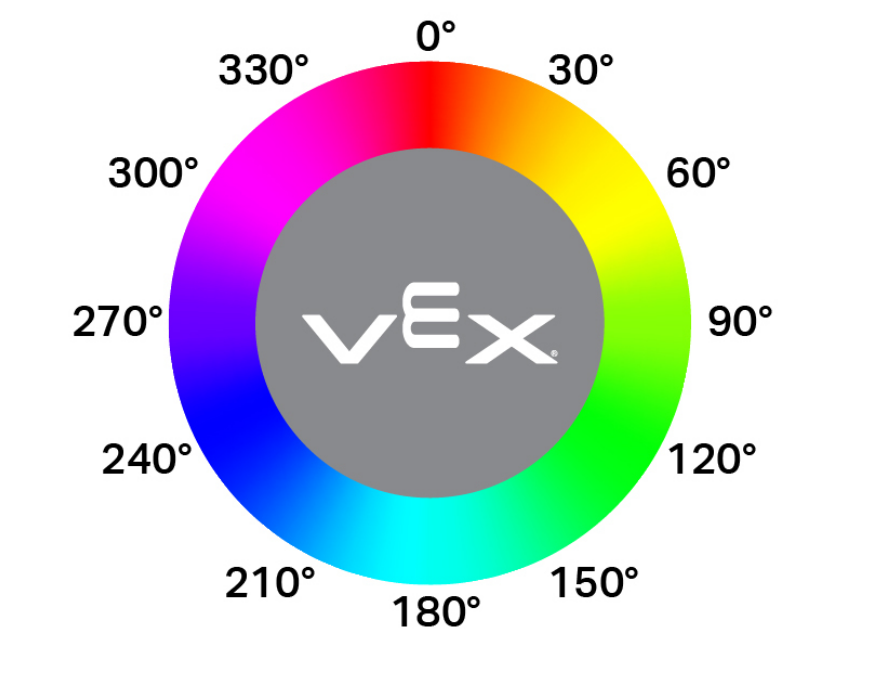
double hue();
ഈ ഫംഗ്ഷൻ ഒരു പാരാമീറ്ററുകളും സ്വീകരിക്കുന്നില്ല.
Return Values0 — 359.00 ശ്രേണിയിൽ കളർ സെൻസർ കണ്ടെത്തിയ നിറത്തിന്റെ മൂല്യത്തെ പ്രതിനിധീകരിക്കുന്ന ഒരു ഇരട്ടി.
Examples// Set a variable, hue, to the value of the hue detected
// by the Color Sensor.
double hue = Color1.hue();