安慰#
介紹#
VEXcode AIM 控制台顯示在 VEXcode 的「控制台」標籤中。控制台方法可以在專案執行時顯示文字、數字和變數值。它們還可以清除控制台、讀取用戶輸入以及設定更改顏色後列印文字的顏色。
使用 VS Code 時,基於文字的控制台輸出會顯示在終端機中,而不是 VEXcode 控制台標籤中。
以下是所有方法的清單:
操作-輸出文字或清空控制台。
print— 在控制台或終端機中顯示文字、數字或變數值。clear_console— 清除控制台中的所有行。
Getter 方法-讀取使用者輸入。
input— 等待使用者輸入並以文字形式回傳回應。
Mutator — 格式化列印文字。
set_console_text_color— 設定控制台中列印的文字顏色。
行動#
print#
print 在控制台中顯示文字、數字或變數值。在 VS Code 中, print 在終端機中顯示輸出。
如果您希望列印訊息中包含項目中的值(例如分數、計時器或感測器讀數),請使用自訂字串格式。有關更多信息,請參閱字串格式頁面。
預設情況下,每個 print() 語句\n\n。這會在列印值後將遊標移至下一行。可選的 end 參數用於更改列印值之後新增的內容。
用法:
print(value, end=“\n”)
範圍 |
描述 |
|---|---|
|
若要在控制台或終端機中顯示的文字、數字或變數值。 |
|
可選。在 |
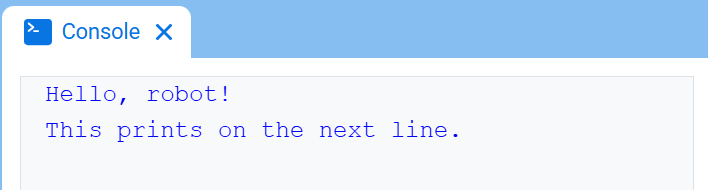
# Display two messages on separate lines
print("Hello, robot!")
print("This prints on the next line.")
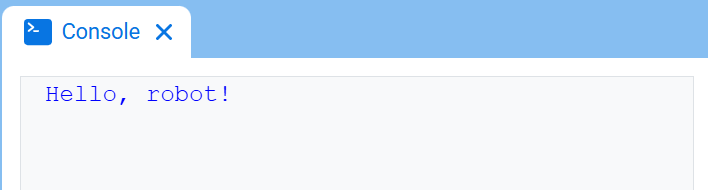
# Display two messages on the same line
print("Hello,", end=" ")
print("robot!")
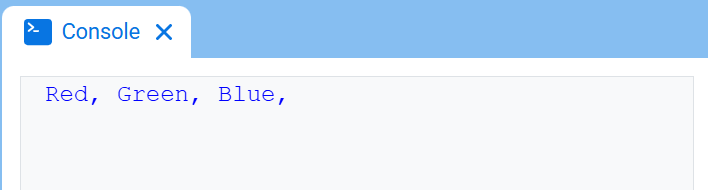
# Print three colors on one line, separated by commas
colors = ["Red", "Green", "Blue"]

for color in colors:
    print(color, end=", ")
clear_console#
clear_console 清除控制台中的所有行。
用法:
clear_console()
參數 |
描述 |
|---|---|
此方法沒有參數。 |
# Display text, then clear it after two seconds
print("This will disappear...")
wait(2, SECONDS)
clear_console()
Getter#
input#
input 顯示可選的提示訊息,等待使用者輸入回應,然後將該回應作為文字傳回。
項目會在執行到 input() 時暫停,直到在控制台中輸入回應。在 VS Code 中,回應會在終端機中輸入。
input() 是文字。若要將回應用作數字,請先使用 int() 或 float()。
用法:
input(prompt)
範圍 |
描述 |
|---|---|
|
可選。在等待回應之前,要在控制台或終端機中顯示的字串。如果未指定提示符,則在等待之前不顯示任何訊息。 |
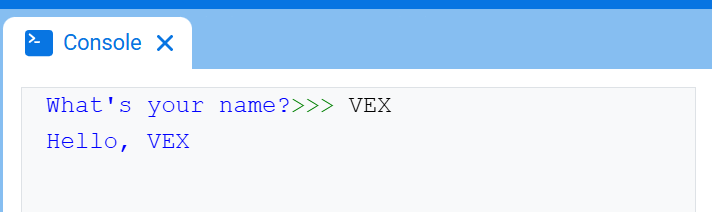
# Ask for a name, then print a greeting
answer = input("What's your name?")
print("Hello, " + answer)
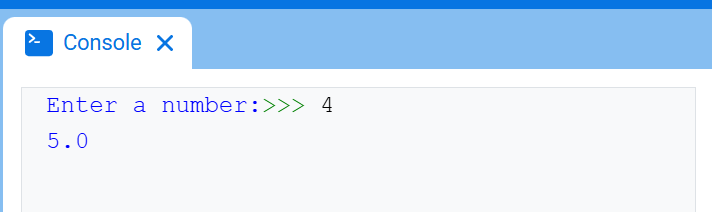
# Ask for a number, then use it in math
answer = input("Enter a number:")
number = float(answer)
print(number + 1)
變異體#
set_console_text_color#
set_console_text_color 設定使用此方法後控制台中列印的文字顏色。在專案開始時,控制台文字顏色設定為 BLUE。
此方法可變更 VEXcode 控制台標籤中的文字顏色。在 VS Code 中,不同終端對顏色的支援可能有所不同。
用法:
set_console_text_color(color)
範圍 |
描述 |
|---|---|
|
在控制台中打印文本所使用的颜色:
|
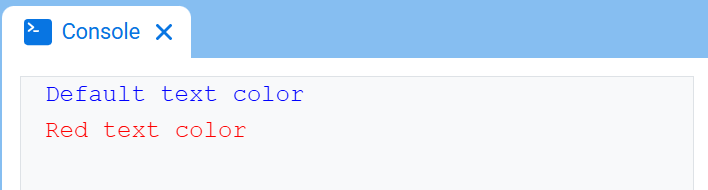
# Print text in different colors
print("Default text color")
set_console_text_color(RED)
print("Red text color")