
Storing Data#
Variables let you store data during a project, such as a number, a true/false value, or a list of items.
Create a Variable#
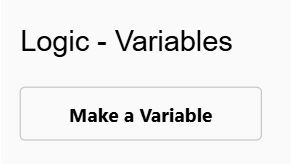
Go to the Logic - Variables category in the toolbox, and select Make a Variable.
Choose a Variable Type#
Select the type of variable you want to create.
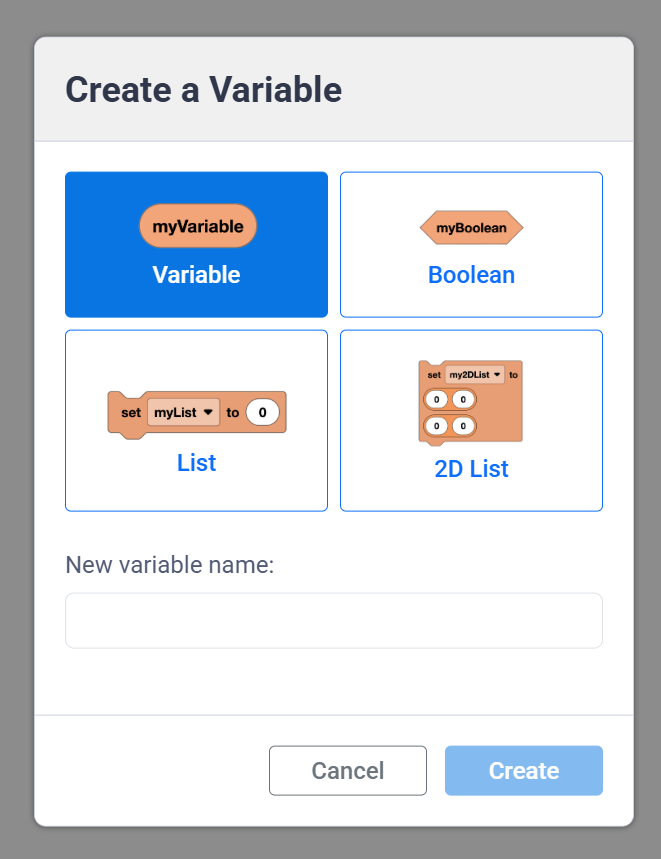
Numeric variables can store text or a number.
(myVariable)
Booleans store true or false values.
<myBoolean>
Lists store a sequence of text and/or numbers.
establecer [myList v] a (0) (0) (0)
2D Lists store a sequence of text and/or numbers, organized into rows and columns. These are useful when you want to store a lot of data at once and keep all the values organized.
establecer [my2DList v] a ([0] [0]) ([0] [0])
Name the Variable#
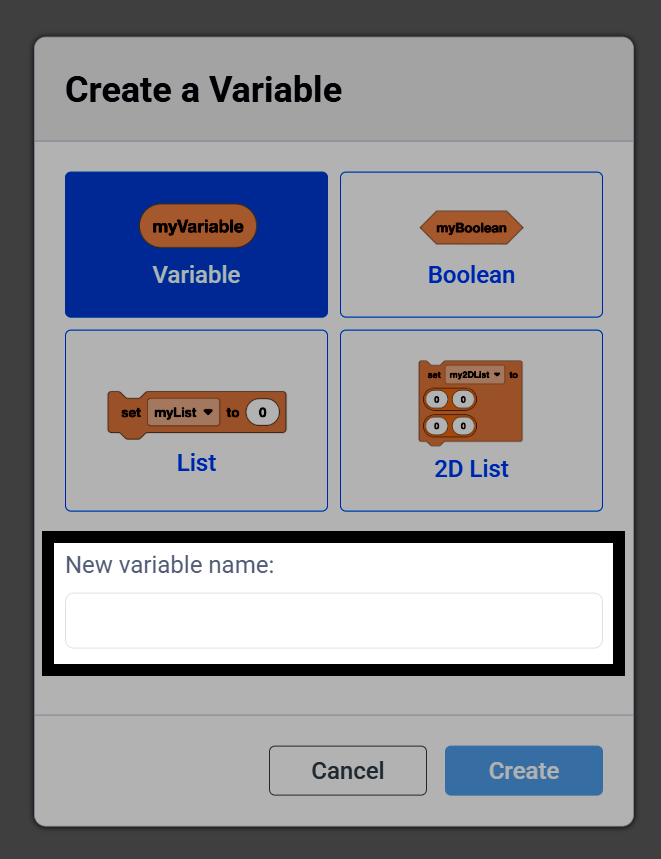
Type a name for your variable.
Create the Variable#
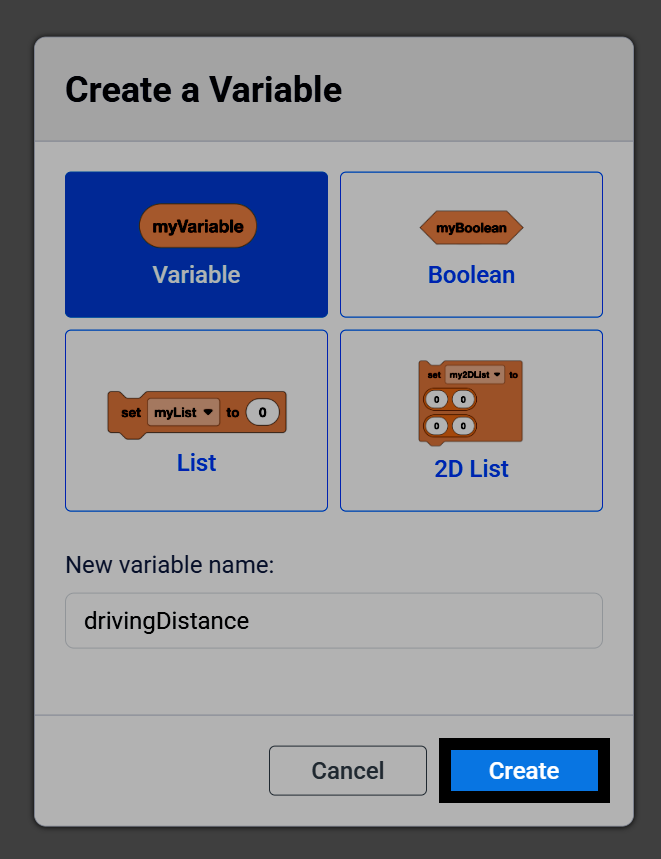
Select Create to add your variable to the toolbox.
Use the Variable#
Along with your variable, there will also be blocks in the toolbox you can use to change its value in the middle of a project. For example, numeric variables include a reporter block, along with the set numeric variable and change numeric variable blocks.
(myVariable)
establecer [myVariable v] a (1)
cambiar [myVariable v] en (1)
Editing a Variable#
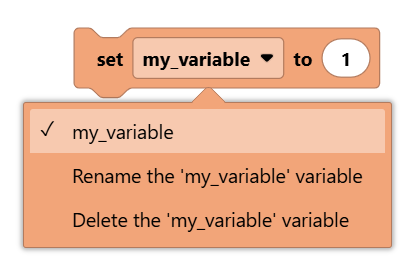
Select a variable block’s dropdown to choose a different variable, or to rename or delete the currently selected variable.
Example#
In this project, pressing the X button on the Controller will add 1 to a variable named count and display it on the Console, while pressing the ▲ button will reset it back to 0.
cuando inicie
establecer [count v] a [0]
por siempre
si <¿[Controller1 v] [X v] presionado?> entonces
[Add 1 to the count.]
cambiar [count v] en (1)
imprimir (count) en consola ◀ y mover cursor a la siguiente fila
si no, si <¿[Controller1 v] [▲ v] presionado?> entonces
[Reset the count back to 0.]
establecer [count v] a [0]
imprimir (count) en consola ◀ y mover cursor a la siguiente fila
fin
fin