Opening a Project#
Open the File Menu#
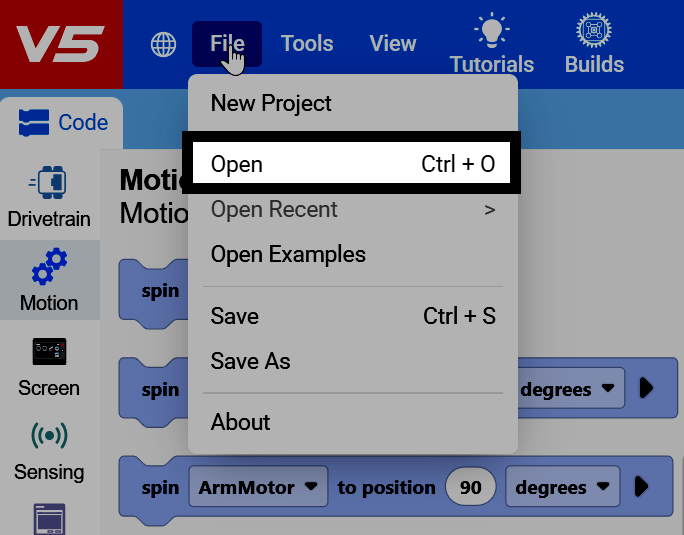
Select File in the top-left of VEXcode to open the File menu. Then, select Open.
Select the Project File#
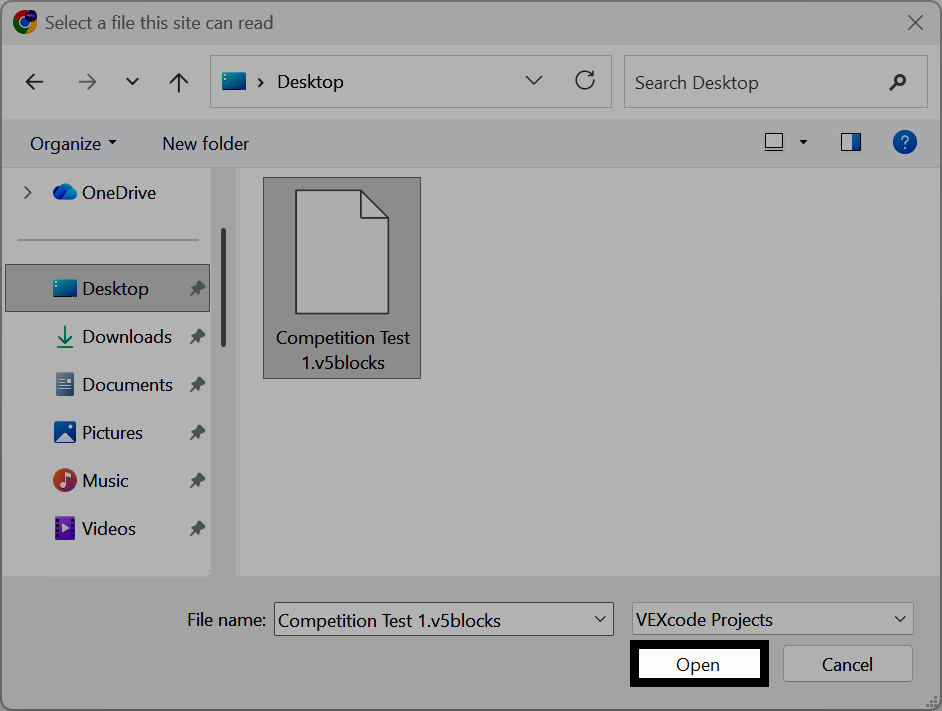
This will open a dialog box for your device. Navigate to and select the project file that you want to open. A Windows computer is used here as an example.
View the Opened Project#
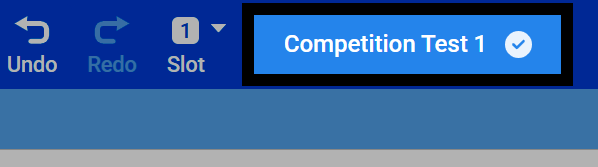
The project name at the top of VEXcode will change to show the name of the file you just opened. VEXcode will now start auto-saving your project.