Art Canvas+#

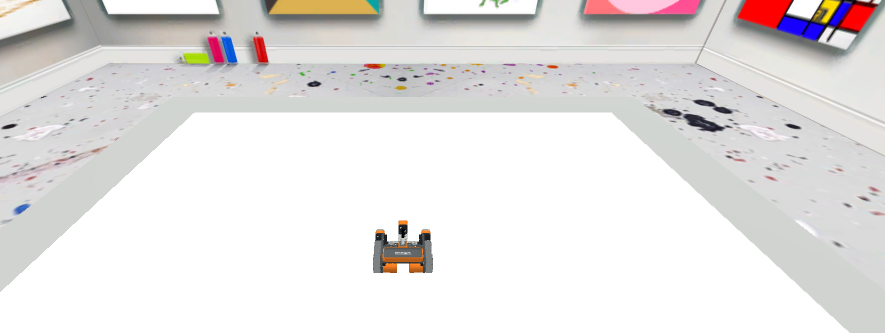
Art Canvas+ uses the same Playground size as Art Canvas, with a starting position of (0, 0).

The VEXcode VR Playground window showing the Art Canvas+ Playground. It shows the VR Robot on top of a blank canvas in an art gallery environment.

Robot Overview#

Art Canvas+ uses the Standard VR Robot.

Additional Functionality#

Art Canvas+ provides tools for creating and sharing complex artwork. Access them using the icon menu in the bottom left of the Playground window.

Upload Images#

Use the Upload button to set a custom background image, letting you trace, color, or build on top of your own designs.

Note: Images must be in .png format and under 1 MB.

The Art Canvas+ Playground Upload button, showing a mouse cursor hovering over an art easel with a plus sign.

Save Playground Image#

In addition to the standard screenshot feature available on Enhanced Playgrounds, Art Canvas+ lets you download your current drawing directly using the Download Canvas button.

The Art Canvas+ Playground Download Canvas button showing an art easel with an arrow pointing downward.

Clear the Playground#

Press the Clear button to reset the Playground to a blank white canvas at any time.

The Art Canvas+ Playground Clear button showing a trash can icon.