设备设置:电机#
Add a Motor#
Open the Devices Tab#
Select the Devices tab.
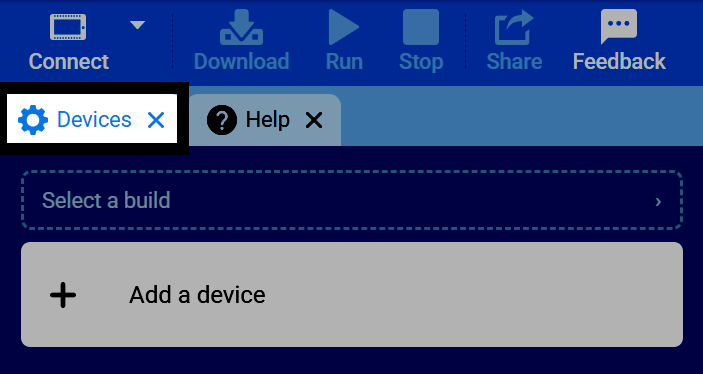
If the Devices tab is not visible, see Add a Tab in the Navigating VEXcode tutorial.
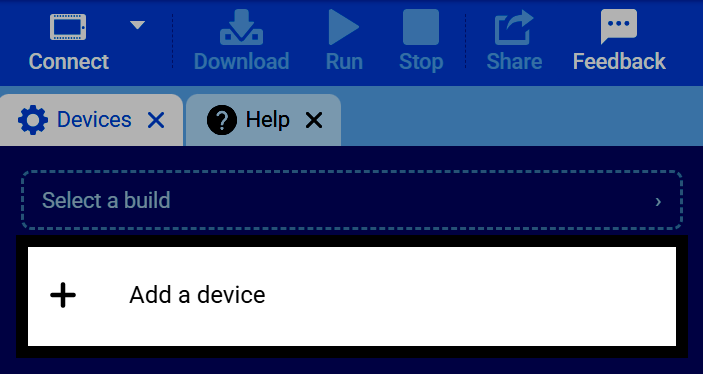
Select ‘Add a Device’#
Select Add a Device in the Devices tab.
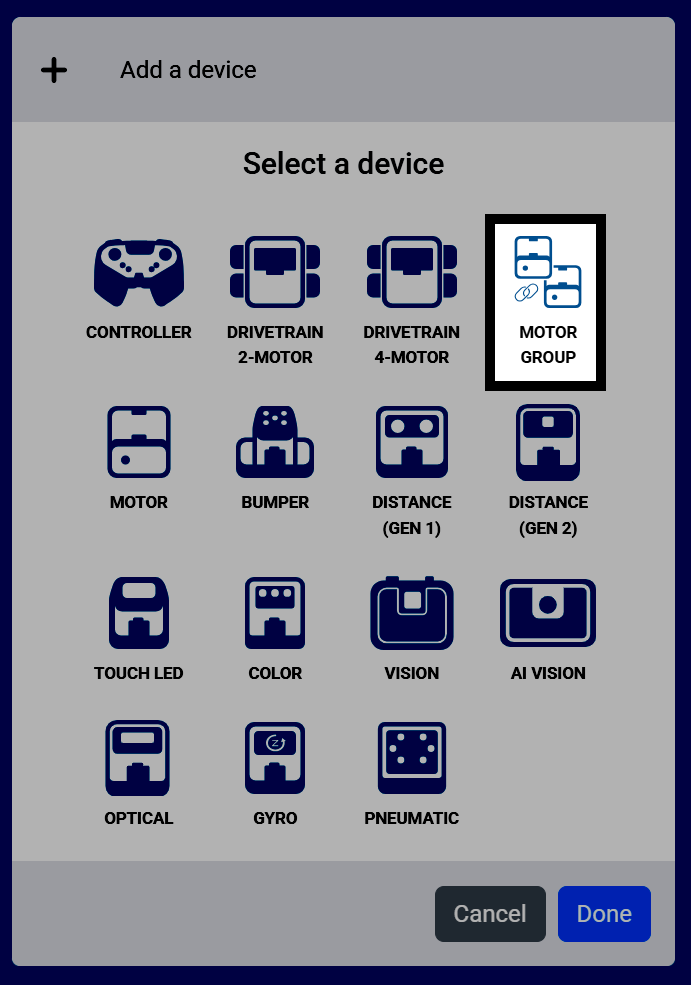
Select Motor#
Select Motor if your robot uses a single motor for this part of the robot.
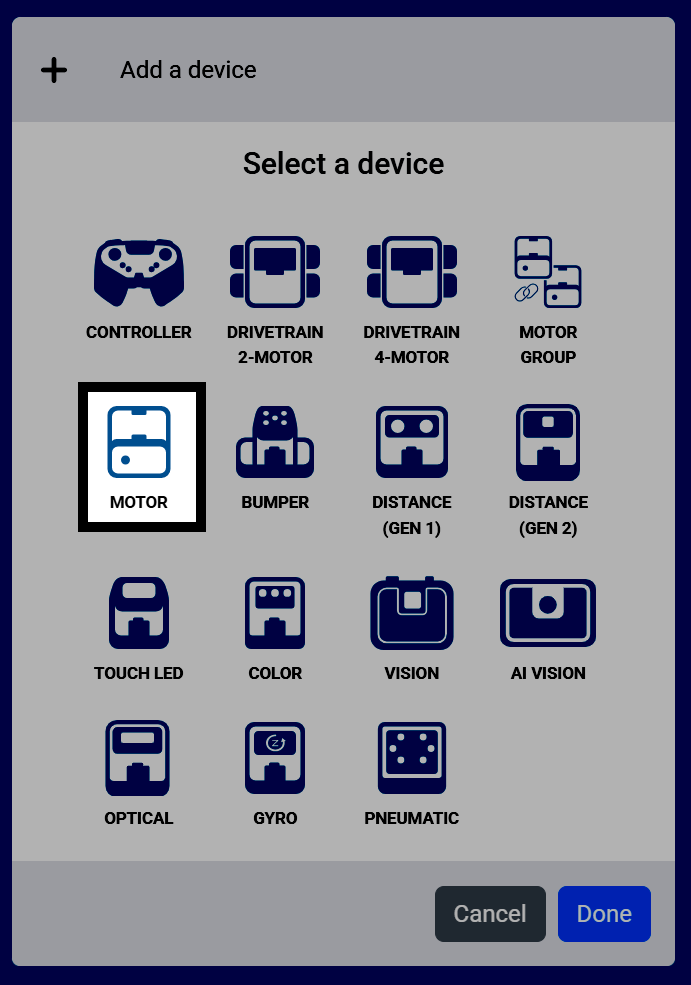
Select Motor Group#
If your robot uses multiple motors that all work together at the same time to move a part of the robot, select Motor Group instead.
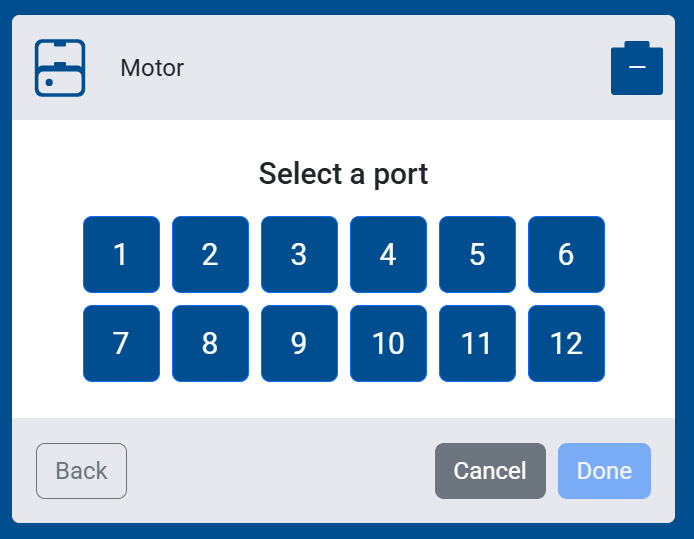
Select the Port#
Select the port that your motor, or motors, are connected to.
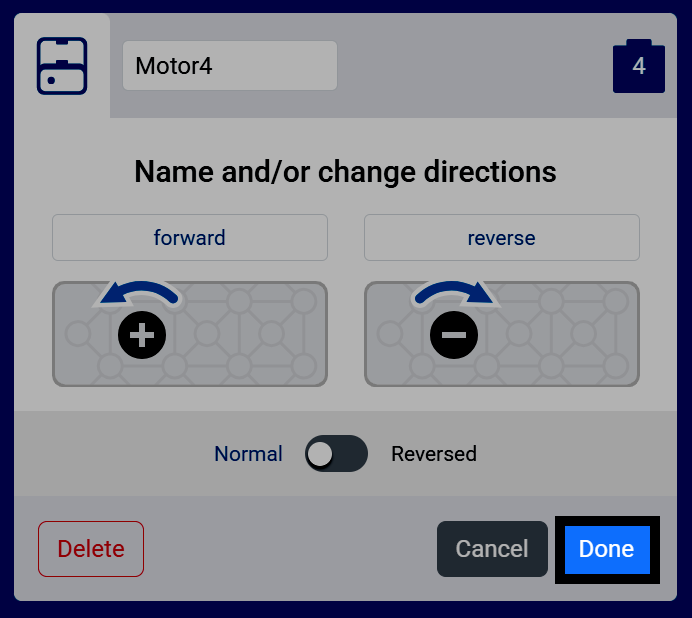
Select the Direction#
Select whether to have the forward direction of the motor rotate the motor clockwise or counterclockwise. Then select Done to add the motor to your robot.
View the Motor in Your Devices List#
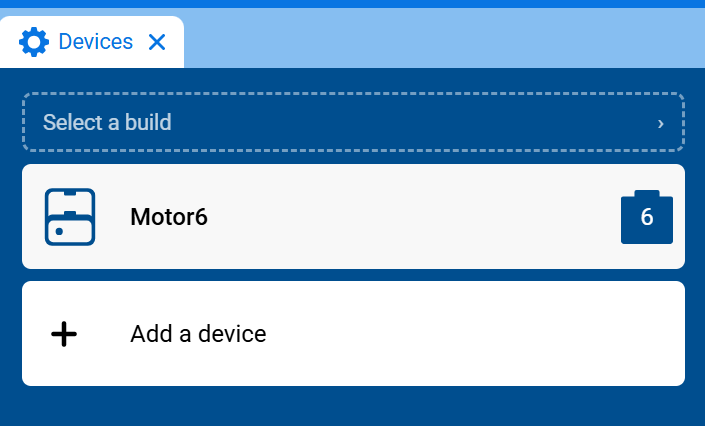
The Motor or Motor Group will now appear in your list of devices, and its blocks will be added to your toolbox.