Using Flight School#
The VEX AIR Flight Simulator lets users practice piloting skills with a virtual VEX AIR Drone and physical VEX AIR Drone Controller. Flight School adds mission challenges, real-time feedback, and shareable badges for measurable progress.
Opening a Flight School Mission#
Each mission from the Virtual Flight Course is included in Flight School. You must be connected to VEXcode AIR and have the Simulator tab open to access Flight School. View this tutorial to learn more about connecting to the VEX AIR Flight Simulator.
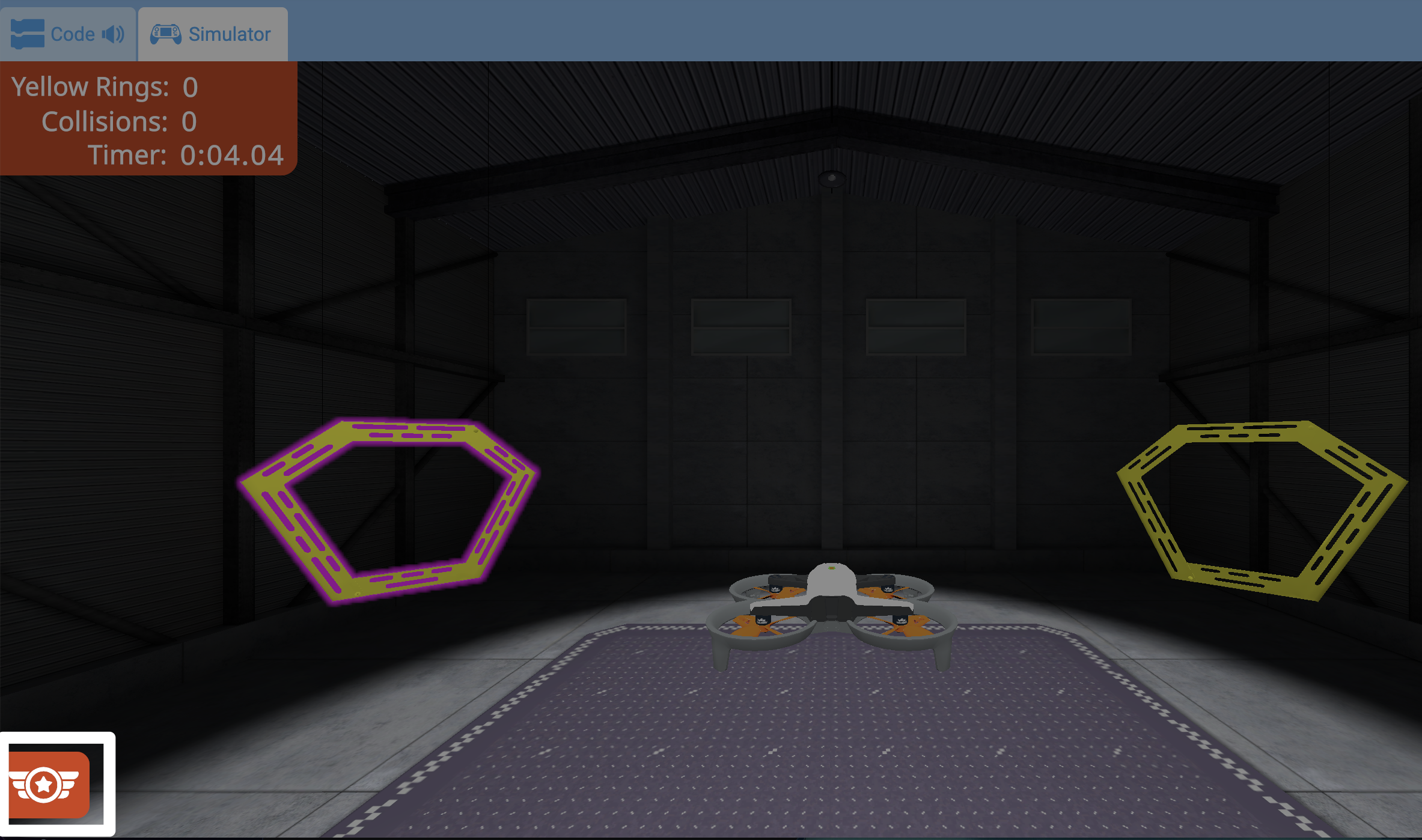
To open Flight School, select the Flight School button in the lower left corner of the simulator.
This can be selected at any time to open the Flight School Missions menu.
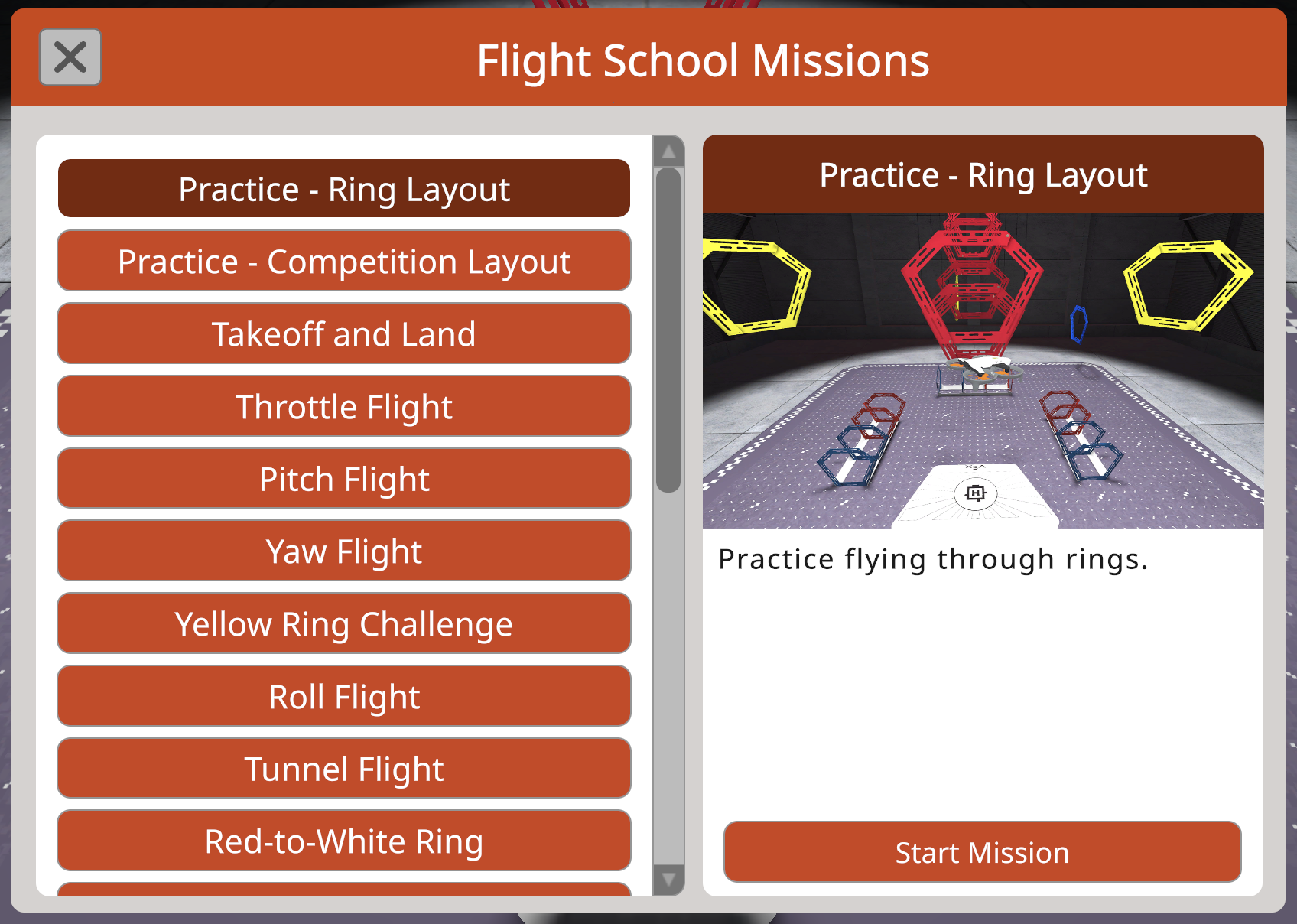
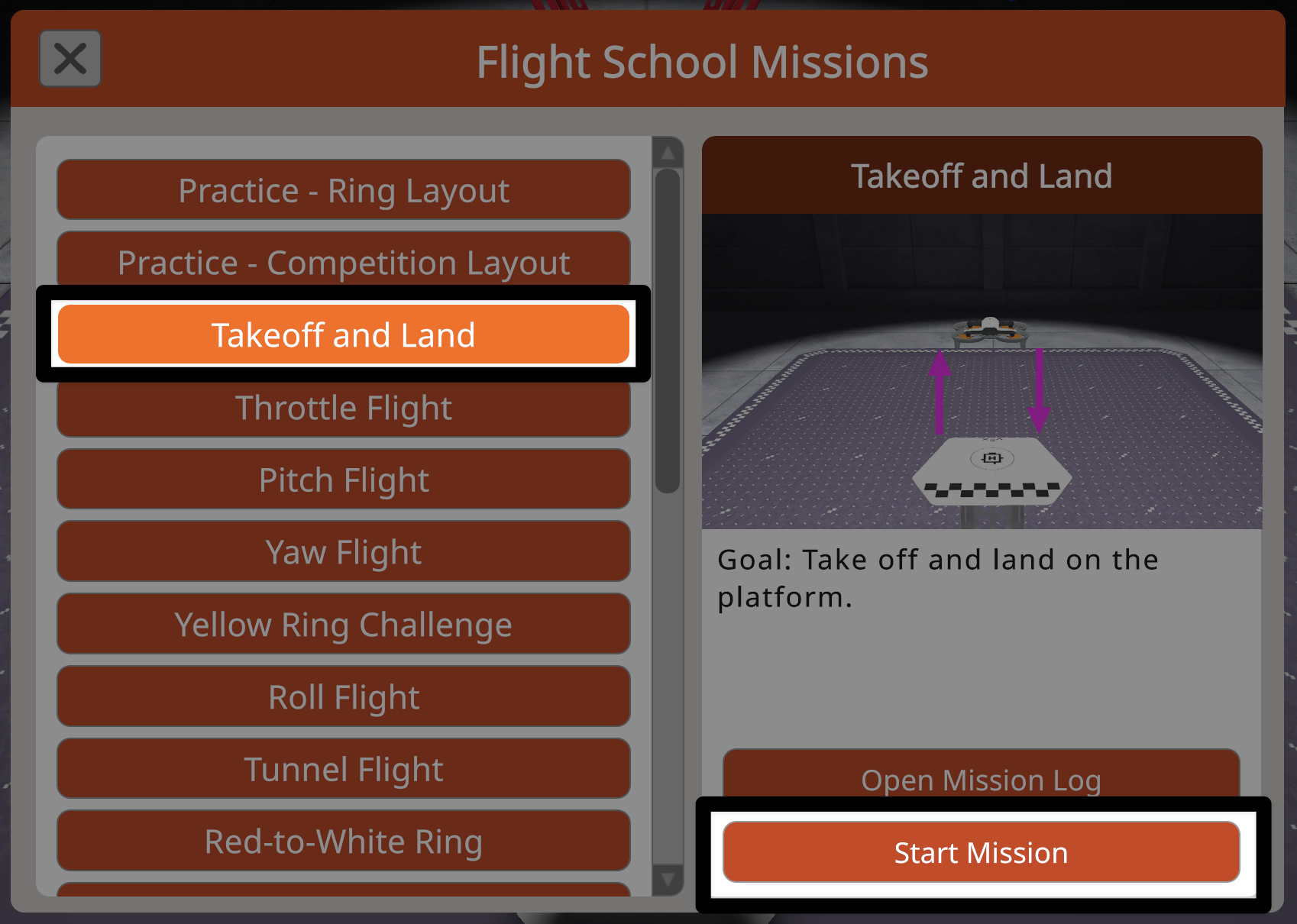
The Flight School Missions menu displays a scrollable list of available missions and practice layouts on the left.
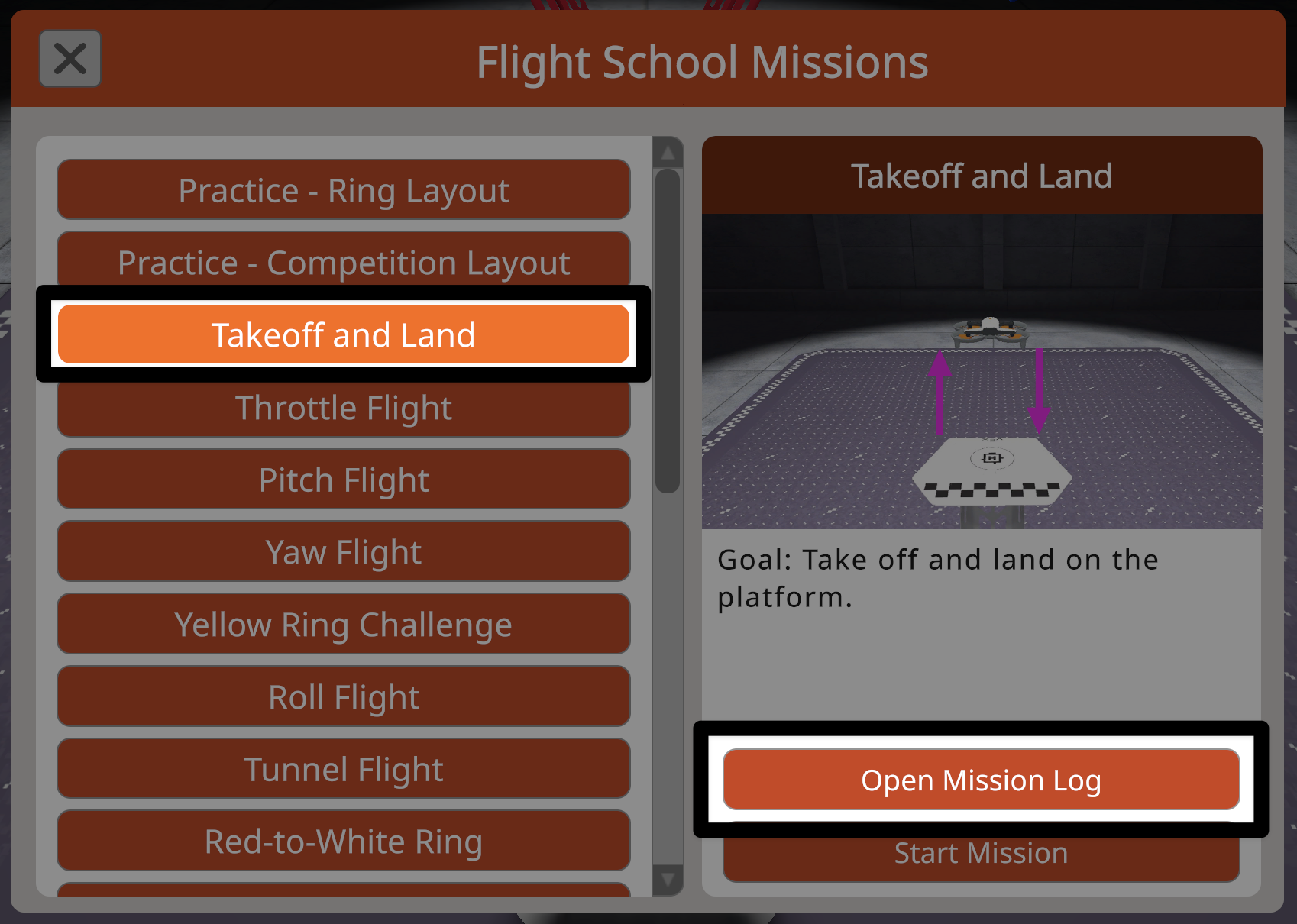
Select a mission to view a summary of the mission along with a link to the Mission Log from the Virtual Flight Course on the right-hand side of the menu.
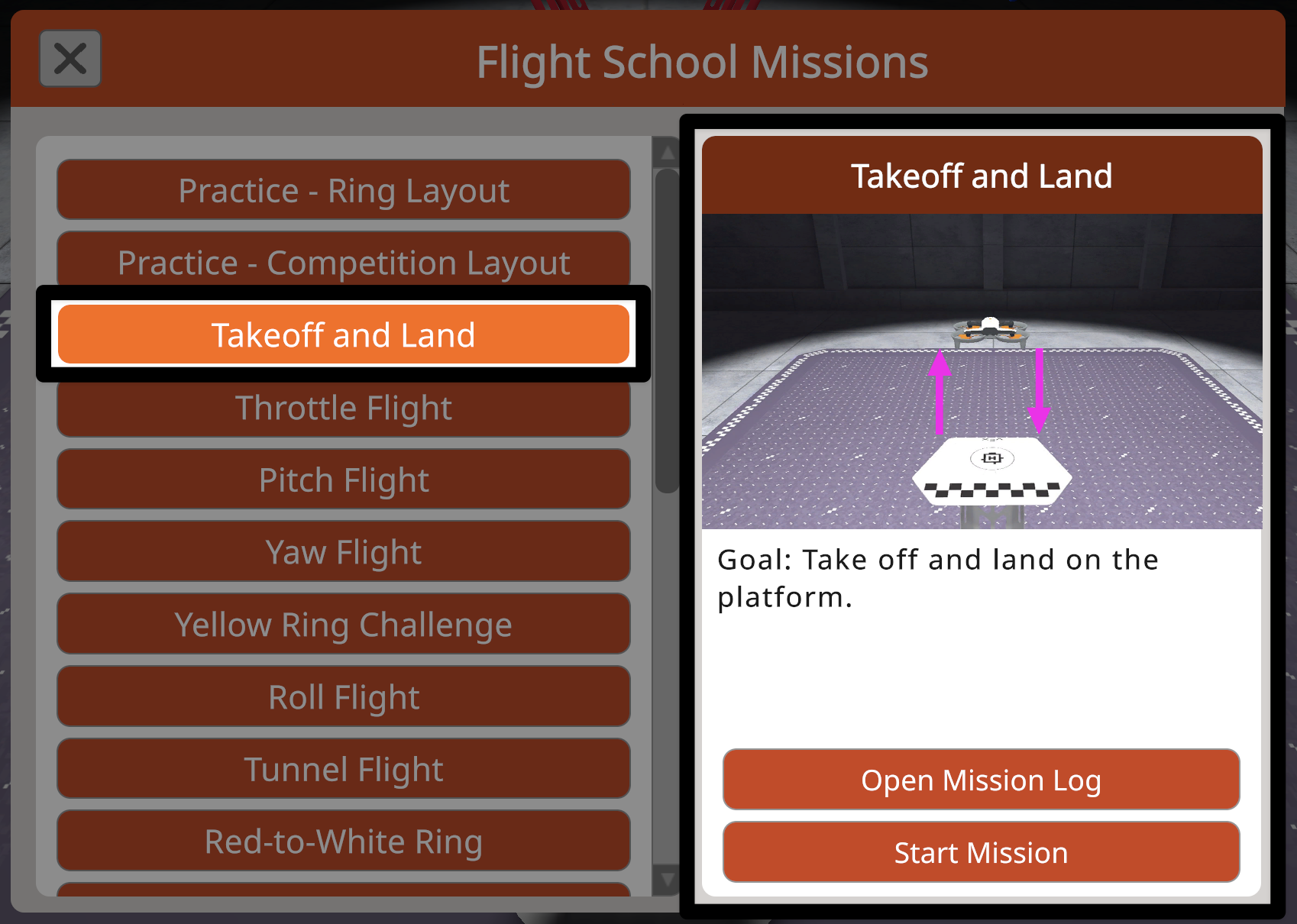
Select the Start Mission button to begin the mission in Flight School.
Flying a Mission#
Each mission in Flight School is designed to support focus on the mission objectives and includes progress monitoring features.
In certain missions, only the elements on the field that pertain to the selected mission will appear. This helps to simplify the layout and keep the focus on the mission objectives.
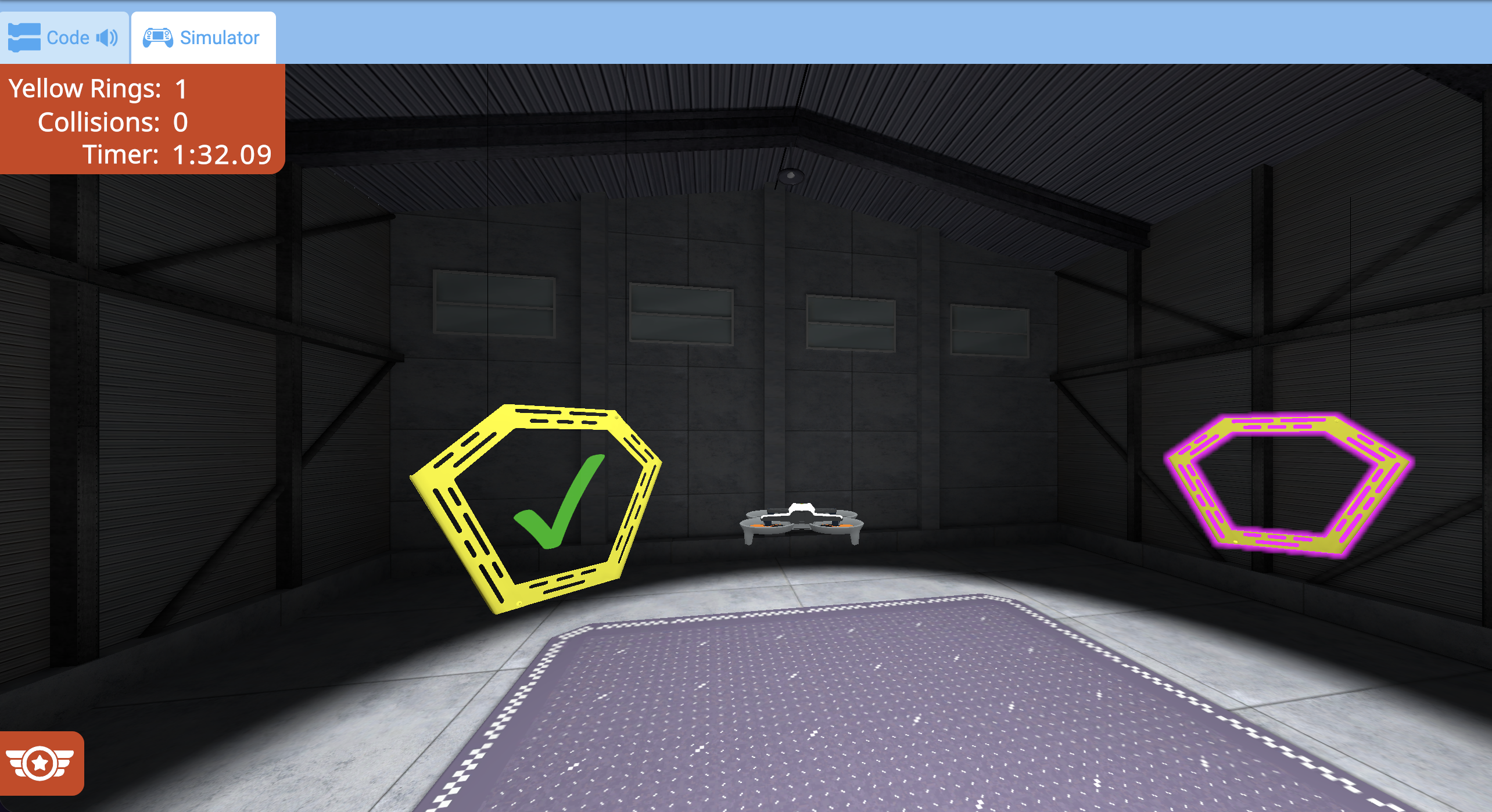
In missions with a prescribed flight path, the first ring in that path will be highlighted upon starting.
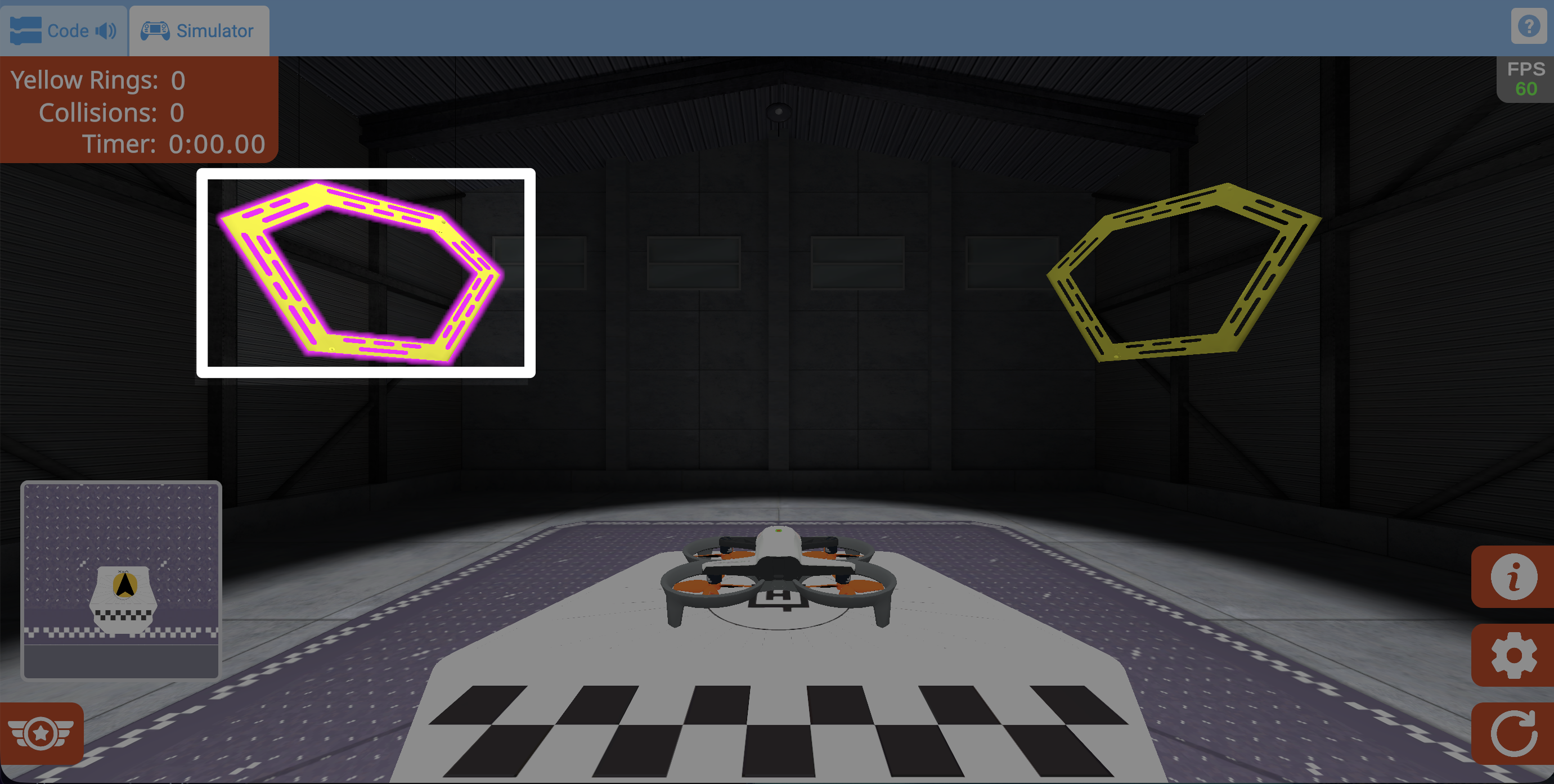
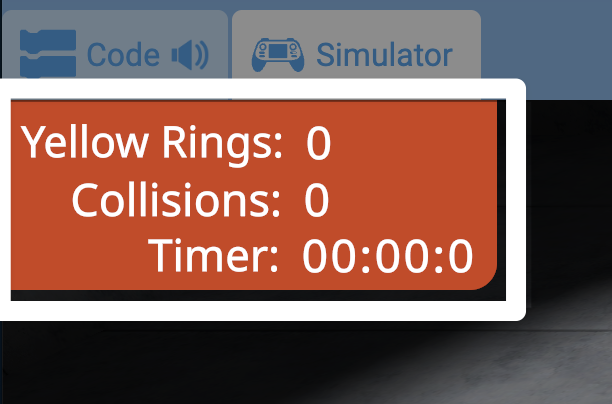
The metrics in the upper left corner show the elapsed time and additional mission-specific criteria.
Once a mission objective is completed, a check mark will appear and the metrics in the upper left corner will update.
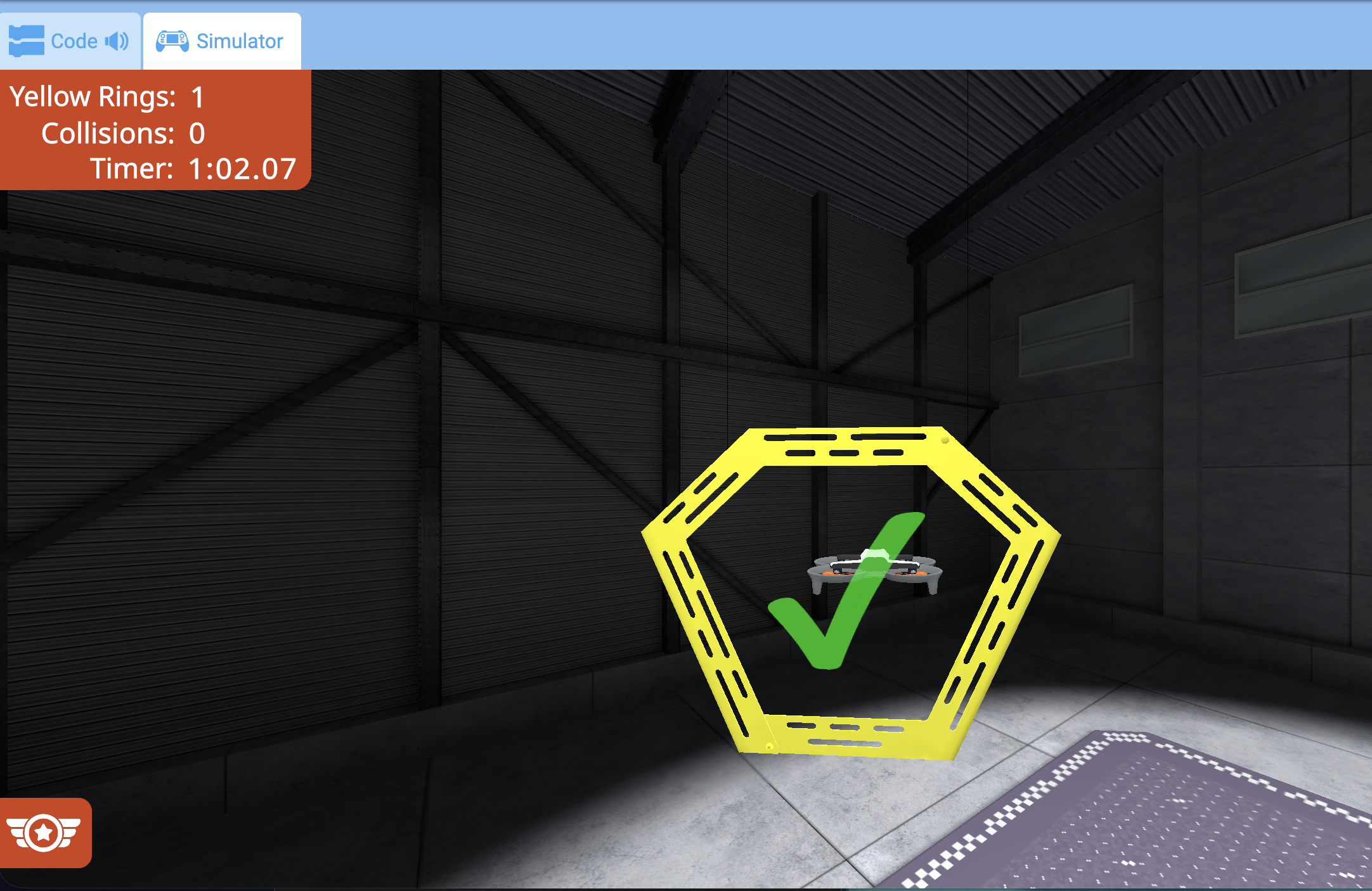
In missions with path highlighting, the next step of the flight path will then be highlighted, showing where to fly next.
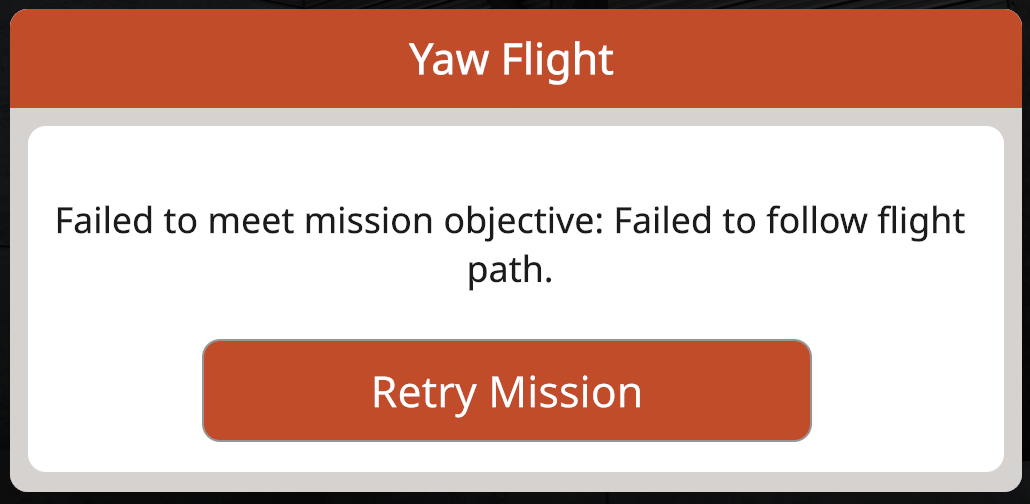
If at any point the drone fails to complete the mission objectives, the mission will end, and a fail state message will appear.
Select the Retry Mission button to restart the mission and try again.
Mini-Map Feature#
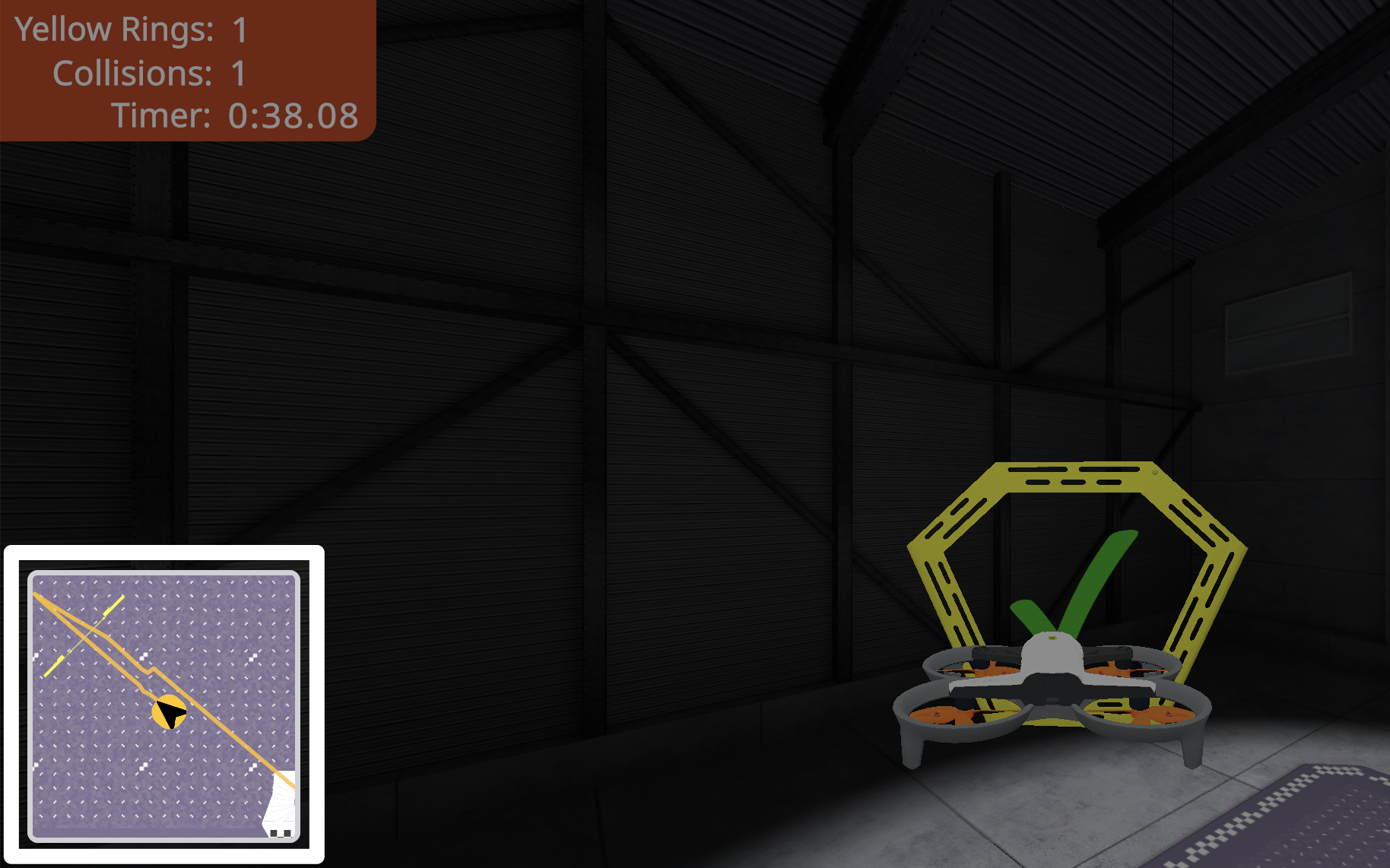
The mini-map in the lower left corner of the simulator shows the drone’s path in a top-down view of the field as you fly.
A line tracing the drone’s path in real-time appears on the mini-map to help keep track of the flight path.
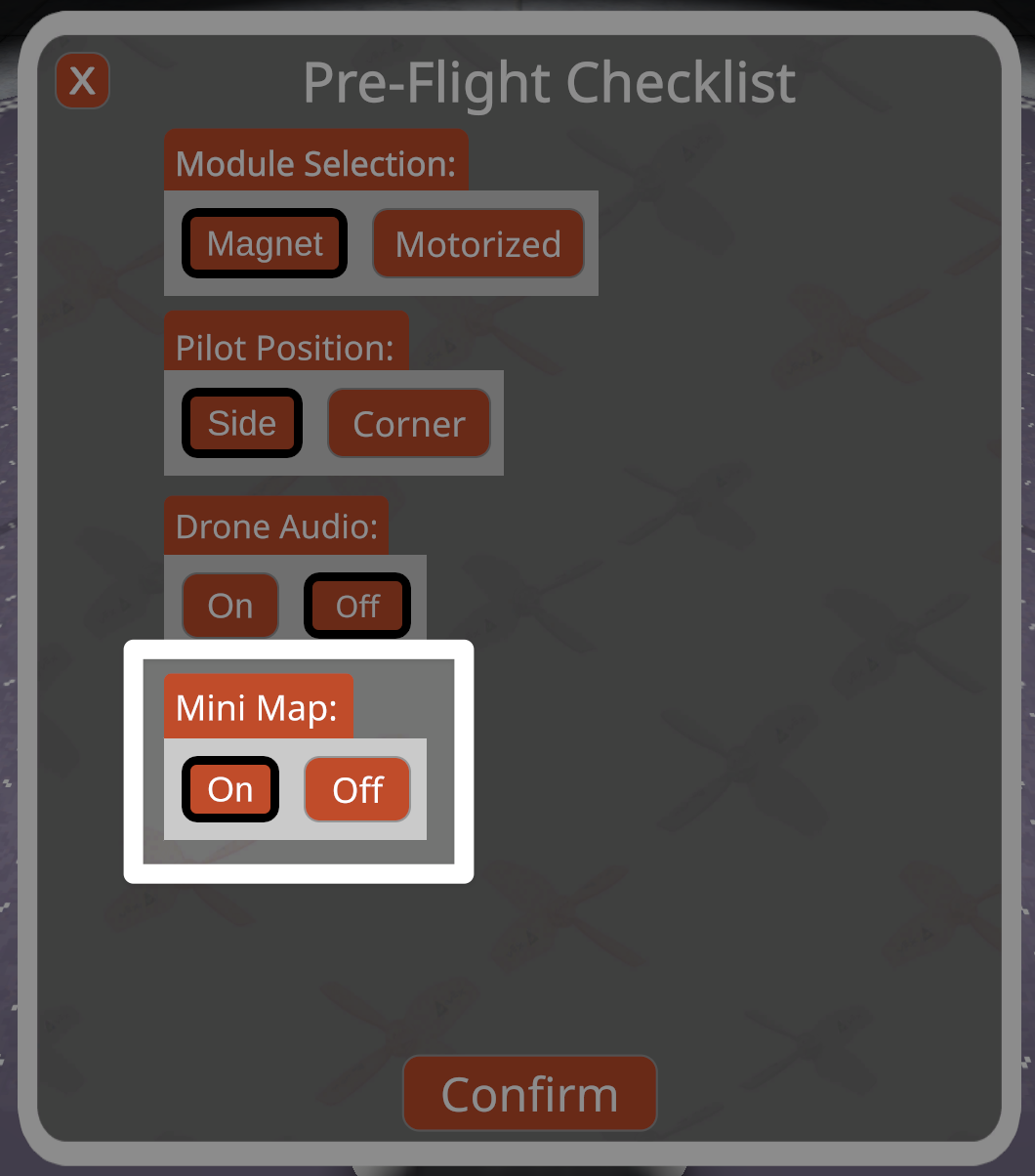
The mini-map can be turned off in the Pre-Flight Checklist at any time. View this tutorial to learn more about accessing the Pre-Flight Checklist in the VEX AIR Flight Simulator.
Earning Flight School Badges#
Upon a successful mission completion, a customized badge will be awarded.
Badge Levels#
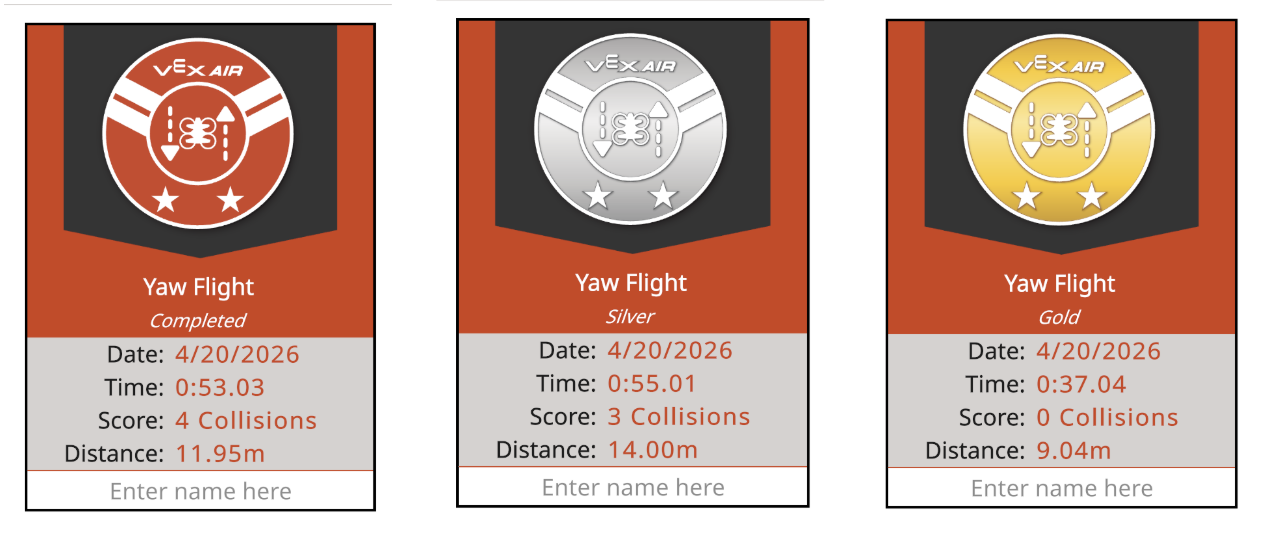
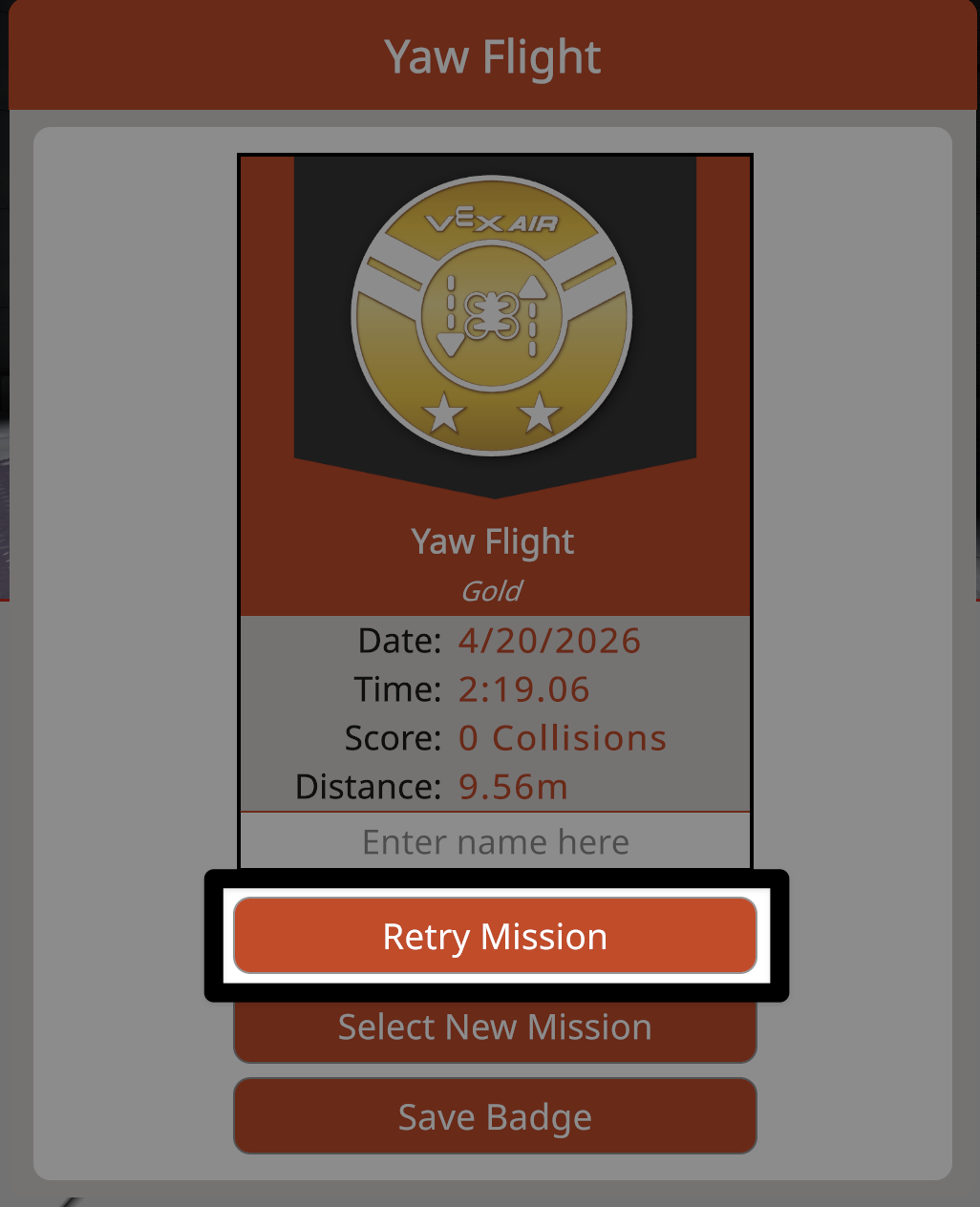
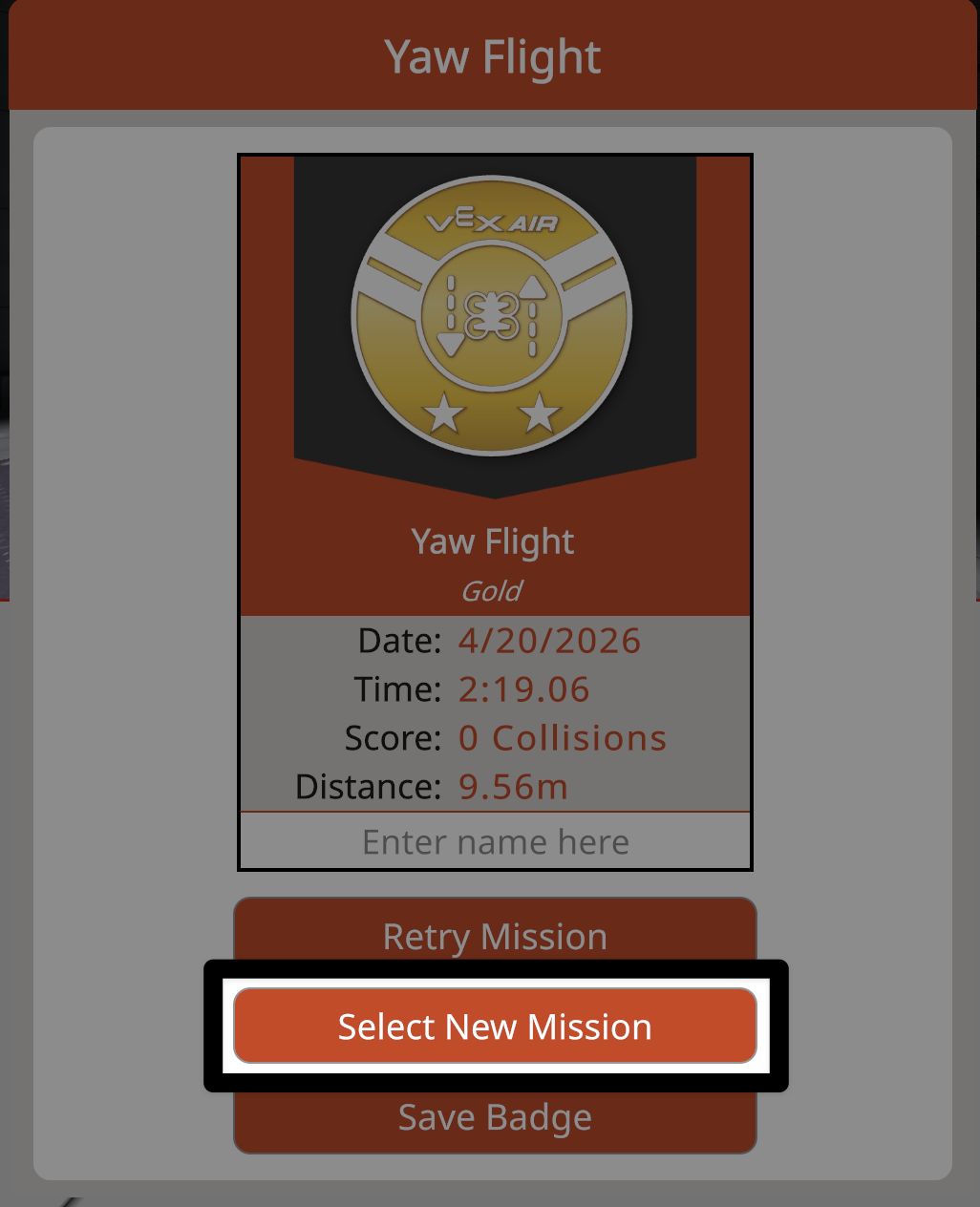
Each badge shows the level of completion, as well as the individual mission data of date, time, scoring metric, and the distance flown. Users can also enter their name to further personalize their badge.
The mission metrics determine which badge is awarded:
Completed (orange) - indicates that mission objectives were accomplished.
Silver - indicates mission objectives were completed with fewer collisions or in less time.
Gold - indicates optimal mission completion.
Select the Open Mission Log button for any mission in the Flight School Missions menu to view a PDF of the Mission Log and review badge criteria.
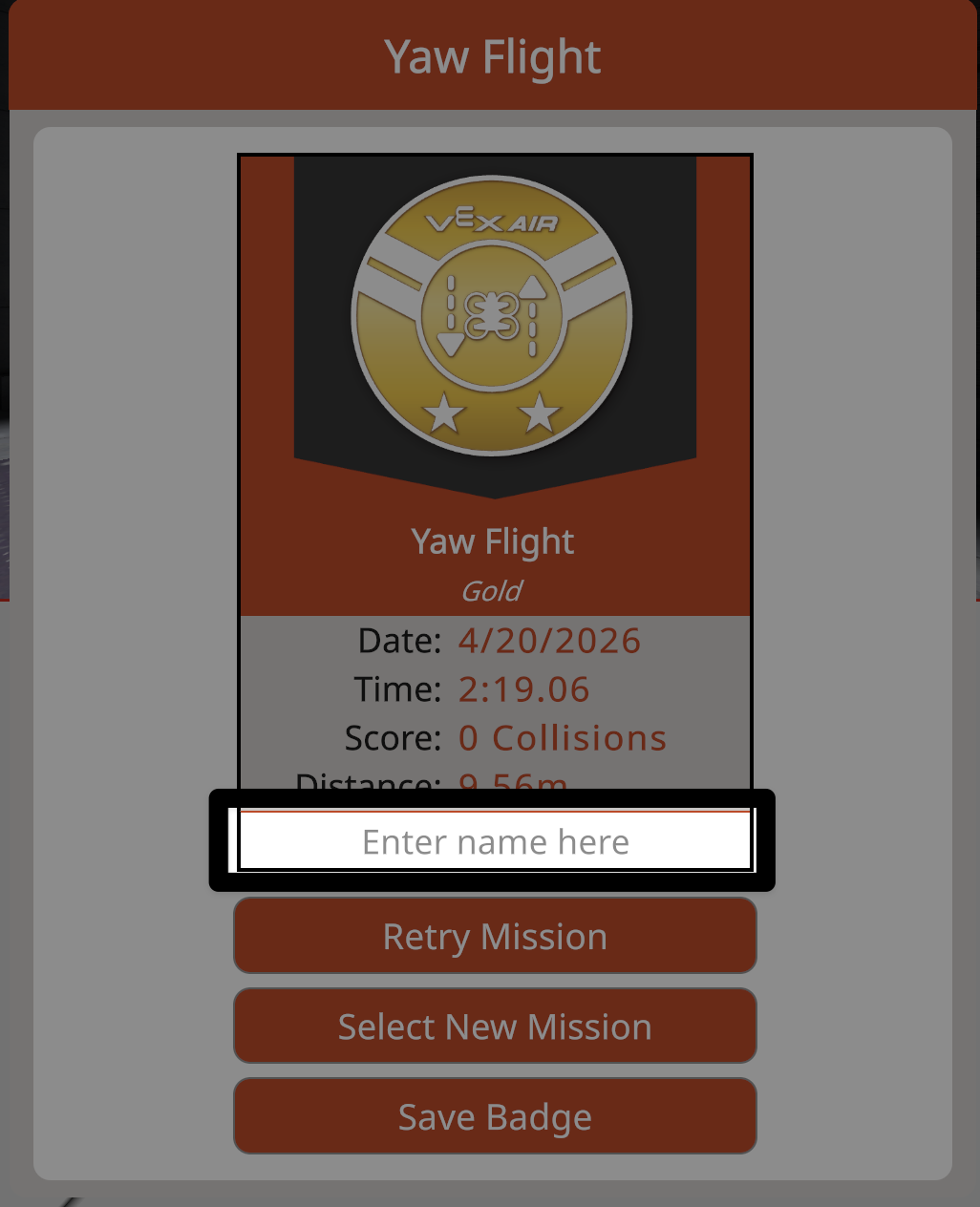
Personalizing a Badge#
Select the text box to enter a name to further personalize a badge.
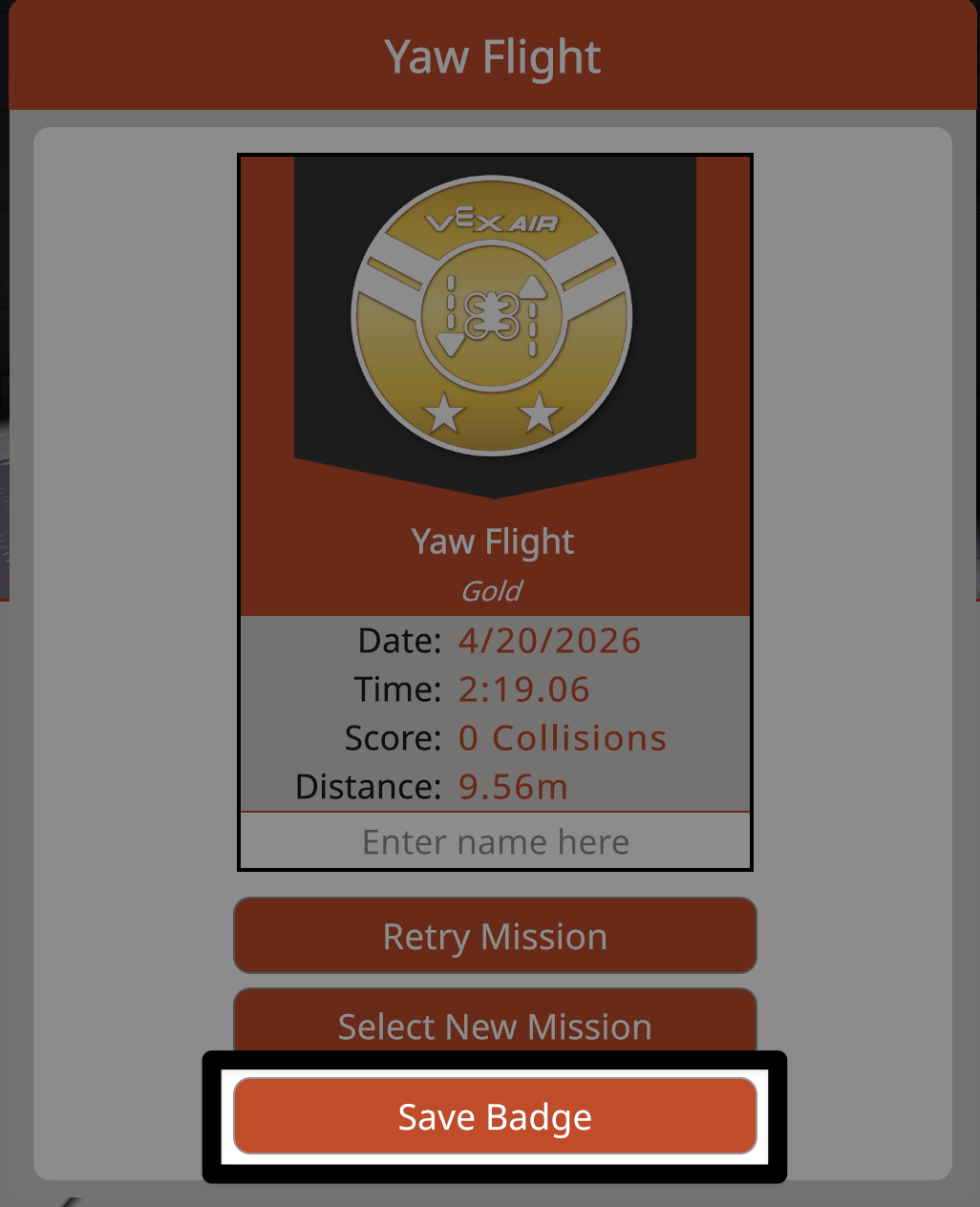
Select the Save Badge button to save a PDF of the badge to your device. Once saved, badges can be shared electronically or physically by printing.
Note: Badge information is erased once the window is closed. All badges must be saved in order to view specific flight data at a later time.
Leaving the Badge Window#
Select the Retry Mission button to try the same mission again and earn an additional badge.
Select the Select New Mission button to return to the Flight School Missions menu and fly a different mission.
Closing Flight School#
You can return to a practice layout in the simulator or close the Flight School Mission menu at any time.
Returning to Practice#
Select the Flight School button at any time to return to the Flight School menu.
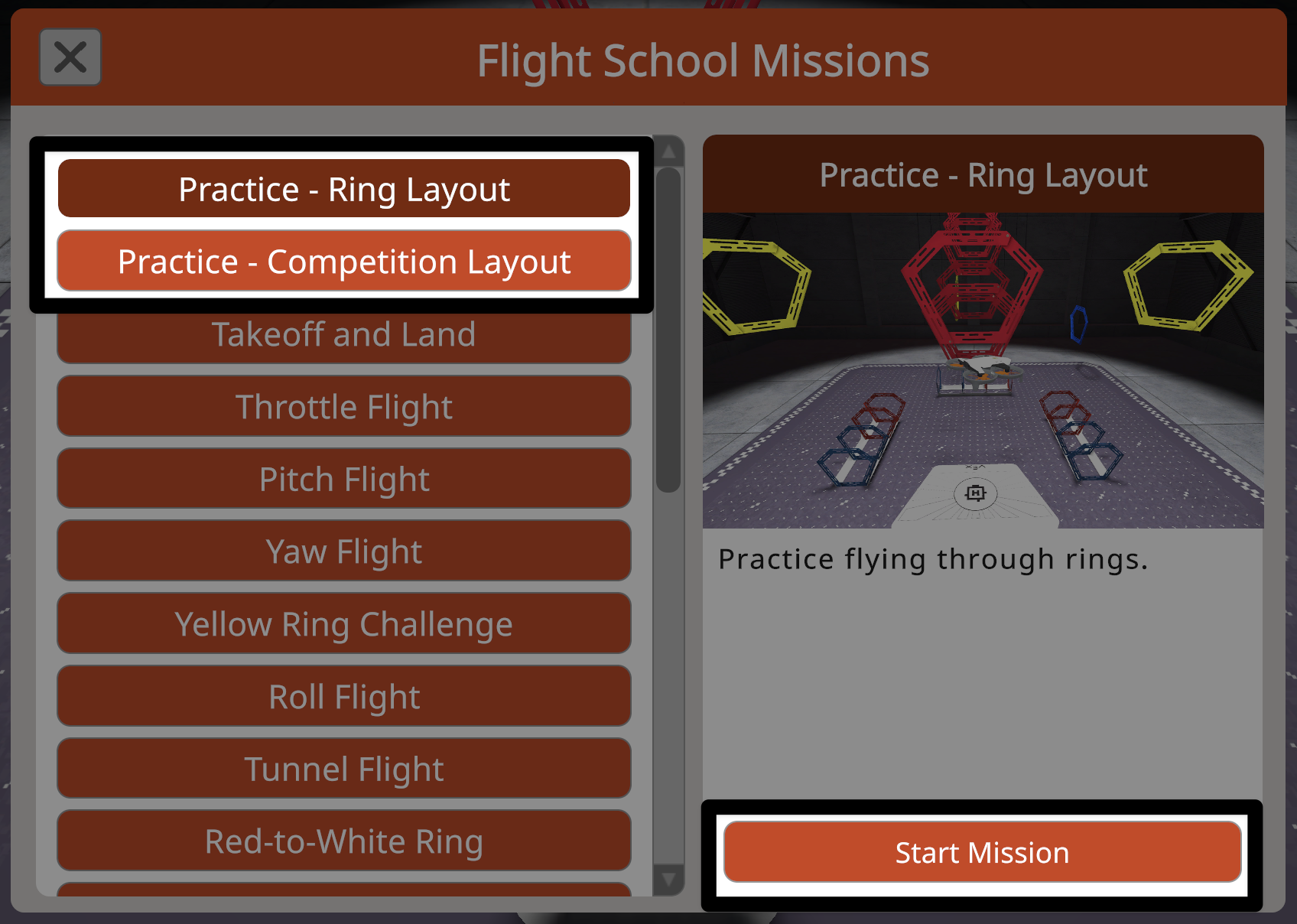
Practice Layouts are always available at the top of the Flight School Missions menu.
Select the Practice Layout you wish to return to, then select the Start Mission button to leave Flight School and continue practicing.
Closing the Flight School Mission Menu#
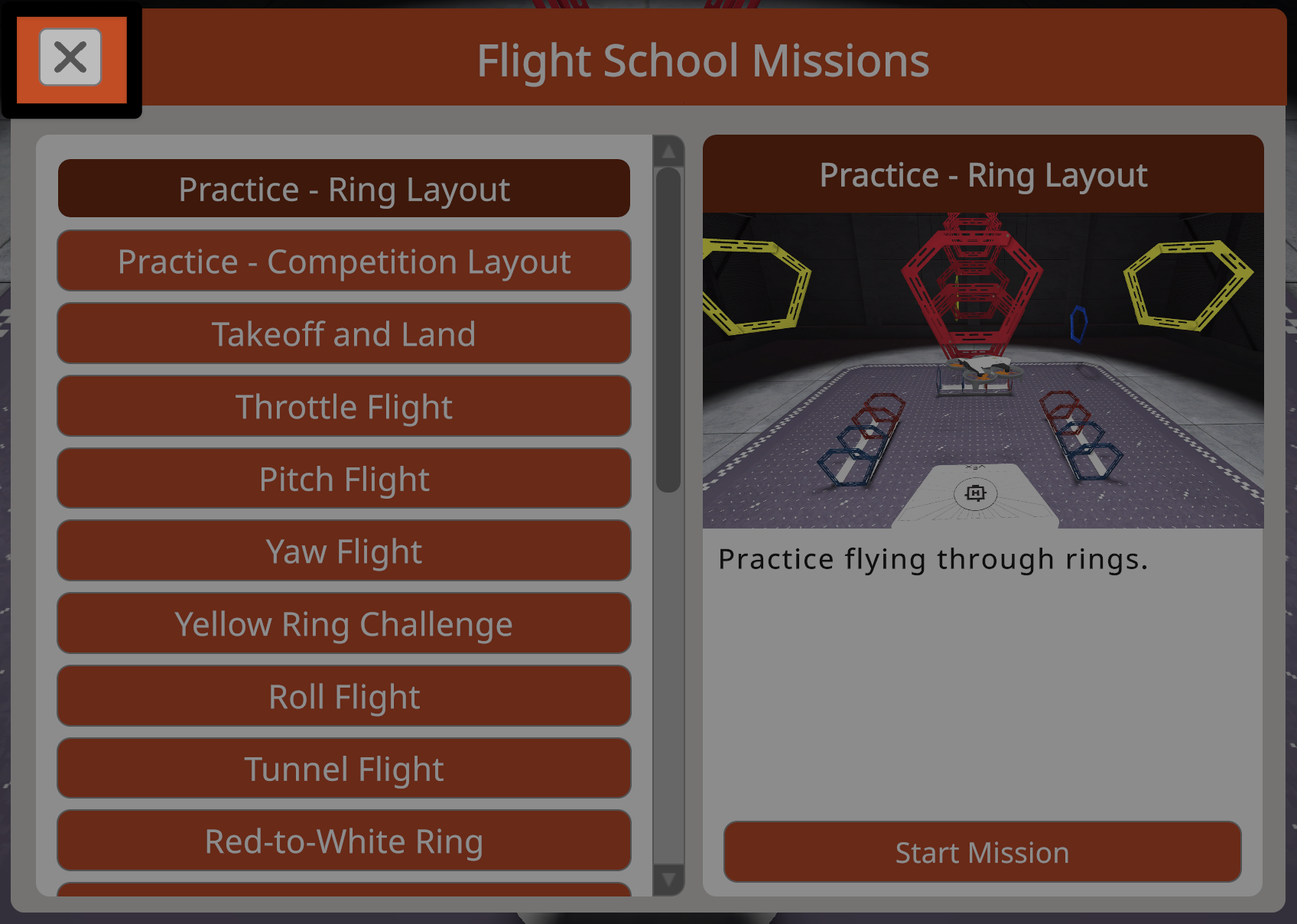
Select the X button in the upper left corner of the Flight School Mission menu to close the menu, and return to the previous screen.