
AIビジョン#
導入#
VEX AIMコーディングロボットのAIビジョンセンサーは、物体、色、およびAprilTag IDを検出して追跡します。これにより、ロボットは周囲の状況を分析し、物体を追跡し、検出された視覚データに基づいて反応することができます。
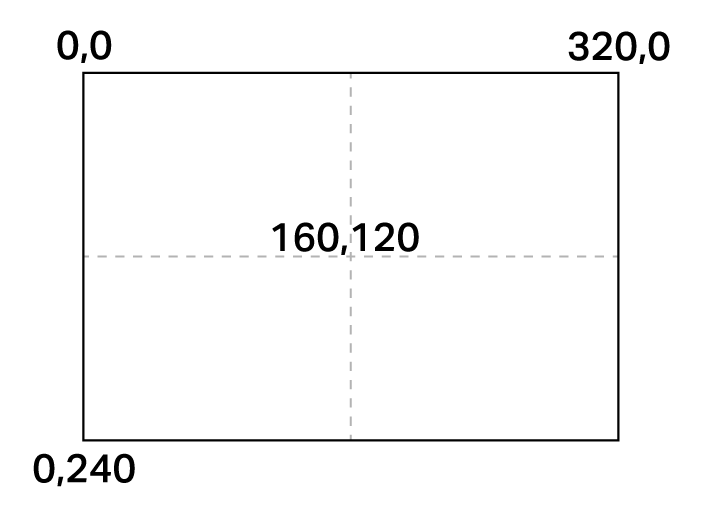
AIビジョンセンサーの解像度は320×240ピクセルです。原点(0, 0)は左上隅に位置し、センサーの中心は(160, 120)に配置されます。下の図を参照してください。
以下に、すべてのメソッドとプロパティの一覧を示します。
操作 — AI Visionカメラの映像を表示または非表示にします。
show_aivision— ロボットの画面にAI Visionフィードを表示します。hide_aivision— AI Vision フィードを画面から非表示にします。tag_detection— AprilTag ID の検出をオンまたはオフにします。
ゲッター — ロボットが物体を保持しているかどうかを検出します。
get_data— 特定のシグネチャに対して検出されたオブジェクトのタプルを返します。has_sports_ball— ロボットがスポーツボールを持っているかどうかを返します。has_any_barrel— ロボットが何らかの種類の樽を持っているかどうかを返します。has_blue_barrel— ロボットが青いバレルを持っているかどうかを返します。has_orange_barrel— ロボットがオレンジ色の樽を持っているかどうかを返します。
プロパティ — get_data から返されるオブジェクトデータ。
exists— オブジェクトが現在の検出に存在するかどうかをブール値で表します。width— 検出されたオブジェクトの幅。height— 検出されたオブジェクトの高さ。centerX— オブジェクトの中心の X 座標。centerY— オブジェクトの中心の Y 座標。bearing— ロボットの前面に対する水平角度。rotation— オブジェクトの向き。originX— オブジェクトの左上隅の X 座標。originY— オブジェクトの左上隅の Y 座標。id— オブジェクトの分類またはタグ ID。score— AI 分類の信頼度スコア。type— オブジェクトのタイプ (AI、タグ、カラー、またはコード) を返します。
コンストラクタ — 色のシグネチャとコードを定義します。
カラーシグネチャの作成 — RGBと色相/彩度範囲に基づいて新しいカラーシグネチャを作成します。
カラーコードの作成 — 複数のカラーシグネチャを1つのカラーコードに組み合わせます。
行動#
show_aivision#
show_aivision は、AIビジョンセンサーのリアルタイムデータフィードをロボットの画面に表示します。リアルタイムデータフィードは、画面上の他の画像やテキストを覆い隠します。
注: hide_aivision を使用してフィードを非表示にしない限り、画面には他の画像やテキストは表示されません。
Usage:
robot.screen.show_aivision()
パラメータ |
説明 |
|---|---|
このメソッドにはパラメータがありません。 |
# Watch the AI Vision Sensor detect AI Classifications
# and AprilTag IDs as you move the robot
robot.screen.show_aivision()
hide_aivision#
hide_aivision は、ロボットの画面から AI ビジョンセンサーのライブデータフィードを削除します。
Usage:
robot.screen.hide_aivision()
パラメータ |
説明 |
|---|---|
このメソッドにはパラメータがありません。 |
# View the AI Vision Sensor's feed for five seconds
robot.screen.show_aivision()
wait(5, SECONDS)
robot.screen.hide_aivision()
tag_detection#
tag_detection は AprilTag ID の検出を有効または無効にします。状態はブール値です。
このセンサーは、Circle21h7ファミリーのAprilTag ID 0~36を検出できます。
Usage:
robot.vision.tag_detection(state)
パラメータ |
説明 |
|---|---|
|
値は、 |
robot.screen.set_font(PROP30)

# Cut off AprilTag ID detection after 5 seconds
while True:
    if timer.time(SECONDS) > 5:
        robot.vision.tag_detection(False)

    robot.screen.clear_screen()
    robot.screen.set_cursor(3, 1)
    apriltags = robot.vision.get_data(ALL_TAGS)

    if apriltags[0].exists:
        robot.screen.print("AprilTag ID detected!")
    else:
        robot.screen.print("Nothing detected!")

    wait(0.1, SECONDS)
ゲッター#
get_data#
get_data は、AI Vision Sensor フレームからデータをフィルタリングして、単一のシグネチャ (センサーが認識できるものの保存された説明。事前学習済みのオブジェクト、AprilTag ID、構成済みのカラーシグネチャまたはカラーコードなど) を取得し、タプル を返します。
この方法で使用する前に、AI Vision Utilityでカラーシグネチャとカラーコードを最初に設定する必要があります。
タプルは、インデックス0から始まる幅の大きい順から小さい順にオブジェクトを格納します。各オブジェクトのプロパティには、そのインデックスを使用してアクセスできます。一致するオブジェクトが検出されない場合は、空のタプルが返されます。
Usage:
robot.vision.get_data(signature, count)
パラメータ |
説明 |
|---|---|
|
Filters the dataset to only include data of the given signature. Available signatures are:
|
|
オプション。返されるオブジェクトの最大数を1~24の間で設定します(デフォルト:8)。 |
注: AprilTag ID 5~37は、AIM Printablesから印刷されたAprilTag IDを使用することで取得できます。
# Move forward if a sports ball is detected
while True:
    ball = robot.vision.get_data(SPORTS_BALL)
    if ball[0].exists:
        robot.move_for(10, 0)
    wait(50, MSEC)
注: 返されたタプルは、Python の sorted を使用して、幅だけでなく任意の プロパティ でソートできます。たとえば、AprilTag ID でソートする場合:
# Print each detected AprilTag ID in ascending order by ID
while True:
    apriltags = sorted(robot.vision.get_data(ALL_TAGS), key=id)
    for tag in apriltags:
        print(tag.id)
    wait(1, SECONDS)
または、高さ順に並べ替えることもできます。
# Print each detected AprilTag ID in ascending order by height
while True:
    apriltags_by_height = sorted(robot.vision.get_data(ALL_TAGS), key=lambda tag: tag.height)
    for tag in apriltags_by_height:
        print(tag.height)
    wait(1, SECONDS)
データの表示#
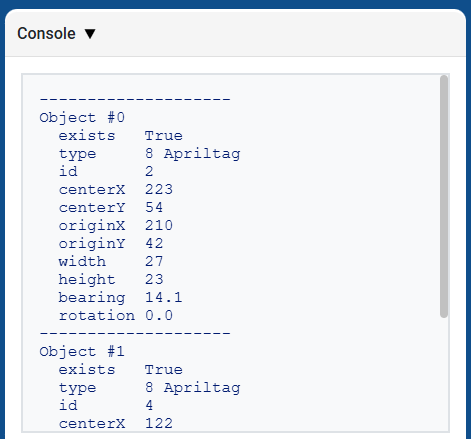
get_data によって返されるタプルを出力すると、検出されたすべてのオブジェクトのすべてのプロパティのリストが表示されます。
# Display properties of all detected AprilTag IDs
while True:
    vision_data = robot.vision.get_data(ALL_TAGS)

    if vision_data[0].exists:
        break

    wait(0.25, SECONDS)

print(vision_data)
AI分類#
AIM AIビジョンセンサーは、以下のAI分類を検出できます。
ID番号 |
AI分類 |
サイン |
|---|---|---|
0 |
ボール |
|
1 |
ブルーバレル |
|
2 |
オレンジバレル |
|
3 |
AIMロボット |
|
カラーシグネチャー#
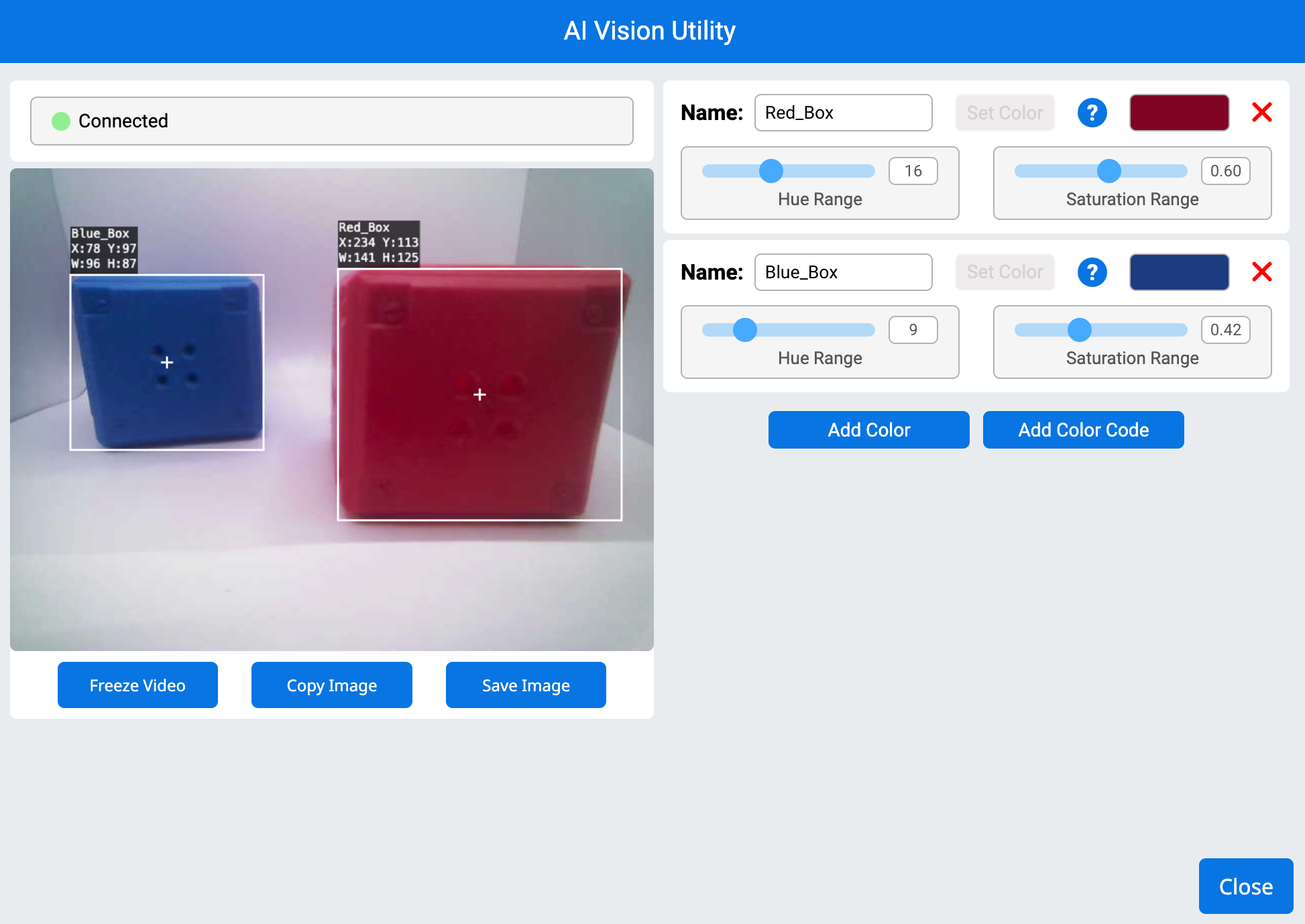
カラーシグネチャとは、AIビジョンセンサーが認識できる固有の色のことです。これらのシグネチャにより、センサーは色に基づいて物体を検出および追跡できます。カラーシグネチャが設定されると、センサーは視野内のその特定の色を持つ物体を識別できます。カラーシグネチャは、get_data で使用され、色付き物体をリアルタイムで処理および検出します。
# Display if any objects match the Red_Box signature
while True:
    robot.screen.set_cursor(1, 1)
    robot.screen.clear_row(1)
    # Change to any configured Color Signature
    ai_objects = robot.vision.get_data(Red_Box)
    if ai_objects[0].exists:
        robot.screen.print("Color signature detected!")
カラーコード#
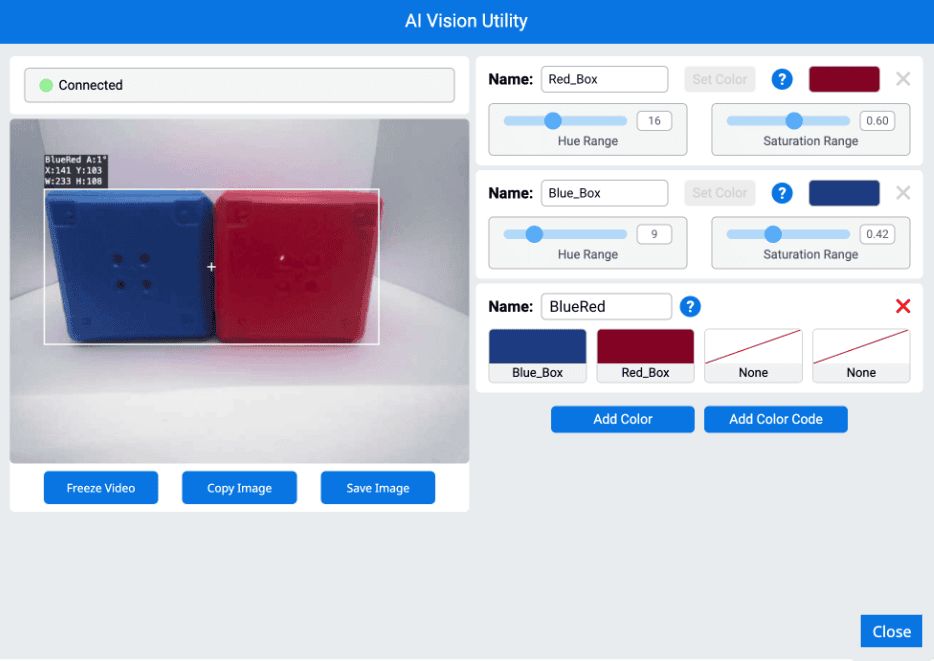
カラーコードとは、2~4色の色を特定の順序で並べた構造化されたパターンです。これらのコードにより、AIビジョンセンサーはあらかじめ定義された色のパターンを認識できます。カラーコードは、複雑な物体を識別したり、自律航行のための固有のマーカーを作成したりするのに役立ちます。
# Display if any objects match the BlueRed code
while True:
    robot.screen.set_cursor(1, 1)
    robot.screen.clear_row(1)
    # Change to any configured Color Code
    ai_objects = robot.vision.get_data(BlueRed)
    if ai_objects[0].exists:
        robot.screen.print("Color code detected!")
has_sports_ball#
has_sports_ball は、ロボットが現在スポーツボールを持っているかどうかを示すブール値を返します。
True— ロボットはスポーツボールを持っています。False— ロボットにはスポーツボールがありません。
Usage:
robot.has_sports_ball()
パラメータ |
説明 |
|---|---|
このメソッドにはパラメータがありません。 |
# Kick when the robot has a sports ball
while True:
    if robot.has_sports_ball():
        robot.kicker.kick(MEDIUM)

    wait(50, MSEC)
has_any_barrel#
has_any_barrel 、ロボットが現在何らかの種類のバレルを持っているかどうかを示すブール値を返します。
True— ロボットには樽があります。False— ロボットには樽がありません。
Usage:
robot.has_any_barrel()
パラメータ |
説明 |
|---|---|
このメソッドにはパラメータがありません。 |
# Push a barrel away when detected
while True:
    if robot.has_any_barrel():
        robot.kicker.place()

    wait(50, MSEC)
has_blue_barrel#
has_blue_barrel 、ロボットが現在青いバレルを持っているかどうかを示すブール値を返します。
True— ロボットには青い樽が付いています。False— ロボットには青い樽がありません。
Usage:
robot.has_blue_barrel()
パラメータ |
説明 |
|---|---|
このメソッドにはパラメータがありません。 |
# Push a blue barrel away when detected
while True:
    if robot.has_blue_barrel():
        robot.kicker.place()

    wait(50, MSEC)
has_orange_barrel#
has_orange_barrel 、ロボットが現在オレンジ色のバレルを持っているかどうかを示すブール値を返します。
True— ロボットにはオレンジ色の樽が付いています。False— ロボットにはオレンジ色の樽がありません。
Usage:
robot.has_orange_barrel()
パラメータ |
説明 |
|---|---|
このメソッドにはパラメータがありません。 |
# Push an orange barrel away when detected
while True:
    if robot.has_orange_barrel():
        robot.kicker.place()

    wait(50, MSEC)
不動産#
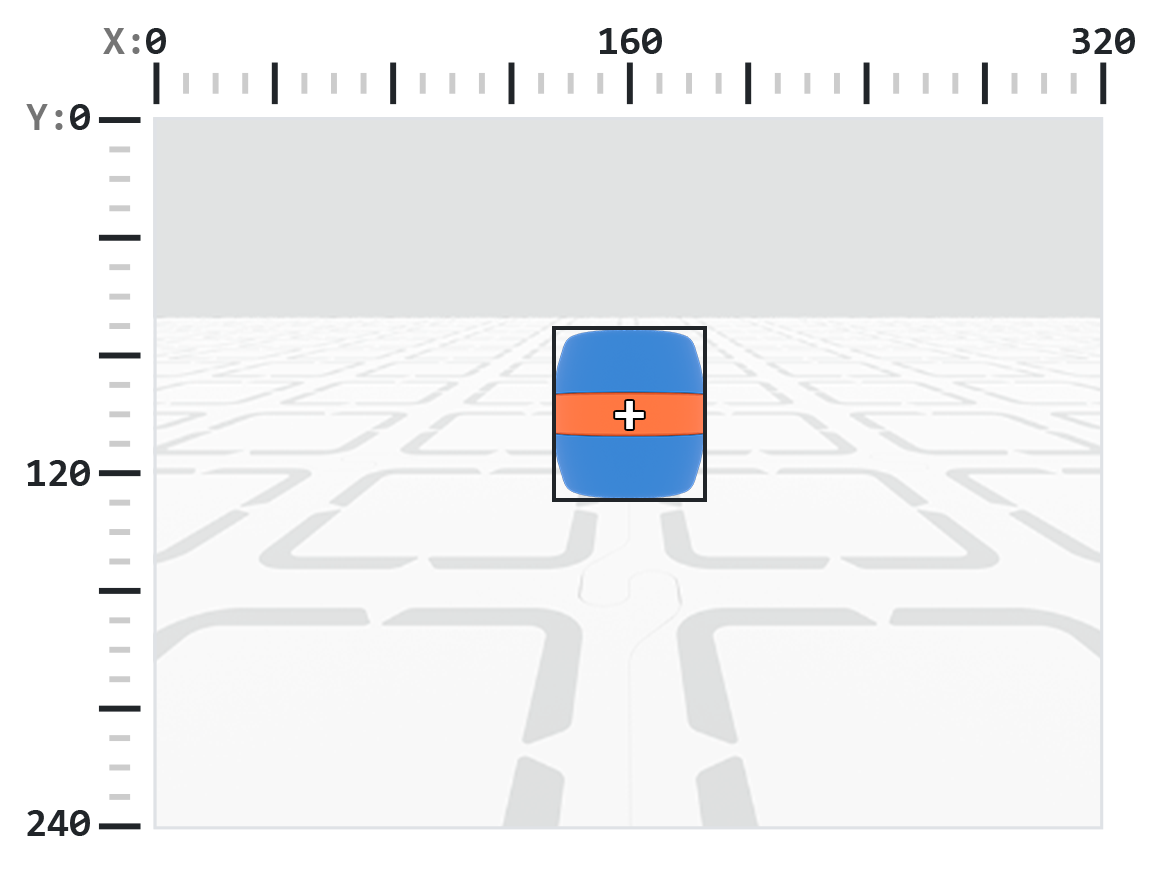
robot.vision.get_data メソッドを使用した後にタプルに格納される各オブジェクトには、12 個のプロパティが含まれています。
.id.score 、および .type を除くすべてのプロパティ値は robot.vision.get_data 使用された時点での検出されたオブジェクトの位置、サイズ、向き、または方位を表します。これらの値は、センサーの 320 x 240 ピクセルの解像度に基づいて、ピクセルまたは度で測定されます。
.exists#
.exists 、インデックスがタプル内に存在するかどうかを示すブール値を返します。
True— インデックスが存在します。False— インデックスが存在しません。
# Check if at least two objects are detected
while True:
    robot.screen.clear_screen()
    robot.screen.set_cursor(1, 1)
    ai_objects = robot.vision.get_data(ALL_CARGO)

    if ai_objects[0].exists:
        if ai_objects[1].exists:
            robot.screen.print("At least 2")
        else:
            robot.screen.print("Less than 2")
    wait(0.1, SECONDS)
.width#
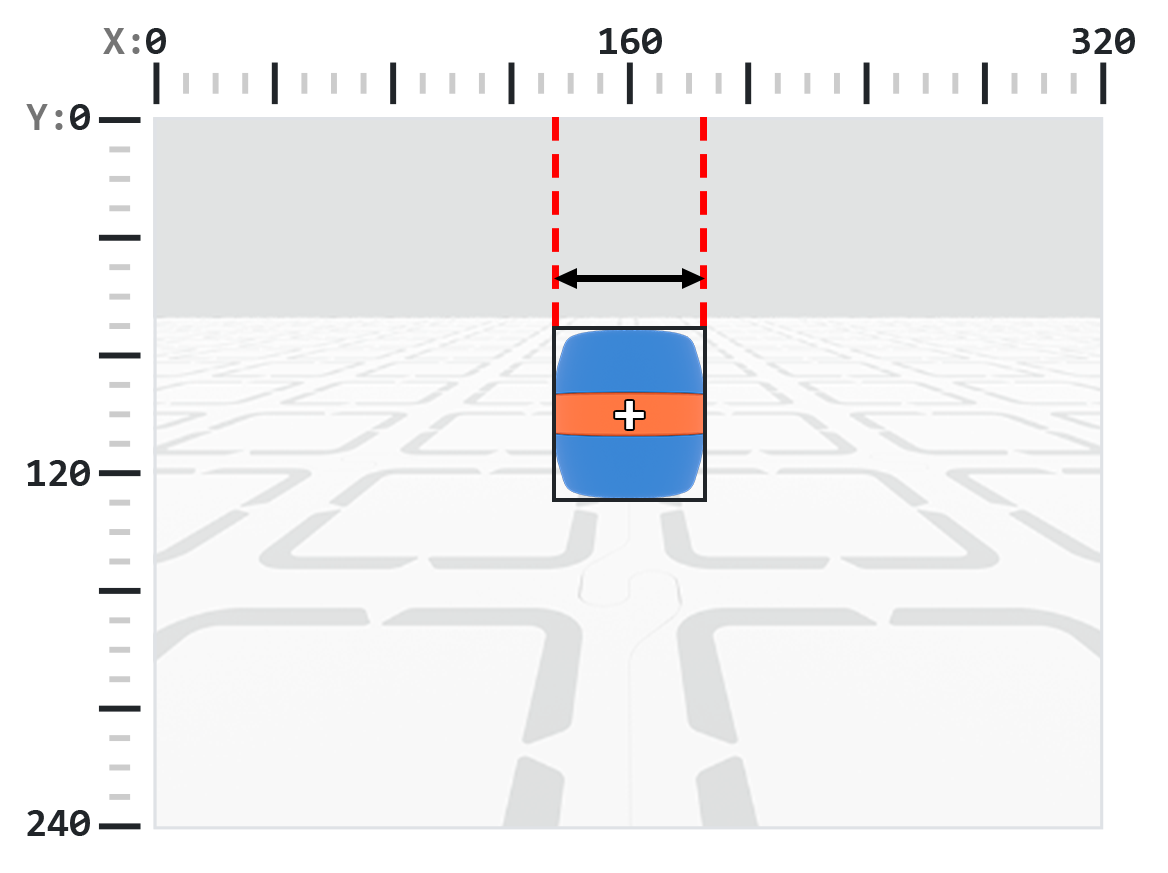
.width 、検出されたオブジェクトの幅をピクセル単位で返します。これは 1 から 320 までの整数です。
注: ピクセル値はセンサーの座標系に対する相対値です。はじめにの図を参照してください。
# Move towards a Blue Barrel until its width is
# larger than 100 pixels
while True:
    barrel = robot.vision.get_data(BLUE_BARREL)

    if barrel[0].exists:
        if barrel[0].width < 100:
            robot.move_at(0)
    else:
        robot.stop_all_movement()

    wait(50, MSEC)
.height#
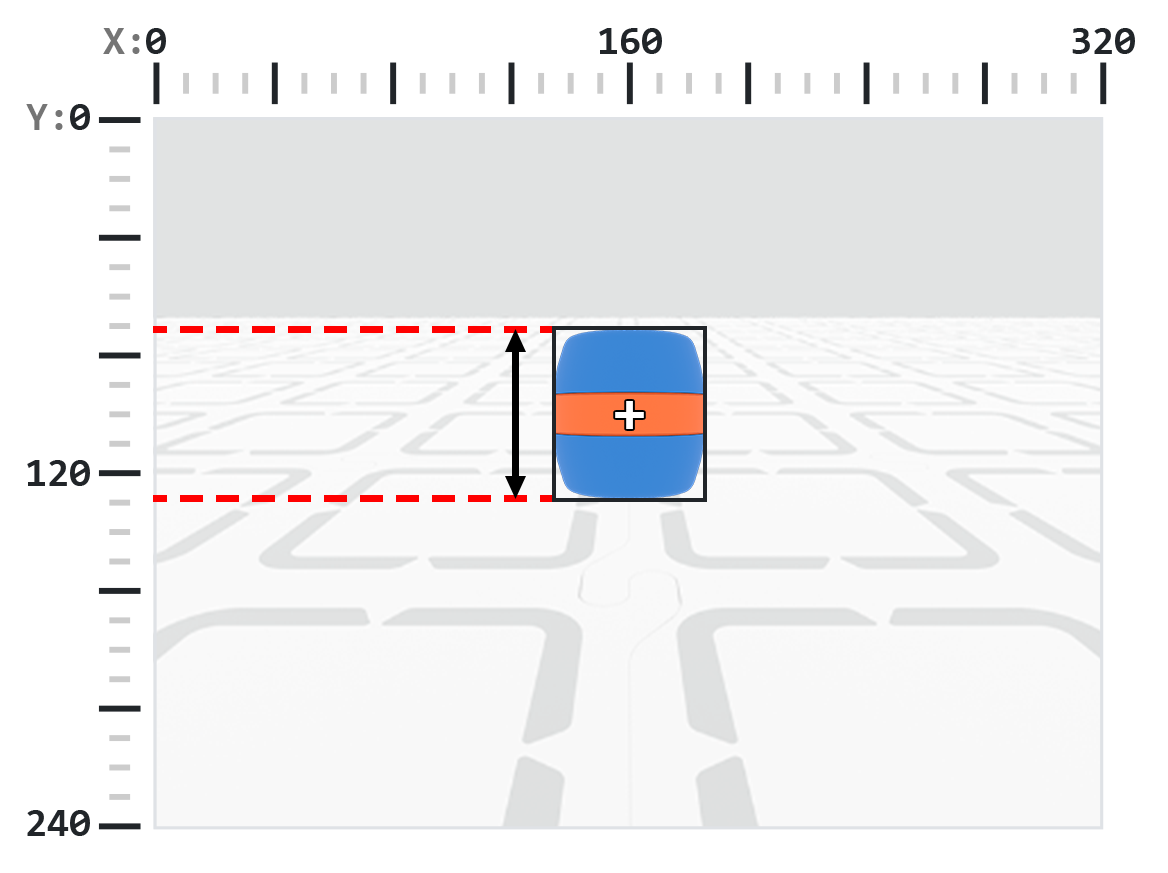
.height 、検出されたオブジェクトの高さをピクセル単位で返します。これは 1 から 240 までの整数です。
注: ピクセル値はセンサーの座標系に対する相対値です。はじめにの図を参照してください。
# Move towards a Blue Barrel until its height is
# larger than 100 pixels
while True:
    barrel = robot.vision.get_data(BLUE_BARREL)

    if barrel[0].exists:
        if barrel[0].height < 100:
            robot.move_at(0)
    else:
        robot.stop_all_movement()

    wait(50, MSEC)
.centerX#
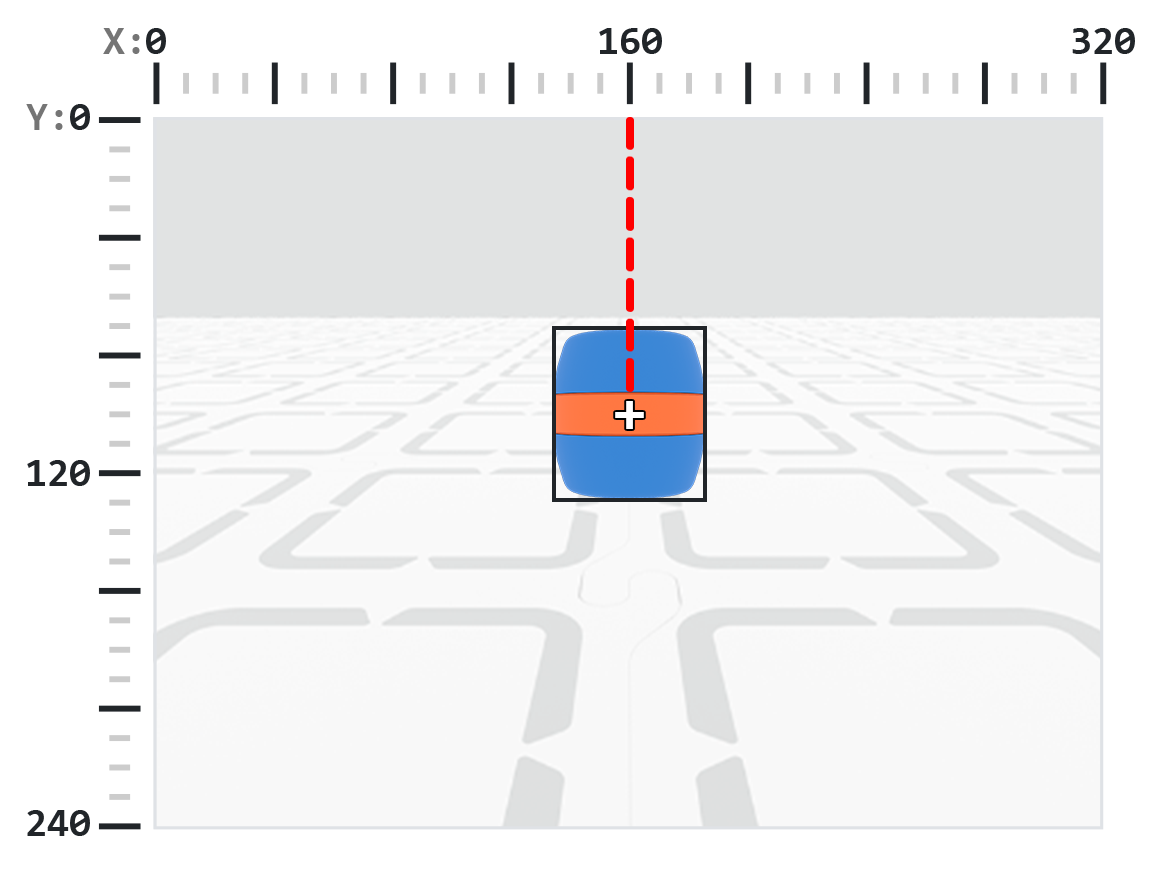
.centerX 、検出されたオブジェクトの中心の x 座標をピクセル単位で返します。これは 0 から 320 までの整数です。
注: ピクセル値はセンサーの座標系に対する相対値です。はじめにの図を参照してください。
# Turn slowly until a Blue Barrel is centered in
# front of the robot
robot.set_turn_velocity(30)
robot.turn(RIGHT)

while True:
    barrel = robot.vision.get_data(BLUE_BARREL)

    if barrel[0].exists:
        if 140 < barrel[0].centerX < 180:
            robot.stop_all_movement()

    wait(10,MSEC)
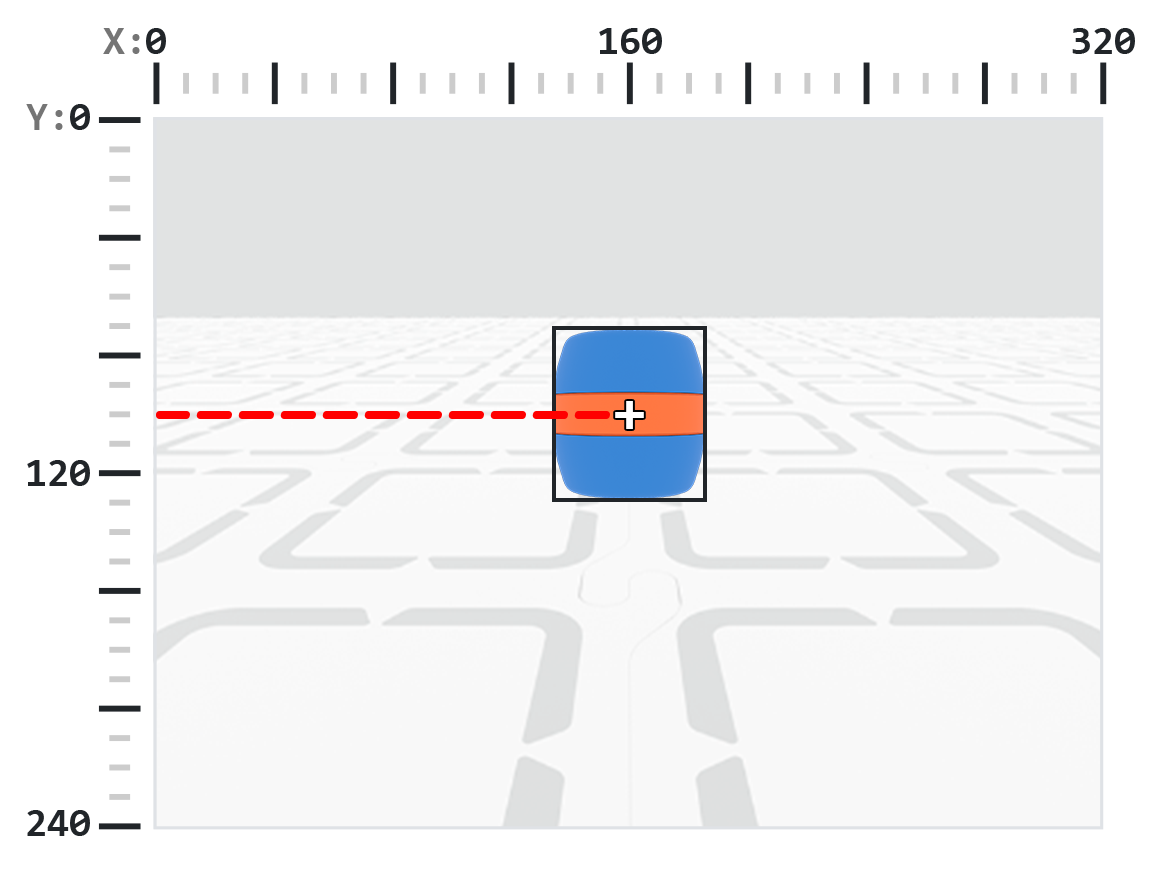
.centerY#
.centerY 、検出されたオブジェクトの中心の y 座標をピクセル単位で返します。これは 0 から 240 までの整数です。
注: ピクセル値はセンサーの座標系に対する相対値です。はじめにの図を参照してください。
# Move towards a Blue Barrel until its
# center y-coordinate is more than 140 pixels
while True:
    barrel = robot.vision.get_data(BLUE_BARREL)

    if barrel[0].exists:
        if barrel[0].centerY < 140:
            robot.move_at(0)
    else:
        robot.stop_all_movement()

    wait(50, MSEC)
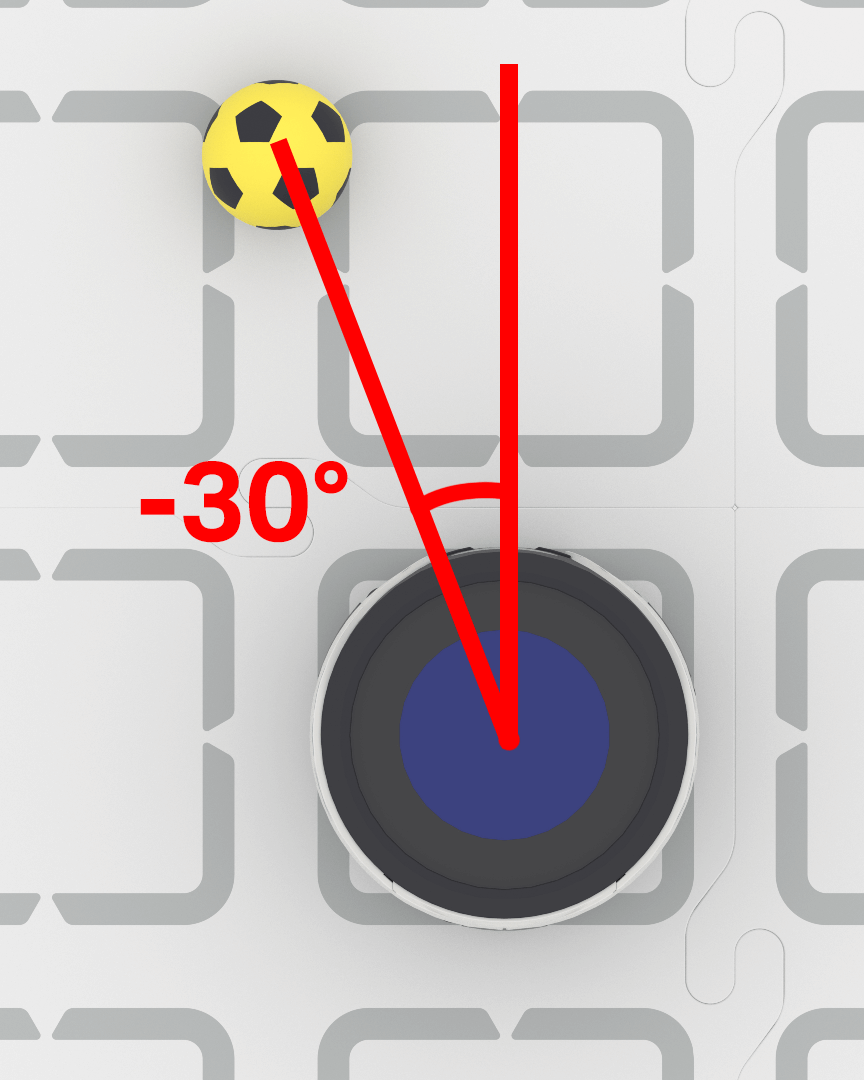
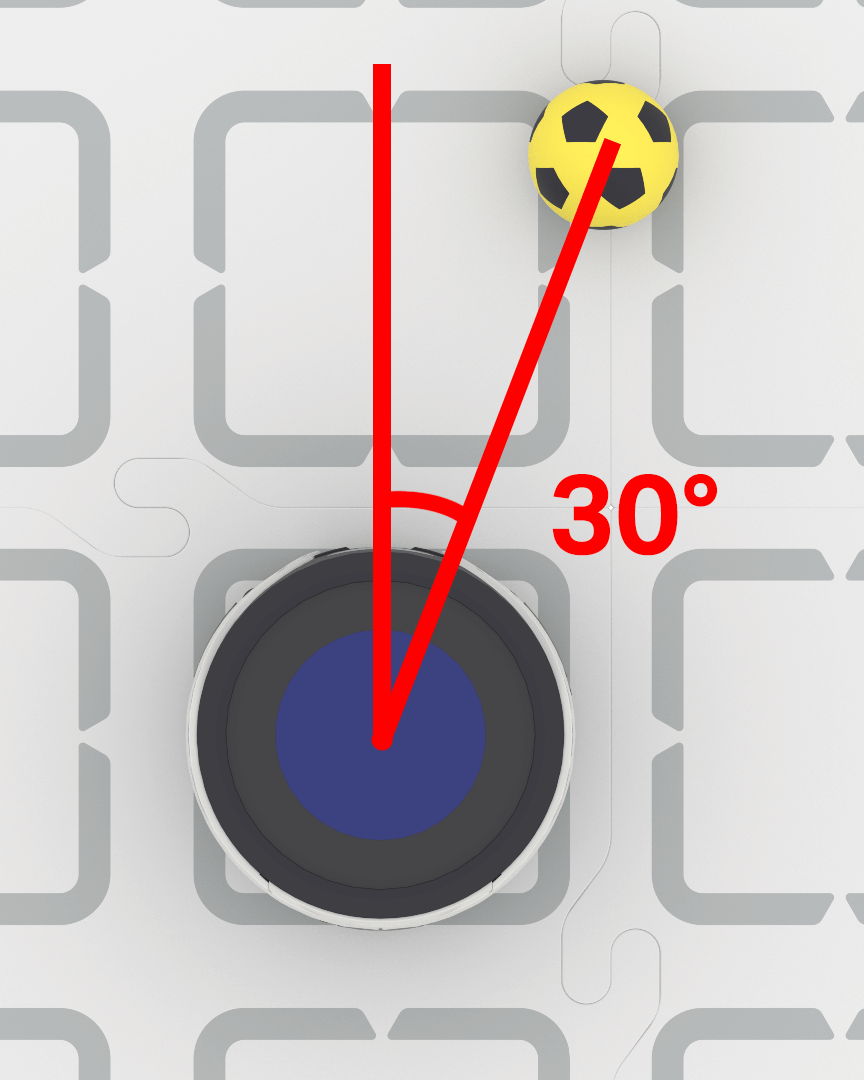
.bearing#
.bearing 、AI Vision Sensor のビューの中心からオブジェクトが左右にどれだけ離れているかを度数で表した小数 (float) を返します。値が 0 の場合は中心に位置していることを意味し、正の値はオブジェクトが右にあることを意味し、負の値はオブジェクトが左にあることを意味します。
# Turn to keep the Blue Barrel directly in front
robot.set_turn_velocity(40)
while True:
    vision_data = robot.vision.get_data(BLUE_BARREL)

    if vision_data[0].exists:

        if vision_data[0].bearing > 5:
            robot.turn(RIGHT)
        elif vision_data[0].bearing < -5:
            robot.turn(LEFT)
        else:
            robot.stop_all_movement()

    else:
        robot.stop_all_movement()

    wait(0.1, SECONDS)
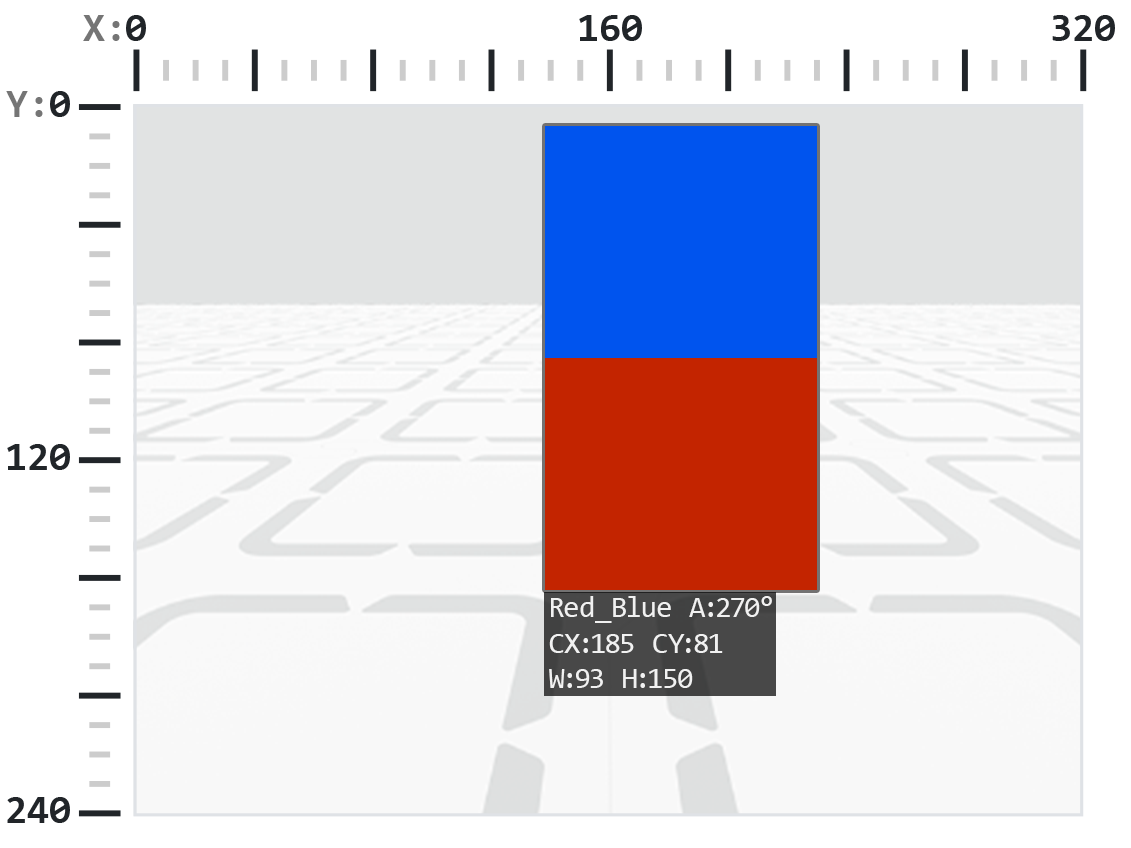
.rotation#
.rotation 、AI Vision Sensor の視野面におけるオブジェクトの向きを、0 度から 359 度の範囲で返します。カラーコードが水平に並んでいる場合 (例: 赤 - 青) は、0° になります。色が回転すると、角度が変わります (例: 青 - 赤 の並びは 180° になります)。
以下の例では、カラーコードは左側が赤、右側が青に設定されています。
この画像では、赤の上に青を重ねることは、元のカラーコードを右に270度回転させることに相当します。
# Slide left or right depending on how a Color Code (BlueRed)
# is rotated on the vertical plane
while True:
    # Original Color Code is Red to the left, Blue to the right
    code = robot.vision.get_data(BlueRed)

    if code[0].exists:
        # Check if Color Code is now Red on top of Blue
        if 50 < code[0].rotation < 100 :
            robot.move_at(90)

        # Check if Color Code is now Blue on top of Red
        elif 270 < code[0].rotation < 330 :
            robot.move_at(270)

        else:
            robot.stop_all_movement()
    else:
        robot.stop_all_movement()

    wait(50, MSEC)
.originX#
.originX 、検出されたオブジェクトのバウンディングボックスの左上隅の x 座標をピクセル単位で返します。これは 0 から 320 までの整数です。
注: ピクセル値はセンサーの座標系に対する相対値です。はじめにの図を参照してください。
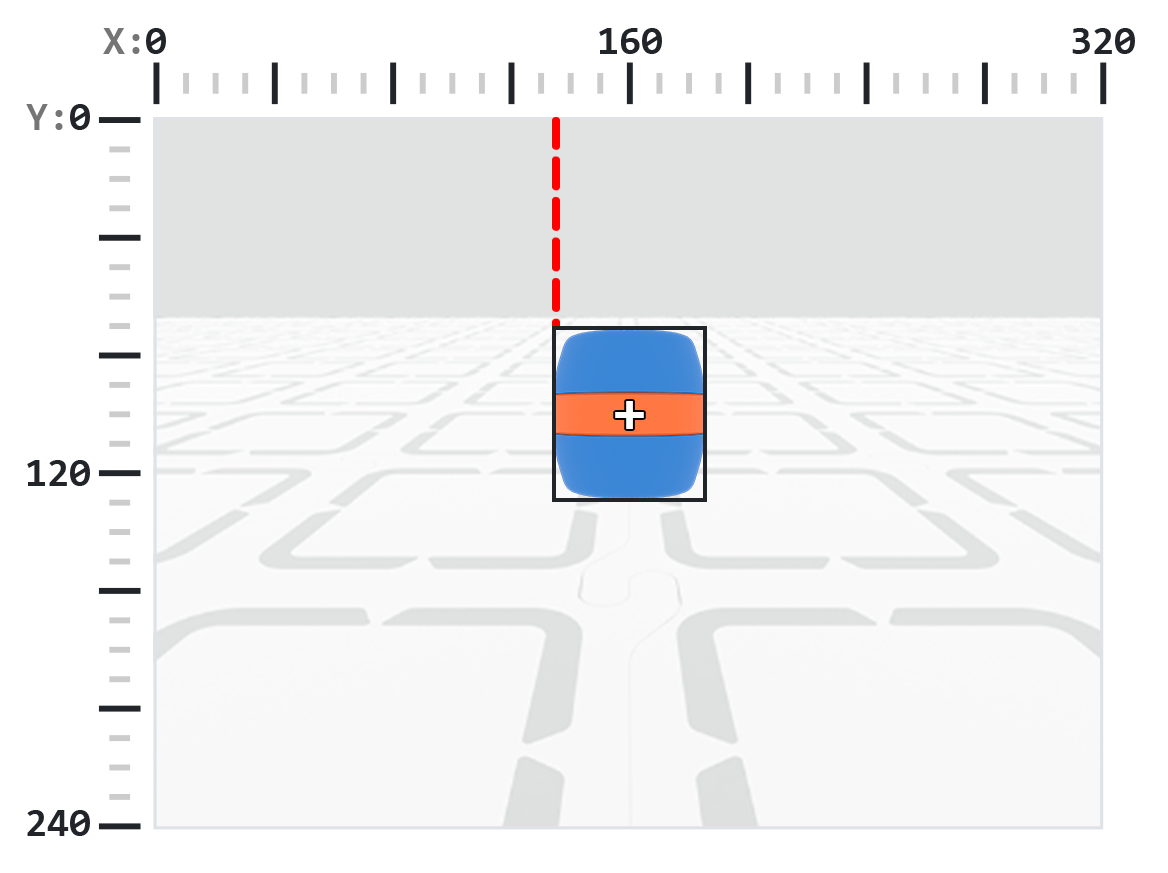
# Display if an Orange Barrel is to the
# left or the right
while True:
    robot.screen.clear_screen()
    robot.screen.set_cursor(1,1)

    orange_barrel = robot.vision.get_data(ORANGE_BARREL)

    if orange_barrel[0].exists:
        if orange_barrel[0].originX < 160:
            robot.screen.print("To the left!")
        else:
            robot.screen.print("To the right!")

    wait(50, MSEC)
.originY#
.originY 、検出されたオブジェクトのバウンディングボックスの左上隅の y 座標をピクセル単位で返します。これは 0 から 240 までの整数です。
注: ピクセル値はセンサーの座標系に対する相対値です。はじめにの図を参照してください。
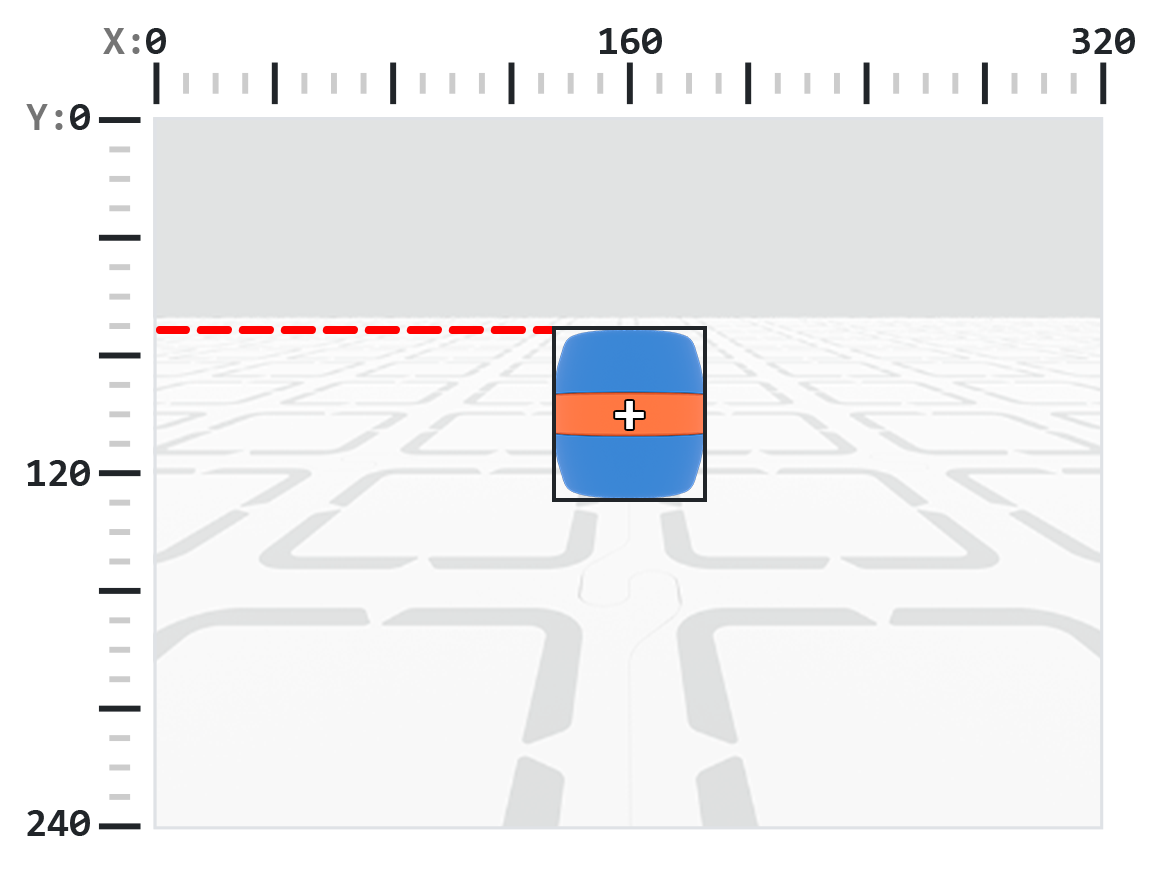
# Display if an Orange Barrel is close or far
# from the robot
while True:
    robot.screen.clear_screen()
    robot.screen.set_cursor(1, 1)

    orange_barrel = robot.vision.get_data(ORANGE_BARREL)

    if orange_barrel[0].exists:
        if orange_barrel[0].originY < 80:
            robot.screen.print("Far")
        else:
            robot.screen.print("Close")

    wait(50, MSEC)
.id#
.id 、検出された AI 分類の ID または AprilTag ID を整数として返します。
AprilTag ID の場合、 .id プロパティは、検出された AprilTag ID 番号を 0 ~ 37 の範囲で表します。AI 分類の場合、 .id プロパティは、AI 分類 セクションで定義済みの ID に対応します。
# Move forward when AprilTag ID 1 is detected
while True:
    apriltags = robot.vision.get_data(ALL_TAGS)

    if apriltags[0].exists:
        if apriltags[0].id == 1:
            robot.move_at(0)
    else:
        robot.stop_all_movement()

    wait(50, MSEC)
.score#
.score 、検出された AI 分類の信頼度スコアを 1 から 100 までの整数として返します。
スコアが低いほど、センサーは検出された物体に対する確信度が低いことを意味し、スコアが高いほど、センサーの確信度が高いことを意味します。
# Look confident if an Orange Barrel is detected
while True:
    barrel = robot.vision.get_data(ORANGE_BARREL)

    if barrel[0].exists:
        if barrel[0].score > 95:
            robot.screen.show_emoji(CONFIDENT)
        else:
            robot.screen.hide_emoji()

    wait(50, MSEC)
.type#
.type は、検出されたオブジェクトのタイプを示す整数を返します。この値は、タイプ番号または対応する名前付き定数のいずれかを使用して比較できます。
オブジェクトタイプ |
含まれるオブジェクト |
|---|---|
|
— スポーツボール |
|
— AprilTag IDs |
|
— 色のシグネチャー |
|
— 色分け |
# Display if an AprilTag ID or AI Classification
# is detected
while True:
    robot.screen.clear_screen()
    robot.screen.set_cursor(1, 1)
    vision_data = robot.vision.get_data(ALL_VISION)
    if vision_data[0].exists:
        if vision_data[0].type == AiVision.AI_OBJECT:
            robot.screen.print("AI Object!")
        elif vision_data[0].type == AiVision.TAG_OBJECT:
            robot.screen.print("AprilTag ID!")
    wait(0.1, SECONDS)
# Display a list of all detected objects
while True:
    robot.screen.clear_screen()
    robot.screen.set_cursor(1, 1)
    vision_data = robot.vision.get_data(ALL_VISION)

    if vision_data[0].exists:
        for obj in vision_data:
            if obj.type == AiVision.AI_OBJECT:
                robot.screen.print("- AI Object")
            elif obj.type == AiVision.TAG_OBJECT:
                robot.screen.print("- AprilTag ID")
            robot.screen.next_row()

    wait(0.1, SECONDS)
建設業者#
Creating a Color Signature#
新しいカラーシグネチャは、 Colordesc コンストラクタを使用して作成され、 color_description メソッドを使用して AI ビジョンセンサーに登録されます Colordesc オブジェクトは、センサーで検出可能な最大 7 つのカラーシグネチャのうち 1 つを定義しますが、有効にするには color_description を使用して明示的に設定する必要があります。
Colordesc の使用方法:
Colordesc(index, red, green, blue, hangle, hdsat)
パラメータ |
説明 |
|---|---|
|
カラーシグネチャのインデックスを表す1~7の整数。2つのカラーシグネチャが同じインデックスを使用している場合、2番目のカラーシグネチャが最初のものを上書きします。 |
|
色の赤色成分を表す、0から255までの整数値。 |
|
色の緑色成分を表す、0から255までの整数値。 |
|
色の青色成分を表す、0から255までの整数値。 |
|
色相範囲を度数で表した、1から40までの浮動小数点数。 |
|
飽和範囲を表す0.10から1.00までの浮動小数点数。 |
color_description 使用例:
robot.vision.color_description(object)
パラメータ |
説明 |
|---|---|
|
検出可能なカラーシグネチャとして設定する |
# Detect a red object
red_box = Colordesc(1, 207, 19, 25, 10.00, 0.20)
robot.vision.color_description(red_box)

while True:
    robot.screen.clear_screen()
    robot.screen.set_cursor(1, 1)

    red_boxes = robot.vision.get_data(red_box)

    if red_boxes[0].exists:
        robot.screen.print("Red detected!")
    else:
        robot.screen.print("No red detected.")

    wait(0.2, SECONDS)
Creating a Color Code#
新しいカラーコードは、 Codedesc コンストラクタを使用して作成され、 code_description メソッドを使用してアクティブ化されます。カラーコードは、2 ~ 4 つの既存の Colordesc オブジェクトを単一の識別子にグループ化し、AI ビジョンセンサーがシーケンスとして検出できるようにしますが、有効にするには code_description を使用して明示的に設定する必要があります。
Codedesc の使用法:
Codedesc(index, c1, c2, c3, c4, c5)
パラメータ |
説明 |
|---|---|
|
カラーコードのインデックス(1~8)。注:同じインデックスを持つ |
|
コード内の最初の |
|
コード内の 2 番目の |
|
オプション。3 番目の |
|
オプション。4番目の |
code_description 使用例:
robot.vision.code_description(object)
パラメータ |
説明 |
|---|---|
|
検出可能なカラーコードとして登録する、 |
# Create Color Signatures
red_box = Colordesc(1, 207, 19, 25, 10.00, 0.20)
purple_box = Colordesc(2, 98, 18, 227, 10.00, 0.20)

robot.vision.color_description(red_box)
robot.vision.color_description(purple_box)

# Detect a red_purple Color Code
red_purple = Codedesc(1, red_box, purple_box)
robot.vision.code_description(red_purple)

while True:
    robot.screen.clear_screen()
    robot.screen.set_cursor(1, 1)

    code_objects = robot.vision.get_data(red_purple)

    if code_objects[0].exists:
        robot.screen.print("Code detected!")
    else:
        robot.screen.print("No code detected.")

    wait(0.2, SECONDS)