
AI Vision#
การแนะนำ#
เซ็นเซอร์ AI Vision ของหุ่นยนต์เขียนโค้ด VEX AIM ตรวจจับและติดตามวัตถุ สี และรหัส AprilTag ทำให้หุ่นยนต์สามารถวิเคราะห์สภาพแวดล้อม ติดตามวัตถุ และตอบสนองตามข้อมูลภาพที่ตรวจพบได้
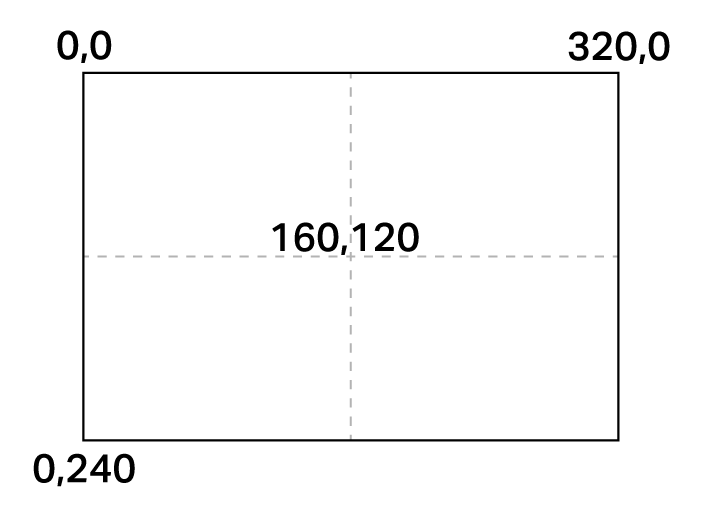
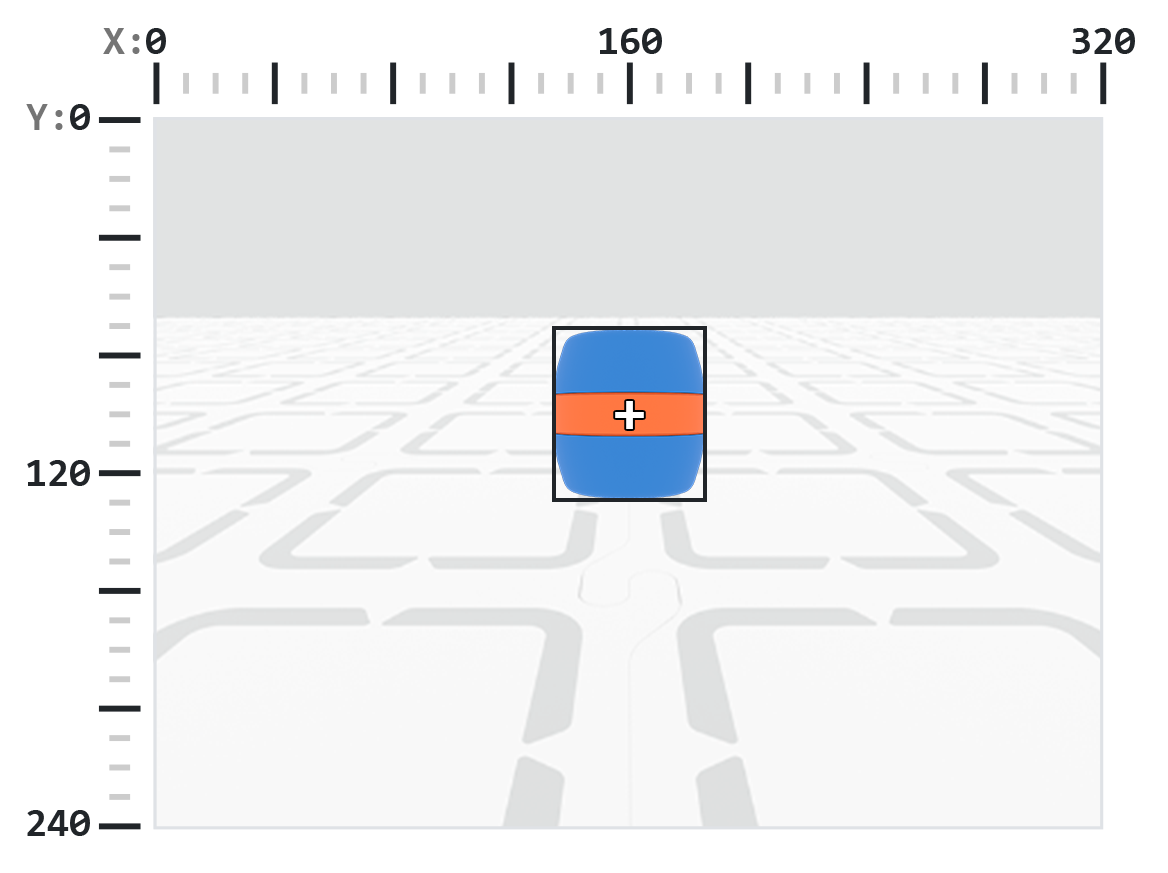
เซ็นเซอร์ AI Vision มีความละเอียด 320×240 พิกเซล จุดกำเนิด (0, 0) อยู่ที่มุมบนซ้าย ทำให้จุดศูนย์กลางของเซ็นเซอร์อยู่ที่ (160, 120) ดังแสดงในแผนภาพด้านล่าง:
ด้านล่างนี้คือรายการของวิธีการและคุณสมบัติทั้งหมด:
การดำเนินการ — แสดงหรือซ่อนภาพจากกล้อง AI Vision
show_aivision— แสดงฟีด AI Vision บนหน้าจอของหุ่นยนต์hide_aivision— ซ่อนฟีด AI Vision จากหน้าจอtag_detection— เปิดหรือปิดการตรวจจับ AprilTag ID
ตัวตรวจจับ — ตรวจสอบว่าหุ่นยนต์กำลังถือวัตถุอยู่หรือไม่
get_data— ส่งคืนทูเปิลของวัตถุที่ตรวจพบสำหรับลายเซ็นเฉพาะhas_sports_ball— คืนค่าว่าหุ่นยนต์มีลูกบอลกีฬาหรือไม่has_any_barrel— คืนค่าว่าหุ่นยนต์มีถังประเภทใดหรือไม่has_blue_barrel— คืนค่าว่าหุ่นยนต์มีถังสีน้ำเงินหรือไม่has_orange_barrel— คืนค่าว่าหุ่นยนต์มีถังสีส้มหรือไม่
คุณสมบัติ — ข้อมูลวัตถุที่ส่งคืนจาก get_data
exists— วัตถุนั้นมีอยู่ในการตรวจจับปัจจุบันหรือไม่ในรูปแบบบูลีนwidth— ความกว้างของวัตถุที่ตรวจพบheight— ความสูงของวัตถุที่ตรวจพบcenterX— ตำแหน่ง X ของจุดศูนย์กลางของวัตถุcenterY— ตำแหน่ง Y ของจุดศูนย์กลางของวัตถุbearing— มุมแนวนอนสัมพันธ์กับด้านหน้าของหุ่นยนต์rotation— การวางแนวของวัตถุoriginX— ตำแหน่ง X ของมุมบนซ้ายของวัตถุoriginY— ตำแหน่ง Y ของมุมบนซ้ายของวัตถุid— รหัสการจำแนกหรือแท็กของวัตถุscore— คะแนนความเชื่อมั่นสำหรับการจำแนกประเภท AItype— ส่งคืนประเภทของวัตถุ (AI, Tag, Color หรือ Code)
ตัวสร้าง — กำหนดลายเซ็นสีและรหัส
สร้างลายเซ็นสี — สร้างลายเซ็นสีใหม่โดยอิงจากช่วง RGB และเฉดสี/ความอิ่มตัว
สร้างรหัสสี — รวมลายเซ็นสีหลายรายการเข้าเป็นรหัสสีเดียว
การกระทำ#
show_aivision#
คำสั่ง show_aivision จะแสดงข้อมูลสดจากเซ็นเซอร์ AI Vision บนหน้าจอของหุ่นยนต์ ข้อมูลสดนี้จะบดบังภาพหรือข้อความอื่นๆ บนหน้าจอ
หมายเหตุ: หน้าจอจะไม่แสดงภาพหรือข้อความอื่นใด เว้นแต่จะใช้ hide_aivision เพื่อซ่อนฟีด
Usage:
robot.screen.show_aivision()
พารามิเตอร์ |
คำอธิบาย |
|---|---|
เมธอดนี้ไม่มีพารามิเตอร์ |
# Watch the AI Vision Sensor detect AI Classifications
# and AprilTag IDs as you move the robot
robot.screen.show_aivision()
hide_aivision#
hide_aivision จะลบข้อมูลสดจากเซ็นเซอร์ AI Vision ออกจากหน้าจอของหุ่นยนต์
Usage:
robot.screen.hide_aivision()
พารามิเตอร์ |
คำอธิบาย |
|---|---|
เมธอดนี้ไม่มีพารามิเตอร์ |
# View the AI Vision Sensor's feed for five seconds
robot.screen.show_aivision()
wait(5, SECONDS)
robot.screen.hide_aivision()
tag_detection#
tag_detection เปิดใช้งานหรือปิดใช้งานการตรวจจับ ID ของ AprilTag โดยที่สถานะเป็นค่าบูลีน
เซ็นเซอร์นี้สามารถตรวจจับ AprilTag ID 0 ถึง 36 จากตระกูล Circle21h7 ได้
Usage:
robot.vision.tag_detection(state)
พารามิเตอร์ |
คำอธิบาย |
|---|---|
|
ค่าที่ใช้ได้คือ: |
robot.screen.set_font(PROP30)

# Cut off AprilTag ID detection after 5 seconds
while True:
    if timer.time(SECONDS) > 5:
        robot.vision.tag_detection(False)

    robot.screen.clear_screen()
    robot.screen.set_cursor(3, 1)
    apriltags = robot.vision.get_data(ALL_TAGS)

    if apriltags[0].exists:
        robot.screen.print("AprilTag ID detected!")
    else:
        robot.screen.print("Nothing detected!")

    wait(0.1, SECONDS)
ผู้รับ#
get_data#
get_data กรองข้อมูลจากเฟรม AI Vision Sensor ให้เป็นลายเซ็นเดียว — คำอธิบายที่บันทึกไว้ของสิ่งที่เซ็นเซอร์สามารถจดจำได้ เช่น วัตถุที่ฝึกฝนไว้ล่วงหน้า รหัส AprilTag หรือลายเซ็นสีหรือรหัสสีที่กำหนดค่าไว้ — และส่งคืน tuple
ลายเซ็นสี และ รหัสสี จะต้องได้รับการกำหนดค่าก่อนใน AI Vision Utility ก่อนที่จะสามารถใช้กับวิธีนี้ได้
tuple เก็บวัตถุที่เรียงลำดับจากใหญ่ที่สุดไปเล็กที่สุดตามความกว้าง โดยเริ่มจากดัชนี 0 สามารถเข้าถึง properties ของแต่ละวัตถุได้โดยใช้ดัชนี หากไม่พบวัตถุที่ตรงกัน จะส่งคืนทูเปิลว่าง
Usage:
robot.vision.get_data(signature, count)
พารามิเตอร์ |
คำอธิบาย |
|---|---|
|
กรองชุดข้อมูลเพื่อให้เหลือเฉพาะข้อมูลที่มีลายเซ็นตามที่กำหนดเท่านั้น ลายเซ็นที่มีให้เลือกคือ:
|
|
ตัวเลือกเสริม กำหนดจำนวนสูงสุดของวัตถุที่สามารถส่งคืนได้ตั้งแต่ 1 ถึง 24 (ค่าเริ่มต้น: 8) |
หมายเหตุ: สามารถรับ AprilTag ID หมายเลข 5 ถึง 37 ได้โดยใช้ AprilTag ID ที่พิมพ์จาก AIM Printables
# Move forward if a sports ball is detected
while True:
    ball = robot.vision.get_data(SPORTS_BALL)
    if ball[0].exists:
        robot.move_for(10, 0)
    wait(50, MSEC)
หมายเหตุ: ทูเปิลที่ส่งคืนสามารถเรียงลำดับตาม คุณสมบัติ ใดก็ได้ ไม่ใช่แค่ความกว้าง โดยใช้ฟังก์ชัน sorted ของ Python ตัวอย่างเช่น การเรียงลำดับตาม AprilTag ID:
# Print each detected AprilTag ID in ascending order by ID
while True:
    apriltags = sorted(robot.vision.get_data(ALL_TAGS), key=id)
    for tag in apriltags:
        print(tag.id)
    wait(1, SECONDS)
หรือเรียงตามความสูงแทนก็ได้:
# Print each detected AprilTag ID in ascending order by height
while True:
    apriltags_by_height = sorted(robot.vision.get_data(ALL_TAGS), key=lambda tag: tag.height)
    for tag in apriltags_by_height:
        print(tag.height)
    wait(1, SECONDS)
การดูข้อมูล#
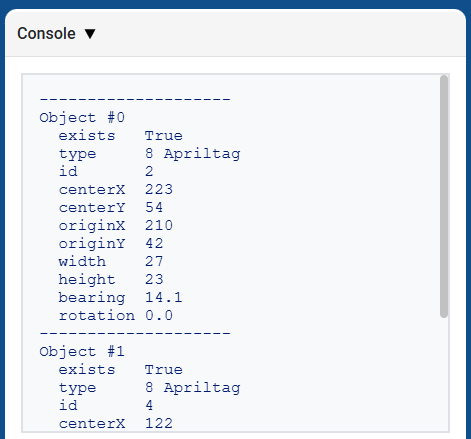
การพิมพ์ทูเปิลที่ส่งคืนโดย get_data จะแสดงรายการคุณสมบัติทั้งหมดของวัตถุที่ตรวจพบทั้งหมด:
# Display properties of all detected AprilTag IDs
while True:
    vision_data = robot.vision.get_data(ALL_TAGS)

    if vision_data[0].exists:
        break

    wait(0.25, SECONDS)

print(vision_data)
การจำแนกประเภท AI#
เซ็นเซอร์ตรวจจับภาพ AI ของ AIM สามารถตรวจจับการจำแนกประเภท AI เหล่านี้ได้:
หมายเลขประจำตัว |
การจำแนกประเภท AI |
ลายเซ็น |
|---|---|---|
0 |
ลูกบอล |
|
1 |
บลูบาร์เรล |
|
2 |
ถังสีส้ม |
|
3 |
หุ่นยนต์ AIM |
|
ลายเซ็นสี#
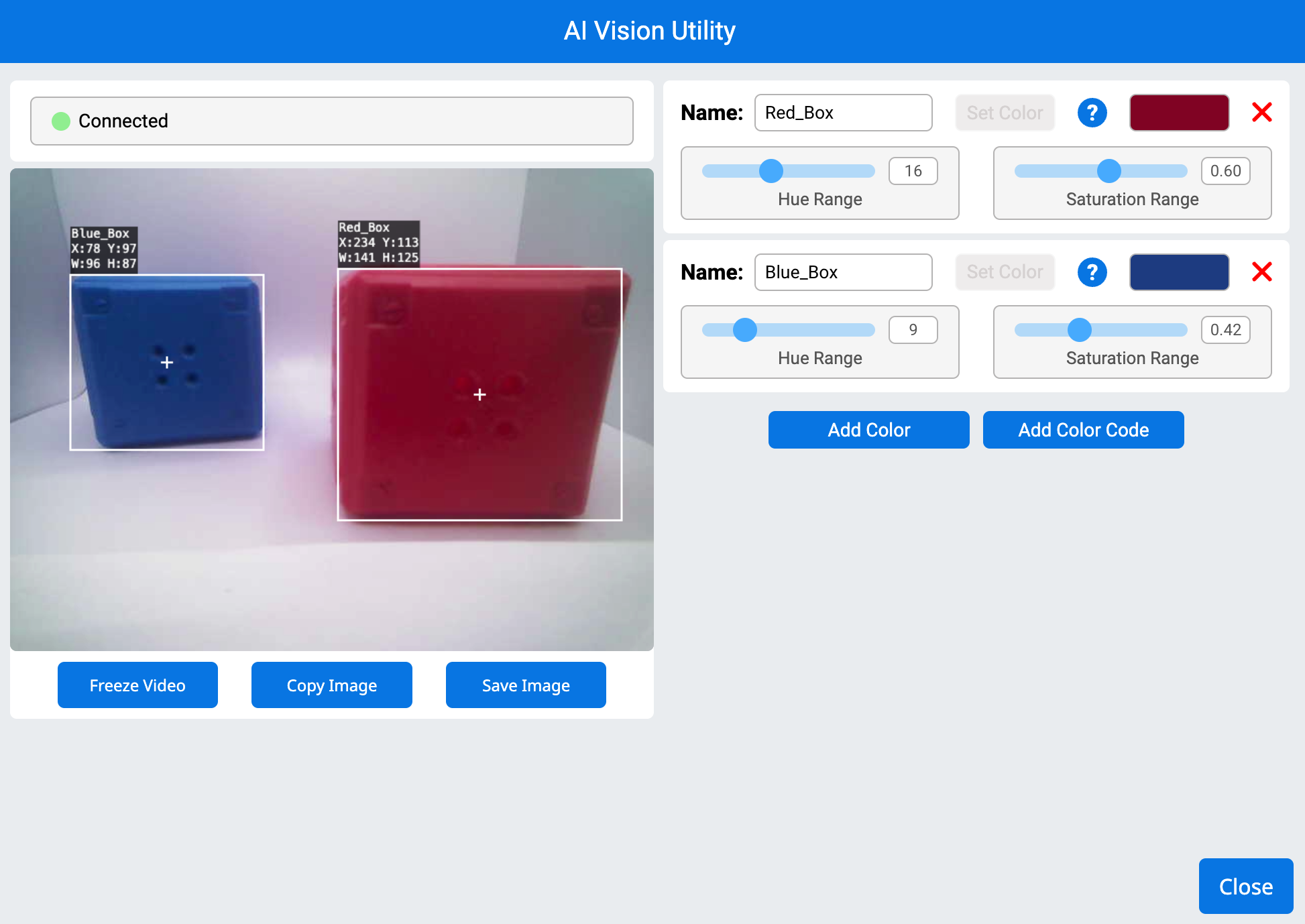
ลายเซ็นสีคือสีเฉพาะที่เซ็นเซอร์ AI Vision สามารถจดจำได้ ลายเซ็นเหล่านี้ช่วยให้เซ็นเซอร์ตรวจจับและติดตามวัตถุตามสีของวัตถุได้ เมื่อกำหนดค่าลายเซ็นสีแล้ว เซ็นเซอร์จะสามารถระบุวัตถุที่มีสีเฉพาะนั้นในขอบเขตการมองเห็นได้ ลายเซ็นสีใช้ร่วมกับ get_data เพื่อประมวลผลและตรวจจับวัตถุสีแบบเรียลไทม์
# Display if any objects match the Red_Box signature
while True:
    robot.screen.set_cursor(1, 1)
    robot.screen.clear_row(1)
    # Change to any configured Color Signature
    ai_objects = robot.vision.get_data(Red_Box)
    if ai_objects[0].exists:
        robot.screen.print("Color signature detected!")
รหัสสี#
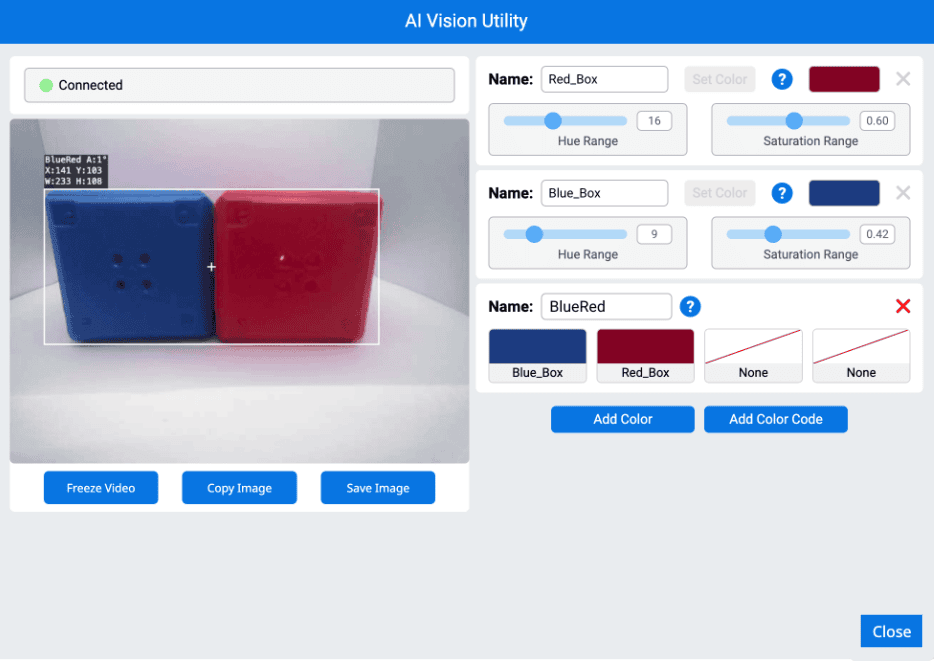
รหัสสีคือรูปแบบที่มีโครงสร้างซึ่งประกอบด้วยสี 2 ถึง 4 สี เรียงลำดับกันอย่างเฉพาะเจาะจง รหัสเหล่านี้ช่วยให้เซ็นเซอร์ตรวจจับภาพ AI สามารถจดจำรูปแบบสีที่กำหนดไว้ล่วงหน้าได้ รหัสสีมีประโยชน์สำหรับการระบุวัตถุที่ซับซ้อน หรือการสร้างเครื่องหมายเฉพาะสำหรับการนำทางอัตโนมัติ
# Display if any objects match the BlueRed code
while True:
    robot.screen.set_cursor(1, 1)
    robot.screen.clear_row(1)
    # Change to any configured Color Code
    ai_objects = robot.vision.get_data(BlueRed)
    if ai_objects[0].exists:
        robot.screen.print("Color code detected!")
has_sports_ball#
has_sports_ball ส่งคืนค่าบูลีนที่ระบุว่าหุ่นยนต์มีลูกบอลกีฬาอยู่หรือไม่
True— หุ่นยนต์มีลูกบอลกีฬาFalse— หุ่นยนต์ไม่มีลูกบอลกีฬา
Usage:
robot.has_sports_ball()
พารามิเตอร์ |
คำอธิบาย |
|---|---|
เมธอดนี้ไม่มีพารามิเตอร์ |
# Kick when the robot has a sports ball
while True:
    if robot.has_sports_ball():
        robot.kicker.kick(MEDIUM)

    wait(50, MSEC)
has_any_barrel#
has_any_barrel ส่งคืนค่าบูลีนที่ระบุว่าหุ่นยนต์มีถังประเภทใดอยู่หรือไม่
True— หุ่นยนต์มีถังFalse— หุ่นยนต์ไม่มีลำกล้องปืน
Usage:
robot.has_any_barrel()
พารามิเตอร์ |
คำอธิบาย |
|---|---|
เมธอดนี้ไม่มีพารามิเตอร์ |
# Push a barrel away when detected
while True:
    if robot.has_any_barrel():
        robot.kicker.place()

    wait(50, MSEC)
has_blue_barrel#
has_blue_barrel ส่งคืนค่าบูลีนที่ระบุว่าหุ่นยนต์มีถังสีน้ำเงินอยู่หรือไม่
True— หุ่นยนต์ตัวนี้มีถังสีฟ้าFalse— หุ่นยนต์ตัวนี้ไม่มีถังสีน้ำเงิน
Usage:
robot.has_blue_barrel()
พารามิเตอร์ |
คำอธิบาย |
|---|---|
เมธอดนี้ไม่มีพารามิเตอร์ |
# Push a blue barrel away when detected
while True:
    if robot.has_blue_barrel():
        robot.kicker.place()

    wait(50, MSEC)
has_orange_barrel#
has_orange_barrel ส่งคืนค่าบูลีนที่ระบุว่าหุ่นยนต์มีถังสีส้มอยู่หรือไม่
True— หุ่นยนต์มีถังสีส้มFalse— หุ่นยนต์ตัวนี้ไม่มีถังสีส้ม
Usage:
robot.has_orange_barrel()
พารามิเตอร์ |
คำอธิบาย |
|---|---|
เมธอดนี้ไม่มีพารามิเตอร์ |
# Push an orange barrel away when detected
while True:
    if robot.has_orange_barrel():
        robot.kicker.place()

    wait(50, MSEC)
คุณสมบัติ#
มีคุณสมบัติสิบสองประการที่รวมอยู่ในแต่ละวัตถุที่จัดเก็บในทูเปิลหลังจากใช้เมธอด robot.vision.get_data
ค่าคุณสมบัติทั้งหมด ยกเว้น .id, .scoreและ .type อธิบายตำแหน่ง ขนาด การวางแนว หรือทิศทางของวัตถุที่ตรวจพบ ณ ขณะที่ robot.vision.get_data ถูกใช้งาน ค่าเหล่านี้วัดเป็นพิกเซลหรือองศา โดยอิงตามความละเอียด 320 x 240 พิกเซลของเซ็นเซอร์
.exists#
.exists ที่ระบุว่าดัชนีนั้นมีอยู่ในทูเปิลหรือไม่
True— ดัชนีมีอยู่จริงFalse— ดัชนีนี้ไม่มีอยู่จริง
# Check if at least two objects are detected
while True:
    robot.screen.clear_screen()
    robot.screen.set_cursor(1, 1)
    ai_objects = robot.vision.get_data(ALL_CARGO)

    if ai_objects[0].exists:
        if ai_objects[1].exists:
            robot.screen.print("At least 2")
        else:
            robot.screen.print("Less than 2")
    wait(0.1, SECONDS)
.width#
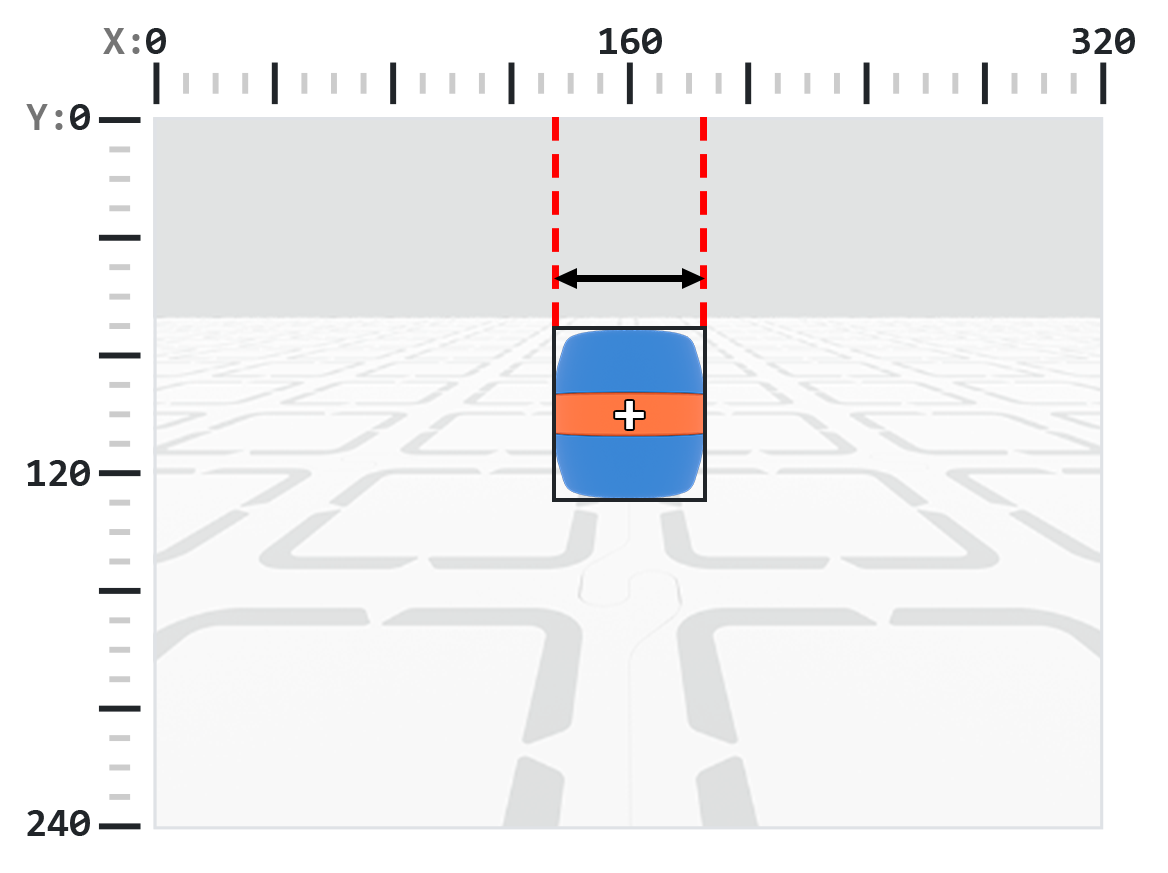
.width ส่งคืนความกว้างของวัตถุที่ตรวจพบในหน่วยพิกเซล ซึ่งเป็นจำนวนเต็มระหว่าง 1 ถึง 320
หมายเหตุ: ค่าพิกเซลสัมพันธ์กับระบบพิกัดของเซ็นเซอร์ ดู แผนภาพในบทนำ เพื่อเป็นข้อมูลอ้างอิง
# Move towards a Blue Barrel until its width is
# larger than 100 pixels
while True:
    barrel = robot.vision.get_data(BLUE_BARREL)

    if barrel[0].exists:
        if barrel[0].width < 100:
            robot.move_at(0)
    else:
        robot.stop_all_movement()

    wait(50, MSEC)
.height#
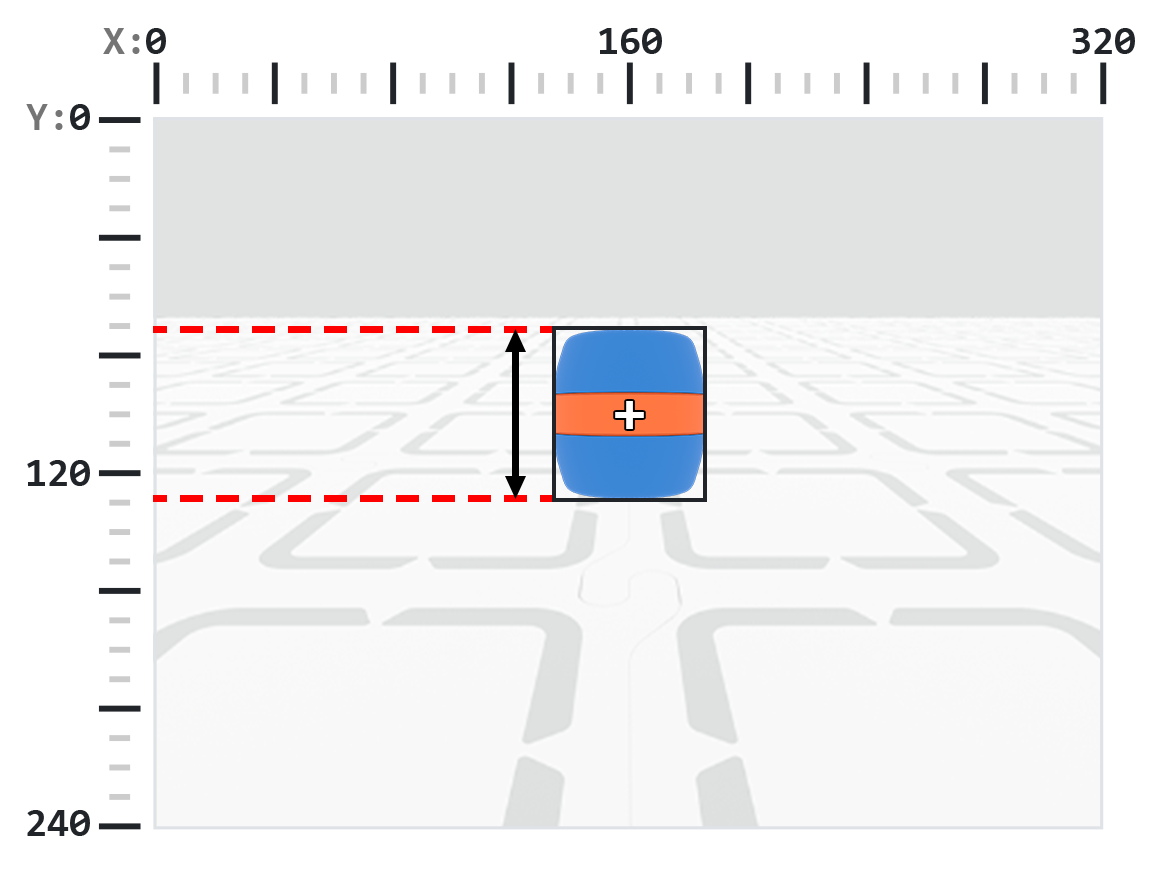
.height จะส่งคืนค่าความสูงของวัตถุที่ตรวจพบในหน่วยพิกเซล ซึ่งเป็นจำนวนเต็มระหว่าง 1 ถึง 240
หมายเหตุ: ค่าพิกเซลสัมพันธ์กับระบบพิกัดของเซ็นเซอร์ ดู แผนภาพในบทนำ เพื่อเป็นข้อมูลอ้างอิง
# Move towards a Blue Barrel until its height is
# larger than 100 pixels
while True:
    barrel = robot.vision.get_data(BLUE_BARREL)

    if barrel[0].exists:
        if barrel[0].height < 100:
            robot.move_at(0)
    else:
        robot.stop_all_movement()

    wait(50, MSEC)
.centerX#
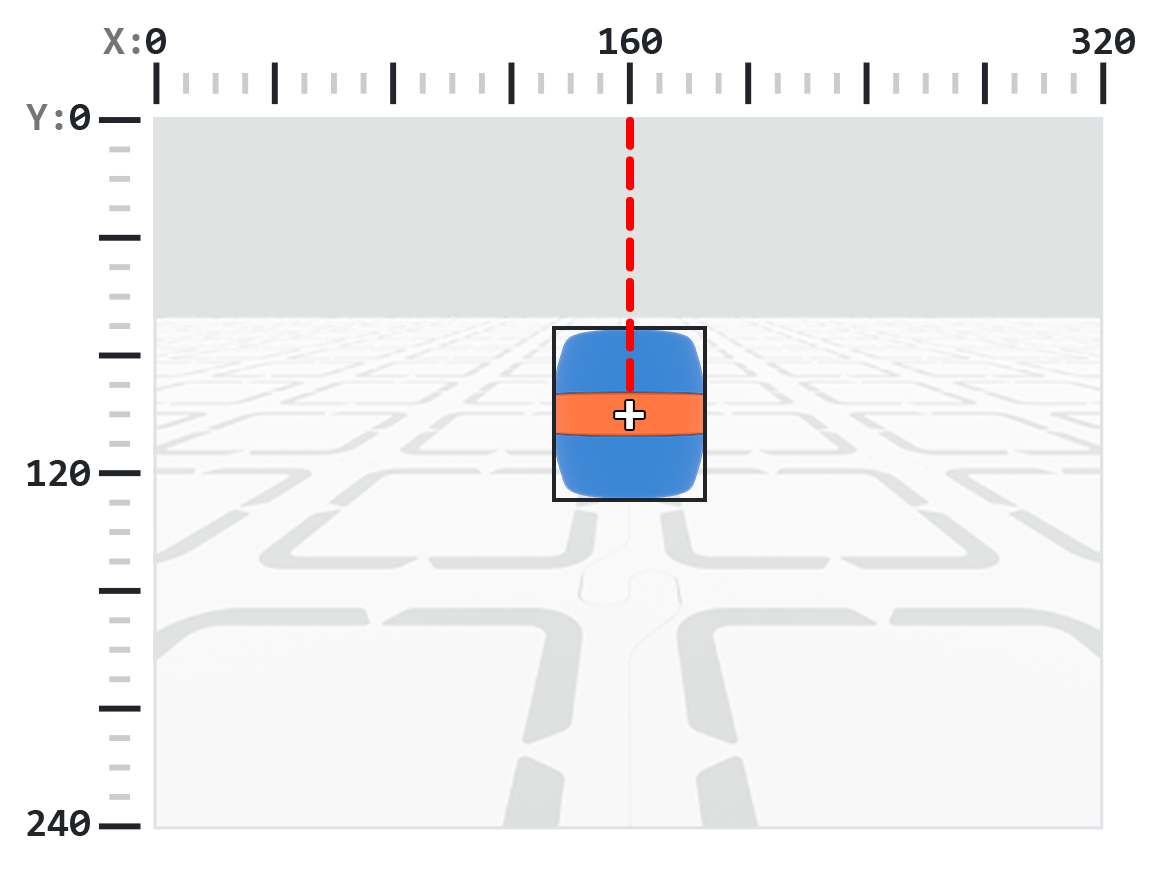
.centerX ของวัตถุที่ตรวจพบในหน่วยพิกเซล ซึ่งเป็นจำนวนเต็มระหว่าง 0 ถึง 320
หมายเหตุ: ค่าพิกเซลสัมพันธ์กับระบบพิกัดของเซ็นเซอร์ ดู แผนภาพในบทนำ เพื่อเป็นข้อมูลอ้างอิง
# Turn slowly until a Blue Barrel is centered in
# front of the robot
robot.set_turn_velocity(30)
robot.turn(RIGHT)

while True:
    barrel = robot.vision.get_data(BLUE_BARREL)

    if barrel[0].exists:
        if 140 < barrel[0].centerX < 180:
            robot.stop_all_movement()

    wait(10,MSEC)
.centerY#
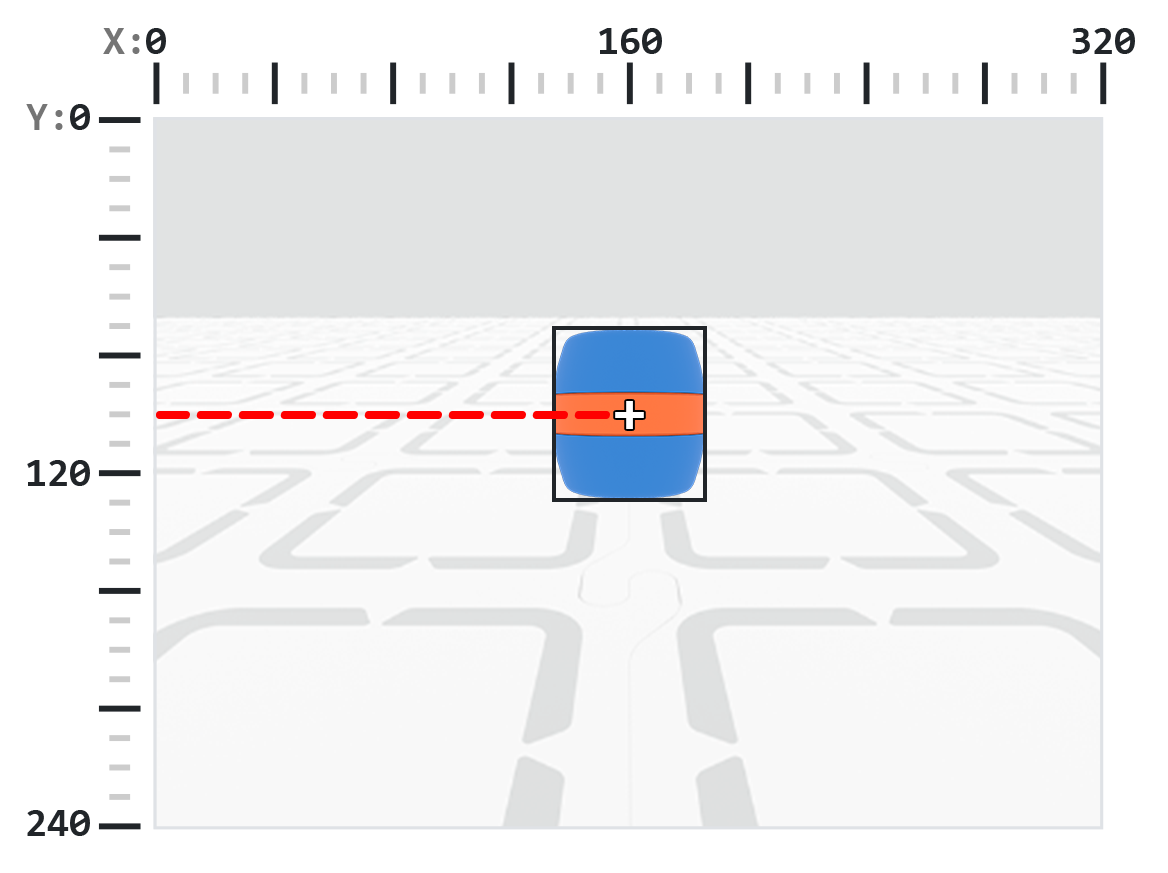
.centerY ที่ตรวจพบในหน่วยพิกเซล ซึ่งเป็นจำนวนเต็มระหว่าง 0 ถึง 240
หมายเหตุ: ค่าพิกเซลสัมพันธ์กับระบบพิกัดของเซ็นเซอร์ ดู แผนภาพในบทนำ เพื่อเป็นข้อมูลอ้างอิง
# Move towards a Blue Barrel until its
# center y-coordinate is more than 140 pixels
while True:
    barrel = robot.vision.get_data(BLUE_BARREL)

    if barrel[0].exists:
        if barrel[0].centerY < 140:
            robot.move_at(0)
    else:
        robot.stop_all_movement()

    wait(50, MSEC)
.bearing#
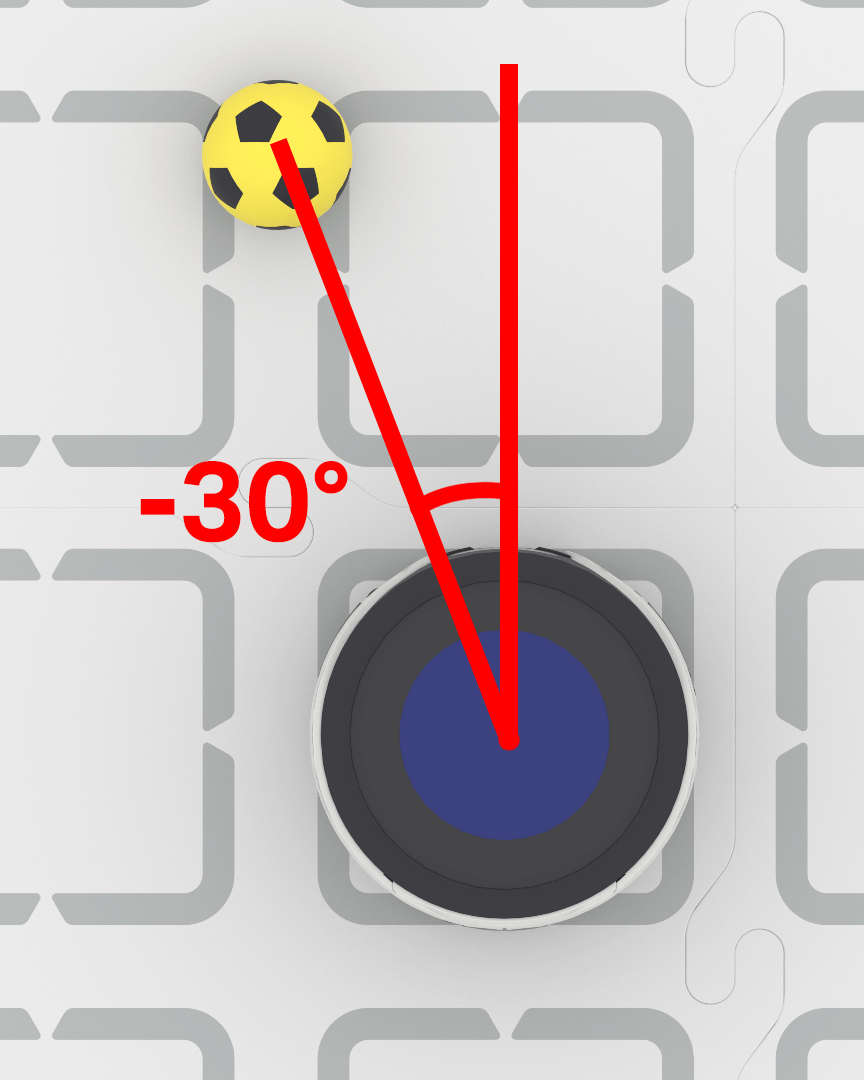
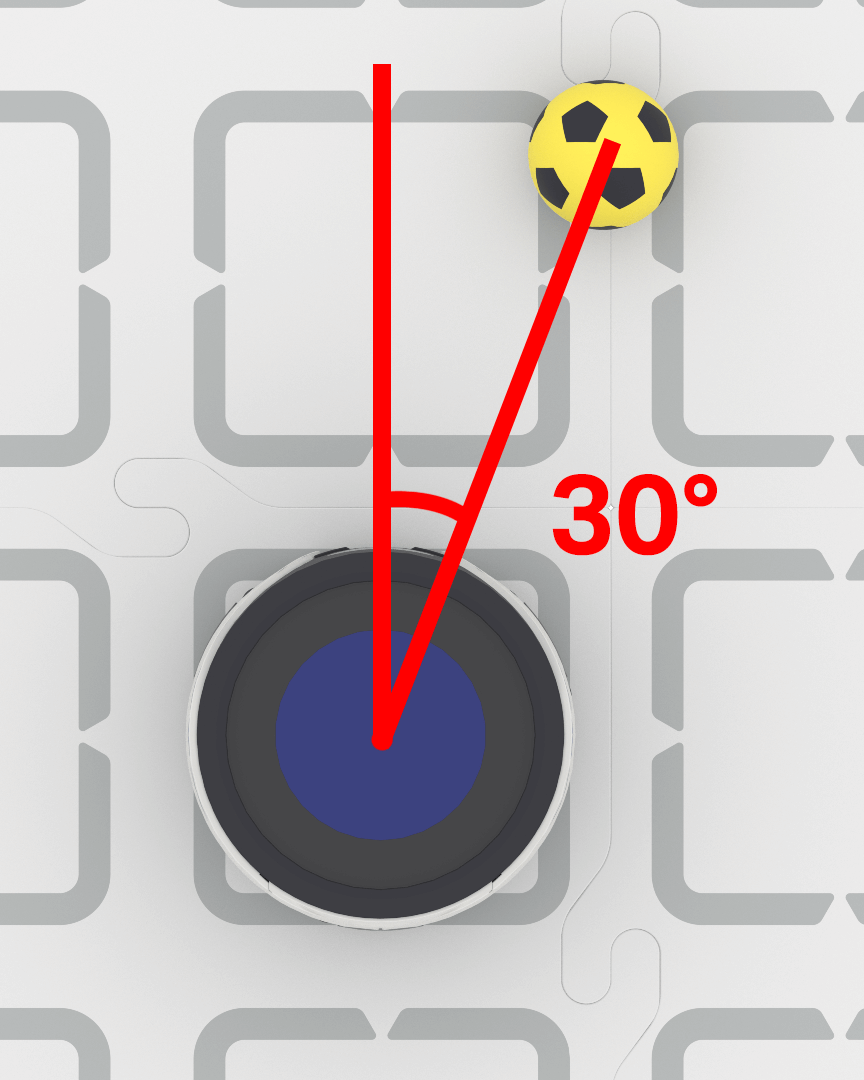
.bearing ส่งคืนค่าทศนิยม (float) ซึ่งแสดงระยะห่างของวัตถุไปทางซ้ายหรือขวาจากจุดศูนย์กลางของมุมมองของเซ็นเซอร์ AI Vision เป็นองศา ค่า 0 หมายความว่าวัตถุอยู่ตรงกลาง ค่าบวกหมายความว่าวัตถุอยู่ทางขวา และค่าลบหมายความว่าวัตถุอยู่ทางซ้าย
# Turn to keep the Blue Barrel directly in front
robot.set_turn_velocity(40)
while True:
    vision_data = robot.vision.get_data(BLUE_BARREL)

    if vision_data[0].exists:

        if vision_data[0].bearing > 5:
            robot.turn(RIGHT)
        elif vision_data[0].bearing < -5:
            robot.turn(LEFT)
        else:
            robot.stop_all_movement()

    else:
        robot.stop_all_movement()

    wait(0.1, SECONDS)
.rotation#
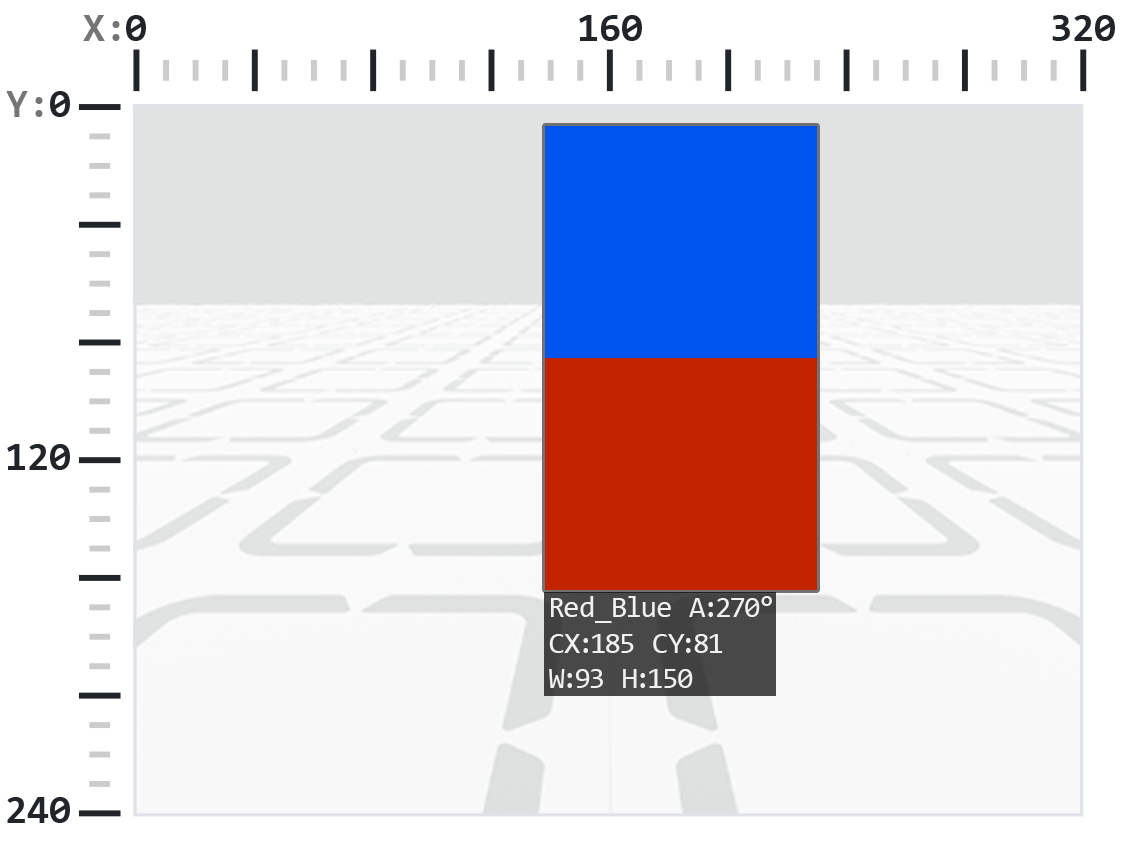
.rotation AI Vision โดยวัดเป็นองศาตั้งแต่ 0 ถึง 359 รหัสสีจะมีค่า 0° เมื่อสีเรียงกันเป็นเส้นตรงแนวนอน (เช่น แดง-น้ำเงิน) หากสีถูกหมุน มุมก็จะเปลี่ยนไป (เช่น การเรียงสีน้ำเงิน-แดง จะได้ค่า 180°)
สำหรับตัวอย่างด้านล่างนี้ ได้มีการตั้งค่ารหัสสีโดยให้สีแดงอยู่ทางซ้ายและสีน้ำเงินอยู่ทางขวา
ในภาพนี้ การวางสีน้ำเงินทับสีแดง เทียบเท่ากับการหมุนรหัสสีเดิมไปทางขวา 270 องศา
# Slide left or right depending on how a Color Code (BlueRed)
# is rotated on the vertical plane
while True:
    # Original Color Code is Red to the left, Blue to the right
    code = robot.vision.get_data(BlueRed)

    if code[0].exists:
        # Check if Color Code is now Red on top of Blue
        if 50 < code[0].rotation < 100 :
            robot.move_at(90)

        # Check if Color Code is now Blue on top of Red
        elif 270 < code[0].rotation < 330 :
            robot.move_at(270)

        else:
            robot.stop_all_movement()
    else:
        robot.stop_all_movement()

    wait(50, MSEC)
.originX#
.originX วัตถุที่ตรวจพบในหน่วยพิกเซล ซึ่งเป็นจำนวนเต็มระหว่าง 0 ถึง 320
หมายเหตุ: ค่าพิกเซลสัมพันธ์กับระบบพิกัดของเซ็นเซอร์ ดู แผนภาพในบทนำ เพื่อเป็นข้อมูลอ้างอิง
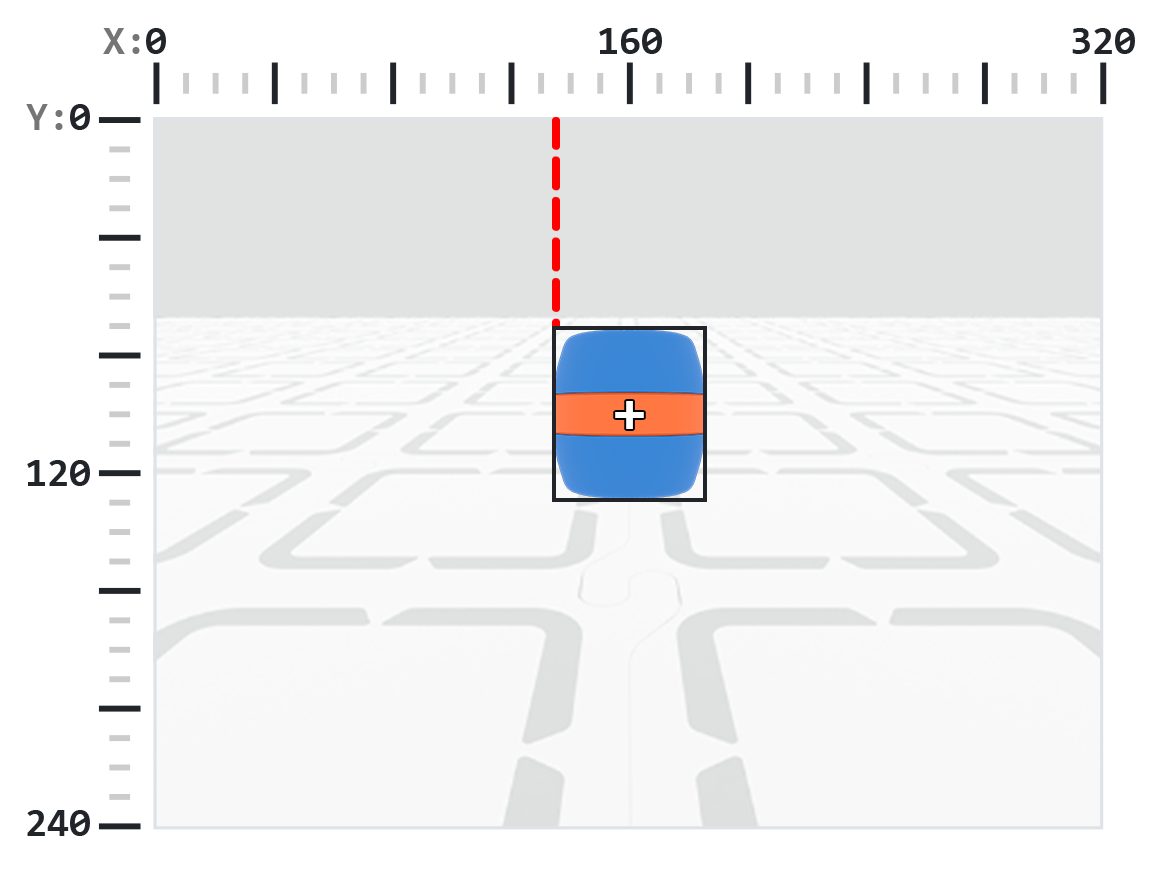
# Display if an Orange Barrel is to the
# left or the right
while True:
    robot.screen.clear_screen()
    robot.screen.set_cursor(1,1)

    orange_barrel = robot.vision.get_data(ORANGE_BARREL)

    if orange_barrel[0].exists:
        if orange_barrel[0].originX < 160:
            robot.screen.print("To the left!")
        else:
            robot.screen.print("To the right!")

    wait(50, MSEC)
.originY#
.originY พบในหน่วยพิกเซล ซึ่งเป็นจำนวนเต็มระหว่าง 0 ถึง 240
หมายเหตุ: ค่าพิกเซลสัมพันธ์กับระบบพิกัดของเซ็นเซอร์ ดู แผนภาพในบทนำ เพื่อเป็นข้อมูลอ้างอิง
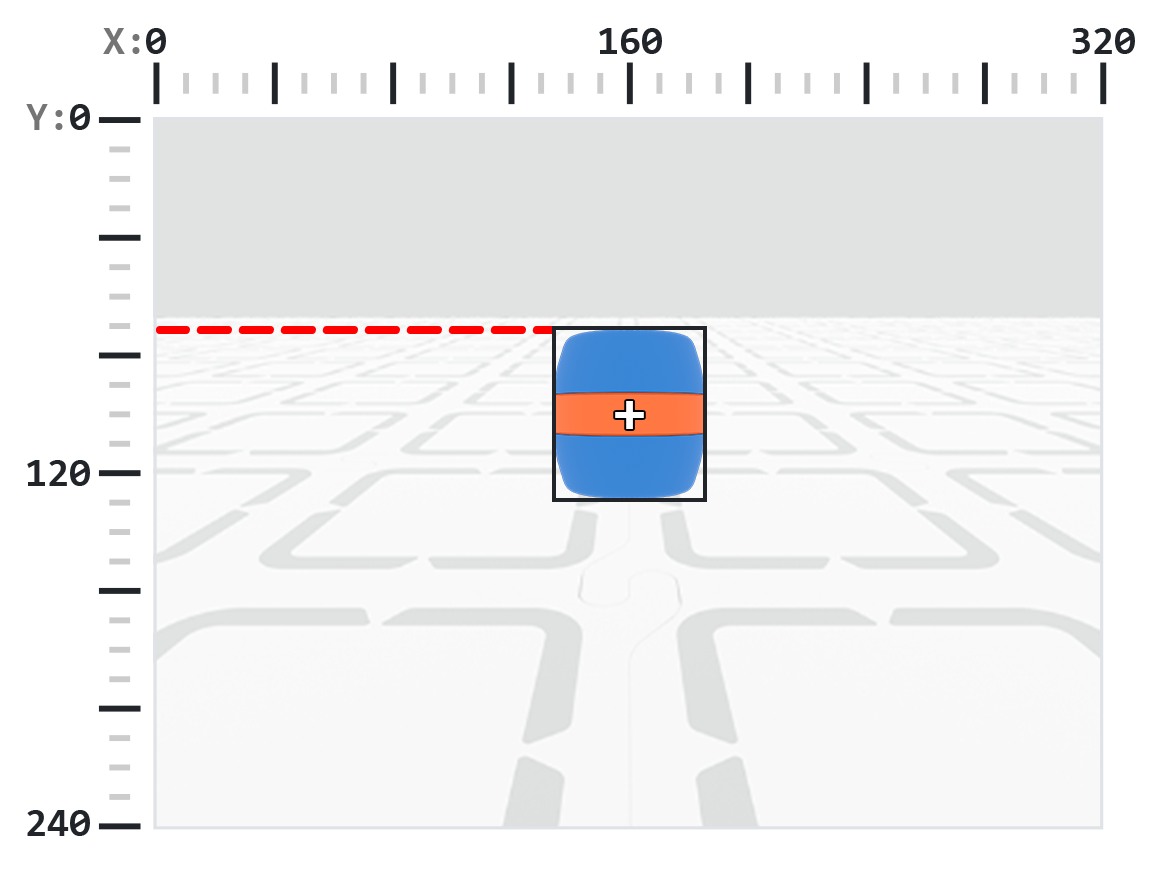
# Display if an Orange Barrel is close or far
# from the robot
while True:
    robot.screen.clear_screen()
    robot.screen.set_cursor(1, 1)

    orange_barrel = robot.vision.get_data(ORANGE_BARREL)

    if orange_barrel[0].exists:
        if orange_barrel[0].originY < 80:
            robot.screen.print("Far")
        else:
            robot.screen.print("Close")

    wait(50, MSEC)
.id#
.id ส่งคืน ID ของการจำแนกประเภท AI ที่ตรวจพบหรือ AprilTag ID เป็นจำนวนเต็ม
สำหรับ AprilTag ID คุณสมบัติ .id แสดงถึงหมายเลข AprilTag ID ที่ตรวจพบในช่วง 0 ถึง 37 สำหรับการจำแนกประเภท AI คุณสมบัติ .id สอดคล้องกับ ID ที่กำหนดไว้ล่วงหน้าในส่วน การจำแนกประเภท AI
# Move forward when AprilTag ID 1 is detected
while True:
    apriltags = robot.vision.get_data(ALL_TAGS)

    if apriltags[0].exists:
        if apriltags[0].id == 1:
            robot.move_at(0)
    else:
        robot.stop_all_movement()

    wait(50, MSEC)
.score#
.score ส่งคืนค่าความเชื่อมั่นของการจำแนกประเภท AI ที่ตรวจพบเป็นจำนวนเต็มระหว่าง 1 ถึง 100
คะแนนที่ต่ำกว่าหมายความว่าเซ็นเซอร์มีความมั่นใจน้อยลงในการตรวจจับวัตถุ ในขณะที่คะแนนที่สูงกว่าหมายความว่าเซ็นเซอร์มีความมั่นใจมากขึ้น
# Look confident if an Orange Barrel is detected
while True:
    barrel = robot.vision.get_data(ORANGE_BARREL)

    if barrel[0].exists:
        if barrel[0].score > 95:
            robot.screen.show_emoji(CONFIDENT)
        else:
            robot.screen.hide_emoji()

    wait(50, MSEC)
.type#
.type ที่เกี่ยวข้อง:
ประเภทวัตถุ |
วัตถุที่รวมอยู่ |
|---|---|
|
— ลูกบอลกีฬา |
|
— รหัสแท็กเดือนเมษายน |
|
— ลายเซ็นสี |
|
— รหัสสี |
# Display if an AprilTag ID or AI Classification
# is detected
while True:
    robot.screen.clear_screen()
    robot.screen.set_cursor(1, 1)
    vision_data = robot.vision.get_data(ALL_VISION)
    if vision_data[0].exists:
        if vision_data[0].type == AiVision.AI_OBJECT:
            robot.screen.print("AI Object!")
        elif vision_data[0].type == AiVision.TAG_OBJECT:
            robot.screen.print("AprilTag ID!")
    wait(0.1, SECONDS)
# Display a list of all detected objects
while True:
    robot.screen.clear_screen()
    robot.screen.set_cursor(1, 1)
    vision_data = robot.vision.get_data(ALL_VISION)

    if vision_data[0].exists:
        for obj in vision_data:
            if obj.type == AiVision.AI_OBJECT:
                robot.screen.print("- AI Object")
            elif obj.type == AiVision.TAG_OBJECT:
                robot.screen.print("- AprilTag ID")
            robot.screen.next_row()

    wait(0.1, SECONDS)
ผู้สร้าง#
Creating a Color Signature#
มีการสร้างลายเซ็นสีใหม่โดยใช้ตัวสร้าง Colordesc จากนั้นลงทะเบียนกับเซ็นเซอร์ AI Vision โดยใช้วิธีการ color_description อ็อบเจ็กต์ Colordesc กำหนดลายเซ็นสีที่ตรวจจับได้สูงสุด 1 ใน 7 แบบสำหรับเซ็นเซอร์ แต่ต้องตั้งค่าอย่างชัดเจนโดยใช้ color_description เพื่อให้มีผล
การใช้งาน Colordesc:
Colordesc(index, red, green, blue, hangle, hdsat)
พารามิเตอร์ |
คำอธิบาย |
|---|---|
|
ตัวเลขจำนวนเต็มตั้งแต่ 1 ถึง 7 แทนดัชนีของลายเซ็นสี หากลายเซ็นสีสองอันใช้ดัชนีเดียวกัน ลายเซ็นสีอันที่สองจะแทนที่ลายเซ็นสีอันแรก |
|
ค่าจำนวนเต็มตั้งแต่ 0 ถึง 255 สำหรับส่วนประกอบสีแดงของสีนั้น |
|
ค่าจำนวนเต็มตั้งแต่ 0 ถึง 255 สำหรับส่วนประกอบสีเขียวของสีนั้น |
|
ค่าจำนวนเต็มตั้งแต่ 0 ถึง 255 สำหรับส่วนประกอบสีน้ำเงินของสีนั้น |
|
ค่าทศนิยมตั้งแต่ 1 ถึง 40 แสดงช่วงเฉดสีในหน่วยองศา |
|
ค่าทศนิยมตั้งแต่ 0.10 ถึง 1.00 แสดงถึงช่วงความอิ่มตัว |
color_description การใช้งาน:
robot.vision.color_description(object)
พารามิเตอร์ |
คำอธิบาย |
|---|---|
|
อ็อบเจ็กต์ |
# Detect a red object
red_box = Colordesc(1, 207, 19, 25, 10.00, 0.20)
robot.vision.color_description(red_box)

while True:
    robot.screen.clear_screen()
    robot.screen.set_cursor(1, 1)

    red_boxes = robot.vision.get_data(red_box)

    if red_boxes[0].exists:
        robot.screen.print("Red detected!")
    else:
        robot.screen.print("No red detected.")

    wait(0.2, SECONDS)
Creating a Color Code#
มีการสร้างรหัสสีใหม่โดยใช้ตัวสร้าง Codedesc จากนั้นเปิดใช้งานโดยใช้วิธี code_description รหัสสีจะจัดกลุ่มวัตถุ Colordesc ที่มีอยู่ 2 ถึง 4 รายการเข้าเป็นตัวระบุเดียวที่เซ็นเซอร์ AI Vision สามารถตรวจจับได้เป็นลำดับ แต่ต้องตั้งค่าอย่างชัดเจนโดยใช้ code_description เพื่อให้มีผล
การใช้งาน Codedesc:
Codedesc(index, c1, c2, c3, c4, c5)
พารามิเตอร์ |
คำอธิบาย |
|---|---|
|
ดัชนีของรหัสสี ตั้งแต่ 1 ถึง 8 หมายเหตุ: หากคุณสร้างอ็อบเจ็กต์ |
|
อ็อบเจ็กต์ |
|
อ็อบเจ็กต์ |
|
ตัวเลือกเสริม วัตถุ |
|
ตัวเลือกเสริม วัตถุ Colordesc |
code_description วิธีใช้งาน:
robot.vision.code_description(object)
พารามิเตอร์ |
คำอธิบาย |
|---|---|
|
อ็อบเจ็กต์ Codedesc |
# Create Color Signatures
red_box = Colordesc(1, 207, 19, 25, 10.00, 0.20)
purple_box = Colordesc(2, 98, 18, 227, 10.00, 0.20)

robot.vision.color_description(red_box)
robot.vision.color_description(purple_box)

# Detect a red_purple Color Code
red_purple = Codedesc(1, red_box, purple_box)
robot.vision.code_description(red_purple)

while True:
    robot.screen.clear_screen()
    robot.screen.set_cursor(1, 1)

    code_objects = robot.vision.get_data(red_purple)

    if code_objects[0].exists:
        robot.screen.print("Code detected!")
    else:
        robot.screen.print("No code detected.")

    wait(0.2, SECONDS)