
螢幕#
介紹#
螢幕方法控制 V5 大腦如何在觸控螢幕上顯示文字、數字和圖形,以及如何回應觸控輸入。
預設情況下,列印到大腦的字體是等寬小號,它有 12 行 48 列。
大腦的繪圖解析度為 480 x 240 像素。
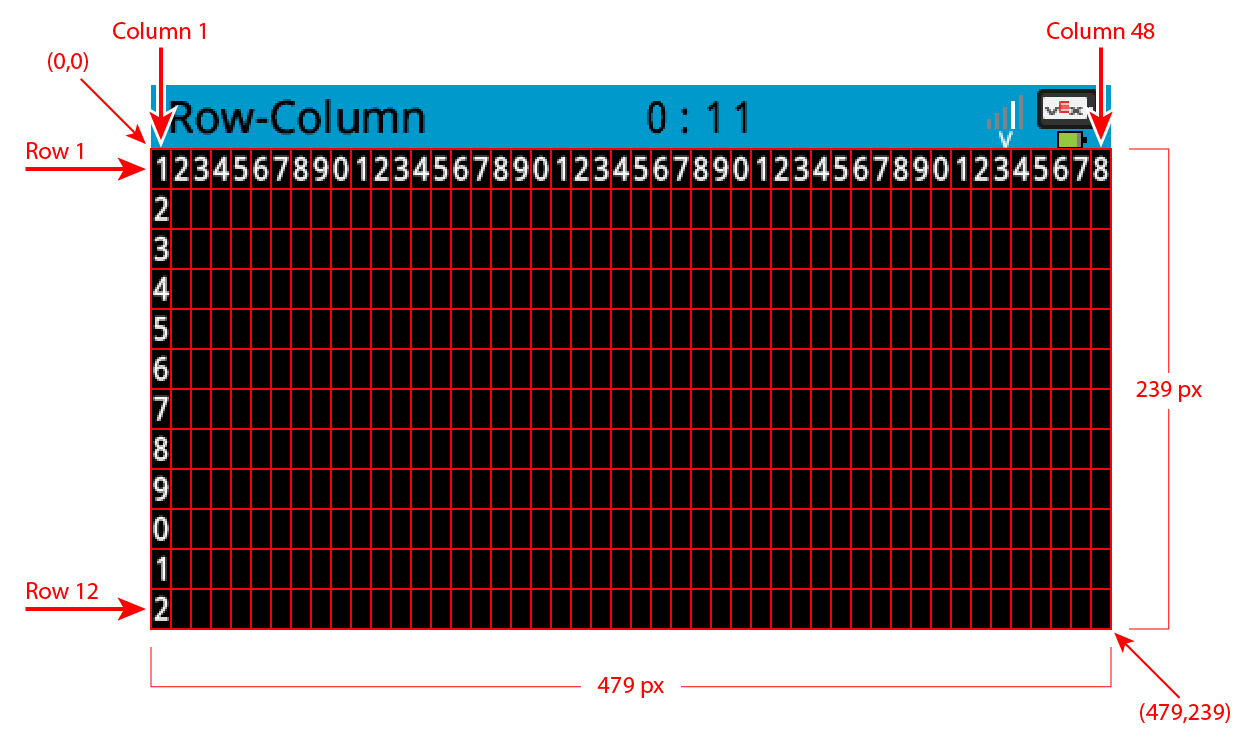
以下是所有方法的清單:
遊標列印 — 放置並列印文字。
print— 在目前遊標位置列印文字、數字或變數值。set_cursor— 將遊標移到指定的行和列。next_row— 將遊標移到下一行的第 1 列。clear_row— 清除一行文字。row— 傳回要列印文字的行。column— 傳回要列印文字的列。print_at— 在指定的 x 和 y 座標處列印文字、數字或變數值。get_string_width— 使用目前字體傳回字串的像素寬度。get_string_height— 使用目前字體傳回字串的像素高度。clear_line— 清除一行文字。new_line— 將遊標移到新行。
修改器-更改螢幕設定、顏色和繪製行為。
clear_screen— 清除螢幕上的所有繪圖和文字。set_font— 設定列印文字的字型。set_pen_width— 設定繪製的線條和形狀輪廓的粗細。set_pen_color— 設定文字、像素、線條和形狀輪廓的顏色。set_fill_color— 設定繪製形狀和列印文字背景的填滿顏色。set_origin— 設定用於基於座標的列印和繪圖的原點。
繪製 — 在螢幕上新增圖形。
draw_pixel— 在座標處繪製一個像素。draw_line— 在兩點之間畫一條線。draw_rectangle— 繪製一個長方形。draw_circle— 畫一個圓。render— 僅在呼叫時更新大腦的螢幕,顯示文字和圖形。set_clip_region— 限制圖形和文字的顯示位置。
獲取器 — 檢查觸控狀態和觸控位置。
pressing— 返回螢幕是否被按下。x_position— 傳回最後一次畫面按下的 x 座標。y_position— 傳回最後一次畫面按下的 y 座標。
回調函數-回應螢幕上的觸控事件。
有關建立 Brain 以存取 screen 方法的信息,請參閱 Brain。
遊標列印#
print#
print 在 Brain 畫面上以目前遊標位置和字型列印文字、數字或變數值。
用法:
brain.screen.print(text, sep, precision)
參數 |
描述 |
|---|---|
|
要列印的文字、數字或變數值。 |
|
可選。要在值之間插入的字串。必須將其寫成關鍵字參數(sep=)。預設值為 |
|
可選。列印簡單數字時顯示的小數位數。必須以關鍵字參數的形式指定( |
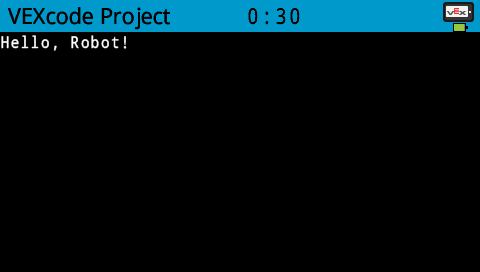
# Print on the Brain's screen
brain.screen.print("Hello, Robot!")
set_cursor#
set_cursor moves the cursor to a specific row and column on the Brain screen. The next print call will start printing at that location. How many rows and columns can comfortably fit depends on the selected font. With the default monospaced medium font, up to 8 rows and 13 columns can be displayed clearly. Text placed beyond this range may be cut off or become difficult to read.
Monospaced fonts have characters that are all the same width, making text placement consistent. In contrast, proportional fonts vary in character width, so some letters take up more space than others. However, regardless of which type is used, set_cursor positions the cursor based on row and column size, not font style. The font size can be adjusted using the set_font.
用法:
brain.screen.set_cursor(row, column)
參數 |
描述 |
|---|---|
|
要將遊標移到的行。 |
|
要將遊標移到的列。 |
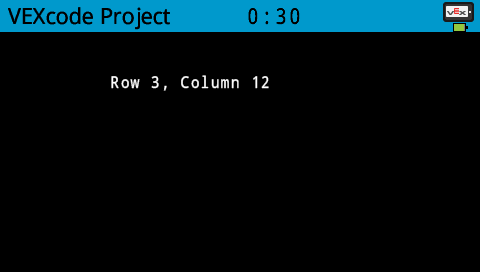
# Display text starting at Row 3 Column 12
brain.screen.set_cursor(3, 12)
brain.screen.print("Row 3, Column 12")
next_row#
next_row 將遊標移到下一行。
用法:
brain.screen.next_row()
參數 |
描述 |
|---|---|
此方法沒有參數。 |
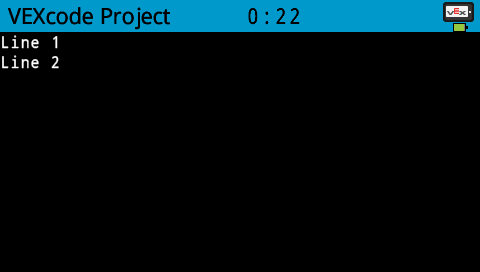
# Print two lines of text on the Brain's screen
brain.screen.print("Line 1")
brain.screen.next_row()
brain.screen.print("Line 2")
clear_row#
clear_row 清除大腦螢幕上的一行文字。
用法:
brain.screen.clear_row(row, color)
參數 |
描述 |
|---|---|
|
可選。要清除的行。預設值為目前遊標所在行。 |
|
可選。有效的顏色、十六進位值或網頁字串。 |
# Only keep the text on row 1
brain.screen.print("This text stays")
brain.screen.next_row
brain.screen.print("This text disappears")
wait(3, SECONDS)

brain.screen.clear_row()
row#
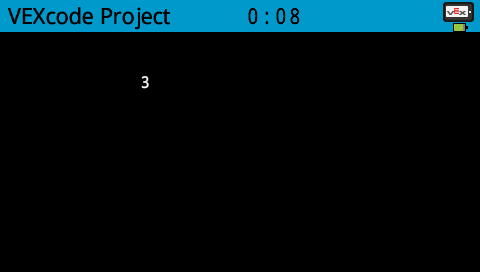
row 條傳回將以整數形式列印文字的行。
用法:
brain.screen.row()
參數 |
描述 |
|---|---|
此方法沒有參數。 |
# Display the cursor's current row
brain.screen.set_cursor(3, 2)
brain.screen.print(brain.screen.row())
column#
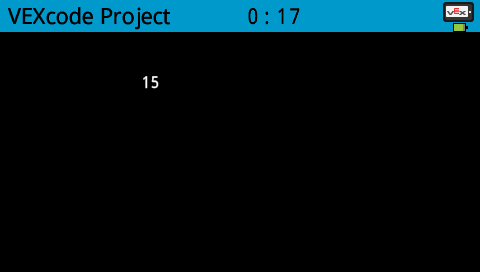
column 傳回文字將以整數形式列印的列。
用法:
brain.screen.column()
參數 |
描述 |
|---|---|
此方法沒有參數。 |
# Display the cursor's current column
brain.screen.set_cursor(3, 15)
brain.screen.print(brain.screen.column())
print_at#
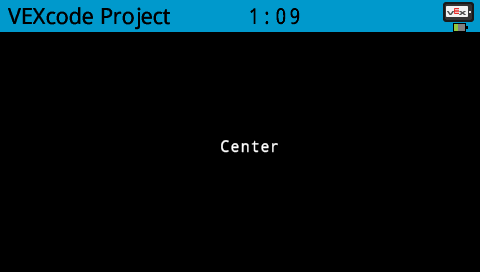
print_at 在 Brain 畫面上的特定 x 和 y 座標處,使用目前的 font 和 origin 列印文字、數字或變數值。
用法:
brain.screen.print_at(text, x, y, sep, precision, opaque)
參數 |
描述 |
|---|---|
|
要列印的文字、數字或變數值。 |
|
要列印的 x 座標作為關鍵字參數( |
|
要列印的 y 座標作為關鍵字參數( |
|
可選。要在值之間插入的字串。必須將其寫成關鍵字參數(sep=)。預設值為 |
|
可選。列印簡單數字時顯示的小數位數。必須以關鍵字參數的形式指定( |
|
可選。一個布林值,指示文字是否應清除背景像素。預設值為 |
# Display text at the center of the screen
brain.screen.print_at("Center", x=220, y=120)
get_string_width#
get_string_width 傳回字串的寬度(以像素為單位),以整數形式表示,使用目前的 font。
Usage:
brain.screen.get_string_width(string)
參數 |
描述 |
|---|---|
|
待測量的繩子。 |
get_string_height#
get_string_height 傳回字串的高度(以像素為單位),使用目前的 font。
Usage:
brain.screen.get_string_height(string)
參數 |
描述 |
|---|---|
|
待測量的繩子。 |
clear_line#
clear_line 清除目前行的文字。
Usage:
brain.screen.clear_line()
參數 |
描述 |
|---|---|
此方法沒有參數。 |
new_line#
new_line 將遊標移到 Brain 螢幕上下一行的第 1 列。
用法:
brain.screen.new_line()
參數 |
描述 |
|---|---|
此方法沒有參數。 |
變異體#
clear_screen#
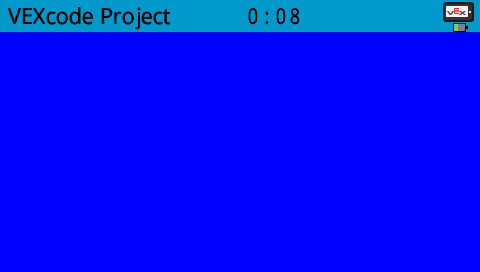
clear_screen 清除大腦螢幕上的所有圖形和文字。
用法:
brain.screen.clear_screen(color)
參數 |
描述 |
|---|---|
|
Optional. A valid color option:
|
# Print VEXcode on the screen
brain.screen.print("VEXcode")
wait(2, SECONDS)
# Clear screen to black
brain.screen.clear_screen()
# Print VEXcode on the screen
brain.screen.print("VEXcode")

# Clear screen to blue using predefined color
brain.screen.clear_screen(Color.BLUE)
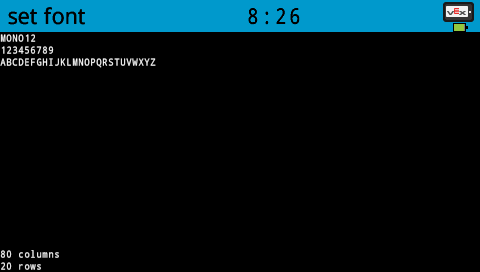
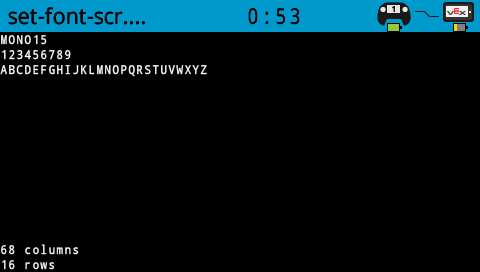
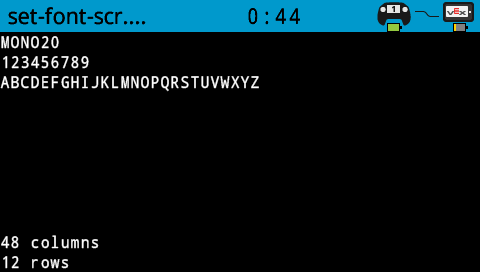
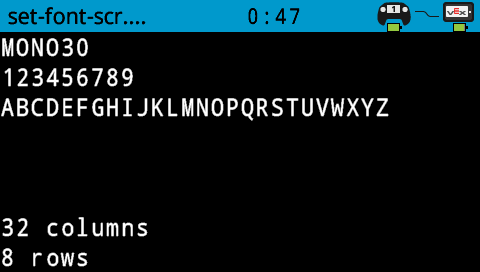
set_font#
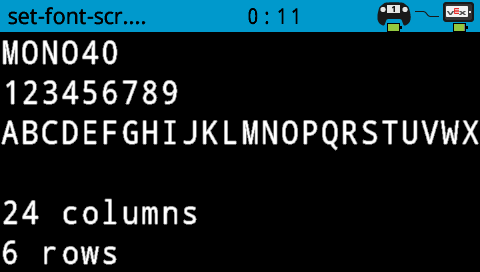
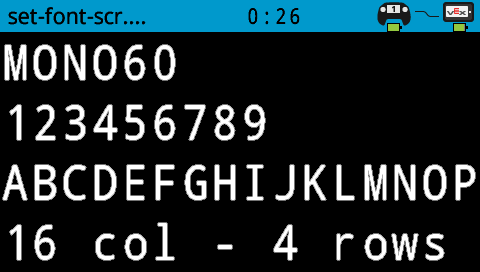
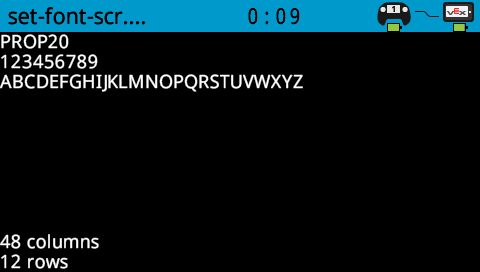
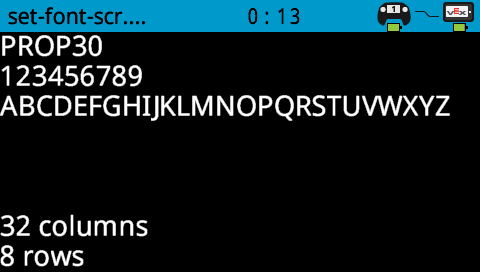
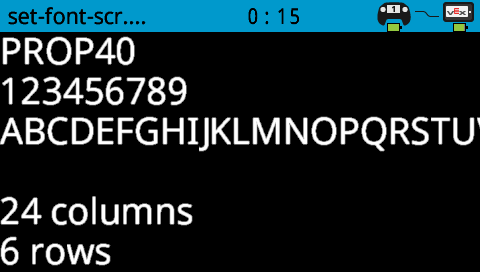
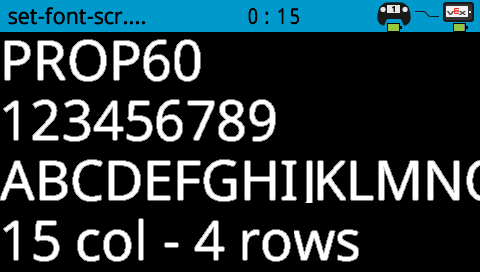
set_font 設定用於在大腦螢幕上顯示文字的字體。此字體將套用於此方法運行後列印的所有文字。
用法:
brain.screen.set_font(font)
參數 |
描述 |
|---|---|
|
以下是一個有效的字體選項。 |
|
|
|
|---|---|---|
|
|
|
|
|
|
|
# Set the font type to MONO40
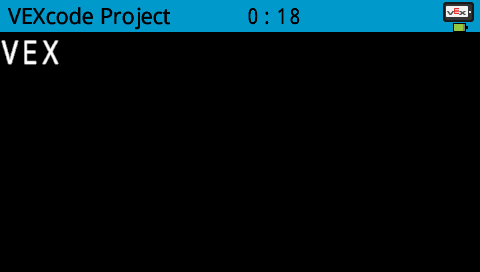
brain.screen.set_font(FontType.MONO40)
brain.screen.print("VEX")
set_pen_width#
set_pen_width 設定繪製線條和形狀輪廓的粗細。
用法:
brain.screen.set_pen_width(value)
參數 |
描述 |
|---|---|
|
筆的寬度,以像素為單位,範圍從 0 到 32。 |
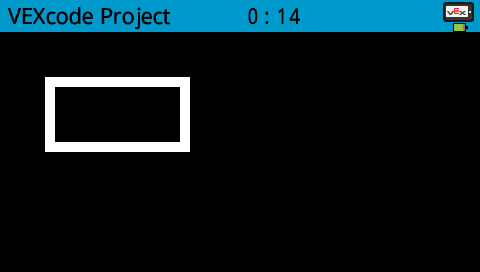
# Draw a rectangle with a pen width of 10
brain.screen.set_pen_width(10)
brain.screen.draw_rectangle(50, 50, 130, 60)
set_pen_color#
set_pen_color 設定文字、像素、線條和形狀輪廓的顏色。
用法:
brain.screen.set_pen_color(color)
參數 |
描述 |
|---|---|
|
要使用的笔和字体颜色。选项包括:
|
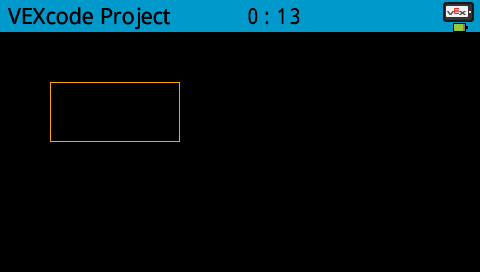
# Draw a rectangle with orange borders
brain.screen.set_pen_color(Color.ORANGE)
brain.screen.draw_rectangle(50, 50, 130, 60)
set_fill_color#
set_fill_color 設定繪製形狀時所使用的填滿顏色。
用法:
brain.screen.set_fill_color(color)
參數 |
描述 |
|---|---|
|
要使用的填充颜色。选项包括:
|
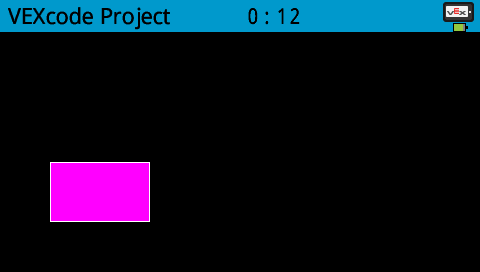
# Draw a purple rectangle
brain.screen.set_fill_color(Color.PURPLE)
brain.screen.draw_rectangle(50, 130, 100, 60)
set_origin#
set_origin 設定 Brain 螢幕上用於繪圖和基於座標的列印的原點。預設情況下,原點位於螢幕左上角。
用法:
brain.screen.set_origin(x, y)
參數 |
描述 |
|---|---|
|
要設定的原點 x 座標,範圍從 0 到 479。 |
|
設定為原點的 y 座標,範圍從 0 到 239。 |
畫#
draw_pixel#
draw_pixel 使用目前畫筆顏色在選取的 x 和 y 座標處繪製一個像素。
用法:
brain.screen.draw_pixel(x, y)
參數 |
描述 |
|---|---|
|
繪製像素的 x 座標,範圍從 0 到 479,以螢幕原點為參考。 |
|
繪製像素的 y 座標,範圍從 0 到 239,以螢幕原點為參考。 |
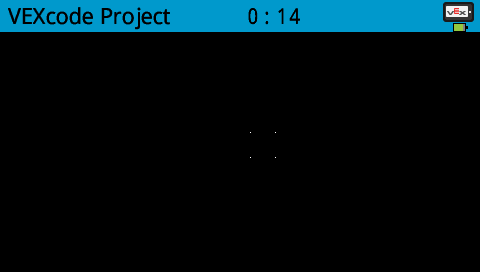
# Draw the pixels marking the corners of a square
brain.screen.draw_pixel(250, 100)
brain.screen.draw_pixel(275, 100)
brain.screen.draw_pixel(250, 125)
brain.screen.draw_pixel(275, 125)
draw_line#
draw_line 使用目前筆寬和筆色,從第一個螢幕座標到第二個螢幕座標繪製一條線。
用法:
brain.screen.draw_line(start_x, start_y, end_x, end_y)
參數 |
描述 |
|---|---|
|
行首的 x 座標(以像素為單位),範圍從 0 到 479,參考螢幕原點。 |
|
行首的 y 座標(以像素為單位),範圍從 0 到 239,參考螢幕原點。 |
|
行尾的 x 座標(以像素為單位),範圍從 0 到 479,參考螢幕原點。 |
|
行尾的 y 座標(以像素為單位),範圍從 0 到 239,以螢幕原點為參考。 |
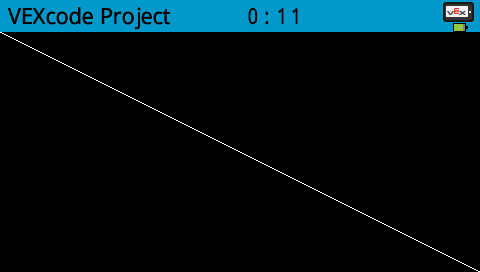
# Draw a line from the top left to bottom right of the screen
brain.screen.draw_line(0, 0, 479, 239)
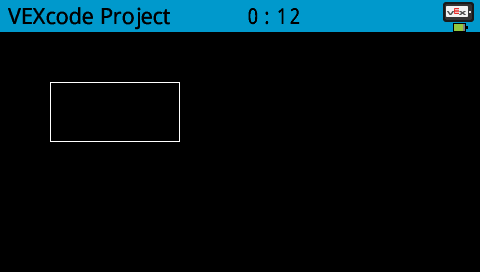
draw_rectangle#
draw_rectangle 使用目前畫筆寬度、畫筆顏色和填滿顏色來繪製矩形,除非使用可選的 color 參數。
用法:
brain.screen.draw_rectangle(x, y, width, height, color)
參數 |
描述 |
|---|---|
|
矩形左上角的 x 座標(像素),取值範圍為 0 到 479。 |
|
矩形左上角的 y 座標(像素),取值範圍為 0 到 239。 |
|
矩形的寬度。 |
|
矩形的高度。 |
|
Optional. A valid color option:
|
# Draw a rectangle on the screen
brain.screen.draw_rectangle(50, 50, 130, 60)
draw_circle#
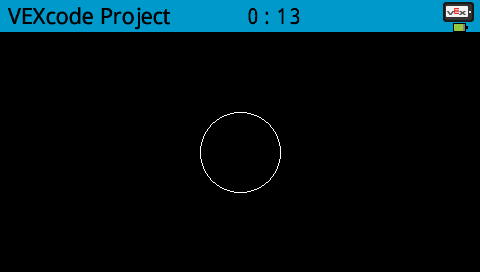
draw_circle 使用目前的畫筆寬度、畫筆顏色和填滿顏色繪製一個圓,除非使用可選的 color 參數。
用法:
brain.screen.draw_circle(x, y, radius, color)
參數 |
描述 |
|---|---|
|
圓心的 x 座標(以像素為單位),範圍從 0 到 479,參考螢幕原點。 |
|
圓心的 y 座標(以像素為單位),範圍從 0 到 239,參考螢幕原點。 |
|
圓的半徑,以像素為單位。 |
|
可选。要使用的填充颜色。选项包括:
|
# Draw a circle on the screen
brain.screen.draw_circle(120, 120, 40)
render#
render 為大腦螢幕啟用雙緩衝。呼叫後,任何繪圖命令(例如文字、形狀或圖像)都不會立即顯示在項目的其餘部分。相反,更新內容只有在再次使用 render 時才會顯示。這使得螢幕更新更加流暢和可控,但也意味著在 render 之前,螢幕內容將不可見。
用法:
brain.screen.render()
參數 |
描述 |
|---|---|
此方法沒有參數。 |
# Render text after moving
brain.screen.render()
brain.screen.print("Render later...")
drivetrain.drive_for(FORWARD, 100, MM)
drivetrain.turn_for(RIGHT, 90, DEGREES)
brain.screen.render()
set_clip_region#
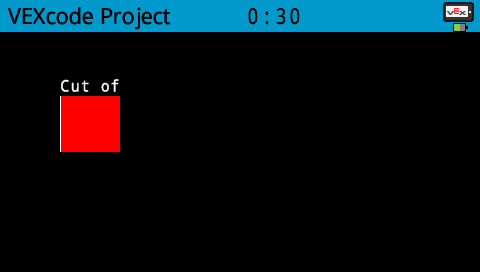
set_clip_region 定義了螢幕上的一個矩形區域,所有圖形和文字都將限制在該區域內。該區域以外的任何內容都不會顯示。
用法:
brain.screen.set_clip_region(x, y, width, height)
參數 |
描述 |
|---|---|
|
矩形左上角的 x 座標,以螢幕原點為參考。 |
|
矩形左上角的 y 座標,以螢幕原點為參考。 |
|
矩形的寬度。 |
|
矩形的高度。 |
# Restrict text and drawings to a specific region
brain.screen.set_clip_region(0, 0, 120, 120)
brain.screen.draw_rectangle(60, 60, 100, 100, Color.RED)
brain.screen.print_at("Cut off!", x=60, y=60)
觸碰#
pressing#
pressing 返回一個布林值,指示目前是否正在按下大腦螢幕。
True- 螢幕被按下。False- 螢幕未按下。
用法:
brain.screen.pressing()
參數 |
描述 |
|---|---|
此方法沒有參數。 |
# Change the screen's color after it's pressed
while not brain.screen.pressing():
    wait(5, MSEC)
brain.screen.set_fill_color(Color.GREEN)
brain.screen.draw_rectangle(0, 0, 479, 239)
# Display different messages after the screen is pressed
while not brain.screen.pressing():
    wait(5, MSEC)
brain.screen.print("First message!")
brain.screen.next_row()
# Lift finger to press the screen again
while brain.screen.pressing():
    wait(5, MSEC)
while not brain.screen.pressing():
    wait(5, MSEC)
brain.screen.print("Second message!")
brain.screen.next_row()
x_position#
x_position 返回上次畫面按下的 x 座標,取值範圍為 0(左)到 479(右)的整數。
用法:
brain.screen.x_position()
參數 |
描述 |
|---|---|
此方法沒有參數。 |
# Display a circle where the screen is pressed
while not brain.screen.pressing():
    wait(5, MSEC)
brain.screen.set_fill_color(Color.WHITE)
brain.screen.draw_circle(brain.screen.x_position(), brain.screen.y_position(), 20)
y_position#
y_position 傳回上次畫面按下的 y 座標,取值範圍為 0(上)到 239(下)。
用法:
brain.screen.y_position()
參數 |
描述 |
|---|---|
此方法沒有參數。 |
# Display a circle where the screen is pressed
while not brain.screen.pressing():
    wait(5, MSEC)
brain.screen.set_fill_color(Color.WHITE)
brain.screen.draw_circle(brain.screen.x_position(), brain.screen.y_position(), 20)
回呼函數#
pressed#
pressed 註冊一個在按下大腦畫面時要呼叫的函數。
用法:
brain.screen.pressed(callback, arg)
參數 |
描述 |
|---|---|
|
一個先前定義的函數,當按下大腦螢幕時執行。 |
|
def my_function():
  brain.screen.print("Screen pressed")

# Call my_function whenever the Brain screen is pressed
brain.screen.pressed(my_function)
released#
released 註冊一個在螢幕釋放(觸控移除)時要呼叫的函數。
用法:
brain.screen.released(callback, arg)
參數 |
描述 |
|---|---|
|
先前定義的 函數 在大腦螢幕釋放時執行。 |
|
def my_function():
  brain.screen.print("Screen released")

# Call my_function whenever the Brain screen is released
brain.screen.released(my_function)