Σύνδεση στη σειριακή θύρα της κονσόλας (Windows)#
Connecting to the Console Serial Port (Windows)
This tutorial walks you through connecting your VEX AIR Drone Controller to the Console Serial Port on Windows. By the end, you’ll be able to print to the Console from your projects.
Make sure your controller is connected to VEXcode AIR first. See Connecting with a Wired Connection (Windows) if it isn’t connected yet.
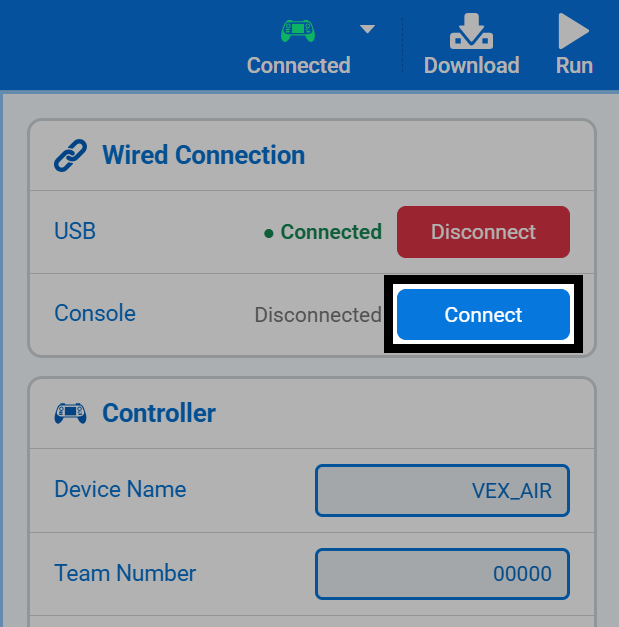
Select Connected in the top-right of VEXcode, then select Connect next to Console under Wired Connection.
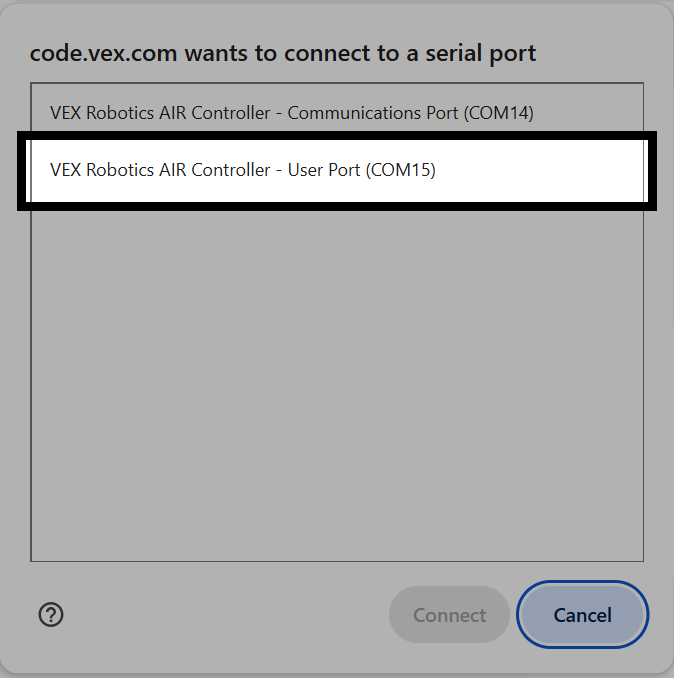
Your browser will ask which serial port to connect to. Select VEX Robotics AIR Controller - User Port.
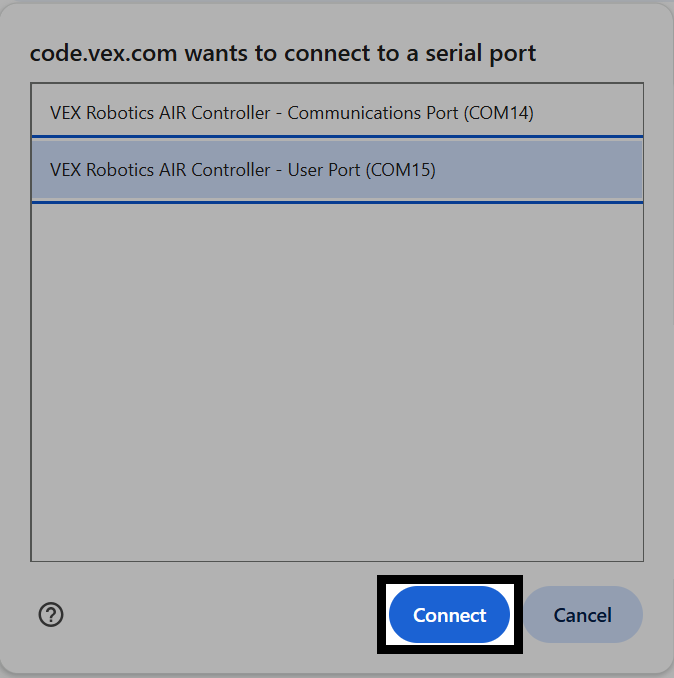
Select Connect.
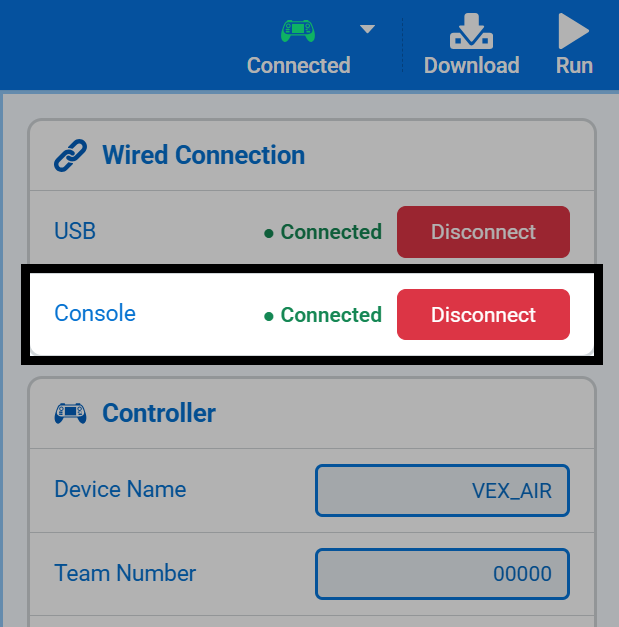
Once connected, Console will show as Connected in the Connect menu.