
Δημιουργία, Άνοιγμα και Αποθήκευση Έργου#
This tutorial walks you through creating, saving, and opening projects in VEXcode AIR. By the end, you’ll have made a new project, saved it to your device, and opened it again.
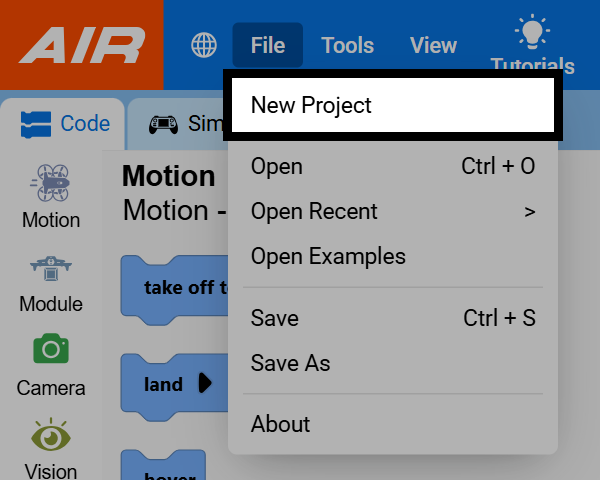
Select File in the top-left of VEXcode.

Select New Project.
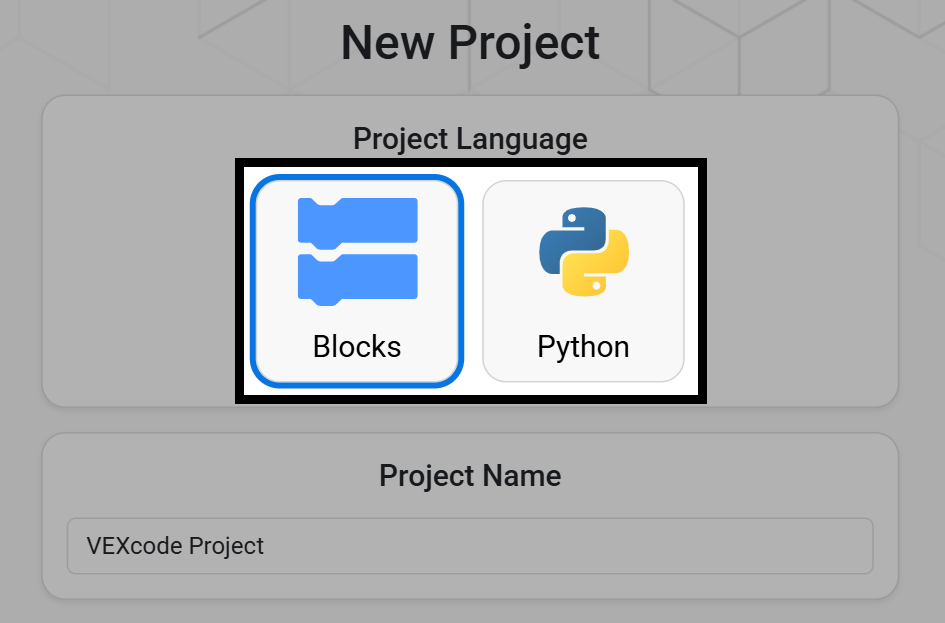
Select Blocks or Python as the language for your project.
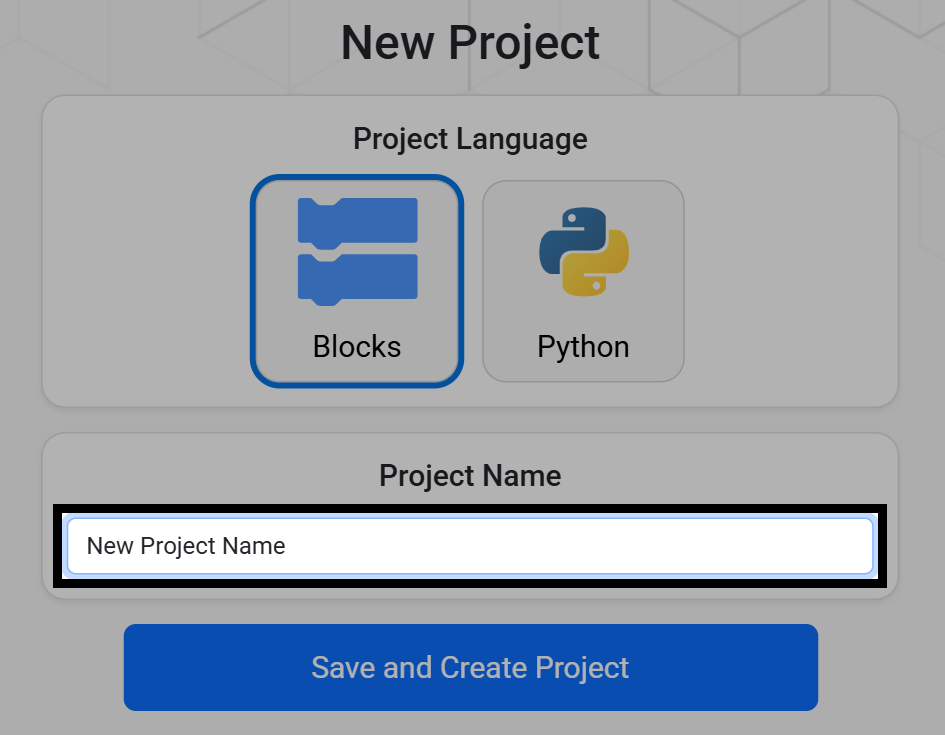
Type a name for your project into the Project Name field.
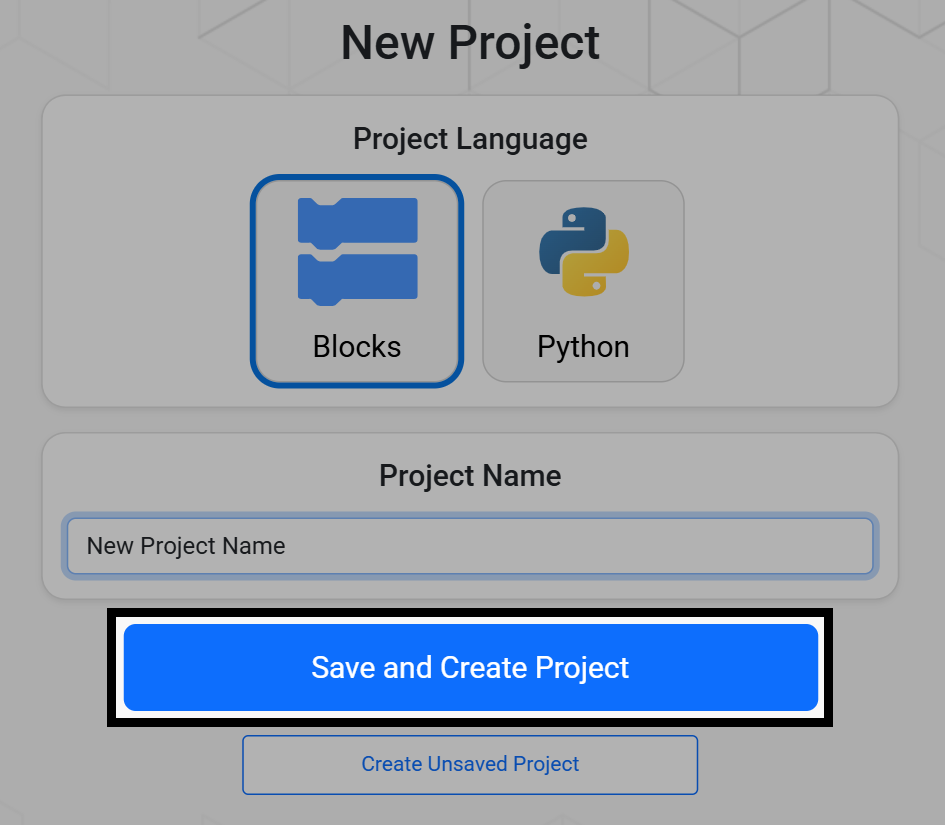
Select Save and Create Project to open the saving dialog for your device.
Select Save. A Windows device is shown here as an example.
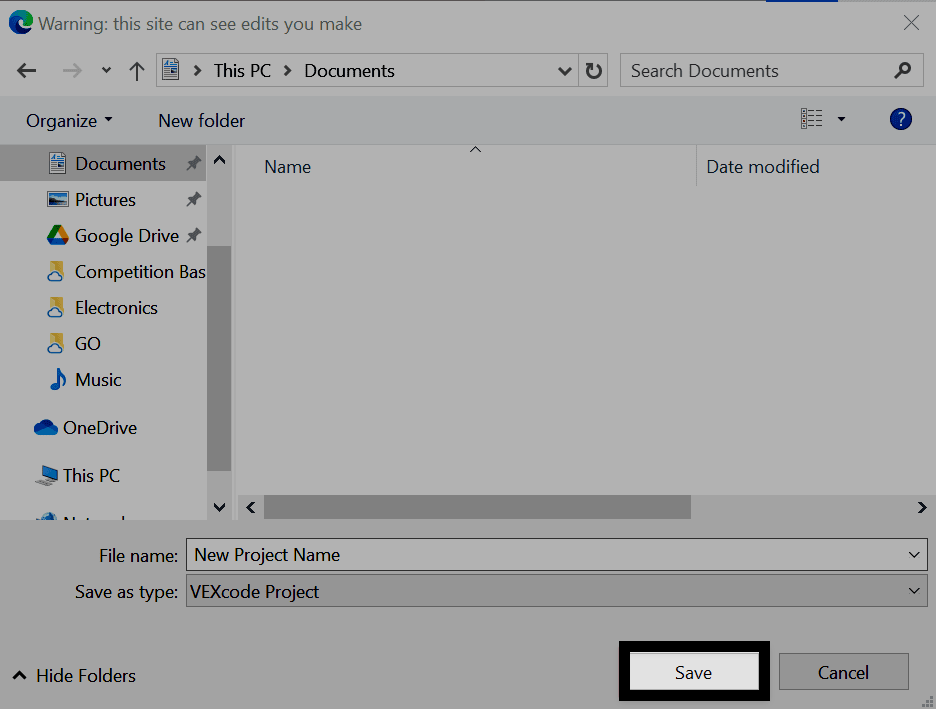
Note: Projects are saved with a .airblocks or .airpython extension, depending on whether it’s a Blocks or Python project.
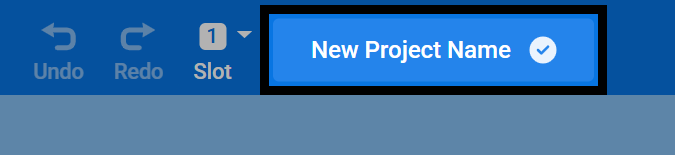
Once the project is saved, its name will appear at the top of VEXcode. VEXcode will also start auto-saving your project as you work.
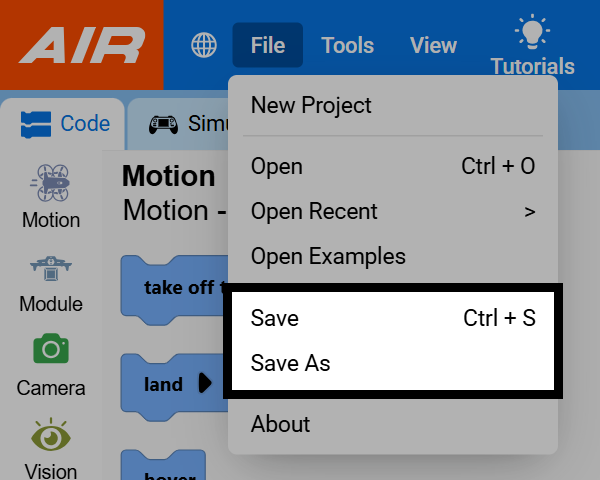
You can also save manually at any time. Select File, then select Save to save the project, or Save As to save it with a new name.
To open a saved project, select File, then select Open.
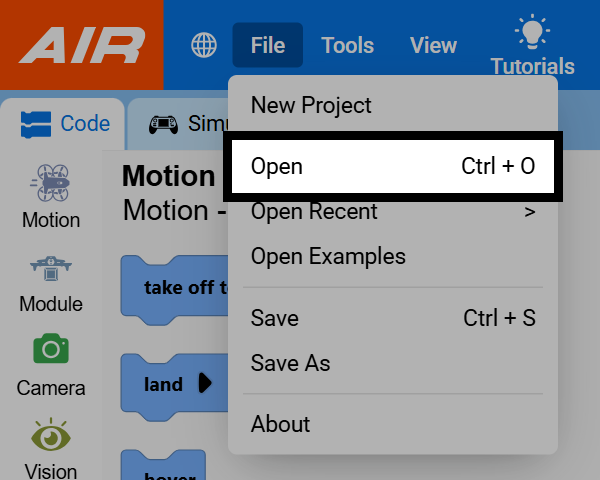
Navigate to and select the project file that you want to open, then select Open.
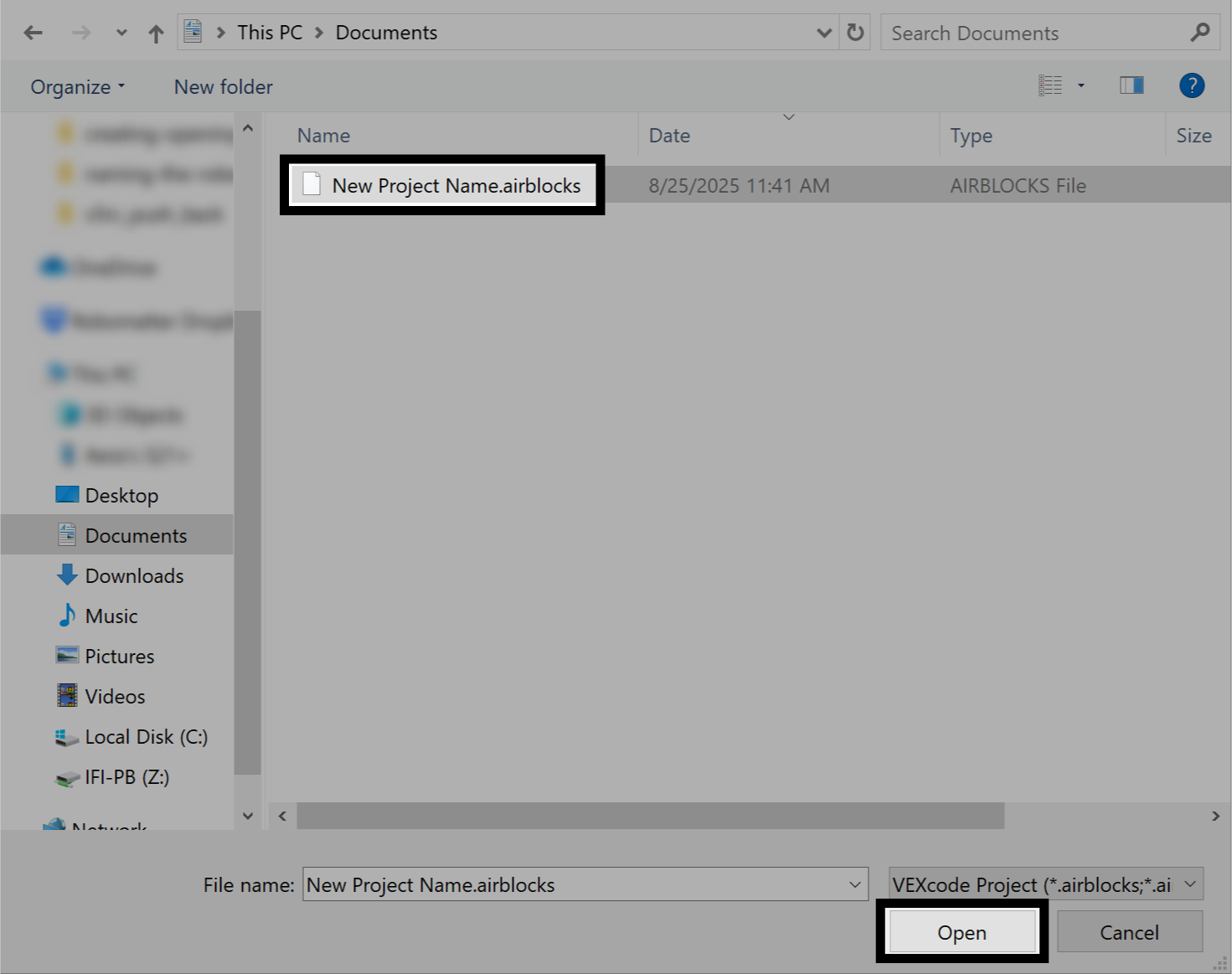
The project will appear in the workspace and its name will show at the top of VEXcode.