Μετονομασία του χειριστηρίου VEX AIR Drone#
Renaming the VEX AIR Drone Controller
This tutorial walks you through naming your VEX AIR Drone Controller and setting its team number in VEXcode AIR. By the end, you’ll have given your controller a new name and team number.
Make sure your controller is connected to VEXcode. The controller icon will turn green and read Connected once it’s connected.
Select Connected in the top-right of VEXcode.

Select the Device Name field in the Controller section.
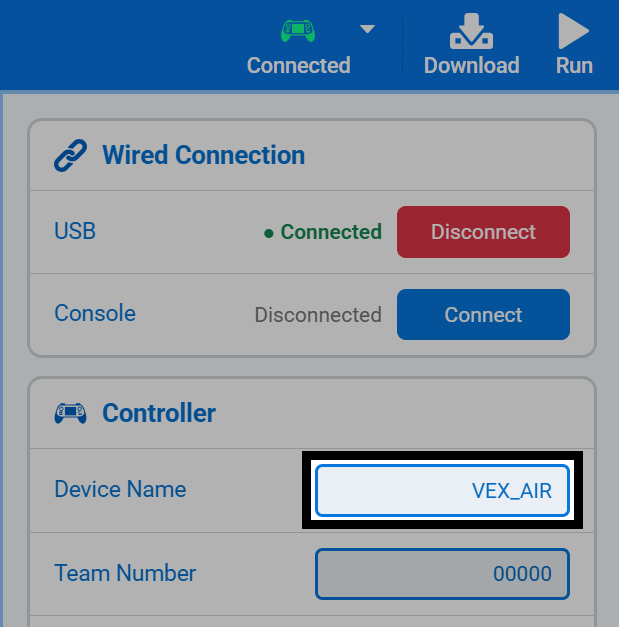
Type a new name for your controller.
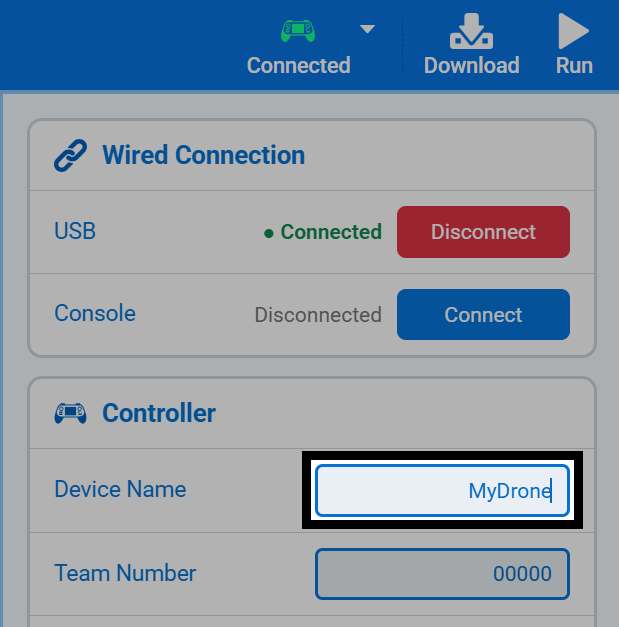
Note: Spaces are not accepted. Use underscores to separate words, up to a maximum of 7 characters.
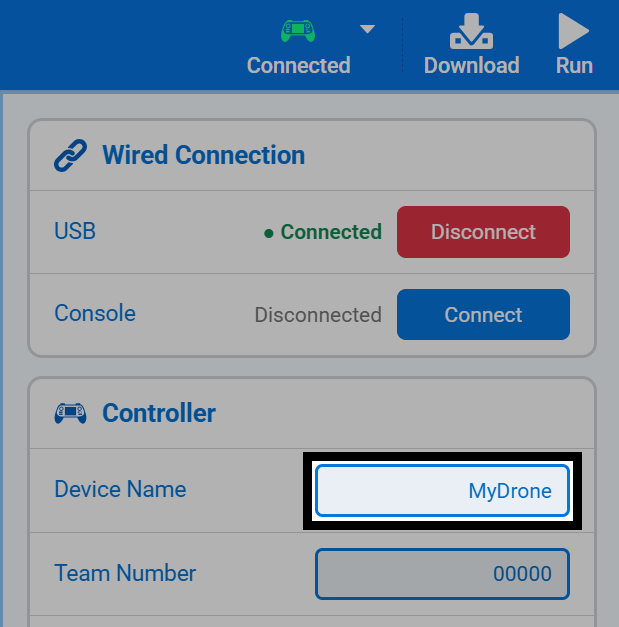
Press Enter on your keyboard to save the new name to the controller.
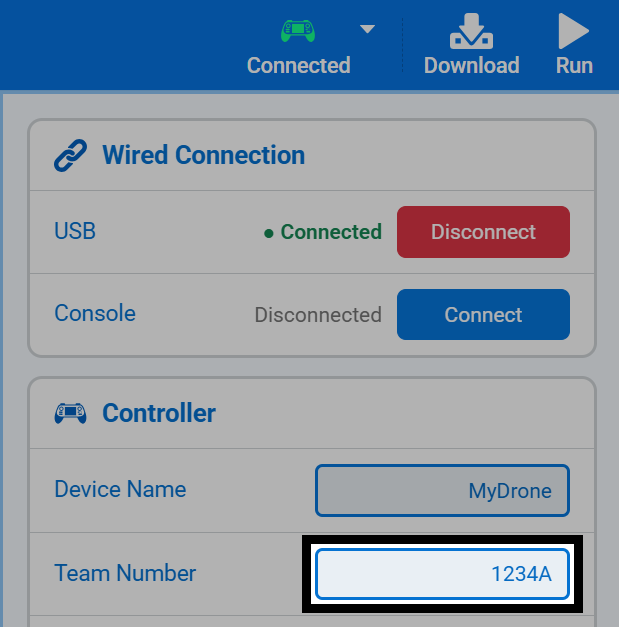
To set a team number, select the Team Number field, type your team number, then press Enter.