
وحدة التحكم#
مقدمة#
يتضمن VEXcode VR علامة تبويب للمراقبة يمكنها عرض مخرجات وحدة التحكم، ومراقبة المتغيرات، ومراقبة قيم المستشعرات أثناء تشغيل المشروع.
يمكن لأساليب وحدة التحكم عرض النصوص والأرقام وقيم المتغيرات. كما يمكنها نقل مؤشر وحدة التحكم إلى سطر جديد، ومسح وحدة التحكم، وتعيين لون النص المطبوع بعد تغيير اللون.
فيما يلي قائمة بجميع الطرق:
طباعة — إخراج النص أو مسح وحدة التحكم.
print— يعرض النص أو الأرقام أو قيم المتغيرات في وحدة التحكم.new_line— ينقل مؤشر وحدة التحكم إلى بداية السطر التالي.set_print_color— يحدد اللون المستخدم للنص المطبوع في وحدة التحكم.clear— يمسح جميع الصفوف في وحدة التحكم.
مراقبة — راقب قيمة المستشعر أو المتغير أثناء المشروع في علامة تبويب المراقبة في VEXcode.
monitor_variable— يضيف متغيرًا واحدًا أو أكثر من المتغيرات المحددة مسبقًا إلى علامة التبويب Monitor.monitor_sensor— يضيف قيمة واحدة أو أكثر من قيم المستشعر إلى علامة التبويب Monitor.
مطبعة#
print#
يعرض الأمر print نصًا أو أرقامًا أو قيمًا متغيرة في وحدة التحكم باستخدام موضع المؤشر الحالي.
استخدم تنسيق السلاسل النصية المخصص عندما تريد أن تتضمن الرسالة المطبوعة قيمًا من مشروعك، مثل النتيجة أو المؤقت أو قراءة المستشعر. راجع صفحة تنسيق السلاسل النصية لمزيد من المعلومات.
استخدم new_line عندما تريد أن تبدأ القيمة المطبوعة التالية في سطر جديد.
Usage:
brain.print(value, precision)
حدود |
وصف |
|---|---|
|
النص أو الرقم أو قيمة المتغير المراد عرضها في وحدة التحكم. |
|
اختياري. عدد المنازل العشرية التي سيتم عرضها عند طباعة رقم. القيمة الافتراضية هي |
def main():
    # Display a message in the Console
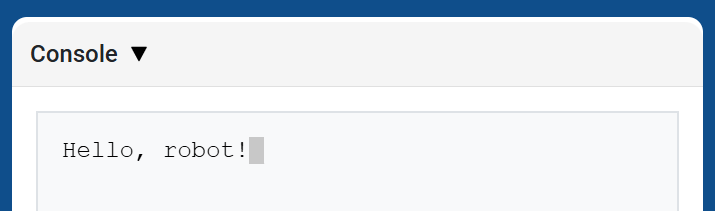
    brain.print("Hello, robot!")

# VR threads — Do not delete
vr_thread(main)
def main():
    # Print a number with 5 decimal places
    brain.print(math.pi, precision=5)

# VR threads — Do not delete
vr_thread(main)
new_line#
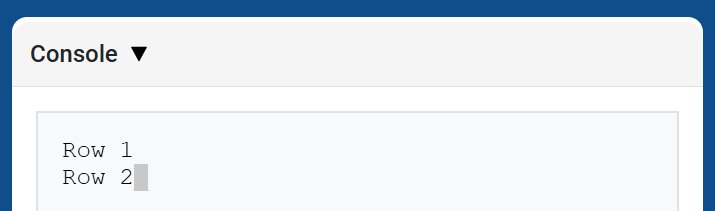
يؤدي الأمر new_line إلى نقل المؤشر إلى العمود 1 في الصف التالي في وحدة التحكم. ستظهر القيمة التالية المطبوعة في ذلك الصف.
استخدم هذه الطريقة عندما تريد أن تبدأ القيمة المطبوعة التالية في صف جديد.
Usage:
brain.new_line()
حدود |
وصف |
|---|---|
لا تحتوي هذه الطريقة على أي معلمات. |
def main():
    # Print on two lines
    brain.print("Row 1")
    brain.new_line()
    brain.print("Row 2")

# VR threads — Do not delete
vr_thread(main)
set_print_color#
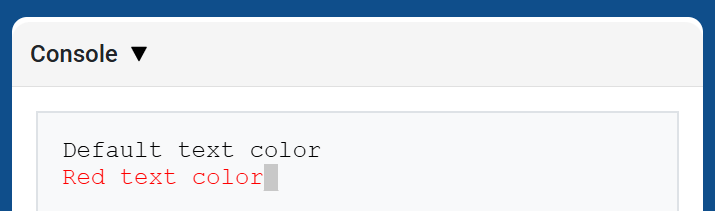
set_print_color sets the color used for text printed in the Console after this method is used. At the start of a project, the Console text color is set to BLACK.
Usage:
brain.set_print_color(color)
حدود |
وصف |
|---|---|
|
اللون المستخدم للنص المطبوع في وحدة التحكم:
|
def main():
    # Print text in different colors
    brain.print("Default text color")
    brain.new_line()
    brain.set_print_color(RED)
    brain.print("Red text color")

# VR threads — Do not delete
vr_thread(main)
clear#
clear يمسح جميع الصفوف من وحدة التحكم.
Usage:
brain.clear()
حدود |
وصف |
|---|---|
لا تحتوي هذه الطريقة على أي معلمات. |
def main():
    # Display text, then clear it after two seconds
    brain.print("This will disappear...")
    wait(2, SECONDS)
    brain.clear()

# VR threads — Do not delete
vr_thread(main)
شاشة#
monitor_variable#
يُضيف الأمر monitor_variable متغيرًا واحدًا أو أكثر من المتغيرات المُعرّفة مسبقًا إلى علامة التبويب “المراقبة” في VEXcode. يتيح لك هذا مراقبة تغير قيمة المتغير أثناء تشغيل المشروع.
Variables must be global for monitor_variable to monitor them successfully. Provide each variable name as a string.
Usage:
monitor_variable(“variable”)
monitor_variable(“variable1”, “variable2”)
حدود |
وصف |
|---|---|
|
اسم متغير عام مُعرَّف مسبقًا للمراقبة، يُعطى كسلسلة نصية. لمراقبة أكثر من متغير، افصل بين أسماء المتغيرات بفاصلة. |
def main():
    # Monitor the amount of loops
    global loops
    monitor_variable("loops")

    # Drive in a square 3 times
    for loops in range(12):
        drivetrain.turn_for(RIGHT, 90, DEGREES)
        drivetrain.drive_for(FORWARD, 150, MM)

# VR threads — Do not delete
vr_thread(main)
actions = 0

def main():
    # Monitor the amount of loops and actions
    global loops, actions
    monitor_variable("loops", "actions")

    # Drive in a square 3 times
    for loops in range(12):
        drivetrain.turn_for(RIGHT, 90, DEGREES)
        drivetrain.drive_for(FORWARD, 150, MM)
        actions = actions + 2

# VR threads — Do not delete
vr_thread(main)
monitor_sensor#
يُضيف الأمر monitor_sensor قيمة مستشعر واحد أو أكثر إلى علامة التبويب “مراقبة” في VEXcode. يتيح لك هذا مراقبة تغير قيم المستشعر أثناء تشغيل المشروع.
إذا كان بإمكان المستشعر إرجاع البيانات بوحدات مختلفة، فستعرض علامة التبويب “المراقبة” البيانات المُرجعة بكل وحدة متاحة. أدخل قيمة كل مستشعر كسلسلة نصية.
Usage:
monitor_sensor(“sensor”)
monitor_sensor(“sensor1”, “sensor2”)
حدود |
وصف |
|---|---|
|
قيمة المستشعر المراد مراقبتها، مُعطاة كسلسلة نصية. لمراقبة أكثر من قيمة مستشعر، افصل بين كل قيمة بفاصلة. يمكن أن تكون هذه القيمة أي دالة مستشعر تُرجع قيمة، مثل |
def main():
    # Monitor the distance in MM and inches
    monitor_sensor("front_distance.get_distance")
    drivetrain.drive_for(FORWARD, 400, MM)

# VR threads — Do not delete
vr_thread(main)
def main():
    # Monitor the rotation in the Monitor tab
    monitor_sensor("drivetrain.rotation", "drivetrain.heading")
    drivetrain.turn_for(RIGHT, 450, DEGREES)

# VR threads — Do not delete
vr_thread(main)