Cómo nombrar y guardar tu proyecto#
Este tutorial te guiará paso a paso para nombrar y guardar un proyecto en VEXcode IQ (2.ª generación). Al finalizar, habrás guardado tu proyecto con un nombre nuevo.
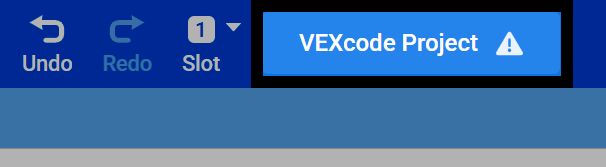
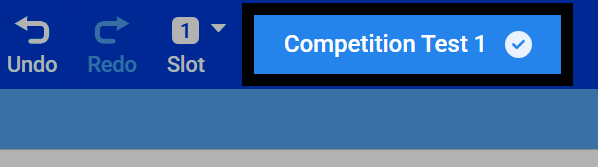
Seleccione el nombre de su proyecto en la parte superior de VEXcode.
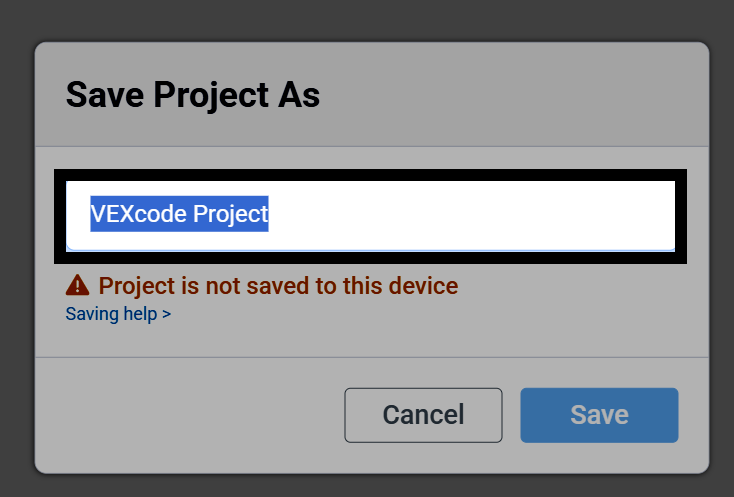
Se abrirá un cuadro de diálogo. Escriba un nuevo nombre para su proyecto.
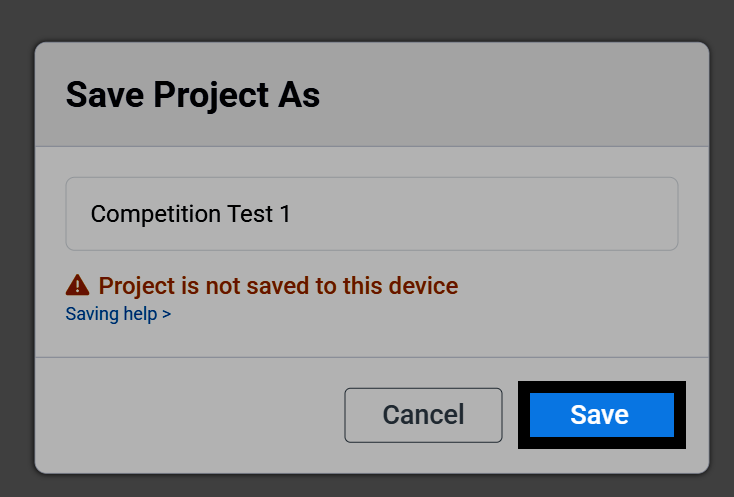
Seleccione Guardar para abrir el cuadro de diálogo de guardado para su dispositivo.
Una vez guardado el proyecto, su nombre aparecerá en la parte superior de VEXcode. VEXcode también comenzará a guardar automáticamente el proyecto mientras trabajas.
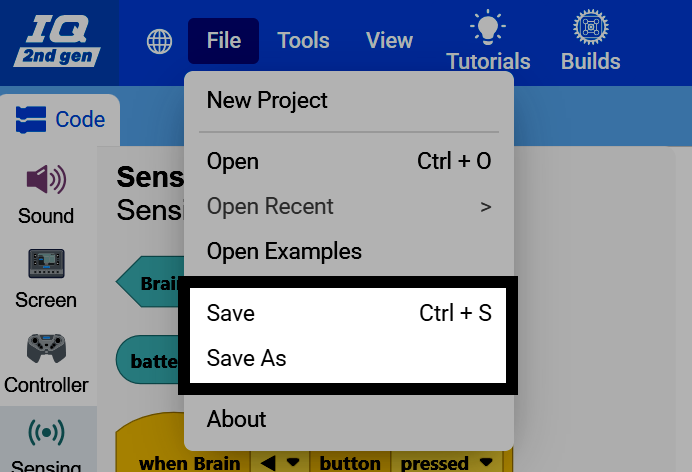
También puedes guardar manualmente en cualquier momento. Selecciona Archivo en la parte superior izquierda de VEXcode.
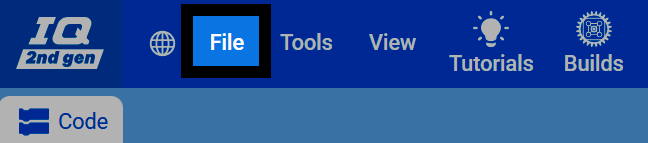
Seleccione Guardar para guardar el proyecto o Guardar como para guardarlo con un nombre nuevo.